
Top 5 AI Motion Graphics Tools in 2026
Top 5 AI Motion Graphics Tools in 2026: A Complete Comparison
Motion graphics used to have exactly one bottleneck: a skilled human with an After Effects license. In 2026, that bottleneck has effectively disappeared. A new generation of AI motion tools can now write, animate, and render a finished video from a plain-language brief — and the quality gap between “AI-generated” and “professionally hand-built” has closed faster than almost anyone predicted twelve months ago.
The harder problem now isn’t whether AI can make good motion graphics. It clearly can. The harder problem is picking the right tool out of a fast-growing field, because “AI motion graphics tool” now covers everything from full agentic video studios to AI features bolted onto decade-old design software, and from consumer-facing template generators to features embedded inside platforms most teams already use.
We put five of the category’s leading products through the same real, hands-on test: describe a video, watch it generate, try to edit it, and see what comes out the other end. This isn’t a ranked countdown with a single winner crowned at the end — the honest answer, based on what we saw, is that the “best” tool depends heavily on who is using it and what they’re trying to produce. What follows is a detailed, evidence-based look at all five, organized so you can match a tool to your actual workflow rather than to a marketing claim.
How We Evaluated These Tools
Rather than judging on marketing copy alone, we scored every product on what actually matters when you sit down to make a video:
How fast you get to a first draft (onboarding and generation controls)
How much control you keep after generation (can you actually edit the output, or are you stuck regenerating from scratch?)
Whether the output is reliable (does it render the same way every time, or is quality a gamble?)
How deep the template library and creative range go
Whether the tool can be driven by more than just a person typing (agent and AI-assistant integration)
That last point deserves a word of explanation, because it’s one of the more interesting new differentiators in this year’s field. A growing share of video production is starting to happen as one step inside a larger automated workflow — a marketing pipeline, a content calendar, a coding agent shipping a feature and generating its own changelog video. Tools that can only be operated by a person clicking through a UI work differently from tools that can be briefed and run by an AI assistant like Claude, Cursor, or ChatGPT directly. Neither approach is objectively “better” in every situation — a hands-on canvas tool is still the right choice for a trained motion designer who wants precise manual control — but it’s a real architectural difference worth understanding before you commit to a workflow.
Evidence for this comparison comes from hands-on use of each interface, each company’s own public materials — homepages, pricing pages, documentation — and independent coverage including funding trackers and user reviews. With that framework in mind, here’s how the five tools compare.
Why This Category Is Changing So Fast
It’s worth pausing on why this comparison looks so different from one you might have read even a year ago. As recently as 2024, “AI video tool” mostly meant a text-to-video generator: type a prompt, wait, get a short rendered clip you could accept or throw away, with essentially no way to make a targeted edit without starting over. That model is still useful for certain kinds of short, disposable content, but it breaks down quickly for any team that needs consistent branding, repeatable output, or the ability to make a small fix without regenerating an entire video from scratch.
The five tools in this comparison represent a shift away from that one-shot model in different ways and to different degrees. Kinetiq, Motion.so, and, more narrowly, Hera all generate output as a structured, editable object — closer to a document or a codebase than a locked video file — rather than a rendered clip. Jitter and Figma Motion approach the same underlying goal from the opposite direction: they started as manual, canvas-based tools built for professional designers, and have layered generative AI on top of an already mature editing surface. Both paths lead toward the same destination — video that stays editable after it’s created — but they imply very different learning curves, pricing models, and ideal users, which is why a single “best tool” ranking tends to obscure more than it reveals.
There’s also a second, newer axis reshaping the category: whether a tool can be operated by something other than a human clicking through a UI. As marketing, product, and engineering teams increasingly run parts of their workflow through AI assistants and coding agents, some video tools are starting to expose themselves as one more capability those agents can call directly — briefing, generating, and iterating on a video without a person operating the interface step by step. Kinetiq and Motion.so are furthest along this path among the tools reviewed here; Jitter, Figma Motion, and Hera remain, for now, tools that a person operates directly, whether through a canvas, a design file, or a prompt box.
1. Kinetiq — Agentic, Brand-Governed Video Production
Pricing snapshot: A desktop app at $1,000 per installation, with models run on owned API keys at roughly $2–$5 per minute of rendered video; SaaS entry at $49/month for up to 20 videos; a higher SaaS tier at $199/month for up to 100 videos; and an MCP/API tier starting at $1,000/year with a minimum annual commitment, then metered billing.
Best for: marketers, agencies, and product teams building automated or agent-driven video workflows who need output to stay strictly on-brand across many variants.
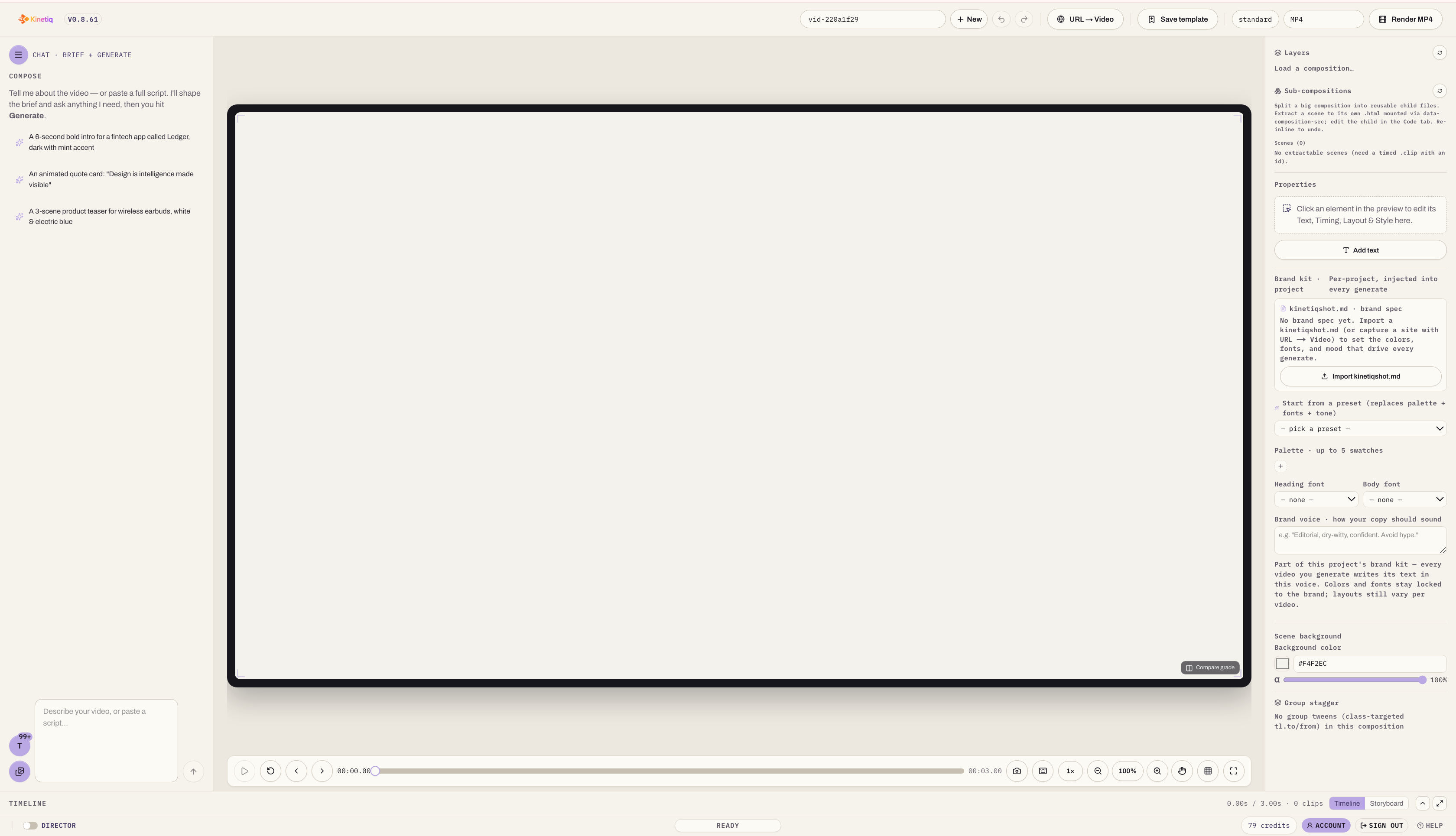
Kinetiq is built as a browser-based, four-surface studio — chat, canvas, layers and properties, and a timeline — designed around the idea that a finished video should remain a structured, editable composition rather than a locked clip.
Onboarding
Chat-first. Three example prompts are visible on first load, and a usable first draft can be produced with no separate tutorial, no software installation, and no timeline-scrubbing skills required.
Generation Controls
A written brief is paired with a persistent brand-kit file that can be captured directly from a URL — palette, fonts, and tone — then applied automatically to every future generation inside a project. For teams generating video at volume, this removes the need to re-explain a brand identity in every single prompt.
Editing After Generation
This is where Kinetiq differentiates itself most clearly from the rest of the field. Every video is built as a real, structured composition, editable four different ways that all stay in sync on the same file: chat instructions (“make the headline bigger”), direct canvas manipulation (drag, resize, rotate), a full properties inspector, and the raw underlying HTML code for anyone who wants it. Most AI video tools give you one or two of these editing surfaces; Kinetiq is one of the only tools in this comparison offering all four on a single, synced file.
Templates and Assets
135 searchable, studio-designed templates organized under “studio picks,” plus the ability to save a generation as a reusable template or parametrize it with variables (title, price, theme) to generate on-brand variants from one source. A separate Assets panel includes a searchable Lottie vector-animation library of more than 55 motifs.
Sound
A dedicated Narrate panel converts a written script into synced voiceover and captions, and a Music panel sources background music and sound effects with automatic ducking under narration — both handled as discrete, purpose-built steps rather than a single bundled “add audio” button.
Reliability
Kinetiq describes deterministic rendering as an architectural principle: a saved composition renders to the same frames every time. It also runs a described automated quality pass — structural validation and auto-repair — before output is shown.
Agent Integration
Kinetiq names direct integrations with Claude, Cursor, ChatGPT, Perplexity, and any MCP-capable agent, backed by its own MCP server and API tier. In practice, that means a coding agent or an internal automation can brief, generate, and render a video with no person operating the studio UI directly, with a human reviewing the finished result instead. Kinetiq also describes a governance layer — a hard provider allowlist and per-video cost metering — intended to let an agent be trusted to operate within a fixed budget.
2. Motion.so — Agent-Forward, Research-Driven Scene Planning
Best for: technically minded teams that want a comparably agent-forward tool and prioritize a documented “research and plan before render” workflow.
Pricing snapshot: Not published on the public site. Access currently runs through either a demo booking or direct signup, a higher-friction on-ramp than the other four tools in this comparison, all of which offer some form of immediate self-serve use.
Onboarding
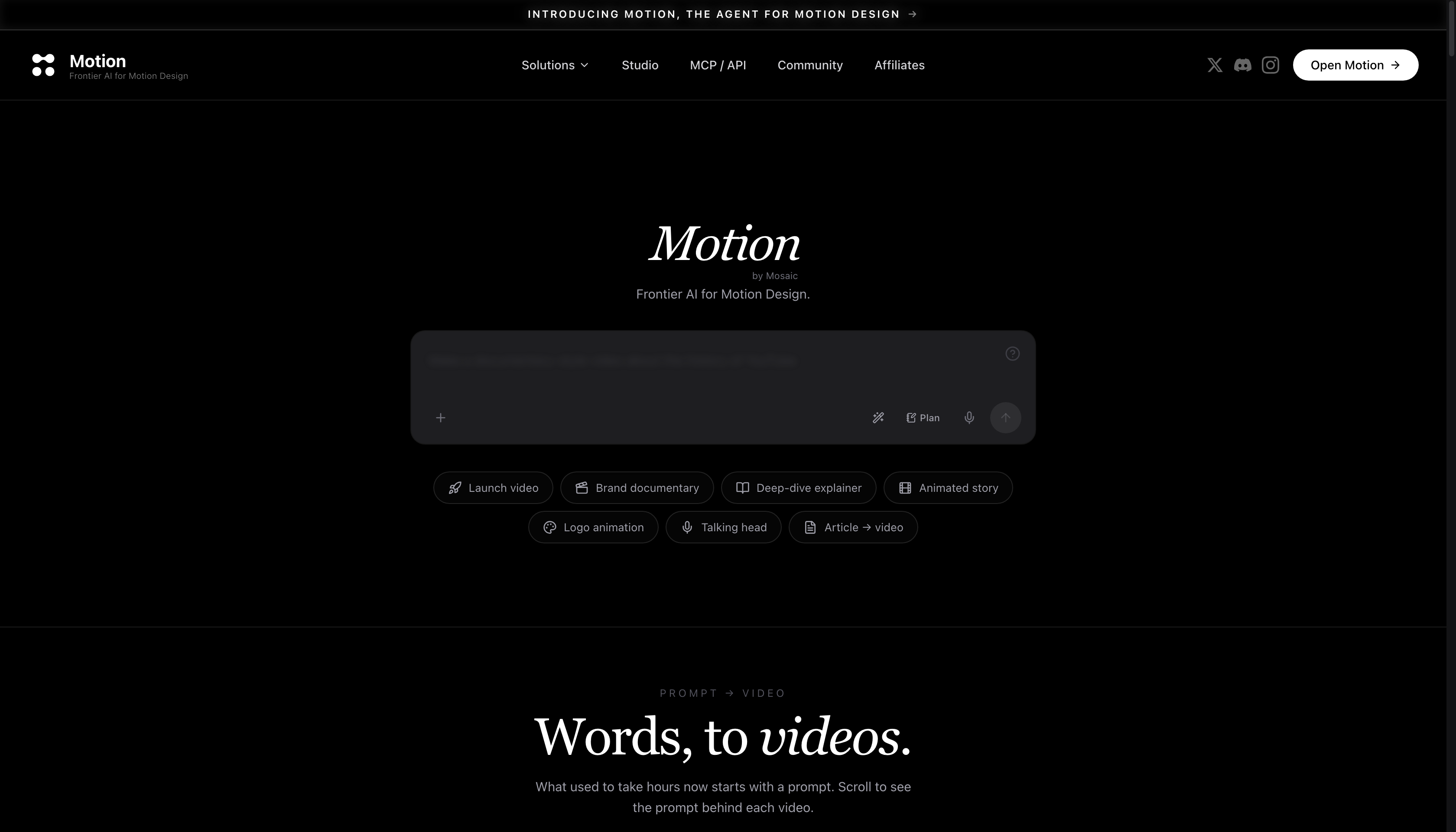
A single large prompt box under a dark, editorial interface, with quick-start pills — launch video, logo animation, talking head — for anyone unsure what to type.
Generation Controls
Motion.so walks through five named steps: prompt, research, plan, build, and edit. In the research step, it reads the target company’s website for brand palette, typography, and reference videos. In the plan step, it storyboards scene by scene with named beats and timestamps before any rendering happens — visible directly in the working session as a written plan building out in the chat pane alongside scene thumbnails.
Editing After Generation
Resize, drag-and-drop, hand-edit, or chat to iterate, without needing to regenerate a whole scene from scratch. A visible per-scene timeline supports targeted rebuilds, and Motion.so’s own materials make an explicit reliability claim of “no hallucinated artefacts.”
Templates
A lighter “customize a template” section beneath the main prompt, with named quick-start categories functioning as starting points rather than a large browsable gallery — a narrower template library than Kinetiq, Jitter, or Hera.
Agent Integration
Motion.so is the most aggressively agent-forward tool in this comparison in terms of public messaging. Its homepage puts MCP and API access in the top navigation itself, names Claude, Cursor, ChatGPT, and Perplexity directly as integration partners, and even includes buttons that open a third-party AI assistant with a pre-written prompt asking it to evaluate the product. This is the same breadth of named assistant integration Kinetiq offers.
Trade-offs
No equivalent, explicitly described cost-governance mechanism for agent-driven spend was found in Motion’s public materials, and it doesn’t offer a raw code-level editing surface the way Kinetiq or, more narrowly, Hera do. Pricing is not published on the public site; access runs through a demo booking or direct signup, a higher-friction on-ramp than the other four tools in this list, all of which allow immediate self-serve use.
3. Jitter — Maximum Manual Control for Professional Motion Designers
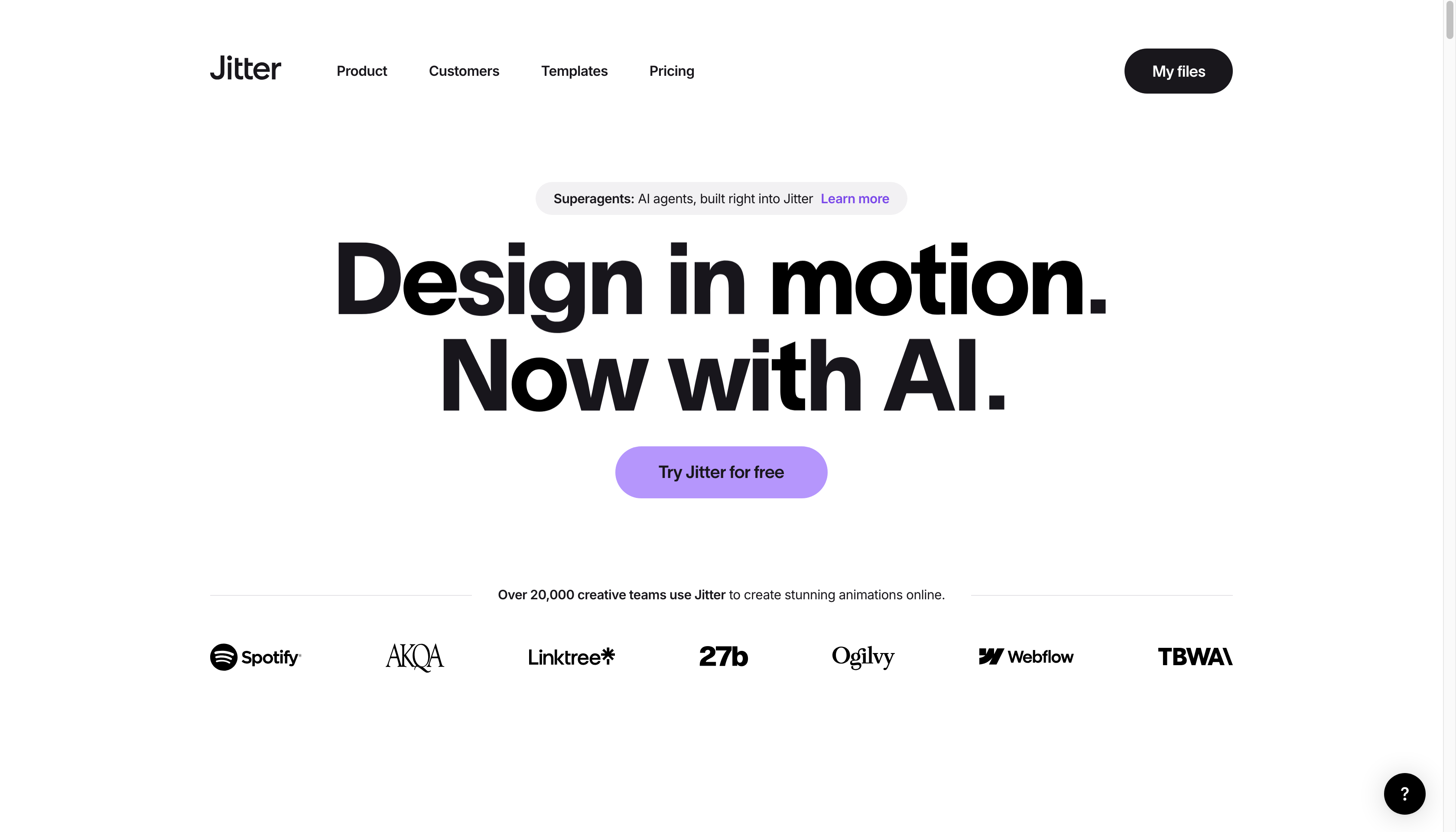
Best for: professional motion designers and design teams who want AI assistance without giving up granular, keyframe-level control.
Pricing snapshot: Free (3 workspace files, 720p 30fps export, limited AI credits); Pro (unlimited files, 1080p 60fps, ProRes/WebM export, standard AI credits); Max (4K 120fps export, transparent and frame-by-frame export, 2x Pro AI credits, marked “most popular”); Ultra (3x Max AI credits, priority AI processing); and a custom Enterprise tier with SSO, SCIM, and a dedicated account manager.
Interface
The most visually dense and professional interface in this comparison, closely resembling a tool like Figma: a full layers panel, a properties inspector, a complete keyframe timeline, and a floating AI prompt bar that activates contextually on a selected element.
Generation Controls
Generation is contextual and granular — invoked on a specific selected element, or through Magic Import, which uses AI to create many versions of a template with different copy or assets without manual duplication. This is a fundamentally different model from a single brief driving an entire composition.
Editing After Generation
The strongest raw manual control of any tool in this comparison: full keyframe access, easing curves, a pen tool, and vector-level editing, since the product was built for hands-on motion designers first. If you’re a trained designer who wants AI as an assist rather than a driver, this is likely your strongest option here.
Templates
More than 400 free templates by the company’s own account, organized into dedicated category landing pages — one of the largest libraries in this comparison.
Agent Integration
None found. Jitter’s AI features are invoked by a person from within the canvas, not by an external assistant operating the product — consistent with its identity as a precise, manual, mouse-and-keyboard-driven canvas tool.
Trade-offs
Jitter has the steepest onboarding curve of the tools in this comparison; a full canvas, layers panel, and timeline are visible immediately, closer to opening a professional design tool than a guided assistant. It also isn’t built to generate a full multi-scene composition from a single written brief the way Kinetiq or Motion.so are.
4. Figma Motion — Native Motion for Existing Figma Design Systems
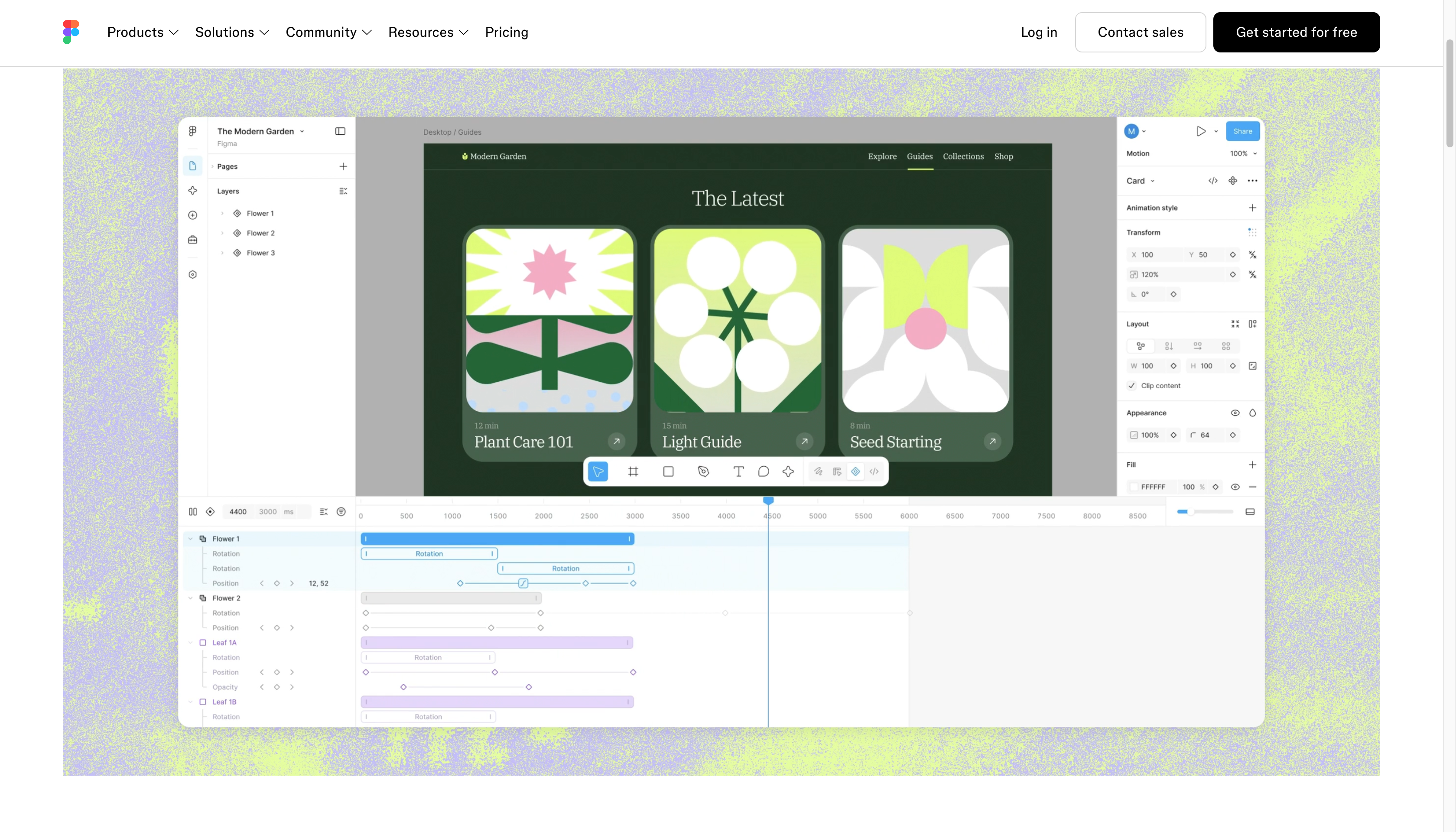
Best for: design teams with an existing Figma design system who want motion to live natively alongside their components rather than in a separate tool.
Pricing snapshot: Available in open beta on all Figma plans, including free, though publishing animated components, generating with the Figma agent, and high-resolution export all require a paid Full seat. Long-term pricing beyond the beta period has not yet been announced and will likely be bundled into Figma’s existing plan structure.
Onboarding
Really re-onboarding: it assumes existing Figma fluency and simply adds a new mode to a canvas users already know, rather than a guided first-use flow of its own.
Generation Controls
A natural-language description of desired motion is applied to an already-existing static design — a motion instruction layered onto a fixed visual, not a full scene brief written from scratch. New animations start at a documented default duration of 2,000 milliseconds, with preset styles including fade, rotate, scale, and resize that can be stacked.
Editing After Generation
Full keyframe control alongside the AI-generated first pass, with autokey tracking of manual adjustments. Because motion lives on a real design component, a single edit can propagate automatically everywhere that component is used across a design system — a genuinely unique advantage tied to Figma’s existing component architecture. Export covers MP4, WebM, animated SVG, or GIF for stakeholders, or CSS, JSON, and framework-ready React for engineers via Dev Mode.
Templates
Not template-driven in the traditional sense, since motion is built onto existing components and design systems a team already owns rather than pulled from a general-purpose gallery.
Agent Integration
Real but narrower in scope than Kinetiq’s or Motion.so’s. Figma Motion is MCP-compatible through Figma’s existing Dev Mode MCP server, letting coding agents such as Claude Code and Cursor receive structured animation timing and easing data for implementation. This is a genuinely useful handoff to a downstream coding agent, but it is a different capability from letting an outside assistant brief, generate, or operate the tool itself the way Kinetiq or Motion.so are built to allow.
Trade-offs
It isn’t a general-purpose video generator — it’s a motion layer built for teams already working inside Figma’s design-system ecosystem, and it isn’t designed to produce a full multi-scene, brand-aware video from a written brief the way a dedicated agentic video tool is. Pricing and access are also tiered even within the open beta: publishing animated components, generating with the Figma agent, and high-resolution export all require a paid seat, with long-term pricing beyond the beta not yet announced.
5. Hera — Fast, Code-Based Short-Form Clips
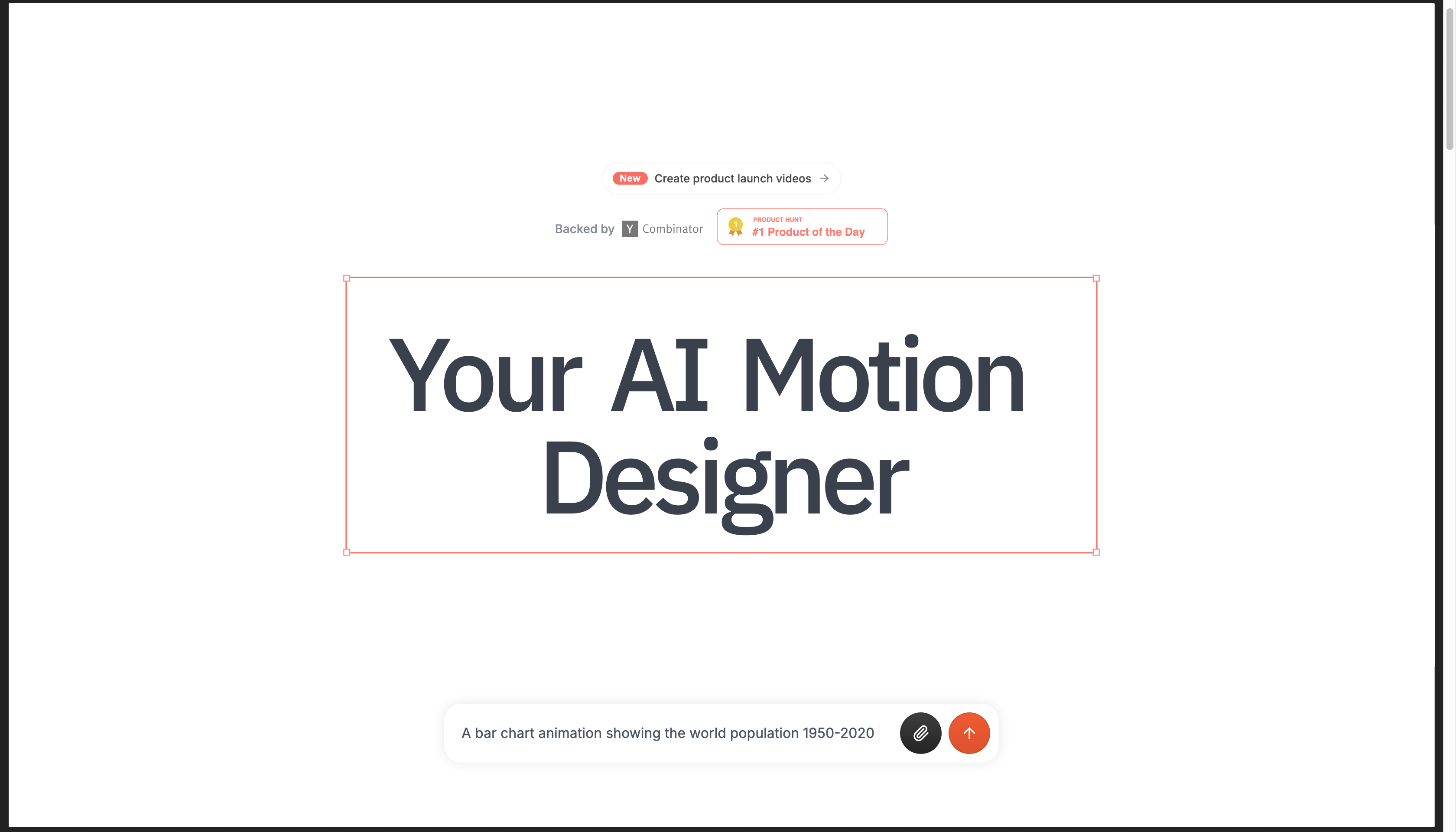
Best for: creators and social teams who need quick infographics, logo reveals, or chart animations without a steep learning curve or a large budget.
Pricing snapshot: Free tier with limited daily generations; Standard at roughly $12–$16/month billed annually (about 200 video generations and 50 images a month, exports up to 1080p); Pro/Mega at roughly $60/month billed annually (unlimited generations, no watermark, 4K exports, transparent background); and a custom Enterprise tier with brand-kit upload and API access.
Onboarding
A prompt box comes with a default 15-second, 16:9 composition already selected, minimizing the decisions required before a first generation — the lowest-friction start of any tool reviewed here.
Generation Controls
A prompt plus explicit, first-class format and duration controls: aspect ratio and length are visible controls rather than settings buried in a menu. Hera’s public API documentation is notably concrete, with a documented duration_seconds range of 1 to 60 seconds, explicit fps, resolution, and aspect_ratio fields, a brand_kit_id parameter, and a parent_video_id field enabling a lightweight versioning mechanism at the API level.
Editing After Generation
Code-based, element-level editing that keeps output individually editable after generation — a real, if narrower, echo of the “video as code” approach used more extensively by Kinetiq.
Rendering Speed
Independent testing reports preview generation in roughly 5 to 10 seconds for moderately complex prompts — the fastest turnaround of any tool in this comparison, with simple color and timing adjustments reflecting almost instantly.
Templates
Described as hundreds of remixable templates, with particular strength in infographics, logo reveals, and chart or map animations.
Agent Integration
A documented REST API exists, but no named assistant integrations or MCP server were found, positioning Hera’s API as a build-your-own integration rather than a plug-in to an existing agent.
Trade-offs
Hera is explicitly built for short-form output — the default composition caps at 15 seconds, and independent reviews consistently note it isn’t designed for multi-scene, narrative-length composition. One review recommended switching to a tool like Jitter specifically when a project needs more manual, on-canvas control.
Quick Comparison: Top 5 AI Motion Graphics Tools in 2026
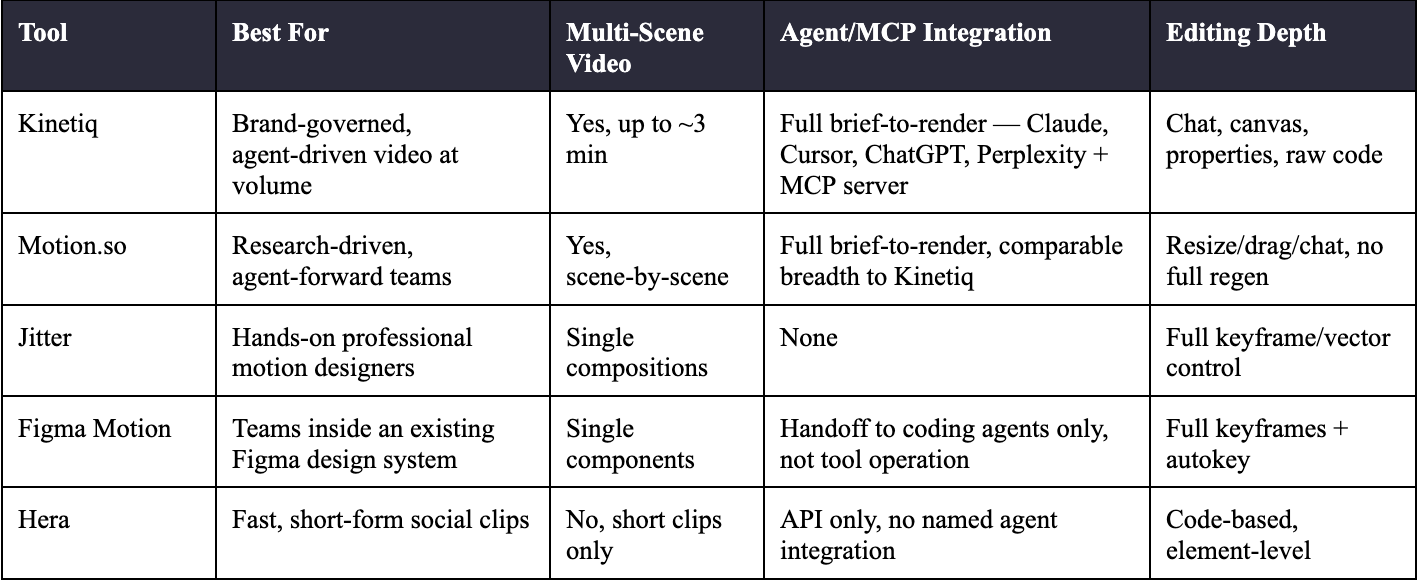
How to Choose the Right Tool for Your Team
Rather than a single overall winner, the more useful takeaway from this comparison is that these five tools are optimized for meaningfully different workflows — and the right choice depends on which of the following best describes your situation.
You need to produce a high volume of on-brand video with minimal manual oversight
Kinetiq and Motion.so are the two tools in this comparison built specifically for agent-driven, brief-to-render workflows, with the widest named AI-assistant integrations of the group. Kinetiq additionally offers a described spend-governance layer and a raw code-editing surface; Motion.so counters with a distinctly documented research-and-plan step and an explicit no-hallucination reliability claim. Teams choosing between the two should weigh whether cost governance and code-level access (Kinetiq) or transparent scene-by-scene planning (Motion.so) matters more for their specific rollout.
You're a trained motion designer who wants precision, not automation
Jitter offers the deepest manual, keyframe-level control of any tool in this comparison, at the cost of the steepest learning curve and no agent integration. If your team already has design skill and simply wants AI as an occasional assist rather than the primary driver, Jitter is built for that workflow specifically.
You already have a mature Figma design system
Figma Motion is the only tool here where an animation you build once automatically propagates across every instance of a component in your design system — a genuinely distinct advantage for product and UI teams, though it isn’t built to generate a full brand-aware video from a written brief the way a dedicated video tool is.
You need something fast, cheap, and short-form
Hera has the lowest-friction onboarding and the fastest rendering speed of any tool reviewed, with real code-based editability, making it a strong fit for creators and social teams producing frequent, short, template-adjacent content — as long as multi-scene, narrative-length video isn’t a requirement.
Frequently Asked Questions
What is the best AI motion graphics tool in 2026?
There isn’t a single best tool for every use case. Kinetiq and Motion.so are the strongest options for agent-driven, brand-governed video production at scale; Jitter is the strongest option for hands-on professional motion designers; Figma Motion is the strongest option for teams with an existing Figma design system; and Hera is the strongest option for fast, low-cost, short-form social clips.
Which AI video tool works with Claude and ChatGPT?
Kinetiq and Motion.so both name direct integrations with Claude, Cursor, ChatGPT, Perplexity, and any MCP-capable agent, each backed by a dedicated MCP server and API tier. Figma Motion offers a related but different capability — its Dev Mode MCP server hands off finished animation data to a coding agent for implementation, rather than letting an assistant brief or operate the tool directly. Jitter and Hera do not currently name AI-assistant integrations.
What's the best alternative to After Effects for AI video?
It depends on how much manual control you want to retain. Jitter is the closest in spirit to a traditional motion-design tool, offering full keyframe, easing, and vector-level control with AI layered on top. Kinetiq and Motion.so replace most manual keyframing with a brief-to-render agentic workflow, which suits teams prioritizing speed and volume over hands-on craft.
Which tool is best for agencies producing a high volume of marketing video?
Kinetiq and Motion.so are both built around producing many on-brand variants efficiently, with brand-kit capture and scene-by-scene generation. Hera is also a strong fit for agencies producing high volumes of short-form social content specifically, given its fast rendering and low per-generation friction.
Do any of these tools support multi-scene, narrative-length video?
Kinetiq and Motion.so both support multi-scene, narrative-length compositions, with Kinetiq’s materials describing support for videos up to roughly three minutes. Jitter, Figma Motion, and Hera are generally scoped to single compositions, single components, or short-form clips.
Is there a free way to try any of these tools?
Hera and Jitter both offer self-serve free tiers. Figma Motion is available in open beta on all Figma plans, including free, though generating animation with the Figma agent and high-resolution export require a paid seat. Kinetiq offers tiered paid plans starting at its SaaS entry level; Motion.so’s pricing is not published and access currently runs through demo booking or direct signup.
Call to Action
Ready to transform your video production workflow?
Explore Kinetiq AI Motion Design Studio to discover how AI-powered editing, automated branding, enterprise governance, and collaborative workflows can help your team create professional motion graphics faster and more efficiently.