
How to Run Outbound Campaigns With AI Agents
To run an outbound campaign with AI agents, set what the agent may do alone, save the audience as a campaign, cap how many profiles each run takes, and have every run report what it found. Let the agents research and draft unattended, read the copy against what you know, and keep a person on the send, with an opt-out check as each email leaves. On Nagent, NORA, the Sales team lead who runs the sales motion, runs the campaign, and every send waits for a person.
What should an AI outbound campaign do on its own?
Split the campaign at the one step that cannot be undone. Everything before the send can run without you: finding companies, scoring them, researching the fits, drafting first-touch email. The send reaches a stranger's inbox and cannot be recalled, so a person approves it.
That split decides how you set the campaign up:
Unattended: searching, scoring, research and drafting, inside a weekly account limit and a research cap.
Reviewed: every draft, read against the research before it is approved.
Approved: every send, and every follow-up.
Always checked: the opt-out list, at the moment of sending.
A campaign built this way can run for weeks without anyone worrying about what it sent overnight, because it sent nothing a person did not release.
Where does NORA sit in the team?
Nagent builds departments like a team you would hire: an AI chief of staff who owns the outcome, team leads who run their part, and sub-agents who do the specialist work. NORA is a team lead in Sales (the full model is on The Team):
SERA, AI Sales Chief of Staff. Owns qualified meetings and routes sales work to its owner.
NORA, team lead, runs the sales motion. Beta. Runs campaigns, research, drafting and the handoff of a booked meeting to a named person.
Sub-agents, where your workspace holds the lead-generation module: Researcher, Signal scout, Copywriter and Sequencer. The Sequencer owns cadence, timing and replies, and every send it makes is approval-gated.
VANI (Beta), a shared writer, drafts NORA's first-touch, follow-up and breakup emails.
DEXA, deal execution. Coming soon.
RIVA, revenue operations. Coming soon.
A request moves down the line and back up. You ask in the Sales room; SERA hands campaign work to NORA; NORA puts the tasks on the board and briefs the sub-agents; each hands its part back to NORA, never sideways; NORA brings back one answer with anything that needs a person waiting for a decision. Each hop is checked against the receiving agent's budget, and a message travels at most three hops. If the campaign needs something from another department, such as a one-pager from Content, that is a written handoff to that room's lead.
How do you build an outbound campaign with NORA, step by step?
Before you start
A campaign finds nothing useful until NORA has something to aim at and something to say. Check two things:
An active customer profile, on the Knowledge Hub's ICP tab. Without one, discovery has nothing to score against. See who you sell to.
Knowledge to write from. Under NORA's Settings, Knowledge holds "the files NORA grounds its research and writing in", on four shelves. An empty shelf means a draft cannot point to anything on it.
Step 1. Decide what NORA may do alone
Open NORA, then Settings: "Everything NORA works from."
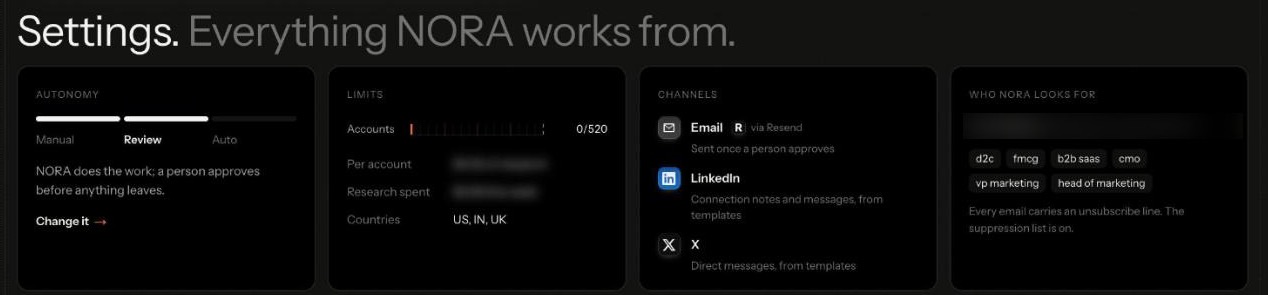
Autonomy. Manual, Review or Auto. Leave it on Review: "NORA does the work; a person approves before anything leaves." Even on Auto, NORA runs inside its limits and sending still waits for a person.
Limits. The accounts NORA may take on this week, a research cap per account and the countries to search. These caps bound every campaign run.
Channels. Email goes out via Resend, "sent once a person approves". LinkedIn connection notes and messages, and X direct messages, come from your templates, and a person sends them.
Who NORA looks for. The traits read from your profile, and the compliance line: "Every email carries an unsubscribe line. The suppression list is on."
Change it opens the controls behind these cards.
Step 2. Test the audience before you save it
Do not schedule anything yet. First see one small batch of work.
Once Sales is set up, NORA's first job is to find up to ten leads that match your buyers, research the best one and have VANI draft the first email to it. It reports in the Sales room's inbox as First leads and a first email.
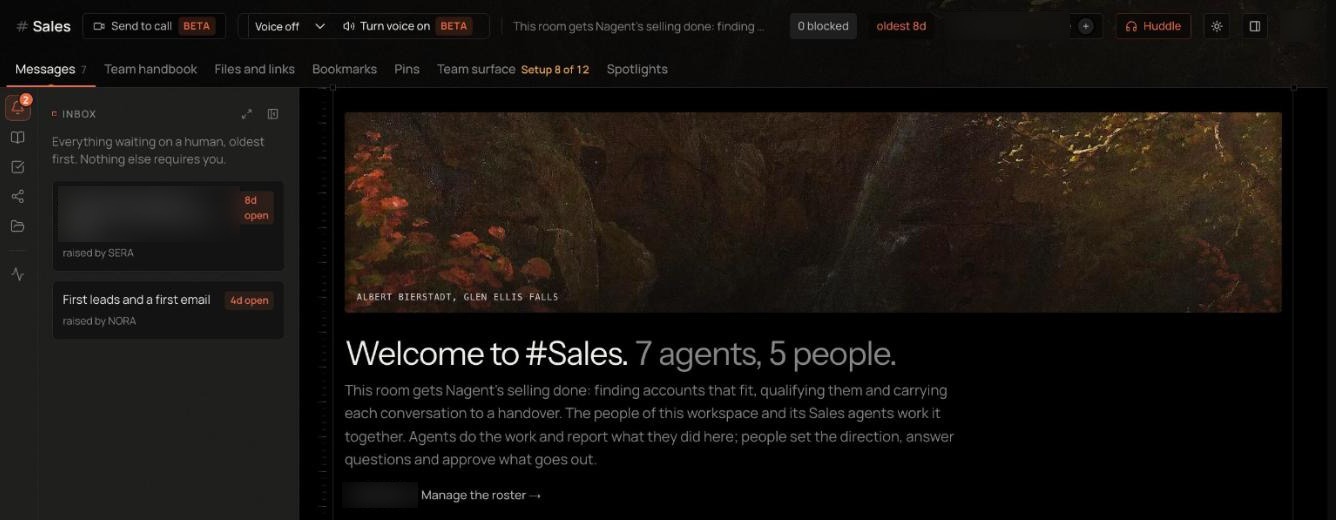
The card's action is Approve the draft, and its note is plain: approving sends nothing. The email goes only when you choose to send it.
To test a different audience, open Prospects, then Find with NORA, type the audience in the ask and press Run discovery:
Find B2B software companies in India with 200 to 2,000 staff whose marketing teams are hiring for AI roles.
Every run states its cost before it starts. A run whose forecast crosses the weekly spend cap does not start until somebody approves the overage. Read the companies that come back on Prospects, Companies. When they are the kind you would call, save the audience.
Step 3. Save the audience as a campaign
Open Prospects, then Campaigns: "Saved searches that keep the book full, on a schedule or when you run them." Each campaign row shows its status (Draft, Running, Paused or Completed), what it found and added, and its last run, with a Run button.
There are two ways to make one:
From a suggestion. Under NORA suggests, audiences built from your ideal customer profiles each carry Save as a campaign. Nothing exists until you press it.
From scratch. Press New campaign. Under Describe your campaign, write the audience in a sentence and press Fill the form, then check the fields. Give it a name that says who and where. Under ICP filters, set Industries, Geographies, Job functions / titles and Company size; leave Company domains empty unless you have a fixed account list. Set Max profiles, choose an Auto-enroll sequence or leave it on import only, and press Create campaign.
Step 4. Set how and when it runs
On the campaign's own page:
Execution settings. Set Max profiles per run and Max pages to scan. To compare two sequences, choose a second one and a Split (% to A).
Reveal email + phone. Tick it only if you want contact details for every profile; each reveal spends credits.
Schedule. Tick Enable scheduled runs and pick a preset such as Mon 9am, or type your own. Times are in UTC.
Report to. Pick a team room, usually Sales, and each run posts what it did there in the name of that room's lead. Left on Nowhere, the page warns that the run "will do the work and tell no one".
Press Run now to start at once. Start small: a few profiles per run is easier to review than a full list.
Step 5. Read what each run found
The campaign page counts Profiles searched, Leads imported, Enrolled and Total runs, and keeps a run history. Open a run to see every profile it handled, filtered by Imported, Duplicates, No email and Failed.
The companies NORA found land on Prospects, Companies, each with its fit score, its why-now signal and its stage. A signal older than 30 days is not treated as a reason to write, and contact details are revealed only for a company that scores 70 or more out of 100.
Step 6. Review the copy
Select the companies you want and press Draft outreach, or run Draft for all ready from the board. VANI writes from NORA's research dossier and your own knowledge, in a fixed shape: a subject of 60 characters or fewer, a preview line, three to five short paragraphs, exactly one low-friction ask, and a list of every claim it made about the prospect. A claim it cannot trace to the research gets the draft refused.
Drafts wait on Review, under Drafts to approve: "Read each one, then approve or reject it. Nothing sends on its own."
Open the draft. Under it, What it claims, and can stand behind lists the facts it uses, and Check before you approve flags anything doubtful.
Read it against what you know of the company, then Approve or Reject.
Approving moves it to Ready to send. It does not send.
Step 7. Approve every send
Sending is a separate step. Open Outreach, then Emails: "Everything NORA wrote, and what happened to it."
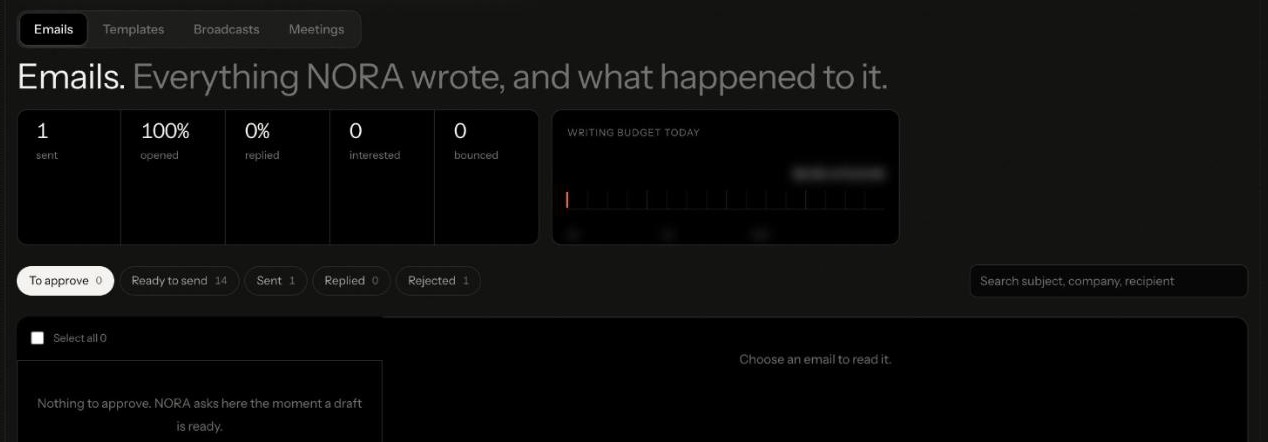
On Ready to send, open an email and press Send. Nagent asks first and says the email goes out through Resend straight away. You can select several and send them together, with the same question first.
Follow-ups and next steps come back on Review, under Waiting: "Nothing NORA holds moves until a person does."
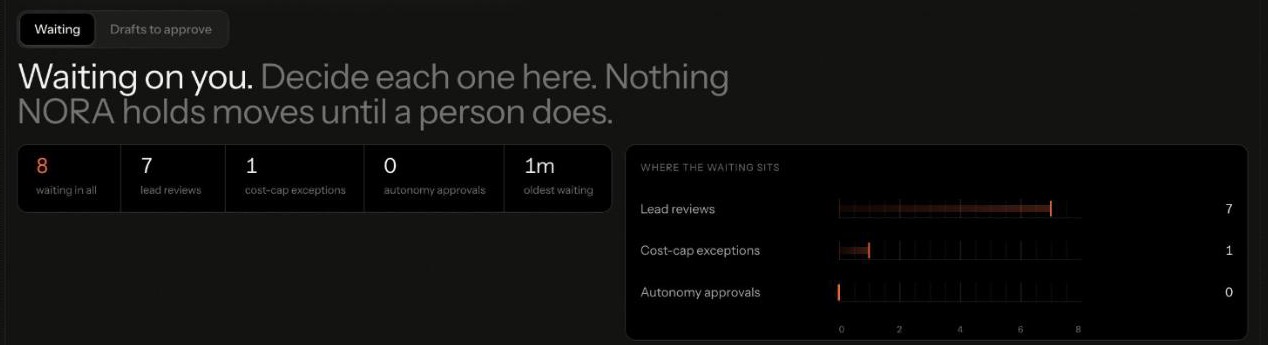
Lead reviews are next steps NORA queued, such as a follow-up email. Each card shows its risk and a draft preview, with Approve and send or Dismiss 7 days.
When several are low risk, a banner reads NORA has ready with a button to approve and send them all, after a confirmation. Let NORA look again looks for new recommendations; nothing is sent.
Cost-cap exceptions and autonomy approvals wait here too.
To send one message to many people, Outreach, Broadcasts sends "from your own mailbox. Every recipient still gets a draft a person approved." If Broadcast is held on your workspace, the screen says so.
As each email leaves, it is checked against your workspace's suppression list. Anyone who opted out, asked to stop, marked an email as spam or bounced permanently is skipped. See unsubscribe and suppression.
Step 8. Keep follow-ups on approval too
On the board, Follow up where due writes the next touch for every account that needs one, and each follow-up waits in Review until a person approves it. If you chose an Auto-enroll sequence, its steps follow the workspace's Autopilot mode in Settings; the default, L2 Draft and propose, holds each step for a person to approve, edit or reject.
Step 9. Learn from the results
Open Results. Mission compares the month against the targets you set, and until you set them it says so rather than inventing a percentage.
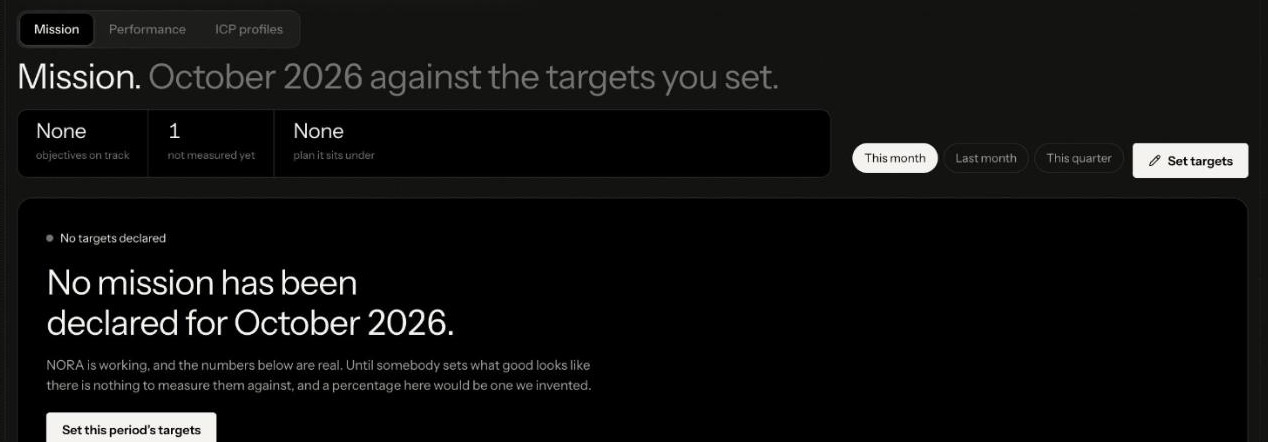
Press Set targets for accounts, meetings and pipeline. Performance shows which cohorts, personas and signals converted. Under Outreach, Meetings holds every booked meeting, handed to a named person; record each outcome, because only a meeting a person records as held counts.
When is a campaign ready to scale?
Raise the volume only when four things hold for a couple of weeks:
Fit before contact. The accounts in each run have a score and a why-now you would defend.
Volume you can review. Raise Max profiles per run only when someone can read what comes in the same day.
Drafts that need few edits. If you are rejecting most drafts, fix the knowledge shelves or the profile, not the drafts.
Names that still make sense. Descriptive campaign names keep the run history readable a month from now.
What can't an AI outbound campaign do on Nagent yet?
Send social messages. NORA sends email only. LinkedIn and X messages come from templates, and a person sends them.
Send unattended. Every send waits for a person; that is the design, not a setting you have missed.
Sync with an outside CRM. NORA's pipeline reads the workspace's own lead records; an outside CRM can be connected as a tool but does not sync.
Carry the deal. NORA's work ends at a booked meeting handed to a named person. SERA owns the sales outcome, and DEXA, for deal execution, is coming soon.
Frequently Asked Questions
How do you run outbound campaigns with AI agents?
Set what the agent may do alone, test one audience, save it as a campaign with a cap on profiles per run, and have each run report to a team room. Let the agents find, research and draft, review each draft against the research, and approve every send.
Can I approve every email an AI agent sends?
Yes. NORA's email channel reads "sent once a person approves", and approving a draft does not send it. Sending is a second, confirmed step.
How often can an outbound campaign run?
Whenever you press Run, or on a schedule you set on the campaign's page, in UTC. Raise the profiles per run only when someone can review what comes in.
What happens if a prospect unsubscribes mid-campaign?
Every email carries an unsubscribe line, and the address goes on the workspace's suppression list. Every later send is checked as it leaves, so even a draft approved earlier is not sent.
Where should you start?
Start with one small batch, not a schedule. When a run returns companies you would call, save it as a campaign, keep the volume small and approve every send until the drafts come out right. NORA covers every screen on the way.
Book a demo to watch NORA build and run an outbound campaign in a live workspace.