
How to Control AI Sales Outreach Before It Sends
To control AI sales outreach, put a person in front of the one step that cannot be undone, the send. Decide who may approve, know how your plan treats someone approving their own request, set how much each agent may do and spend on its own, send from an account your domain authorises, and make every send check an opt-out list at the moment it leaves. On Nagent, SERA's Sales team works inside these controls from the first day; this guide shows how to set each one.
What does controlling AI outreach actually mean?
An outreach email that has been sent cannot be unsent. Everything before that point, research, scoring and drafting, can be redone tomorrow. So good control is not about slowing the whole motion down. It is about five decisions:
Who decides. Which people may approve a send.
How many decide. Whether the person who asked can also approve.
What agents may do alone. Their autonomy level, and what is never theirs.
What agents may spend. A cap that stops the work, not a report after it.
Who never gets mail. A suppression list checked at every send.
Get these five right and you can let the team research and draft at full speed, because nothing reaches a stranger's inbox without passing them.
Where does SERA sit in the team?
Nagent builds a sales department like a team you would hire. The line is the first control, because it decides who acts and who answers for it (the full model is on The Team):
Your people. They hold the authority: they approve what speaks for the company and decide every step up an agent takes.
SERA, AI Sales Chief of Staff. Owns qualified meetings and routes each piece of sales work to its owner.
NORA, team lead, outbound research. Live. The only Sales seat that sends to prospects, and only after approval.
Sub-agents, where the workspace holds the lead-generation module: Researcher, Signal scout, Copywriter and Sequencer. The Sequencer's every send is approval-gated.
DEXA, deal execution. Coming soon.
RIVA, revenue operations. Coming soon.
Shared writers (Beta). VANI and LIPI write drafts. Neither can send.
A request moves down the line and back up it: you ask in the room, SERA hands it to the team lead who owns it, the lead briefs its sub-agents, each hands its part back, and the lead returns one answer with anything that needs a person waiting on a card. Two governance rules ride on that line. Work SERA hands over runs under the receiving teammate's own trust, so a handoff never lends one agent's level to another. And asking another department is a written handoff to that room's lead, under that room's own approvals and budgets.
How do you govern AI sales outreach, step by step?
Work through these in order. The first two are about people, the next two about agents, and the last three about the email itself.
Step 1. Give the right people the right to approve
On Team Members, press Invite member, choose a role for each colleague and choose where it applies: the whole organisation, a department or a team.
Role: Organisation admin, Sees held work: Yes, Decides held work: Yes, everywhere, Sends email and proposals: Yes
Role: Chief of staff (at a department), Sees held work: Yes, Decides held work: Yes, in that department, Sends email and proposals: Yes
Role: Team lead (at a team), Sees held work: Yes, Decides held work: Yes, in that team, Sends email and proposals: Yes
Role: Member, Sees held work: Yes, Decides held work: No, Sends email and proposals: No
Role: Viewer, Sees held work: No, Decides held work: No, Sends email and proposals: No
Two rules to know. Nagent refuses a grant that would give more than you hold yourself. And the Approve and Reject buttons on Approvals act only for someone whose role lets them decide approvals. Start narrow: a role can be raised later, while one that gave too much has already been used. See people and roles.
Step 2. Know how your plan treats approving your own request
This is the rule people most often get wrong, so read it before you need it.
Enterprise: two approvers. The person who asked never approves their own request; someone else who can approve does. A raise of any agent to L5 Lead also needs a second person.
Every other plan: one approver. Anyone who can approve held work approves it alone, their own requests included.
On any plan, a low-risk card is the asker's to approve, and elevated access always needs someone else.
If you run a small team on a non-Enterprise plan, that means one person can ask NORA for outreach and approve it. If your compliance team wants four eyes on every send, that is an Enterprise rule, or a habit you agree internally.
Step 3. Set what agents may do on their own
Every agent works at a level from L1 to L5, and every action has a class that says which level runs it unattended.
Level: L1 Observe, What it may do on its own: Reads and reports. Even a draft waits for a person
Level: L2 Assist, What it may do on its own: Reads and drafts. Changes to shared records wait
Level: L3 Operate, What it may do on its own: Changes workspace records. Anything outside the workspace waits
Level: L4 Represent, What it may do on its own: Acts outside the workspace, such as emailing a contact. Publishing waits
Level: L5 Lead, What it may do on its own: Publishes. Deleting and governance changes always wait
For outreach, one exception matters more than the table: NORA's sends are gated separately from her level. On a new workspace every send waits for a person's approval, whatever her seat shows. Her research and drafting can run on their own; the send cannot.
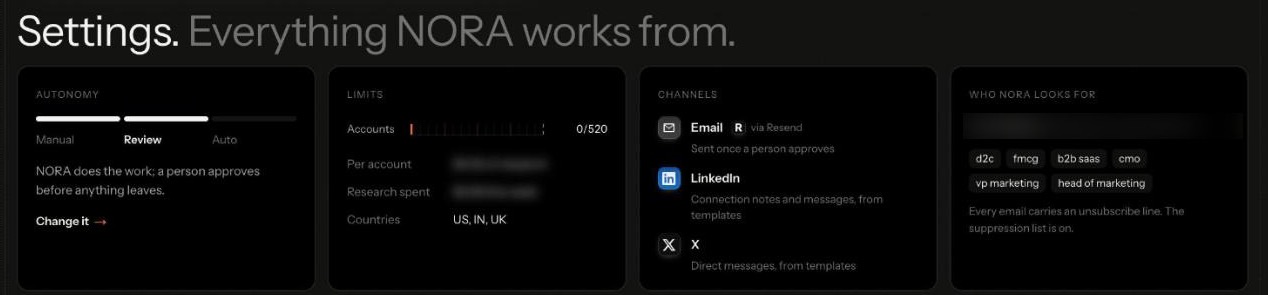
NORA also has her own autonomy setting. Open her Settings, headed Everything NORA works from., and read the first card. Autonomy runs from Manual through Review to Auto. On Review, NORA does the work and a person approves before anything leaves. Change it opens her Controls. The Channels card shows email via Resend, sent once a person approves, and LinkedIn and X messages written from templates.
Keep NORA on Review while you learn her work. To change any agent's level, open it from the Agents page. Promotion review moves it up one step and asks you to write why; Change level moves it down. Up is one step at a time; down can skip. What you write is recorded on the agent's permanent history, and agents read it before the next run. Raising to L4 or L5 needs an Organisation admin, Chief of staff or Team lead role.
Promotions are nominated, never automatic. After 30 days at a level, with at least 25 approval cards decided and almost none dismissed, an agent is nominated, and the nomination waits on Approvals with Raise autonomy and Leave as it is. Each night the record is read again, and too many dismissed cards, errors or thumbs down drop it one level. Detail is in autonomy and governance.
Step 4. Cap what agents may spend
Every agent has a daily and a monthly cap. Until you set your own, each carries 1,000 credits a day and 20,000 a month. Before any paid call, Nagent checks what is left under both, and refuses a call that would go over. In the agent's Budget pane, choose what happens at the cap: queue actions for approval, pause the agent, or notify only. Reaching a cap also drops the agent one level.
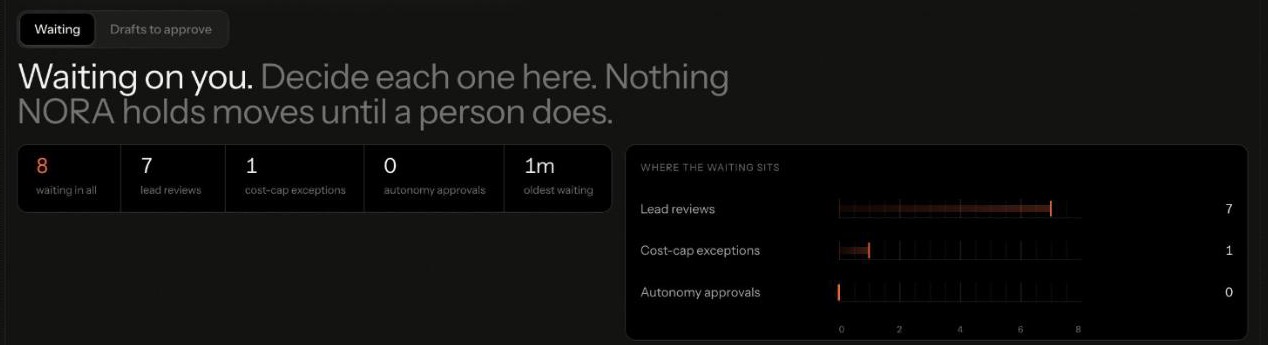
NORA adds her own brakes. Her Limits card counts the accounts she has taken on this week against her weekly limit, and her research runs against a daily outreach budget. A discovery run whose forecast crosses the weekly spend cap does not start until somebody approves the overage. Those cost-cap exceptions wait on her Review tab, under Waiting, beside lead reviews and autonomy approvals.
Step 5. Choose the account outreach sends from
Outreach should come from an address your domain authorises. There are three senders to know:
The workspace sender. Until you add your own key, email goes through a shared Nagent account and recipients see a Nagent address. To send from your domain, add a domain in your own Resend account, publish the SPF and DKIM records it shows you, wait for verification, then paste a sending key and a From address under Settings, Integrations. See email and integrations.
A rep's own mailbox (Beta). Under Settings, CRM, the Your sending account card lets a rep connect a mailbox for CRM email to the leads they own. Read the card before you rely on it: that mail does not go out of the mailbox yet, and until sending switches over it leaves the workspace address. The settings below the card belong to the workspace; the connection is the rep's to manage.
An agent's own address (Beta). Chiefs of staff and team leads get an address on agents.nagent.ai. Replies from it go through Nagent's mail service, not your domain. A reply is an action that reaches outside the workspace, so an agent below L4 Represent waits for a person, who can edit the text but not the recipient.
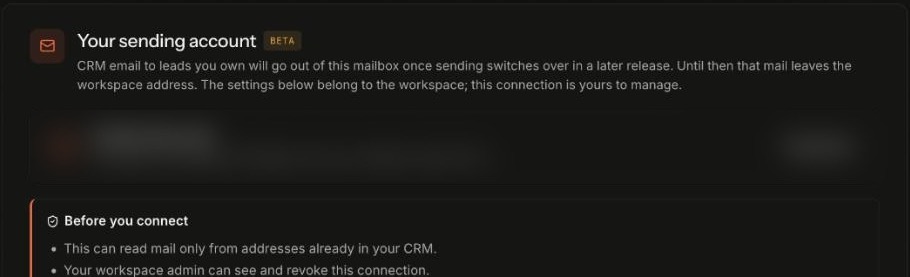
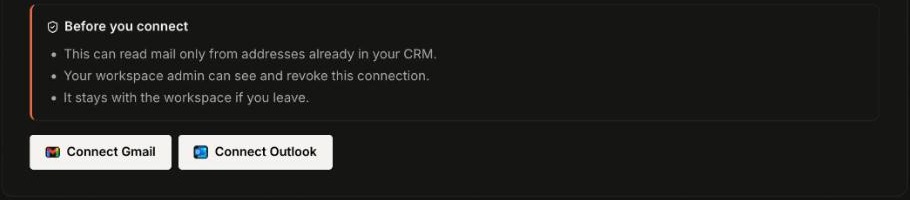
Under Before you connect, the card sets three limits on the connection: it can read mail only from addresses already in your CRM, your workspace admin can see and revoke it, and it stays with the workspace if the rep leaves. Then come Connect Gmail and Connect Outlook.
Step 6. Let suppression stop every send to an opt-out
NORA's Settings says it plainly under Who NORA looks for: every email carries an unsubscribe line, and the suppression list is on. Every prospect email NORA's team sends ends with an unsubscribe link and carries the one-click unsubscribe headers mail clients read. If the link cannot be made, the send is refused. An address is written to your workspace's suppression list in four ways: the recipient used the link or one-click, a reply asked to stop, the mailbox provider reported a spam complaint, or the email bounced permanently.
The list is checked at the moment of sending, not at approval, so a draft approved on Monday and sent on Friday is checked against Friday's list. A refused send says who and why, with the date. No agent can send to a suppressed address, and no agent can clear an opt-out; an agent may only add one. In NORA's Controls, Skip unsubscribed domains at discovery keeps known opt-outs out of the pipeline, and Lawful basis statement keeps your legal team's wording with your outbound settings. See unsubscribe and suppression.
Step 7. Decide in one place, on one card
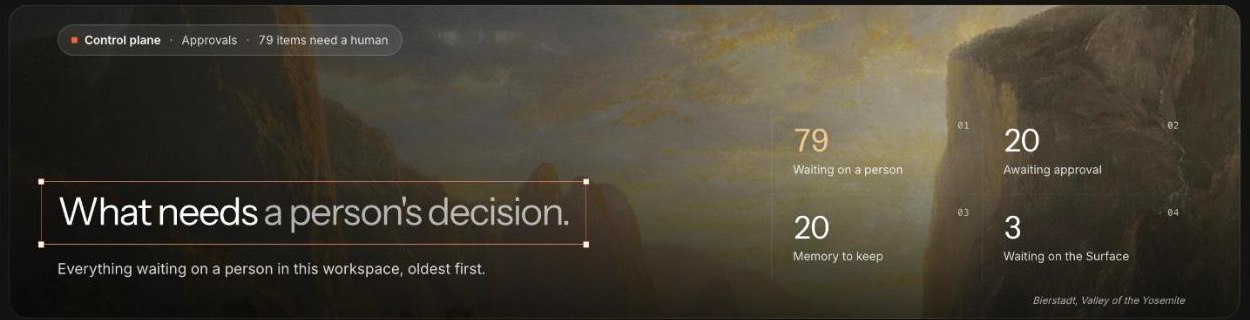
Held work waits in the room where it was asked, in the room's Inbox panel, on NORA's Review tab, and on Approvals under Control plane, headed What needs a person's decision. In a room thread, it is one card, Confirm before it runs, naming the agent, the action, its target, its inputs, its cost, its risk, its side effects and who can approve, with Approve and Decline. On Approvals, each item has Approve and Reject. NORA's lead reviews read Approve and send and Dismiss 7 days.
Only the buttons approve. Typing "approve" does nothing.
If the inputs change after the card was shown, it refreshes and asks again.
High and critical risk requests expire after 24 hours, others after seven days. An expired action never runs.
Approving an action you started yourself covers the same action, started by you, for the next 60 minutes.
When you approve or reject on Approvals, a Why box sits beside the buttons. The reason is optional, and it is stored with the decision and read by whoever asks why later. A sentence such as "never open on a funding round older than a month" leaves a record the next reviewer can follow. See approvals and the Inbox.
What are the limits of these controls today?
The suppression list has no screen. You cannot add or remove an address by hand; you meet it in the refusal when a send is tried. Nothing deletes a row, by design.
Opt-outs are per workspace. An opt-out from your emails says nothing about another workspace on Nagent.
Agent replies are not marketing mail. A reply to mail an agent received carries no unsubscribe link and is not checked against the list.
Two-person approval is Enterprise only. On other plans the asker can approve their own request.
A rep's mailbox does not send yet. CRM email leaves the workspace address until sending switches over.
How do you check the controls are working?
Once a week, open Approvals and read what has waited longest; each item carries a Decision audit trail for people allowed to read the audit log. Open NORA's Review tab and check the oldest waiting item, then her Emails view, which lists everything she wrote and what happened to it. Look for refused sends with a suppression reason, which prove the list is being read. And check that more than one person has decided a card, so outreach never waits on a single approver.
Frequently Asked Questions
How do you control AI sales outreach?
Require approval before every send, give approval rights only to the roles that should hold them, set each agent's autonomy level and budget caps, send from a verified domain, and check a suppression list at the moment each email leaves.
Can the person who asked for outreach approve it?
On Nagent's Enterprise plan, no: someone else who can approve does. On every other plan one approver approves everything, their own requests included.
Does a higher autonomy level let NORA send on her own?
No. Sending is gated separately from her level, and on a new workspace every send waits for a person's approval, whatever level her seat shows.
What happens when a prospect unsubscribes?
The address goes on the workspace's suppression list at once, with no confirm step. Every later send is checked against it at the moment it leaves, and an opted-out prospect promoted to a lead stays opted out.
Who can approve held outreach?
An Organisation admin anywhere, or a person holding a Chief of staff or Team lead role where the work belongs. A Member can see held work but not decide it.
Where should you start?
Start with Step 1 and Step 2: name at least two people who can decide, and know whether your plan lets an asker approve their own request. The rest is already in place when SERA's Sales team arrives, from the gated send to the suppression check.
Book a demo to walk through approvals and suppression in a live workspace.