
How to Approve AI Ad Changes Safely
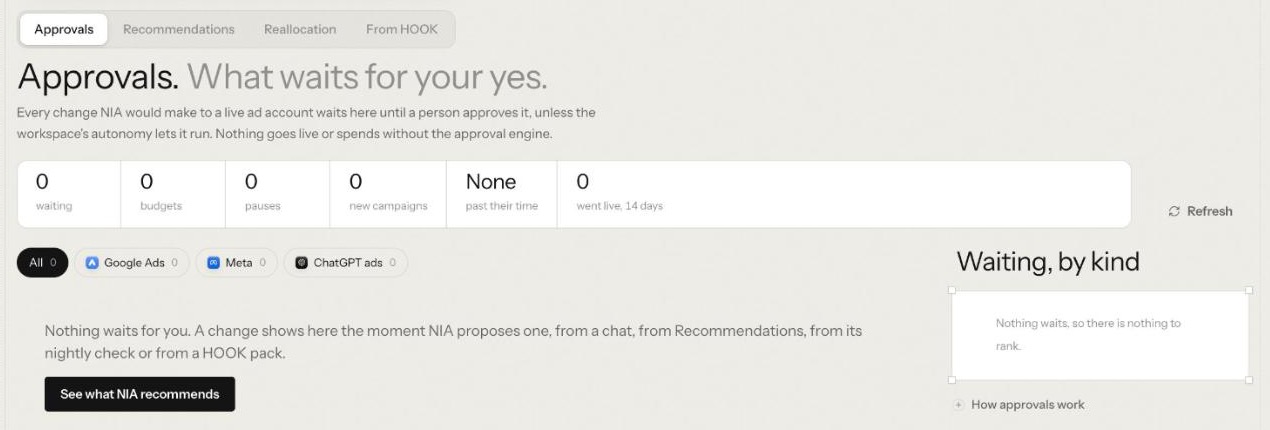
To approve AI ad changes safely, decide who can approve before the first proposal arrives, set hard spend limits on every ad account, and make the agent queue every live change where you can read what it does, what it targets and its risk. Read each one against the account, approve or decline it, and check what went live. This guide shows how that works with NIA, Nagent's AI performance marketing lead.
Why do AI ad changes need a human approval step?
Ad spend is the one thing an agent can do that costs money by the minute and cannot be taken back once it has been spent. A paused campaign can be resumed and a lowered bid can be raised again, but yesterday's wasted budget is gone. So the useful question is not whether an agent is clever enough to manage paid media, but where a person sits in the loop.
NIA's answer is to put the person before the irreversible step. She drafts and proposes; fixed rules check the plan; a person approves; and only then does anything reach the ad platform. She starts at L2 Assist, a level below the L3 her live changes need, so all 24 of her live actions across Google Ads, Meta ads and ChatGPT ads queue for a person. Installing the Marketing team cannot seat her higher than L2. Her screens say a change waits "unless your autonomy level allows it", because a person can raise her level later.
Each approval is also evidence. It is how an agent builds the record that may later earn it more room, and how you learn whether its judgement matches yours.
What will NIA never do on her own?
Before setting anything up, know the hard lines. NIA will not:
Change a live campaign without approval, or outside limits a person approved. From a team room, every live change queues for approval first, whatever level she is set to.
Start a campaign serving the moment she creates it. A campaign she creates arrives paused on every channel, and nothing spends until someone turns it on.
Commit money on Meta without a named person's click. Resuming a campaign, raising a daily budget and creating a campaign each wait for a person every time, and must fit the ad account's hard spend cap. With no cap set, she refuses and says a workspace admin has to set one.
Build a Google Ads lead or sales campaign without conversion tracking. For those objectives she will not build without an enabled conversion action on the account.
Go past a ChatGPT ads limit on her own. Creating or launching a campaign needs a named approver, and any bid or budget beyond the approved limits comes back to a person.
Build ad sets, audiences, ads or creative in Meta. She creates an empty campaign; the rest is made in Ads Manager.
How do you review and approve AI-proposed ad changes, step by step?
Step 1: Decide who approves
Approvals need a person who holds the approval right for that kind of action, and that should never be only you.
Every card says who can approve it. If nobody in the workspace holds the right yet, the card says so, and a workspace admin can grant it.
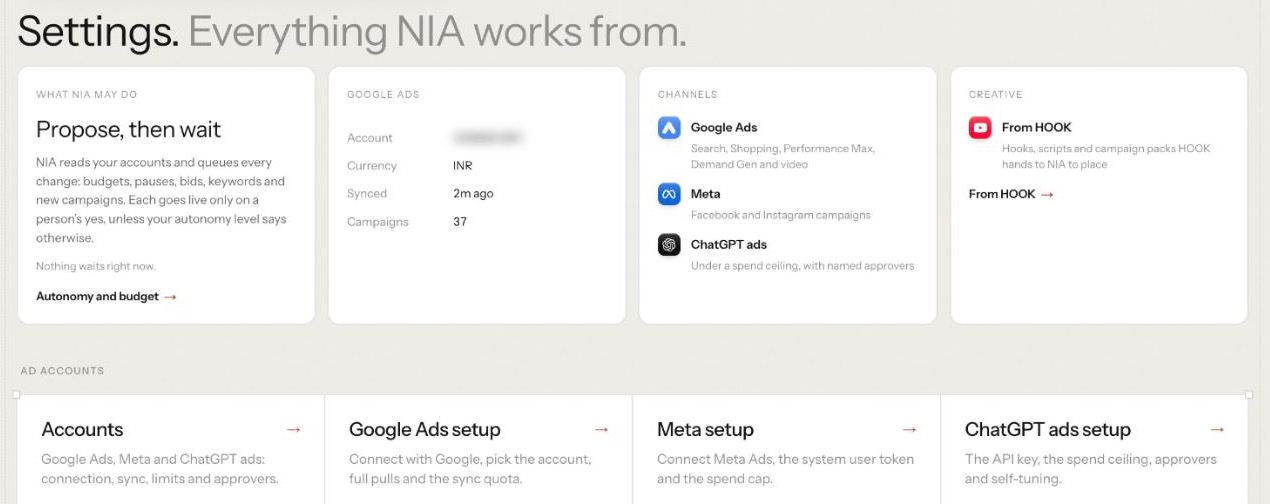
ChatGPT ads (Beta) has its own list. In NIA's Settings, under Accounts, the ChatGPT ads card has Named approvers: only the people named there can approve creating or launching a campaign, and you pick at least one of the workspace's admins.
Meta ads (Beta) money changes wait for a person's click every time, whatever NIA's level.
When you invite colleagues, give at least one other person the right to decide, so ad changes never wait on a single inbox. See people and roles.
Step 2: Set the spend limits before anything else
Limits turn approval from a judgement call into a rule. Open Settings, then Accounts, headed "Where NIA reads and spends." Its third rule is the one that matters here: "Your limits hold. Caps and ceilings set here stop a change before it is made."
Meta ads: a hard spend cap, a day and a month, in your account currency. Before filing a money-committing change, NIA checks that the daily budget fits what is left today, and that the same amount for every remaining day fits the monthly cap. When it is approved, she checks the cap again, and refuses if the campaign changed since the change was filed.
ChatGPT ads: a spend ceiling, daily and lifetime. Until one is set, the card says no plan can be approved, and no plan above it can be approved either.
Google Ads: the daily budget in each campaign brief. A plan must pass the budget ceiling and pace check, along with structure, copy safety, conversion tracking and duplicate checks, before it can be built.
Separately, NIA's own work in Nagent is budgeted in credits, daily and monthly, and checked before every paid call. Writing a campaign plan passes the workspace's spend check first; if this month's AI budget is spent, NIA says so and writes nothing. That covers the agent's running costs, not your ad spend.
Step 3: Know where proposals come from
A change lands in Approvals the moment NIA proposes one: from a chat, from a recommendation you sent with Let NIA do it, or from a HOOK pack she is asked to place. New campaigns come from Build, under Campaigns.
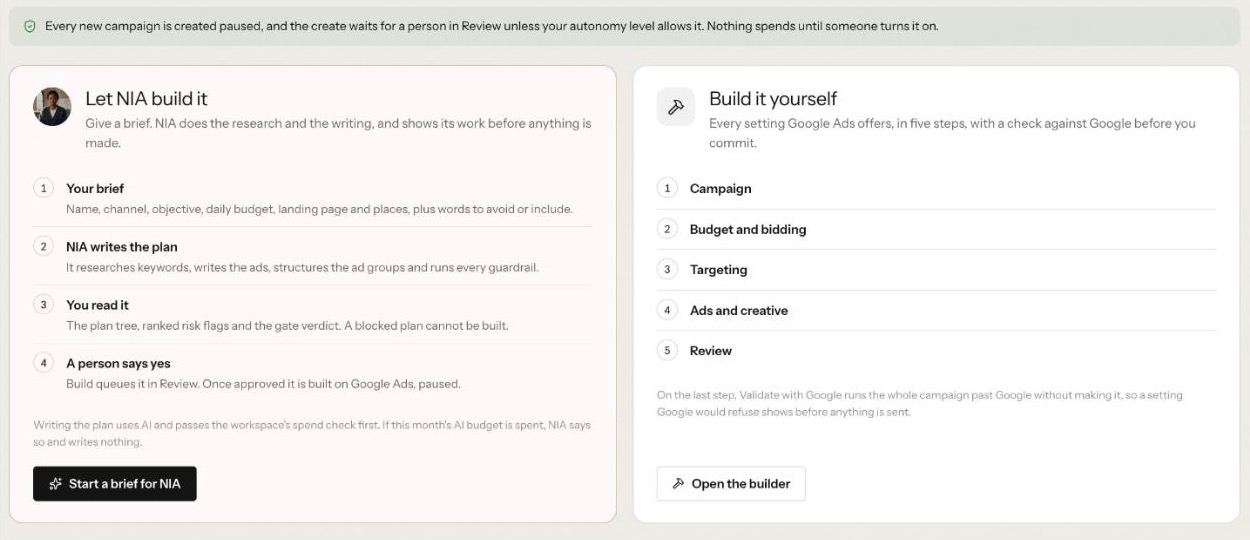
On a brief, NIA writes the plan, and you read the plan tree, its ranked risk flags and the gate verdict. A blocked plan cannot be built. When a person says yes, Build queues it in Review, and once approved it is built on Google Ads, paused. If you build it yourself, Validate with Google runs the whole campaign past Google without making it.
Step 4: Find what is waiting
Three places show what waits:
Today, NIA's first tab, has a Waiting for your yes panel with a link to all approvals.
Review, the next tab, carries a count of changes waiting. Approvals, inside it, is headed "What waits for your yes." Counters show what is waiting, how many are budgets, pauses and new campaigns, how many are past their time, and how many went live in the last 14 days. Filter by Google Ads, Meta or ChatGPT ads; the list groups changes by kind, from budgets and pauses to keywords, bids and new campaigns.
Under an answer, when you asked NIA for a change in her ask box, the approval card appears right there.
Step 5: Read the change, all of it
Press Decide on a row. A drawer shows what the change is On, the Platform, the Change before and after, who Proposed it, when it was Asked, when it Expires and its Risk. Below sits the shared card, headed Confirm before it runs, with the Agent, the Action, what it Runs with, the Cost, the Side effects outside Nagent and Who can approve.
Read it like a change request from a new hire:
Is the target right? The campaign, ad group or keyword named should be the one you expect.
Are the inputs sensible? A budget raise should be a number you would have chosen; a negative keyword should not block a search term that converts.
What is the risk? High and critical risk show on the row as well as in the drawer.
Does it fit the account today? Open Google Ads or Ads Manager and check. Each NIA fix is validated as a dry run before it is queued, but the dry run cannot know about the launch you planned for tomorrow.
Step 6: Approve or decline
Press Approve to let it run once, or Decline to leave the account as it is. The card sends the exact inputs it shows; if they moved after it was drawn, it refuses, refreshes and asks you to check them again. Typing "approve" in chat does not approve anything; only the buttons do.
On some cards a third button, Approve and don't ask again, may appear, and approving an action you started yourself covers the same action from you for the next hour. Approve deliberately. Some kinds of action always wait for a person, whatever the level, and the card says so; on Meta, resuming, raising and creating a campaign are among them.
Step 7: Let unclaimed changes expire
A request nobody decides expires. High and critical risk requests expire after 24 hours, everything else after 7 days, and an expired action never runs. The past their time counter shows how many are overdue. On ChatGPT ads, an approval is also refused once the plan is edited, or after 72 hours. That is a safety net, not a process: a proposal worth making is worth deciding.
Step 8: Check what went live
Recently decided, under the waiting list, shows every change from the last 14 days with its outcome: went live, approved but did not run (with the reason), dismissed or expired, and who decided it. A change that ran on its own under your autonomy level says so.
On Meta and ChatGPT ads, NIA reads each change back from the platform before she says it is done. On Google Ads, a change's effect is measured against the window before it.
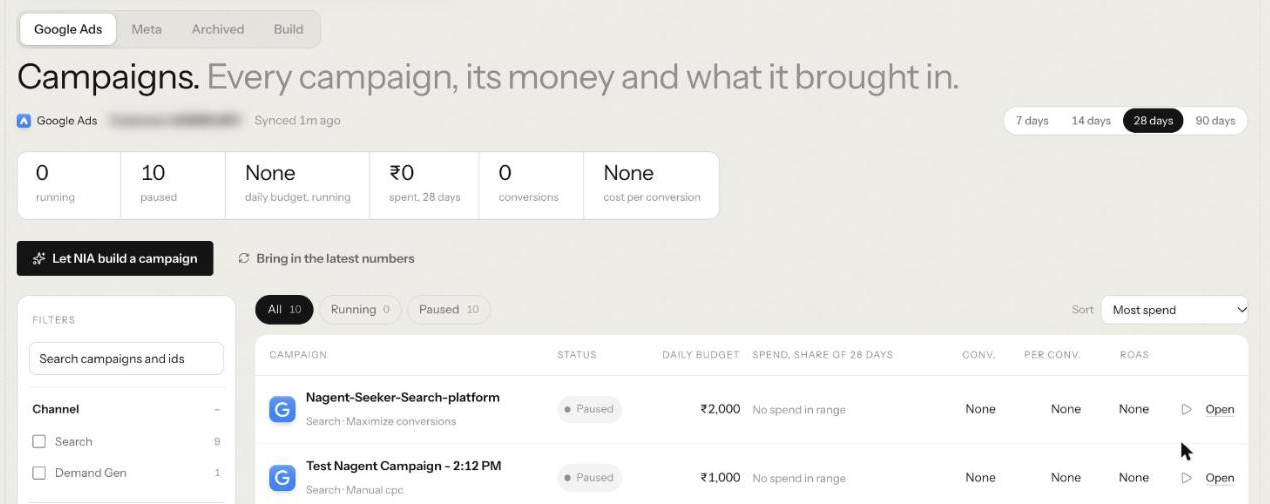
A campaign NIA built still needs turning on. On Campaigns, each row shows its status, and resuming asks first: it starts serving and spending within its daily budget, and the change goes through the approval engine.
Step 9: Decide on autonomy later, on the record
Nobody has to raise NIA's level, and on day one nobody should. Autonomy and budget, in her Settings, is where it is set. Nagent nominates an agent for the next level only after 30 days at its level, at least 25 approval cards decided and fewer than 5 in every 100 dismissed. A person decides, and levels rise one step at a time. An agent also drops a level on its own when its record turns, for example when too many of its cards are dismissed.
Even after a raise, the hard lines above stay. Room requests still queue, and Meta money still waits for a person.
How does self-tuning work on ChatGPT ads?
ChatGPT ads (Beta) add one more pattern: approving limits rather than every change. Nothing serves until OpenAI approves the ad account. Once a named approver starts a campaign, NIA may tune it inside limits set from that approval. By default the bid moves at most a quarter either side of what you approved, and by no more than 15% a day; the daily budget can go down to half and back up to what you approved, never above it.
She waits for 7 days live and 100 clicks in the last week before she tunes. Anything outside the limits waits for a named approver. On the ChatGPT ads card in Settings, Accounts, Self-tuning shows each campaign's bid and budget limits, whether tuning is on, a log of every change with Undo, and Switch off.
Where does NIA sit in the team?
Nagent builds AI teams like a team you would hire: an AI Chief of staff who owns the outcome, team leads who run their part, and sub-agents who do the specialist work. See how a Nagent team is built. NIA is a team lead in Marketing:
MIRA, AI Marketing Chief of Staff, owns reach and pipeline cost
NIA, team lead, paid marketing
a Google Ads sub-agent
a Meta ads sub-agent (Beta)
a ChatGPT ads sub-agent (Beta)
DRIS, team lead, organic visibility
HOOK, creative strategy, and Echo, reputation, both Beta
MOXA, social media, coming soon
A paid media request moves down the line and back up. You ask in the Marketing room. MIRA decides it is paid work and hands it to NIA. NIA gives each channel's part to its sub-agent, which does it and hands the result back to her, never sideways. She brings one answer back with every live change waiting on a card, and you approve, edit or decline where the work is.
A message travels at most three hops, each checked against the receiving agent's budget, and asking another department is a written handoff to that room's lead.
Frequently Asked Questions
How do I approve changes an AI agent makes to my ads?
With NIA, every live change waits in Approvals, under her Review tab, or as a card under the answer where you asked. Press Decide, read the target, the change, the cost and the risk, check it against the account, then press Approve or Decline.
Can an AI agent manage paid media without spending money on its own?
Yes, if it is built that way. NIA starts at a level below the one her live changes need, creates every campaign paused, refuses Meta spend with no hard cap set, and on ChatGPT ads tunes only inside limits a named approver set.
What spend controls should I set before letting AI touch ad budgets?
A hard daily and monthly cap on Meta ads, a spend ceiling on ChatGPT ads, a budget in every Google Ads brief, named approvers for ChatGPT ads, and at least two people who can decide.
Should I ever let an AI agent change ads without approval?
Only on its record. Nagent nominates an agent for a higher level after 30 days with at least 25 decided cards and almost none dismissed, and a person decides. Even then, NIA's room requests still queue and Meta money still waits for a person.
Approve the change, keep the control
Safe AI paid media management comes from a few plain rules: named approvers, hard limits, a card for every live change and a person behind every decision. NIA is built around them, and the NIA guide and approvals and the Inbox cover the detail.
Book a demo to see how NIA's approvals work on your own ad accounts.