
Approvals and the Inbox
What "queued for approval" means, where held work waits, how to approve it on a card, in the chat, by voice or in the Inbox, and who may decide what.
Browse documentation
An agent that is not trusted with something asks first
Every time an agent tries to act, Nagent decides one of three things before the action runs.
| Decision | What happens |
|---|---|
| Fire | The action runs now and is logged |
| Queue | The action does not run. An approval request is written and waits for a person |
| Refuse | The agent is paused, switched off or muted for that action; nothing runs and the refusal is logged |
The rule is simple to state. Pure reads always run. For anything with a side effect, Nagent compares the agent's level with the level that action needs. If the agent's level is high enough, it fires; if not, it queues. Some actions need approval at every level and can never be earned: changes that remove a page from search or point it elsewhere, for example. See autonomy and governance.
Queued for approval therefore means: the agent got as far as deciding what to do, wrote it down, and stopped. Nothing has left the building.
Our logic
Approval sits before the irreversible step, not after it. An e-mail that has been sent cannot be unsent, so the time to look at it is while it is still a draft. Each approval you give is also evidence: it is how an agent builds the record that earns it more room later.
Where held work waits
Held work shows up in these places.
| Where | What waits there |
|---|---|
| The team room's conversation, as a card | The action an agent in that room is holding |
| An agent's chat, as the same card | An action the chat queued, for example in NIA's chat or MIRA's |
| The team room's agent surface, under Waiting on you | Work that team's agents are holding |
| Actions, Awaiting approval tab | Every agent action held for approval in the workspace |
| Inbox | Approval requests, work held in team rooms, your room jobs, autonomy promotions, escalations and failed runs |
An agent's held action, for example a drafted outreach e-mail waiting to be sent, appears in its room, on the Actions page and in the Inbox of everyone who holds the right to approve it, under Held in team rooms. That includes an approver who is not a member of the room.
The confirm card
Wherever an agent's action is held, in a room, in an agent's chat or in the Inbox, it is decided on one card, headed Confirm before it runs. It shows:
| Line | What it says |
|---|---|
| Agent | The agent that wants to act |
| Action | What it wants to do |
| On | What the action is aimed at |
| Runs with | The inputs it will run with, or "No inputs." |
| Cost | The estimate the action declares, or "no estimate declared" |
| Risk | The action's risk level |
| Side effects | What changes outside Nagent, or "none declared" |
| Who can approve | Who in the workspace holds the right to approve it |
Approve lets it run and Decline stops it. If you hold the right, the card says "You hold the approval right for this action." If you do not, it names who does and offers no buttons. If you asked for the work yourself and hold the right, it says you may approve it yourself.
A few rules hold on every card:
- The card says whether a yes in the chat counts. Where it does, the last line reads "Or reply yes in the chat to approve it." Where it does not, it reads "Typing yes does not approve it. Only these buttons do." See approving in the chat and by voice.
- Some kinds of action always wait for a click, whatever the agent's level. The card says so.
- On your own request in a room, a third button, Approve and don't ask again, may appear beside Approve. It appears only on actions that stay inside your workspace. See below.
- If the inputs change after the card was shown, it refreshes and asks you to check them again.
Once decided, the card says Approved or Declined and by whom, and whether the action ran. A card nobody decides ends as Expired before anyone decided.
Approving in the chat and by voice
You do not always need the button. If you hold the right to approve an action, three other things count as your approval, and each is recorded with your name, just as a click is.
Asking for it is approving it
When you ask an agent, in a team room or in your chat with N, for something that would be held, and your message says plainly what to do and to whom, your ask is the approval. "Send the follow-up email to priya@example.com" names the action and its one recipient, so the email goes without a second step, and the card's record reads "Approved by asking for it."
- The message must name one recipient, by full address or by a name only one person in the workspace has. A card going to several people still waits for a yes or a click.
- A bare "send it" counts only when the agent showed you the preview in the same thread before you said it.
- One message approves at most one card.
- If your ask did not say what the agent then wants to do outside the workspace, the card waits and the agent says "You can approve this yourself. Say yes, or tap Approve."
A typed yes
In the thread where the card waits, a team room thread or your chat with N, reply with a plain yes and nothing else: "yes", "yes please", "go ahead", "approve", "approved", "approve it", "do it", "ok", "sure", "send it" or "post it". A question, a condition or any other words make it an ordinary message, and the card keeps waiting.
If more than one card waits on you there, the agent names each one and asks: "Say which one, or tap it." Nothing is approved until you do.
A spoken yes
When you talk to N by voice and one card waits on you, N reads it back, for example "I'll send an email to priya@example.com. Say yes to go ahead." Saying yes then approves that card. A spoken yes counts only for actions that reach outside the workspace, such as an email or a post, and only for the card N has just read back. For anything else, N asks you to say which card or tap it.
What always waits for a click
Some actions are never approved by an ask, a typed yes or a spoken yes, whatever the agent's level. You approve them with the card's Approve button only:
- Deleting or taking something down, redirects, and changes to who may do what.
- Lifting a check, spending past a cap, and creating agents, skills, workflows or triggers.
- Ad spend: creating a campaign, changing its status or budget, raising a bid or a target cost, adding or resuming a keyword, and adding a ChatGPT ad.
- Money: issuing an invoice, recording a payment and issuing a provisional credit on a dispute.
- Some actions in connected apps, such as deleting an email, and any connected-app action Nagent cannot yet tell the risk of.
Typing a yes under one of these gets the answer "This card goes ahead only on its Approve click, so typing approval did not approve it. The card is in this thread and in your Inbox."
Approve and don't ask again
Approve and don't ask again, pressed or typed as "approve and don't ask again", covers only actions that stay inside your workspace, such as updating a record. Your next request for the same action runs at once. On an action that reaches outside the workspace, such as an email, it approves that one card and remembers nothing, so each send still needs its own ask, yes or click.
Chiefs of staff and N approve for their teams
When an agent's action is held, its AI chief of staff decides it first, then N, before any person is asked. A chief approves only what it could do itself at its own level, held to your plan's ceiling, and the card then says, for example, "MIRA approved this for NORA." A chief never decides:
- something a person asked for;
- anything that always waits for a click;
- anything while two approvers is switched on for the workspace.
A chief's own request goes to N, and N's goes to a person.
A workspace of one
When you are the only active member, you are the approver for the whole workspace, your own requests and your own posts included. Nothing waits for a second person, and you approve each thing once.
Two approvers
Two approvers is a setting for a workspace, off by default on every plan. Nagent switches it on for a workspace that asks. While it is on, the person who asked for an action never approves it, and someone else who can approve does. The card then says "In this workspace someone else approves a person's own request." See autonomy and governance.
Nobody is left waiting
When an action waits on someone else, the agent names who: it "waits on" them, "I've told them, and I'll nudge them in 4 hours if it is still waiting." The person who decides gets one nudge, never the person who asked.
The Actions page
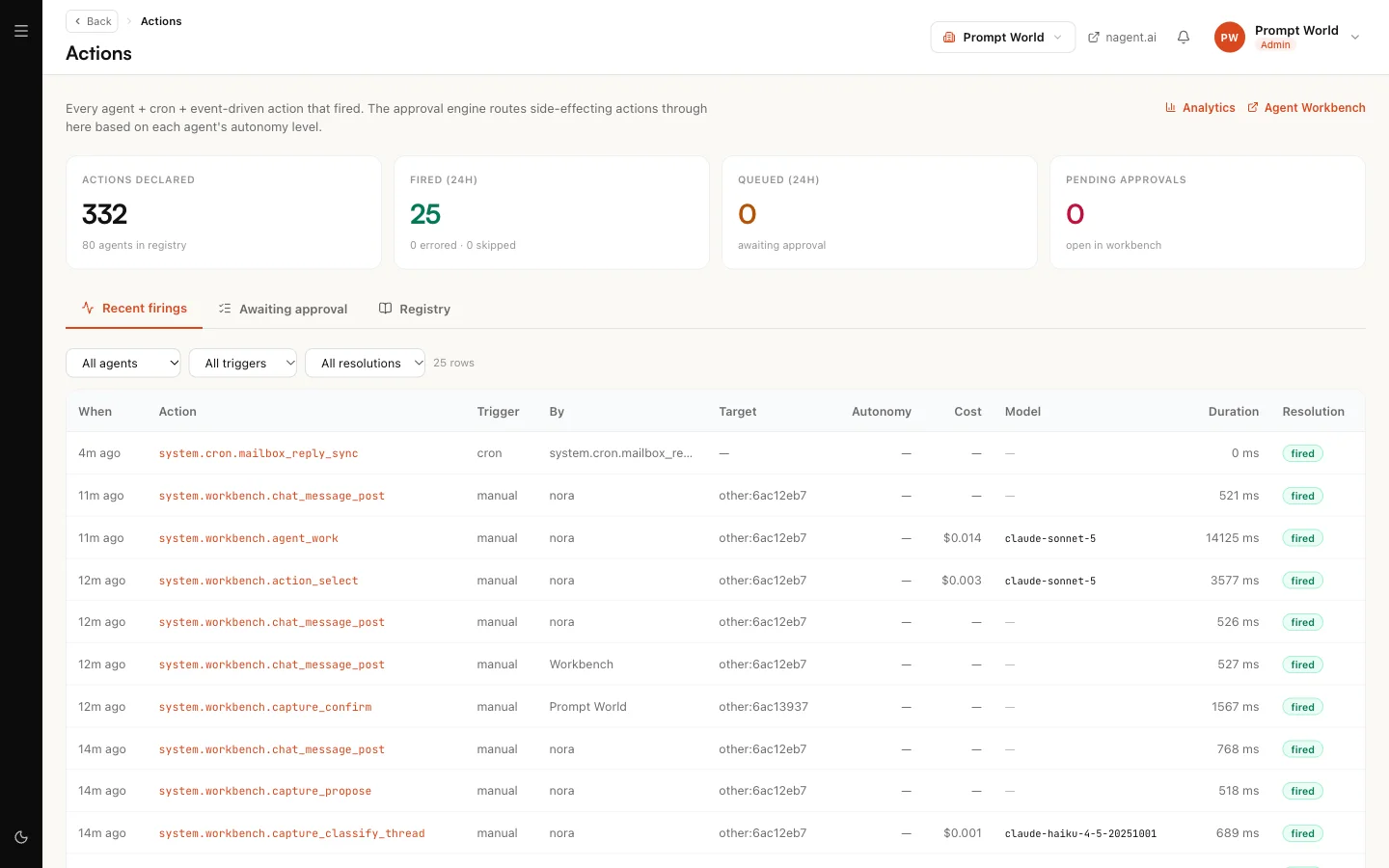
Actions is the full record of what agents did. Its description reads: "Every agent + cron + event-driven action that fired. The approval engine routes side-effecting actions through here based on each agent's autonomy level." It has three tabs.
Recent firings
Every action, newest first, with when it ran, the action, what triggered it (a chat, a schedule, an event, a person, or another agent), its target, the agent's autonomy at the time, its cost, how long it took, and its Resolution: fired, errored, queued or skipped. Filter by agent, trigger or resolution.
Some rows belong to the system rather than to one of your agents, for example a scheduled mailbox check. They are part of how the workspace runs, not work anyone asked for.
Awaiting approval
Every action held for approval, filtered by Pending, Approved, Dismissed or Expired. CRM leads narrows it to approvals raised on leads.
To decide one:
- Open Awaiting approval with Pending selected.
- Read the action name (click it for what the action does), its risk level and its target.
- Press Approve, or press Dismiss and add an optional note saying why.
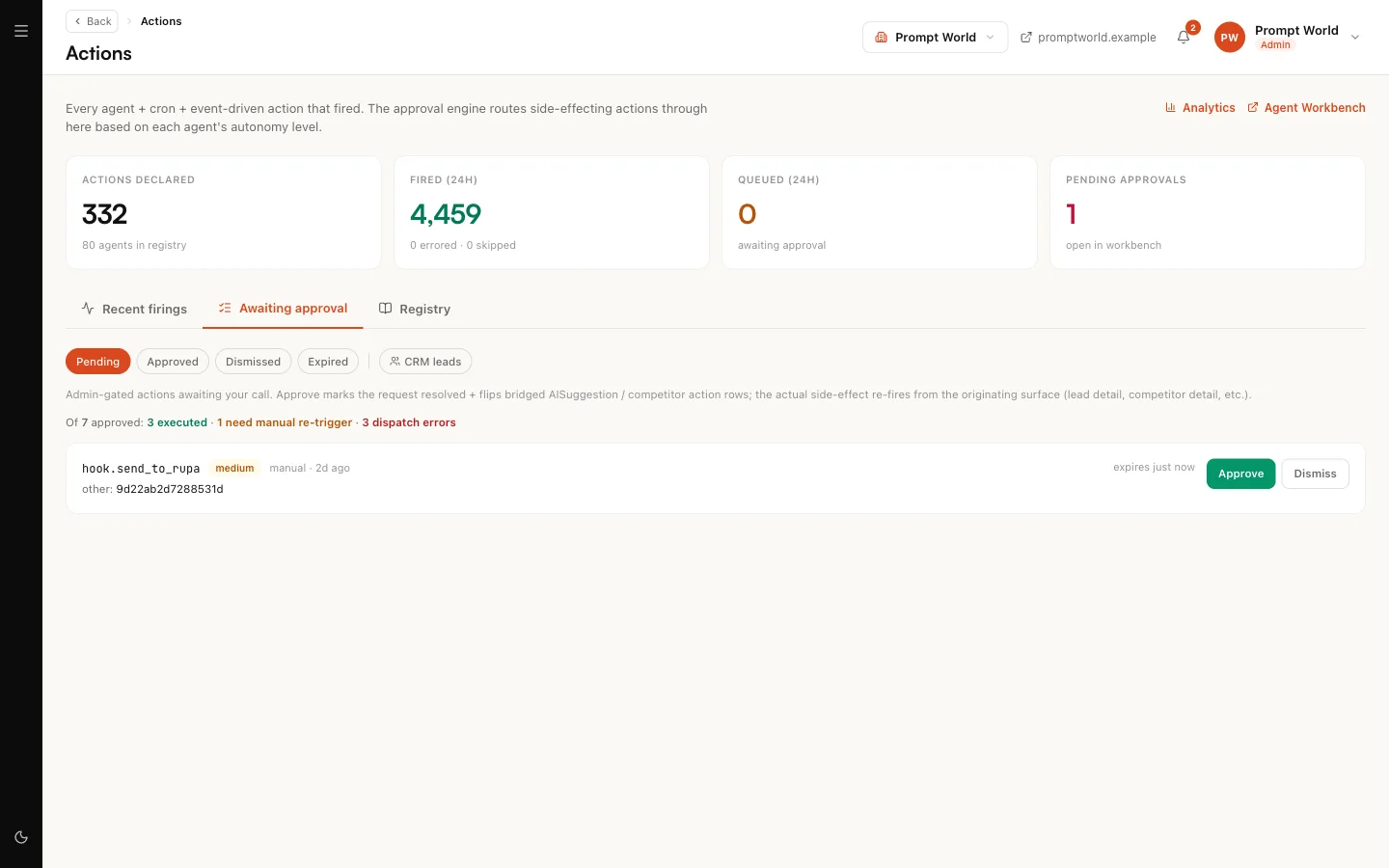
After Approve, a message tells you what happened next:
| Message | Meaning |
|---|---|
| Approved, executed via (dispatcher) | The action ran |
| Approved, no auto-dispatch for this action | It is approved but did not run by itself. Run it again from where it started, for example the lead's page |
| Approved, but dispatch failed | It is approved, and running it failed; the message says why |
Approving and dismissing on this page needs the Organisation admin role.
A request nobody decides expires. High and critical risk requests expire after 24 hours, everything else after 7 days. An expired action never runs.
Approving once covers the next hour. When you approve an action you started yourself, the same action started by you again within 60 minutes runs without asking. The window is per action and per person. In a chat or a team room it never covers an action that reaches outside the workspace: each email or post there needs its own ask, yes or click. An agent that has been paused or switched off still stops, whatever you approved.
Registry
The list of every action the platform knows about, with what each one needs before it may run unattended. It is a reference, and it lists actions for agents and teams you may not have installed.
The Inbox
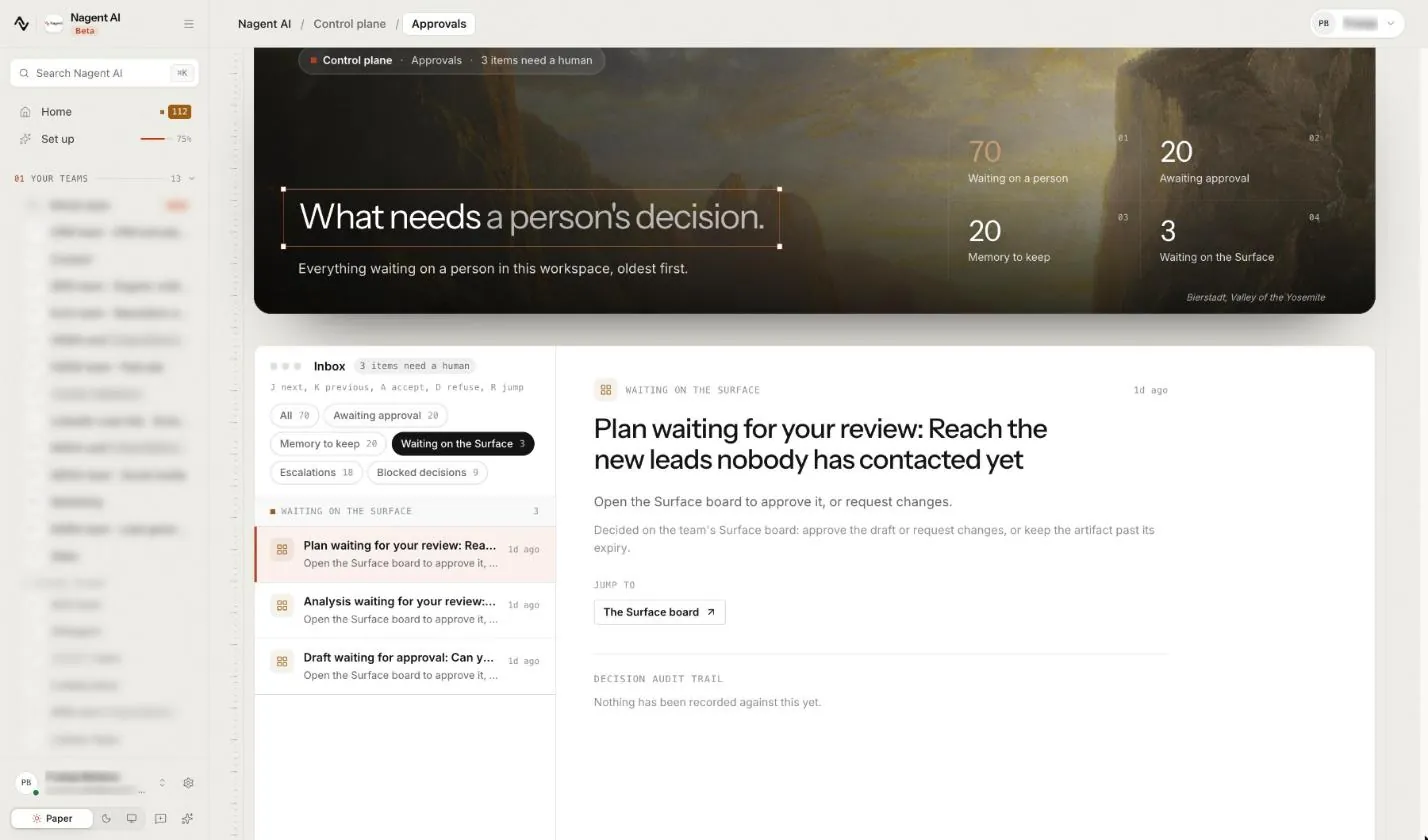
The Inbox, Approvals under Control plane in the sidebar, is headed What needs a person's decision.: "Everything waiting on a person in this workspace, oldest first." It gathers the kinds of item below. A kind gets a chip, with its count, once something of that kind is waiting, so you can look at one kind at a time.
| Kind | What it is | What you can do |
|---|---|---|
| Awaiting approval | A request in the approvals queue, for example a social post or a reply drafted for a customer | Approve or Reject |
| Memory to keep | A learning an agent proposed for its team's memory | Decide whether the team keeps it |
| Waiting on the Surface | A plan, analysis or draft waiting for review on a team's Surface board | Jump to The Surface board and approve it or request changes there |
| Held in team rooms | An action an agent in a room is holding | Approve or Decline on its confirm card |
| Your room jobs | A job you asked for in a team room that is waiting on your approval, or that ended in the last 24 hours | Open the thread and act there |
| Ready to move up | Promotion offers for a kind of action. New ones are no longer made: an agent's promotion now arrives under Awaiting approval, below | Nothing new to decide |
| Escalations | Something a team raised for a person | Open it and act on the thing itself |
| Blocked decisions | A run that failed | Open it to see what it was trying to do |

When the Inbox is empty it says "Nothing is waiting on you. Approvals, work held in team rooms, autonomy upgrades, escalations and failed runs all land here."
A Your room jobs item names the agent and the job's state: "job waiting for your approval", "job finished", "job stopped", "job reached its time limit" or "job failed", with the task under it. Only the person who asked for the job sees it. There is nothing to decide on the item itself. Under Jump to, The conversation opens the room on the job's thread, where a held step is approved on the job's card and a live job can be stopped. See the team room.
Deciding in the Inbox
- Pick a row on the left. The detail opens on the right.
- Press Approve or Reject.
- A confirmation asks why. The reason is optional, and it is "written to the record with your name on it". Agents read it before their next run, so a sentence here teaches them.
- Confirm. The row leaves the list only once the decision is recorded.
The keyboard works too: J next, K previous, A accept, D refuse, R jump to the item's own page.
Who may decide what
- Awaiting approval items are decided by an Organisation admin, or by a Chief of staff or Team lead where the work belongs. An Organisation admin may approve anything in the workspace, even where a list names other approvers. A Member sees them with the note "You can see this, and someone with permission to decide it has to act on it."
- Promotions arrive under Awaiting approval as "Promote" an agent "to" a level, from the nightly level run, or "Raise" an agent "to L5?", when someone asked for L5. Approving one moves the agent up a level. Raising to L4 or L5 is decided by an Organisation admin, Chief of staff or Team lead, and an L5 raise by someone other than the person who asked. See autonomy and governance.
- Was this right? items, also under Awaiting approval, ask you to grade something an agent did on its own. Approve if it was right and reject if it was not; nothing is held while you decide.
If part of the queue is hidden from you, the Inbox names it, for example "Not shown: Awaiting approval, which you do not have permission to see." An empty list then means nothing is waiting in the parts you can read, not that nothing is waiting at all.
When you invite people, give at least one of them a role that can decide, so requests in the approvals queue never wait on you alone. See people and roles.
Where to go next
- Autonomy and governance: why an action queues, and how that changes.
- The team room: where most held work first shows up.