
How to Create On-Brand Ad Images with AI
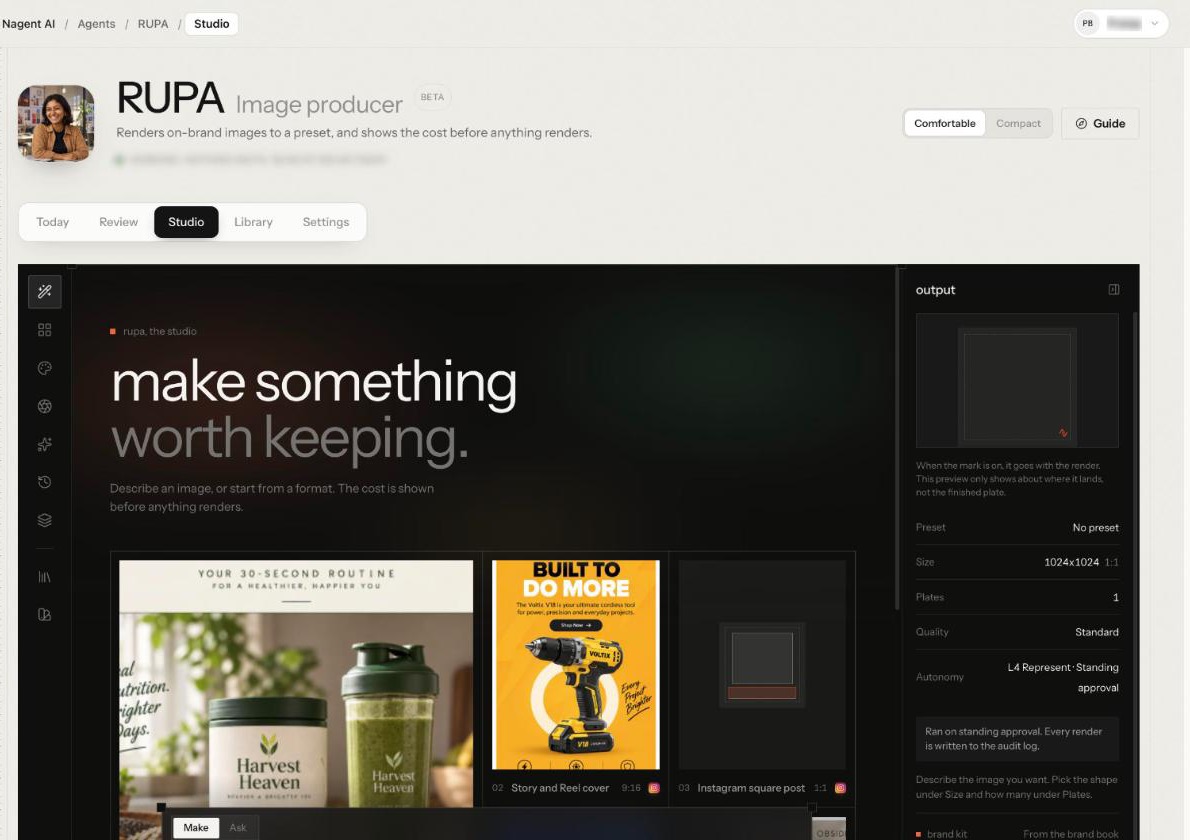
To create on-brand ad images with AI, write your brand down once where the image model is told it on every render: your logo, palette, voice and the words you never use. Then brief the studio on a preset that fixes the ad's shape, attach the product that must appear, read what the brand text says, approve the render and look at every plate before it ships. This guide walks through each step in RUPA, Nagent's image producer.
Why do AI ad images drift off brand?
An image model knows nothing about your brand unless it is told, every time. Most off-brand images come from four gaps:
The brand lives in a PDF nobody pastes in, so the model invents a palette and a logo.
The size is guessed from memory for each placement.
The product is described, not shown, so it comes out almost right.
Nobody checks what was sent, so a bad render leaves no record of what the model was told.
The steps below close each gap in order. RUPA is the image team lead on Nagent's Content team, in Beta. She "renders on-brand images to a preset, and shows the cost before anything renders", then reads your brief back against the brand book, so you can see what she was told.
Step 1: How do you set up the brand kit once?
Everything RUPA sends about your brand comes from one place: the Brand tab of the Knowledge Hub, under Teach, at nagent.ai/admin/brand. RUPA's Settings tab links to it as Brand kit. During set-up, Brand is one of the steps, which you can do in the set-up chat with N and your AI Chief of staff, or on the page yourself.
Start the brand book. While your brand is still the starter from sign-up, the page offers Generate your brand book, which reads your website and drafts it.
Upload your published guideline, if you have one. The Guideline document section says it plainly: "Your published guideline outranks anything we read off the website." It takes PDF, Markdown or plain text.
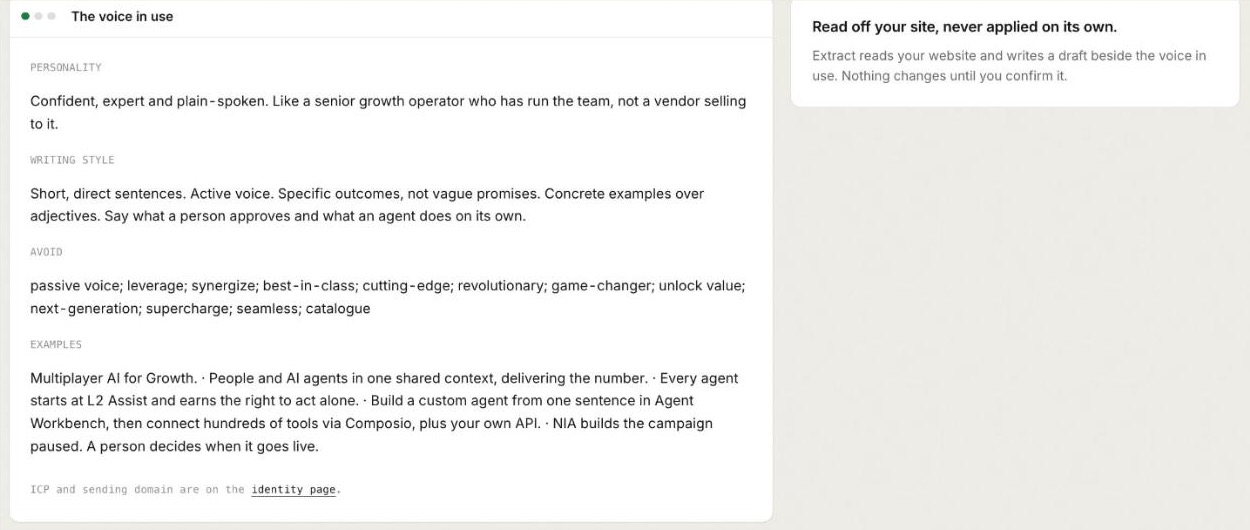
Confirm a voice. In Brand voice, press Extract from website. The draft lands beside the voice in use, and nothing changes until you press Confirm.
Fill the Avoid list with care. The words under Avoid in the voice in use are the banned words RUPA's Brand check reads your brief against later.
Upload your logos. In Logos, Light mode is the primary mark, so upload that one first.
Detail is in the Brand Lock guide.
Step 2: How far should RUPA be trusted to render?
Before the first brief, decide whether each render waits for a person. Open RUPA's Settings tab. The first card, What RUPA may do, reads Show the cost, then render, and its Level and budget link is where her level is set.
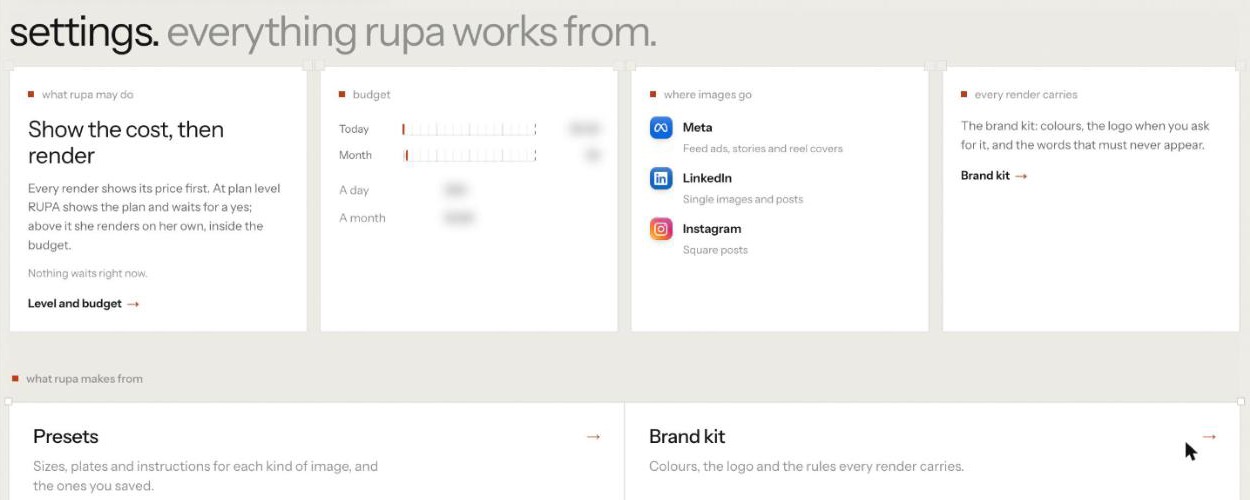
Level: L1 Observe or L2 Assist, What happens when you send a brief: RUPA writes a plan and stops: she "is not set high enough to render". Nothing renders
Level: L3 Operate, What happens when you send a brief: A Plan card appears with the cost in credits: "Nothing renders until you approve it."
Level: L4 Represent or L5 Lead, What happens when you send a brief: She renders at once: "Ran on standing approval. Every render is written to the audit log."
The studio shows the level under Autonomy; Not read means her level could not be read, and if she isn't set up in the workspace, every render is refused. While your team learns the studio, L3 Operate is the level where the cost in credits is shown before anything renders and a person says yes.
Her budget sits on the same tab, today and this month against her limits. It is checked before anything is sent, whatever her level, with a cap for one batch and your workspace's credit limits. Over a limit, she refuses and names it.
Step 3: Where do you open the image studio?
Go to nagent.ai/admin/rupa and pick Studio. RUPA's page has five tabs: Today, Review, Studio, Library and Settings. In the Content room, RUPA also has her own tab on the room's Team surface. Rendering needs permission to write content.
The tool rail on the left holds Presets, Looks, Camera, Skills, History and Batches, with links to the Library and Brand kit. The middle opens on "make something worth keeping". On the right, Output shows the preset, size, plates, quality and autonomy for the next render, and the brand kit, "From the brand book".
Step 4: Which preset fits the ad?
A preset fixes the shape and how many plates you get. Pick a format tile, or open Presets on the rail, where presets sit in groups such as Paid social, Organic social, Product and Editorial. For ads, start in Paid social:
Meta feed ad, square, four plates.
Story and Reel cover, 9:16, four plates.
LinkedIn single image, wide, three plates.
A placement preset delivers each plate cropped to the size that placement wants, and the render is told what the crop will take, so the subject stays inside the frame. The default is No preset: square, tall or wide, and one to four plates.
If your team makes the same kind of ad every week, choose New preset and save it as your own. It adds your instructions, references and default settings to a built-in preset and keeps its size. Your presets show first, tagged Beta.
Step 5: What goes in the brief?
The brief goes in the dock at the bottom of the studio. Make sure the switch above it says Make, which renders. Ask answers questions about what the preset renders, how many plates it makes, what the brand book sends or what RUPA's autonomy means, and renders nothing, so use it to check before you spend.
A good ad brief names the subject, the scene and light, what the plate is for, what must stay clear and what to avoid. For example: "Our ceramic travel mug on a desk by a window, warm morning light, a feed ad for commuters, the top third empty for a headline, no people."
The pills under the brief set the rest: Standard or HD (about four times the cost), Brand Lock, Logo, Look, Camera and a style note. Settings opens a sheet with Use for this one, for this brief only, and Remember for the preset, which keeps the settings for the workspace once you approve a confirm card.
Step 6: How do you make sure the real product appears?
Don't describe your product when you can show it. RUPA takes images three ways:
A product from your offerings. If your workspace lists products with images under Products and services, the Settings sheet holds a Product field. Pick one and its images go with the render as references, with the instruction to keep the product exactly as shown. A product with no images yet is listed with "No images yet; add one to the offering to use it here." See products and services.
An input image. Press the paperclip in the dock to open Pick from the library, and choose an image As an input image: a product shot or a logo that must appear. A render takes up to ten input images.
A reference. Pick an image whose look you want to borrow and say what to take from it: Match the style, Reproduce the layout, Change the headline, Localise it or Remix it.
Step 7: How do you check what Brand Lock will send?
Brand Lock is on by default. Before you send, read the brand kit panel on the right, under your palette and logo:
Send the brand mark with this render decides whether your logo travels. It travels as a real image to be placed on the plate, never redrawn, and only while Brand Lock is on.
Needs a human eye and Banned words count the rules only a person can confirm and the words from your Avoid list.
What goes with every render shows the exact text sent with the prompt, once you have sent a brief. If something is wrong here, fix it on the Brand tab, not in the brief.
Turn Brand Lock off only for images that shouldn't carry your brand. With it off, no brand guidelines go, and the mark stays home too.
Step 8: How do you approve the render?
Press the generate button at the end of the dock. What happens next depends on RUPA's level from Step 2.
At L3 Operate, a Plan card appears. It lists the plates, size, quality and Brand Lock, then numbered steps: the preset's spec, the brand guidelines sent, the mark if it travels, the banned-word check, and "Spend about" a number of credits "on this render". The cost grows with HD quality, more plates and more input images. Read it, then press approve and render, right there on the card.
At L4 Represent or above, she renders at once on standing approval, and the render is written to the audit log. There is no plan card, but her budget still counts every render.
Either way, RUPA never publishes an image. Putting a plate in a live ad is a person's job.
Step 9: How do you review the plates before they ship?
Rendered plates appear as a sheet in the studio. Each plate offers Vary, a download and Copy link, plus four skills that work on a saved plate: Ad set (one plate as square, tall and wide versions), Restyle, Relight and Cut out.
A Brand check card follows each sheet, marked All clear or with how many things to look at. It reads your brief against the banned words, not the picture. Rules a text check can't confirm, such as the imagery rules in your brand book, are grouped under Waiting on you and marked Needs your eye rather than ticked.
The sheet is also filed for review. A Filed for review row links to Review, then For review, where a person can Approve the work or Request changes. Use it, because the last check is yours: look at every plate for the logo, the product, any text in the image and the space you left for copy.
Step 10: Where do the finished images go?
Every saved plate lands in RUPA's Library tab, under Assets, where you can filter by AI, uploaded or product shoots and by category. Hover a tile to download it, copy its link, rename, retag or refile it, or delete it. The Knowledge Hub's Assets tab reads the same library, so your other agents can use what RUPA made. If a plate shows "Not saved. Download to keep it.", saving failed, so download what you want.
Where does RUPA sit in the team?
Nagent organises its AI teammates the way a well-run growth team is organised: an AI Chief of staff heads each department, team leads own a kind of work, and some leads have a bench of sub-agents. You can see the whole chart on the team page. RUPA's line looks like this:
CREA, AI Content Chief of Staff
RUPA, team lead, image studio (no sub-agents: she makes every image herself)
FOLIO, team lead, long-form
Alpha, team lead, video studio, with a bench of desks such as ADS, UGC and AVATAR
Makers on CREA's team, such as LANDON for landing pages
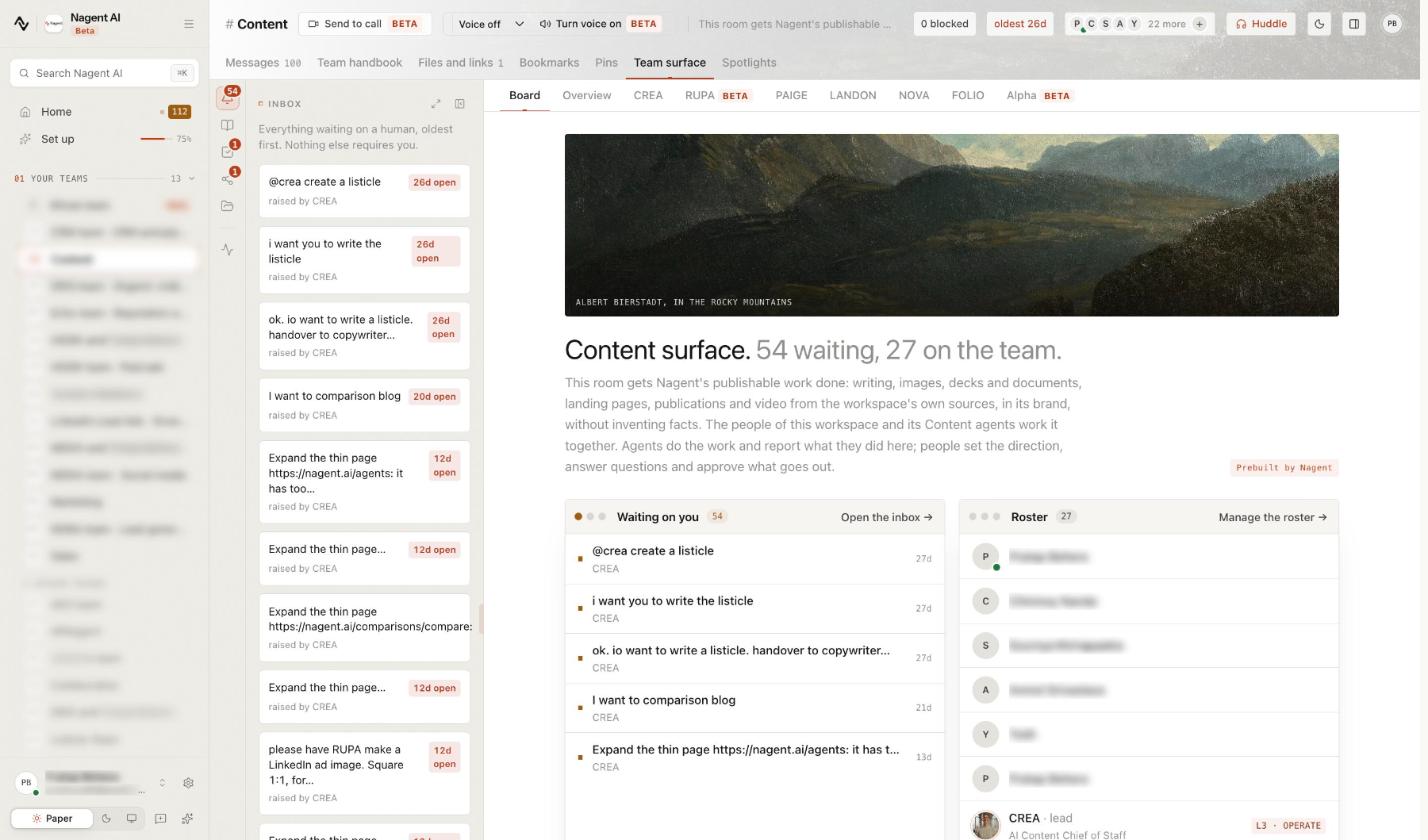
How a request moves. You ask the Content room in one line. CREA decides who owns it and hands an image job to RUPA. RUPA renders and brings the result back to the thread, with anything that needs a person waiting on a card. You approve, edit or decline in the room. You can also type @ and pick RUPA, and she renders one brand-locked image from the message. Presets, references, attachments, skills and the Brand check stay in her studio, so an ad that needs them starts there. Until she's trusted to render on her own, a room render needs a person's approval in the thread.
How handoffs from other departments work. Asking another department is a written handoff to that room's lead, not a free-for-all. When Marketing needs visuals, MIRA passes the writing and visuals to CREA's Content team. HOOK (Beta), the ad creative strategy lead on Marketing, writes production briefs that a person sends to RUPA; they wait under Review, then From HOOK, and HOOK's GATE checks the plates that come back. Every hop is checked against the receiving agent's budget.
What doesn't RUPA do yet?
Know the limits before you plan around the studio:
RUPA is in Beta, and some corners are still rough.
The Brand check reads text, not pixels. It won't catch a misplaced logo.
What goes with every render appears once a brief has been sent. To read it before anything is spent, keep RUPA at L3 Operate and read it beside the plan card.
No preset offers three shapes only: square, tall and wide.
RUPA doesn't place ads or publish posts. She makes the images; people and the paid team decide where they run.
For the full studio reference, including infographics, shot lists and batches, read the RUPA studio guide.
Frequently Asked Questions
How do I keep AI-generated images on brand?
Write the brand down once where the model is told it on every render: logo, palette, voice and banned words. In RUPA, Brand Lock does this by default, and the brand kit panel shows what goes with every render, so you can check it before you approve.
Can AI put my real logo and product in an ad image?
Yes, as inputs rather than drawings. RUPA sends your logo as an image to be placed, never redrawn, and a product picked from your offerings goes with the render as references with the instruction to keep it exactly as shown.
Does the Brand check look at the finished image?
No. It reads your brief against the banned words in your brand voice and marks rules it can't check from text as "Needs your eye". Look at each plate yourself before you use it.
How much does an AI ad image cost in Nagent?
Renders are paid from your workspace's credits. With RUPA at L3 Operate, the plan card shows the cost in credits before anything renders, and it grows with HD quality, more plates and more input images. Her budgets are checked before every render.
Make on-brand ad images your team can trust
On-brand AI images come from a process, not a lucky prompt: the brand written down once, the right preset, the real product attached, the brand text checked, the render approved and every plate reviewed. RUPA builds that process into the studio, so your team spends its time on the ad, not on fixing the image.
Book a demo to see RUPA render your first brand-locked ad.
Continue learning
Agents that match this read.
Kinetiq: AI Motion Design Studio
Kinetiq turns briefs, scripts, website URLs, and brand assets into editable After Effects-style motion videos, including explainers, SaaS videos, product launches, ads, kinetic typography, and social videos, without manual motion-design work.
View agent VVirtual Photoshoot Agent
A comprehensive virtual production tool that orchestrates full-scale photoshoots with total control over models, weather, location and other styling preferences via AI.
View agent