
How to Write a Whitepaper with AI, Step by Step
To write a whitepaper with AI, start from your own evidence, not the model's general knowledge. Settle the argument and the reader, gather the documents that back it, then have the AI outline, draft each chapter against those sources and render a designed file, with a person reviewing before it goes anywhere. This guide does that on Nagent with FOLIO, the long-form team lead, now in Beta, that turns your Knowledge Hub into an illustrated PDF and DOCX.
What makes a whitepaper worth reading?
A whitepaper is a long-form argument backed by evidence, written for a reader who is deciding something. It earns attention when it does three things a blog post can't:
It makes one clear claim. "Mid-size retailers lose more margin to stockouts than to discounting" is a whitepaper. "Retail trends for this year" is a list.
It shows its working. Data, method, examples and sources the reader can check.
It leaves the reader with a next step. A framework to apply, questions to ask, a decision to make.
The usual shape follows from that: an executive summary that stands on its own, the problem, your framework or thesis, the evidence chapter by chapter, implications, and recommendations.
This is exactly where general-purpose AI writing goes wrong. Ask a chat model for a whitepaper and it produces the shape without the substance: confident paragraphs, plausible statistics, no sources. The fix is to make your own documents the material the AI writes from, and to check every claim against them before the file leaves the building.
Where does FOLIO sit in the team?
FOLIO is a team lead on Nagent's Content team. Every Nagent department is built as a line of layers, which the team page explains in full. For long-form work the line is:
You and your people. You choose the sources, approve the finished book and decide whether it goes out.
CREA, AI Content Chief of Staff. Owns output and the brand line. When a piece is a publication rather than a post, CREA passes it to FOLIO and says who holds it now.
FOLIO, AI Long-Form Publications Lead. The one seat you address for a book, instead of each stage in turn.
Ingestor reads your documents into one labelled body of source text.
Architect designs the chapter architecture, foreword, executive summary and cover brief.
Writer drafts one chapter at a time against the passages ranked for it.
Artist illustrates the chapters. A visual that fails is dropped and the prose stays.
Compositor renders the book as PDF and DOCX.
Publisher files the finished PDF, only after a person says yes.
RUPA (images) and Alpha (video) are the other team leads under CREA.
Work moves down the line and back up it. Each stage runs as its own worker and hands its output back up, never sideways, so the record shows which worker did what. FOLIO sits in the Content room with CREA, RUPA and your people, and other departments reach it through CREA: MIRA, the AI Marketing Chief of Staff, passes writing to CREA's Content team, and a request from any room is a written handoff to CREA's room.
One practical note: a new book isn't started by a message in the room. FOLIO's tab on the Content room's Team surface lists your long-form content with a New book button, and that button opens FOLIO's Studio, where the book is set up. From the room itself, FOLIO's workers act only on a book that already exists.
How do you write a whitepaper with AI on Nagent?
Step 1. Settle the argument and the reader first
Before you open any tool, write three lines:
The claim. One sentence you want the reader to accept by the last page.
The reader. A role and a situation, for example "a CFO at a mid-size retailer deciding on inventory software."
The ask. What you want them to do next.
These become your title and your author notes in Step 4. A whitepaper with a fuzzy claim can't be rescued by better drafting, human or AI.
A worked example: the claim "Stockouts cost mid-size retailers more margin than discounting does"; the reader "a CFO at a mid-size retailer weighing inventory software"; the ask "run a four-week stockout audit before the next budget cycle." Every chapter then has a job: prove part of the claim to that reader, or make the ask easier to say yes to. Anything that does neither can go.
Step 2. Put your evidence in the Knowledge Hub
FOLIO writes from your workspace's documents, so the quality of the whitepaper is set here. Open the Knowledge Hub. Under Teach, the Documents tab has an Add knowledge button: paste text, give a URL or upload a file. Add what your argument rests on: research, survey results, analyst reports, product notes, call transcripts, past decks.
A document is readable by agents once its status reads embedded. Pending means it's still being indexed, and failed means agents can't read it at all, so fix those before you start. Adding knowledge covers each case.
Check Gaps too, under Needs you. It lists questions your agents couldn't answer from what they may read. If your whitepaper's argument depends on one of them, write that document first.
Step 3. Give it your brand's voice and rules
A whitepaper speaks for your company, so set the voice before drafting. Your brand lives on the Knowledge Hub's Brand tab, under Teach: one brand book every agent reads.
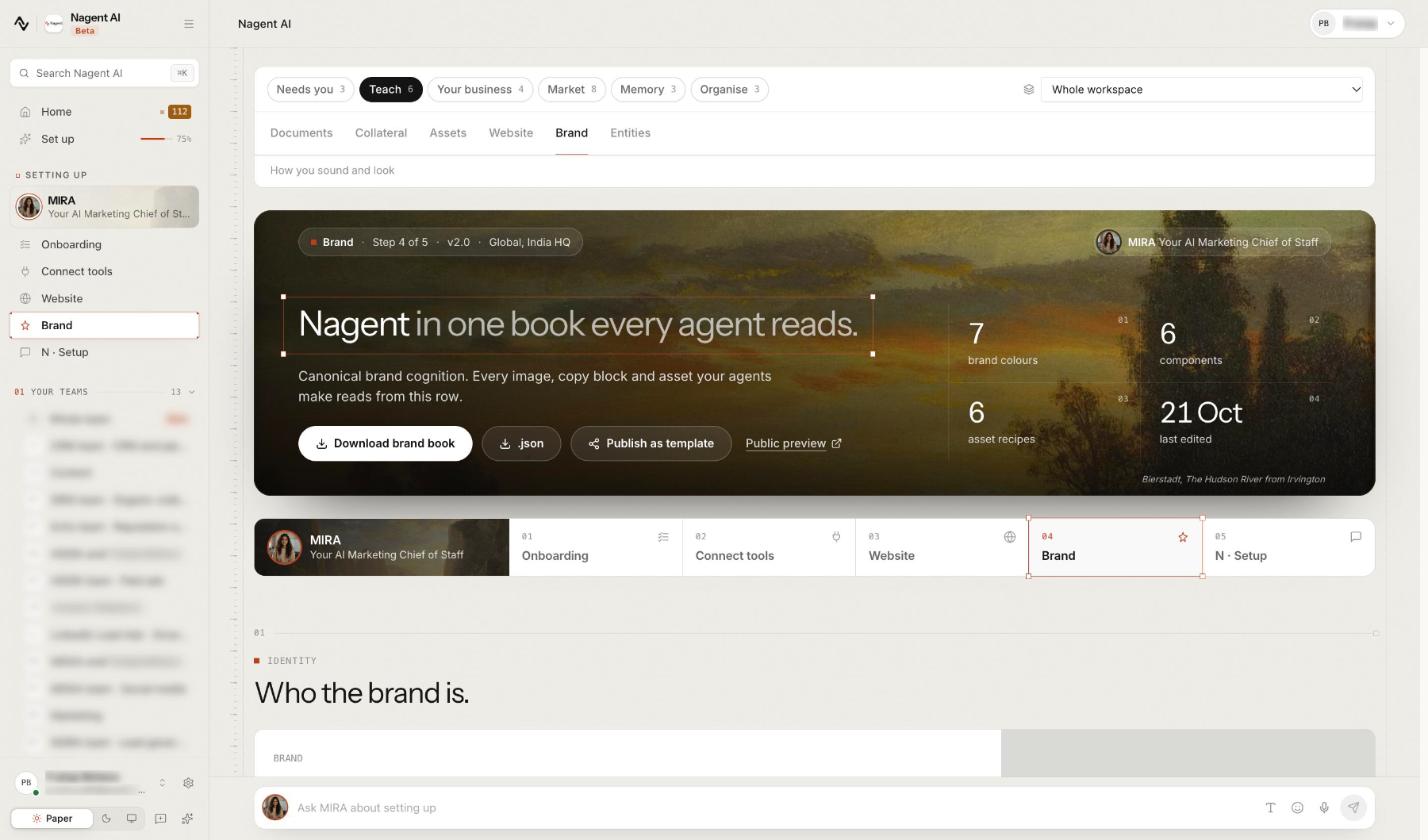
Upload your published guideline on that page as the Guideline document. It outranks anything read off your website. Every FOLIO book reads the voice and copy guidelines from this brand book, as your blog posts do.
The Studio's Voice picker adds a stricter layer. If a brand guideline is on file in your workspace, pick it there and its banned claims, banned visuals and mandatory items travel with the voice, placed ahead of tone, so a long guideline loses style before it loses a rule. If none is on file, the picker says so and the chip stays on Generic voice. Brand Lock in the docs covers the brand book in full.
Step 4. Open FOLIO's Studio and set up the book
Open FOLIO from its tab on the Content room's Team surface and press New book, or open FOLIO's own page and choose Studio. FOLIO's page has five tabs, Today, Review, Studio, Shelf and Settings, and its header carries a Beta tag.
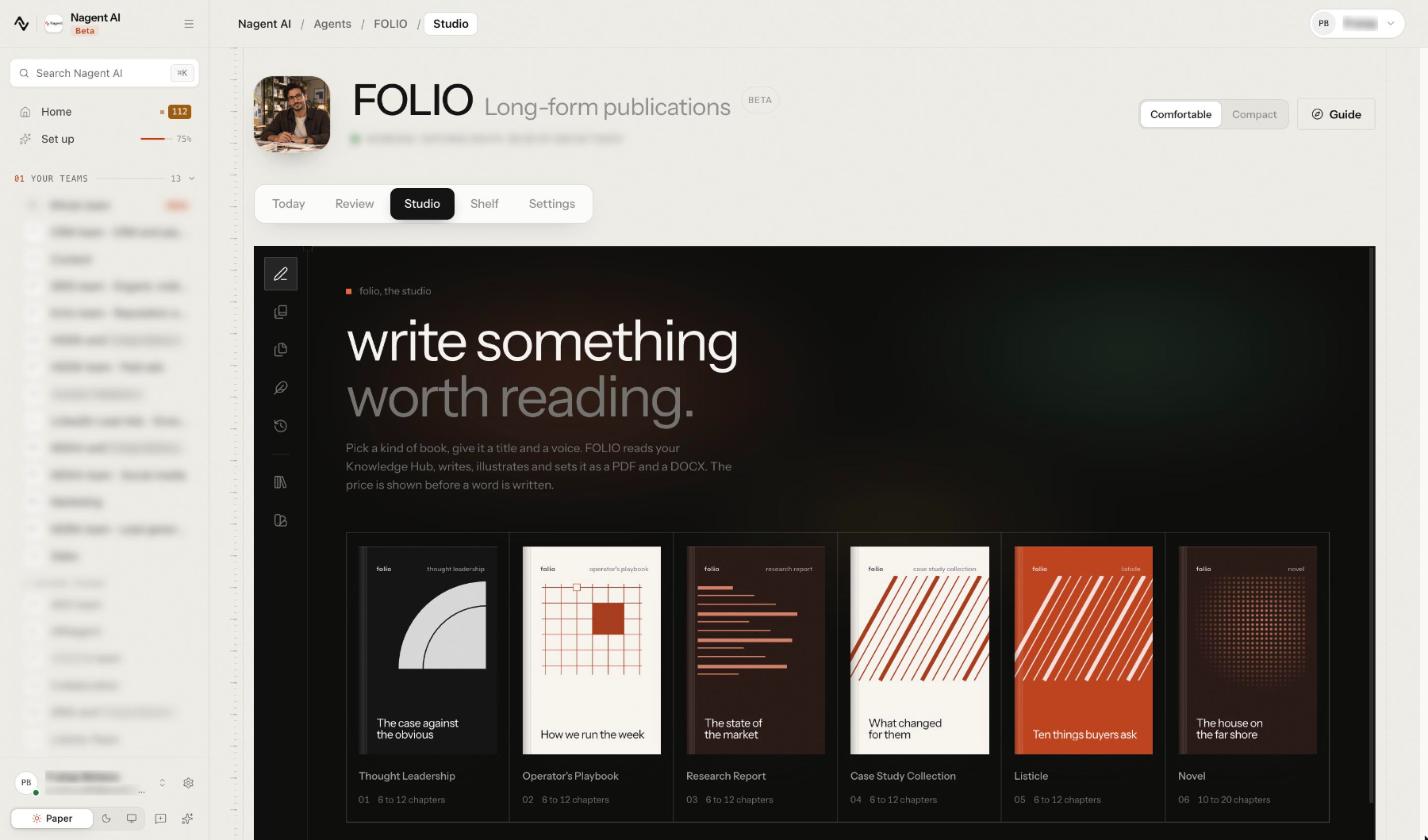
The Studio opens on "write something worth reading" and six kinds of book. Thought Leadership, Operator's Playbook, Research Report, Case Study Collection and Listicle each run from 6 to 12 chapters; Novel runs from 10 to 20. Below them, "or begin with a brief" offers ready-made starting points, one of them a thought leadership piece.
Then set it up:
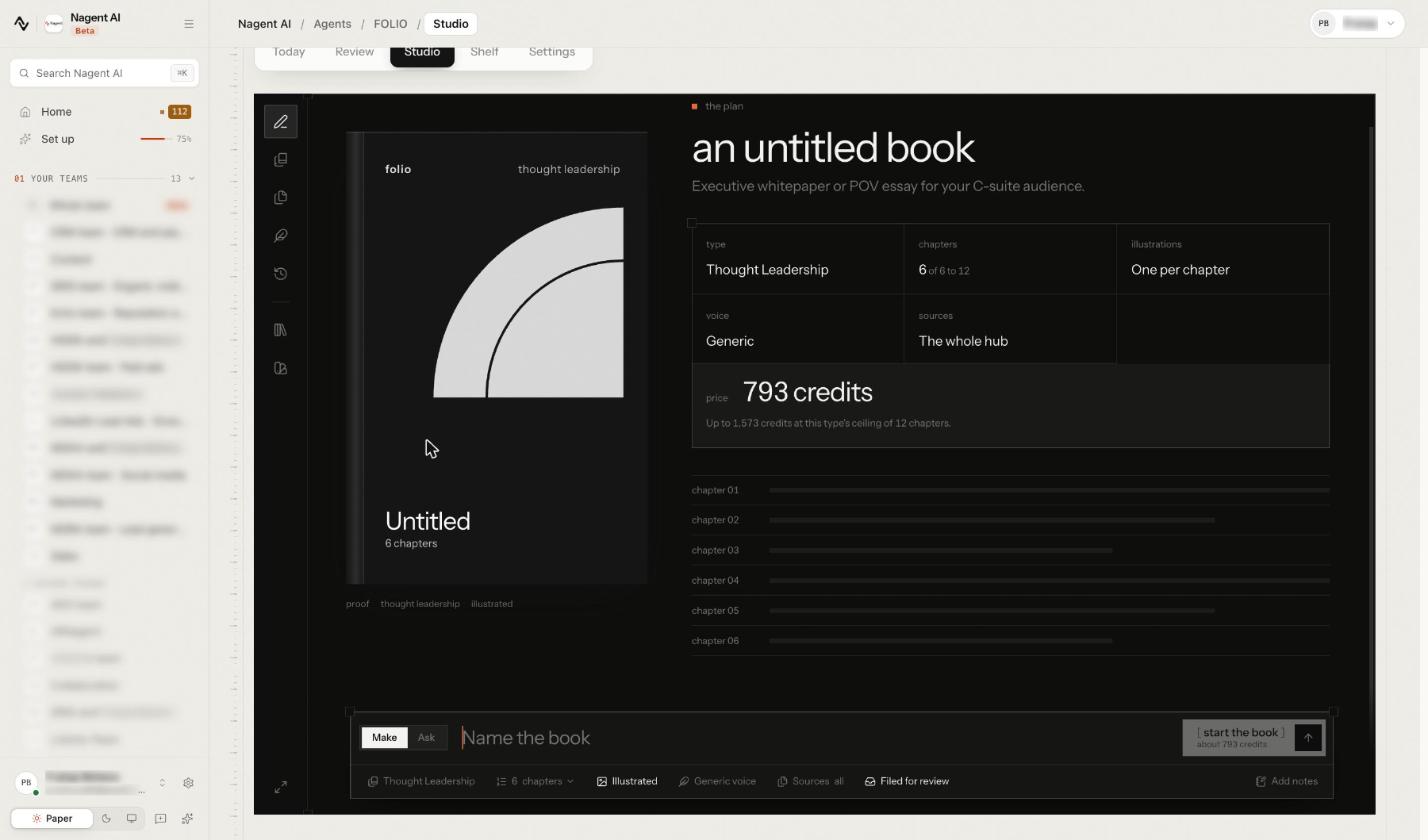
Pick a book type. For a whitepaper, choose Thought Leadership ("Executive whitepaper or POV essay for your C-suite audience") or Research Report ("Industry analysis with data, trends, and a clear thesis"). Picking one opens the plan: an untitled book with its type, chapters, illustrations, voice, sources and price laid out, and a row for each chapter.
Name the book. With Make selected in the box at the foot (Ask is for asking FOLIO a question instead), type the title where it says Name the book. Use the claim from Step 1, or a short version of it.
Set the chapters. The chapters chip opens a slider within the type's range; the plan shows the count, for example "6 of 6 to 12". Seven or eight chapters suits most whitepapers: summary, problem, framework, three or four evidence chapters, recommendations.
Choose illustrations. Illustrated is on by default, and the plan reads "One per chapter". Press the chip to switch to No illustrations for a text-only paper.
Pick the voice. Press Generic voice and choose your brand guideline if one is listed, as in Step 3.
Pick sources, or let it search. The Sources chip reads "all" and the plan says The whole hub: every book searches your whole Knowledge Hub, and documents you pick come first. For a whitepaper, pick the research it must lead with.
Add notes. Add notes opens author notes: put your reader, your claim and anything the outline should know that isn't in your sources.
Leave Filed for review on, so the finished book is filed for a person's review.
Step 5. Check the price, then start
The price is shown in credits before a word is written. As an example, a six-chapter, illustrated Thought Leadership book in one workspace was priced at 793 credits, with a note that it could reach up to 1,573 credits at the type's ceiling of 12 chapters. Your own figure depends on your choices, so read it off your plan rather than from this guide.
The start the book button repeats the estimate and stays shut until it has resolved. Changing the type, the chapter count or illustrations re-prices it. Press start the book, and a confirmation repeats the type, chapters, whether it's illustrated and the price, "spent as FOLIO writes."
FOLIO has a long-form budget of its own, separate from blogs, so a book and a blog never starve each other. Every model, image and research call checks it first, and a book stops at the chapter or image that would cross it. Set FOLIO's daily budget under Settings, Configuration.
Step 6. Watch the press
Today shows each book in the press, stage by stage. The Ingestor reads your documents; the Architect designs the chapters, foreword, executive summary and cover brief; the Writer drafts each chapter against the paragraphs of your documents ranked for that chapter's title, summary and key points, so each chapter is written from the material it's about; the Artist illustrates; the Compositor renders.
Each stage declares the trust it needs to run without a person. When an agent isn't yet trusted with an action, an approval request is written and nothing runs until someone decides.
Step 7. Read it, check it, review it
Open the book from the Shelf, which counts your books, those ready and in the press, and the credits spent.
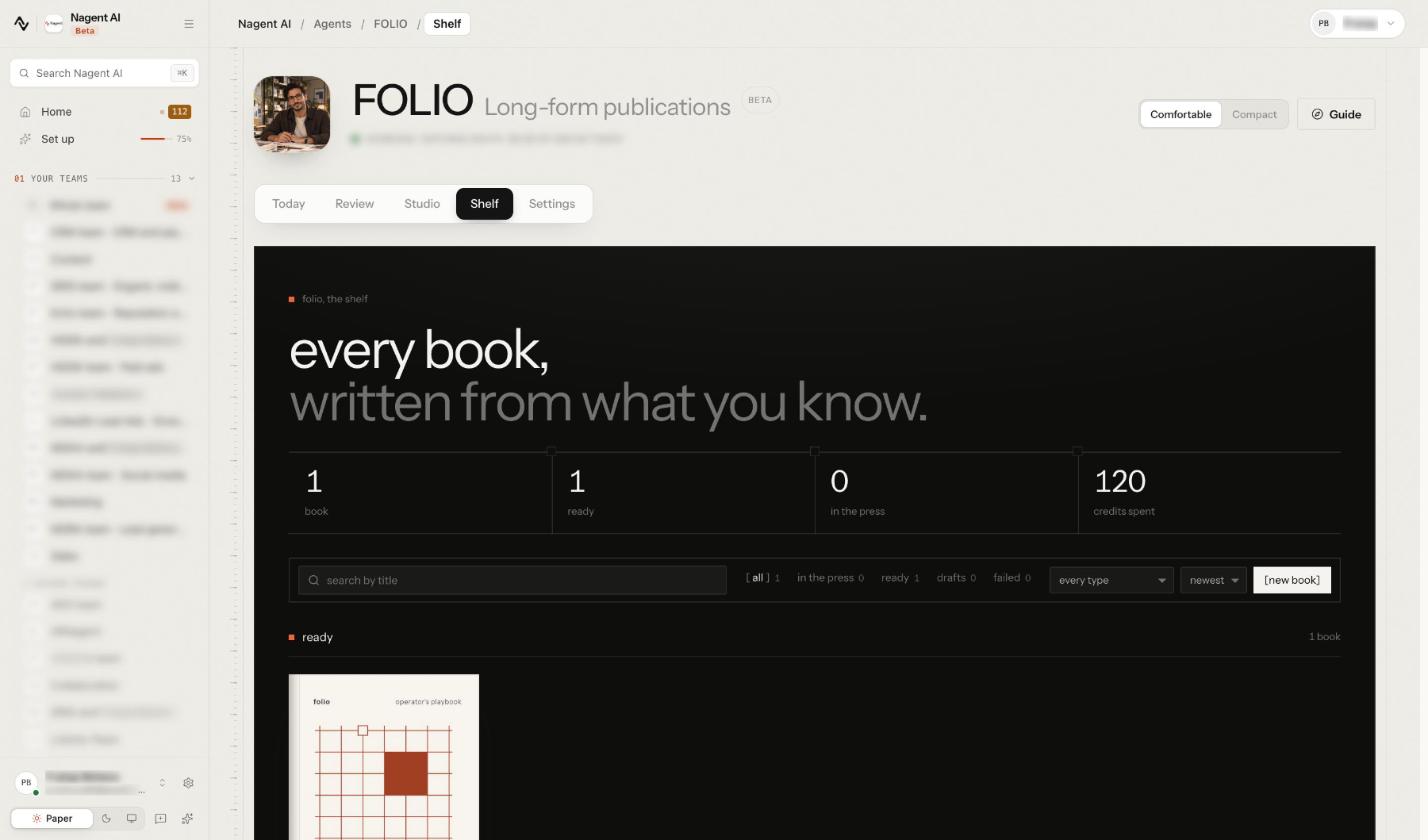
Open a cover and the reader follows the press live until the book is ready. It shows the contents, each chapter with its takeaways, and a colophon with the book's files, its cost and where it goes next.
Then fact-check like an editor, not a proofreader:
Trace every number to a document you supplied.
Check every named customer, quote or partner has permission to appear.
Read the executive summary alone. It should make the whole case on its own.
Cut anything generic. If a paragraph would fit any company's whitepaper, it isn't earning its place.
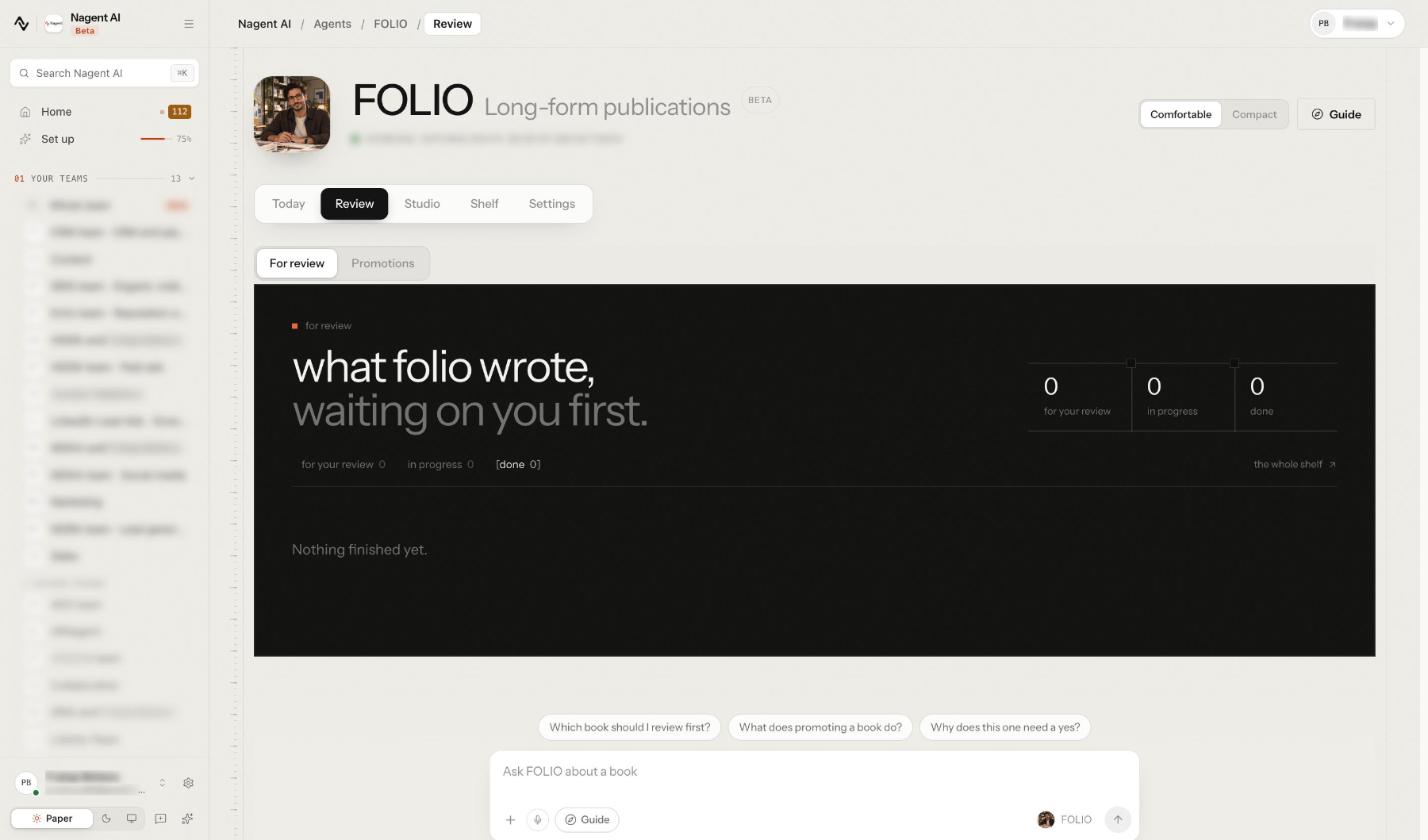
FOLIO's Review tab holds "what folio wrote, waiting on you first." Under For review, approve the book, with a note if you like, or ask for changes and say what to fix. The box at the foot lets you ask FOLIO about a book.
Step 8. Download the files and decide where it goes
Once rendered, the PDF and DOCX sit beside the book's contents. The PDF is the finished, designed file. The DOCX is the one to hand your legal or brand reviewers for tracked line edits.
To put the book to work inside Nagent, press Promote on the finished book. It files the PDF as a knowledge asset, and with Also publish as a gated lead magnet ticked, as a gated download too. Promotion is never part of the chain that writes the book, and it waits for a person's yes under Review, Promotions.
How do you keep an AI whitepaper credible?
Feed it primary evidence. Your own data, customer research and expert interviews beat summaries of other people's reports.
Date your data. Say when each figure was collected, and refresh the paper when it ages.
Keep one idea per chapter. If a chapter needs two titles, it's two chapters.
Show the method. A short note on how you gathered the evidence makes every chapter more believable.
Have a subject expert read it. AI drafting speeds up the writing, not the judgment.
Check it against what you have already published. A whitepaper that contradicts your own site or sales deck creates doubt about both. Fix the source document, not just the paper.
What won't FOLIO do for you?
It won't start from a room message. A book is set up in the Studio, where you pick the type, sources and voice and see the price.
It won't run on a schedule. FOLIO has no timed trigger; every book starts when a person starts it.
It won't publish on its own. The chain stops at the rendered PDF and DOCX; promotion waits for a yes.
It can't invent evidence you don't have. If your hub is thin on the argument, the whitepaper will be too. Fill the gap first.
Frequently Asked Questions
Can AI write a whitepaper?
AI can draft one well when it writes from your evidence. FOLIO outlines the paper, drafts each chapter against the passages of your documents ranked for it, illustrates it and renders a PDF and DOCX. A person still sets the argument and checks the facts.
How long should a whitepaper be?
Long enough to make one argument with evidence, usually several chapters plus an executive summary. FOLIO's Thought Leadership and Research Report types run from 6 to 12 chapters, and you set the count before you start.
Will an AI whitepaper sound like our brand?
It will if you give it your brand. Every FOLIO book reads the voice in your workspace's brand book, and if a brand guideline is on file you can pick it under Voice, so its banned claims and mandatory items are placed ahead of tone. Left on Generic voice, no guideline's rules are attached.
Can I edit an AI whitepaper after it's written?
Yes. Download the DOCX and edit it like any document, or ask for changes in Review with a note on what to fix. Keep the PDF as the designed version once edits are final.
Turn what your team knows into a whitepaper
A good AI whitepaper is your evidence, your argument and your voice, assembled faster. Settle the claim, load the Knowledge Hub, set the brand, then let FOLIO outline, draft, illustrate and render it, while your team does the part that needs judgment: checking every claim and deciding where it goes. The CREA guide covers the rest of the Content team.
Book a demo to see FOLIO turn your own documents into a whitepaper.