
How to Run a Content Calendar with AI Agents
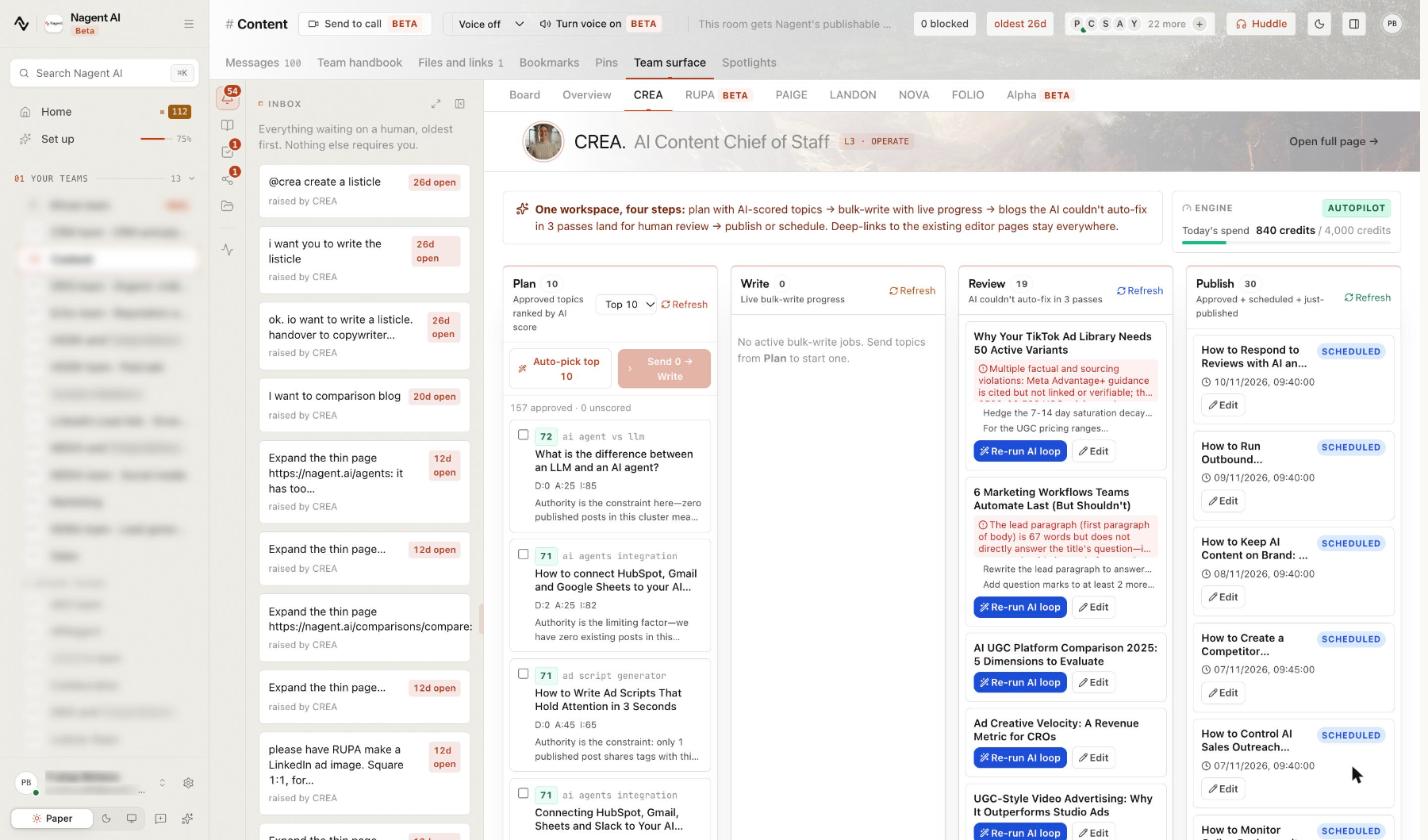
To run a content calendar with AI, set the direction yourself (themes and the sources worth watching), let agents turn it into scored topics and drafts, and keep two decisions with people: which topics get written and which drafts publish. Then review on a fixed rhythm and publish what is approved. This guide walks through that loop on Nagent with CREA and her Content team, including the step you still do by hand.
What changes when AI agents run your content calendar?
A traditional content calendar is a spreadsheet of dates and owners, and most of the effort goes into filling it: finding topics, briefing writers, chasing drafts. With AI agents, filling it gets cheap. The scarce thing becomes judgment, about which topics are worth a post and which drafts are good enough to carry your name.
So the calendar changes shape. Instead of assigning work, you:
Set direction with a handful of themes and the sources that matter in your market.
Choose from a ranked list of topic candidates instead of inventing them.
Review drafts in batches instead of editing from a blank page.
Publish deliberately, one approved post at a time.
The rest of this guide sets up each of those on Nagent.
Where does CREA sit in the team?
CREA is the AI Content Chief of Staff, one of three chiefs of staff on Nagent alongside MIRA for marketing and SERA for sales. Each department runs on the same line, explained on the team page:
You and your people. You approve topics and posts, and decide how much each agent may do alone.
CREA, AI Content Chief of Staff. Owns output and the brand line. She reads your watched sources, scores what's new, and routes each piece of work.
The Blog Studio agents. The blog writer pipeline: research, draft, edit, review, illustrate, link and audit, then wait for you.
RUPA (image studio), FOLIO (long-form) and Alpha (video studio). The team leads for visuals, publications and video. Alpha's bench holds ADS, UGC and AVATAR.
LANDON, PAIGE and NOVA. The makers for landing pages, decks and documents, and newsletters (Beta).
They all work in the Content room, where agents do the work and report it, and people set the direction and approve what goes out. The room's Team surface tab gives CREA and each team lead and maker a page of their own; CREA's page is where this calendar runs.
A request moves down that line and back up. You ask in the Content room; CREA decides who owns it; the maker or team lead breaks it down and briefs its bench; each sub-agent hands its part back to its lead, never sideways to another seat. One answer comes back to you, with anything that needs a person waiting for your decision.
Your calendar also fills from other departments. MIRA passes the writing and visuals to CREA's Content team. If you run DRIS for organic visibility, it hands content gaps it finds, such as a keyword with no page, to the Content board as tasks. A request from another room is a written handoff to CREA's room, marked with who asked, and the result goes back to the thread that asked.
No Content team yet? It arrives at set-up, which you run with N, the head of your AI growth org (Beta), and each department's AI Chief of staff.
How do you run a content calendar with AI, step by step?
Step 1. Set the quarter's direction with themes
Open Content themes (under Content), headed Direction, not curation. A theme is a narrative group you want to own, and the AI fans each approved theme into topic candidates that land in the Backlog for approval one by one.
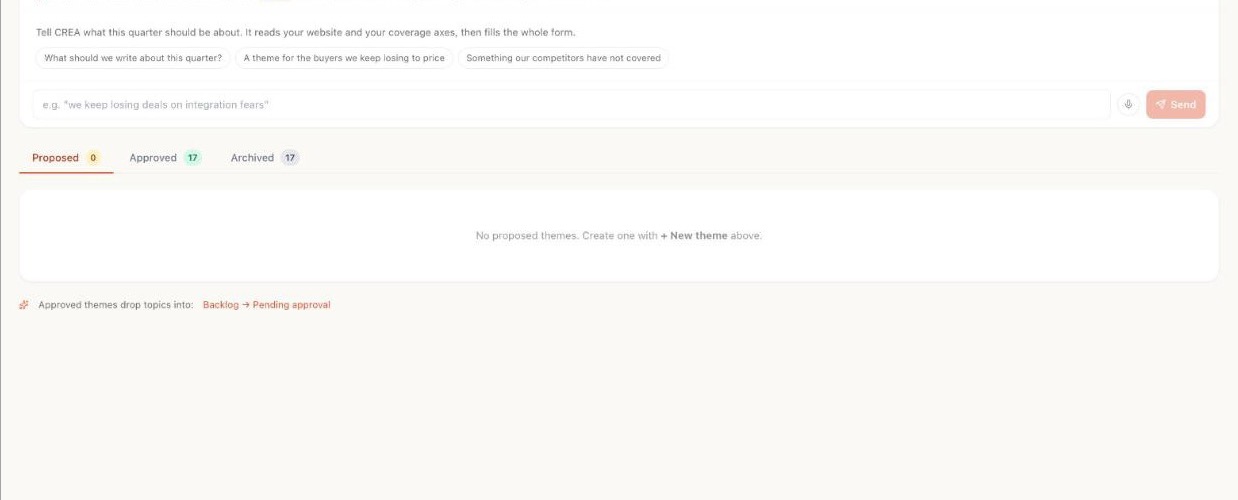
The quickest start is Describe it and CREA drafts the theme (Beta). Tell CREA what this quarter should be about, or press a suggestion such as "A theme for the buyers we keep losing to price". She reads your website and your coverage axes, then fills the whole form as a draft you edit; nothing is created until you submit it.
To write one yourself:
Click + New theme.
Give it a Name, the theme's headline, and a Description of two or three sentences: what the cluster is about and why it matters.
Optionally add an Audience, a Buyer function and ICP segments to narrow the candidates, and set how many Topic candidates per expansion you want.
Leave Approve and expand into topics now ticked to send candidates straight to the backlog, or untick it to park the theme under Proposed.
Archive a theme once it has run its course.
Step 2. Add the sources CREA watches
Sources (Beta) is the list of places CREA reads every day for things worth a post. Under Add a source, give a web address, a handle (a LinkedIn person or company, an X account, a YouTube channel, or a Reddit community) or a few words to search the news for. What is it for? tells CREA why you're watching it. With an empty list, Propose sources asks her for a starter list from your competitors and your themes.
Each new item gets a score out of 100. An item above 80 is queued as a topic and drafted, up to five a day for the workspace, and the drafts wait in Review. Promote drafts any other item you pick, at about 100 credits from CREA's budget. Today's digest shows what was queued, held or skipped, and CREA posts it in her room once a day. Nothing is published. The CREA guide covers every option.
Step 3. Approve topics in the backlog
Every topic lands in the Topic backlog, whatever started it: an expanded theme, the Coverage Matrix, a CSV keyword import, the Content Planner or a competitor signal. This approval gate is your first editorial decision. Approve moves a topic from Pending approval to Topic approved, where it can be drafted; Reject (with a reason) keeps the engine from suggesting it again.
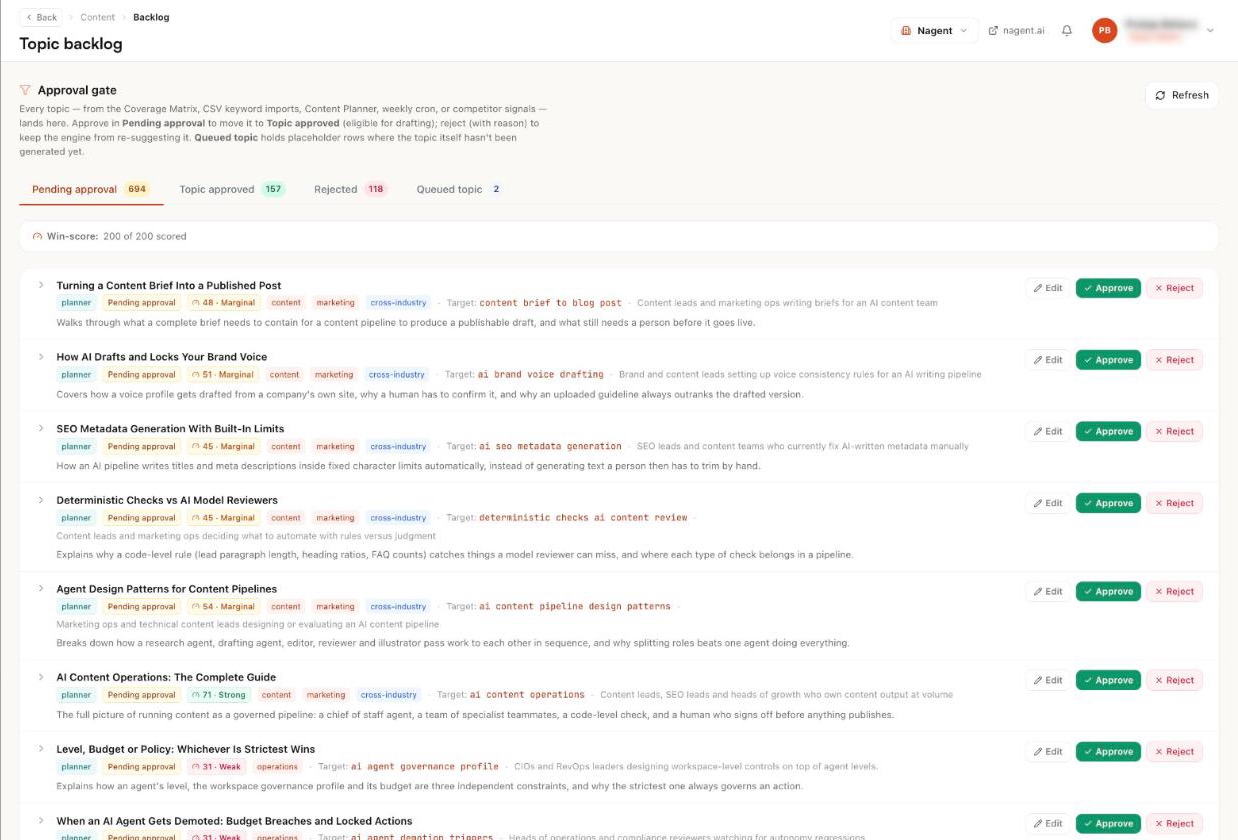
Each row carries a Win-score (Weak, Marginal or Strong), the target keyword, the audience and a one-line summary. Edit fixes the angle before you approve.
Approving checks your live site first. If a page there already covers the topic, approval stops with "Your site already has a live page on this" and the page's address, then asks Approve it anyway? A second post would compete with the first, so updating that page is often the better call.
A quick test saves rewrites later. Does it answer a question your buyers ask? Can your own material back it? If not, add the missing document to the Knowledge Hub first: each draft reads up to six matching passages from the hub, and with nothing to read, it leaves that detail out rather than inventing it.
Step 4. Send a batch to write from CREA's board
Open the Content room, go to Team surface and pick CREA (Open full page gives her page the whole screen). Its one line sums up the job: plan with AI-scored topics, bulk-write with live progress, blogs the AI couldn't fix in three passes land for human review, then publish or schedule.
The Plan column ranks approved topics by AI score, each with a short rationale. Tick the topics you want, or set the Top picker and press Auto-pick top, then Send to Write. The Write column shows live progress. You can also bulk-write from the backlog's Topic approved tab, at most 25 topics per batch. Either way, the write is priced and checked against the daily blog budget first.
For a single post, open Blog Studio, type a topic, optionally open Add an angle or brief, and click Start the agent team; the estimate reads about 36 credits per blog. Or brief the Content room in a sentence, such as "Draft a post on why webinar follow-ups fail, for heads of demand generation", and it becomes a task on the team's board.
Step 5. Watch the board and the Blogs list
CREA's board is the calendar's working view. Review holds drafts the AI couldn't fix in three passes, each showing the failing check, with Re-run AI loop and Edit. Publish holds approved, scheduled and just-published posts. The engine card shows today's spend in credits against the daily cap and opens Settings, where you set the cap.
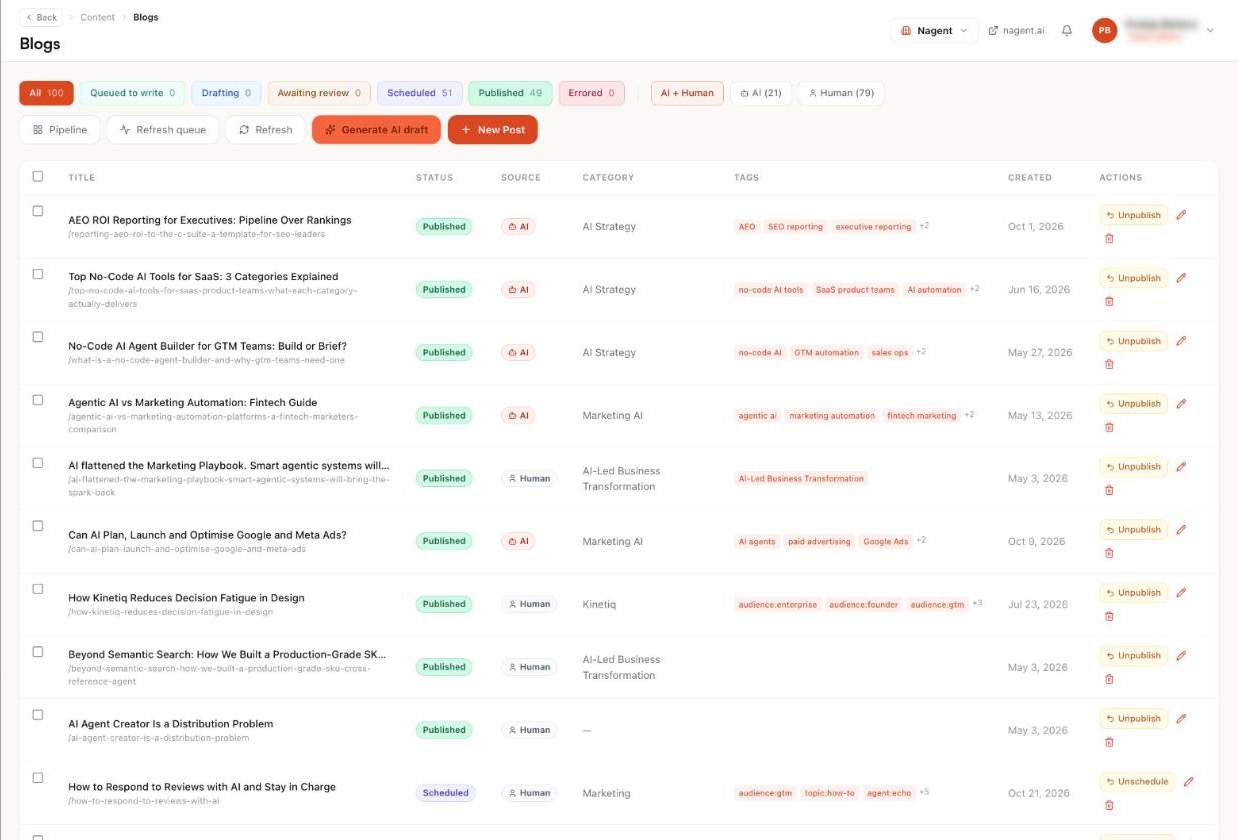
The Blogs list is the record. Its status filters (Queued to write, Drafting, Awaiting review, Scheduled, Published, Errored) each carry a count, so you see at a glance where the week stands.
Step 6. Put dates on the plan
The Content calendar shows posts by Day, Week, Month or Quarter. Approved drafts wait in the Unscheduled panel beside it, under Ready to schedule. Drag one onto a future day to give it a date; dropping it on today publishes it now. Use the month view to spot weeks that are too thin or too crowded.
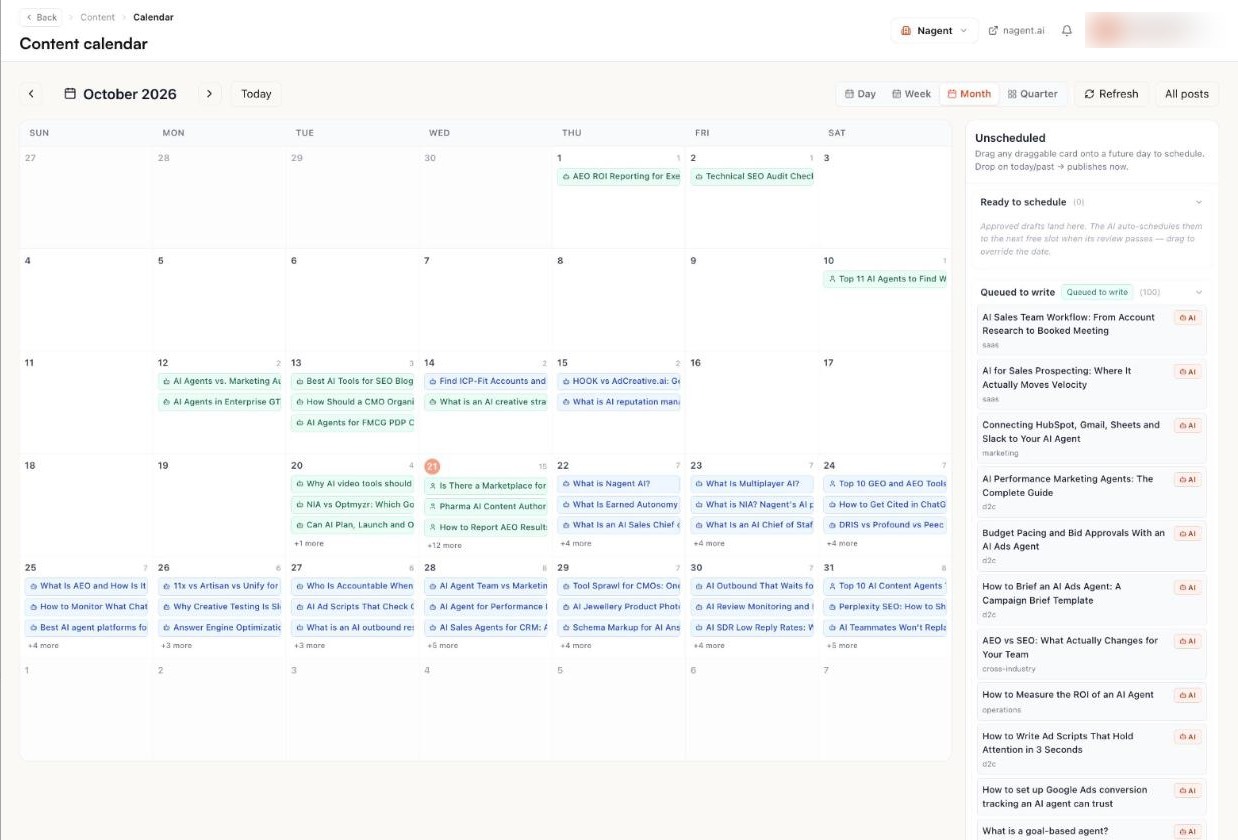
Plan around review capacity, not drafting capacity. Agents can draft faster than most teams can read, so a calendar that outruns your reviewers fills the Review column instead of your site. Space posts so each one gets a proper read before its date.
One thing to know: a date is a plan, not an automatic publish. Scheduled publishing and the blog engine modes in Settings (Manual, Assisted, Autopilot) run only for Nagent's own workspace today, not for customer workspaces, so a post marked Scheduled may not go out on its own. (The screens here come from Nagent's workspace, which is why its engine card reads Autopilot.) On the day, publish it yourself (Step 8).
Step 7. Review and approve on a fixed rhythm
Open each draft at Approve: the title, meta description, slug and body are editable, with the reviewer's feedback above the draft if it flagged anything.
Send back with feedback returns the draft to the team with your note, and it runs again.
Approve & Publish publishes it.
You don't have to hunt for what is waiting. The Content room's Team surface board shows a Waiting on you list with Open the inbox, the room's Inbox panel lists everything waiting on a human, oldest first, and the Approvals page gathers what needs a person's decision across the workspace.
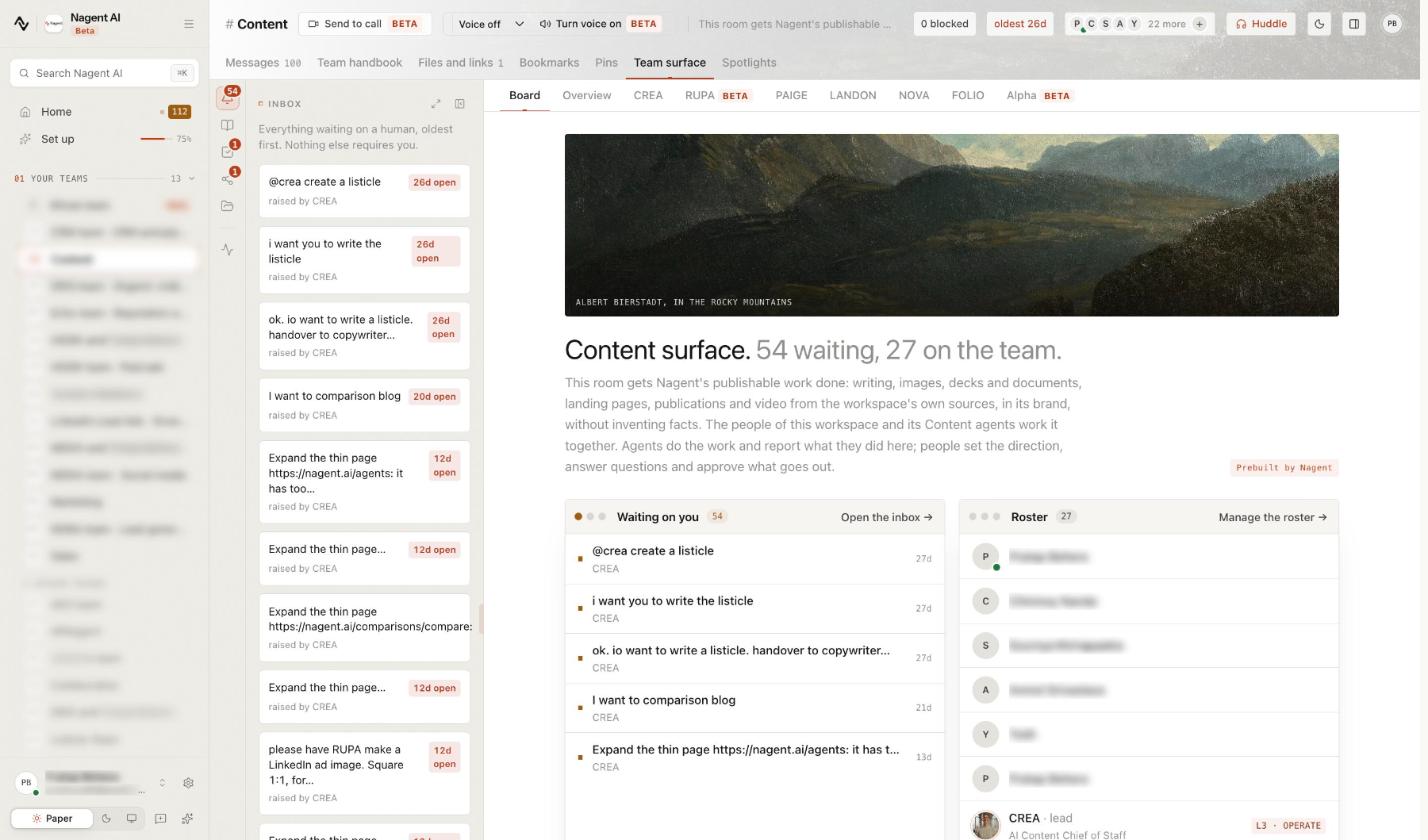
Approving and publishing a post needs the content publish permission, which a workspace admin holds. Approvals and the Inbox explains who may decide what.
Step 8. Publish, then hand off the extras
Publish approved posts with Approve & Publish on the run, or Publish now on an approved card in the board's Publish column. Every post passes a check in code first: a 40 to 90 word lead paragraph, most section headings as questions, a FAQ of three to five questions, your brand's voice and links that open. Posts are stored in your workspace, and your website shows them once your developers connect it with a site key.
A post often needs company. Ask for the extras in the same room: @RUPA for a header image, @LANDON for a landing page, NOVA for a newsletter issue (Beta). For several at once, CREA writes one plan with one approval card that lists every piece, its maker and an estimate, and each piece still passes its maker's own approval.
What does a weekly AI content rhythm look like?
Here's a simple cadence that keeps the people decisions small and regular:
When: Start of the quarter, You: Approve three to five themes; add or prune sources, The agents: Expand themes into topic candidates; propose sources
When: Monday, You: Approve or reject the week's topics in the backlog; send a batch to Write, The agents: Draft the batch, priced and budget-checked
When: Daily, a few minutes, You: Skim Today's digest and the Waiting on you list, The agents: Score new source items; draft the best few
When: Wednesday, You: Review drafts at Approve: edit, send back or approve, The agents: Rewrite what you sent back
When: On each planned date, You: Press Approve & Publish or Publish now, The agents: Hold everything until you do
Adjust the days, but keep the shape: direction rarely, topic decisions weekly, publish decisions per post.
What can't the AI content calendar do yet?
Publish on a schedule by itself. For customer workspaces, scheduled publishing and the engine modes don't run yet; a person publishes.
Publish at all without a person. Nothing is published, scheduled or sent by CREA.
Show the post on your site on its own. View live after publishing points at the Nagent website until your site connection is wired.
Run your social calendar. This calendar covers blog posts and the content CREA's makers produce. Marketing's social media seat is coming soon.
Frequently Asked Questions
Can AI create a content calendar for me?
AI can fill one. On Nagent, approved themes expand into topic candidates, watched sources surface timely items, and the agents draft the topics you approve. You still choose themes, approve topics and decide what publishes, which is what keeps the calendar yours.
How do you schedule AI-written blog posts?
Drag an approved draft onto a day in the Content calendar to plan its date, then publish on the day with Approve & Publish or Publish now. Automatic scheduled publishing doesn't run for customer workspaces yet, so a post marked Scheduled may not go out on its own.
How many posts can AI agents draft a week?
It depends on your budget, not the agents. Runs share a daily blog budget that you set in credits in Settings, and CREA's board shows today's spend against it. Blog Studio estimates about 36 credits per blog, and watched sources add up to five drafts a day.
Who approves AI-drafted content?
Anyone in your workspace with the content publish permission, which a workspace admin holds. Give at least one colleague a role that can decide, so drafts never wait on one person.
Keep the calendar yours
An AI content calendar works when people make the few decisions that matter and agents do the volume around them: themes and sources for direction, topic approval for focus, review and publishing for quality. Set up that loop once and run it weekly. CREA and her Content team fill the calendar; your team decides what goes on it and what goes live.
Book a demo to see CREA's Content team plan, draft and hold a month of posts for your review.