
How to Make UGC Video Ads with AI, Step by Step
To make UGC video ads with AI, write the creator's lines yourself, make a still of the real product, and pick an on-screen creator who is clearly disclosed as AI or a spokesperson your brand owns. Then choose a UGC format with the right ratio and length, read the plan and its price before anything renders, and approve the storyboard. This guide walks through each step in Alpha, Nagent's video studio, where nothing renders until a person approves the plan and its quote.
What makes a UGC video ad work?
User-generated content (UGC) ads look like a person talking to their phone: a creator to camera, the product in hand, a hook in the first seconds and a plain call to action. They work on Reels, Shorts and TikTok because they look native to the feed.
Making them with AI changes who is on screen, not what makes them work. You still need:
Words worth saying. The hook, the claim and the call to action.
The real product. Not something that looks almost like it.
An honest presenter. A synthetic creator must be disclosed as one, and a real person needs their consent.
The right frame. Vertical, short, with captions and supers clear of the parts of the screen the platform covers.
Alpha is the video teammate on Nagent's Content team, a team lead under CREA, currently in Beta. Alpha plans a video shot by shot, quotes the credits before anything renders, and waits for a person to approve the storyboard. Alpha's UGC desk makes creator-style video: a creator to camera with the product in hand, or explaining a course, an app or a service, always disclosed as AI.
Step 1: Who writes the words?
You do. Alpha does not write the words: words on screen come only from the brief or from copy a person supplies.
Copy you supply, typed into your request.
A HOOK brief, if your Marketing team uses HOOK (Beta), the ad creative strategy lead. Its words pass through untouched.
Alpha never puts a number, price or statistic you didn't give into a video. So before you open the studio, write the hook for the first two seconds, one or two lines on what the product does, and the line the last frame should say.
Step 2: How do you get the real product into the video?
Any shot of your product starts from an image of the real product, so the pack, label and colour match. That image is the product keyframe. The UGC desk asks for it in plain words: a still of the product or the look, from RUPA or your assets. You pick it in the Product keyframe section of the studio's Output panel.
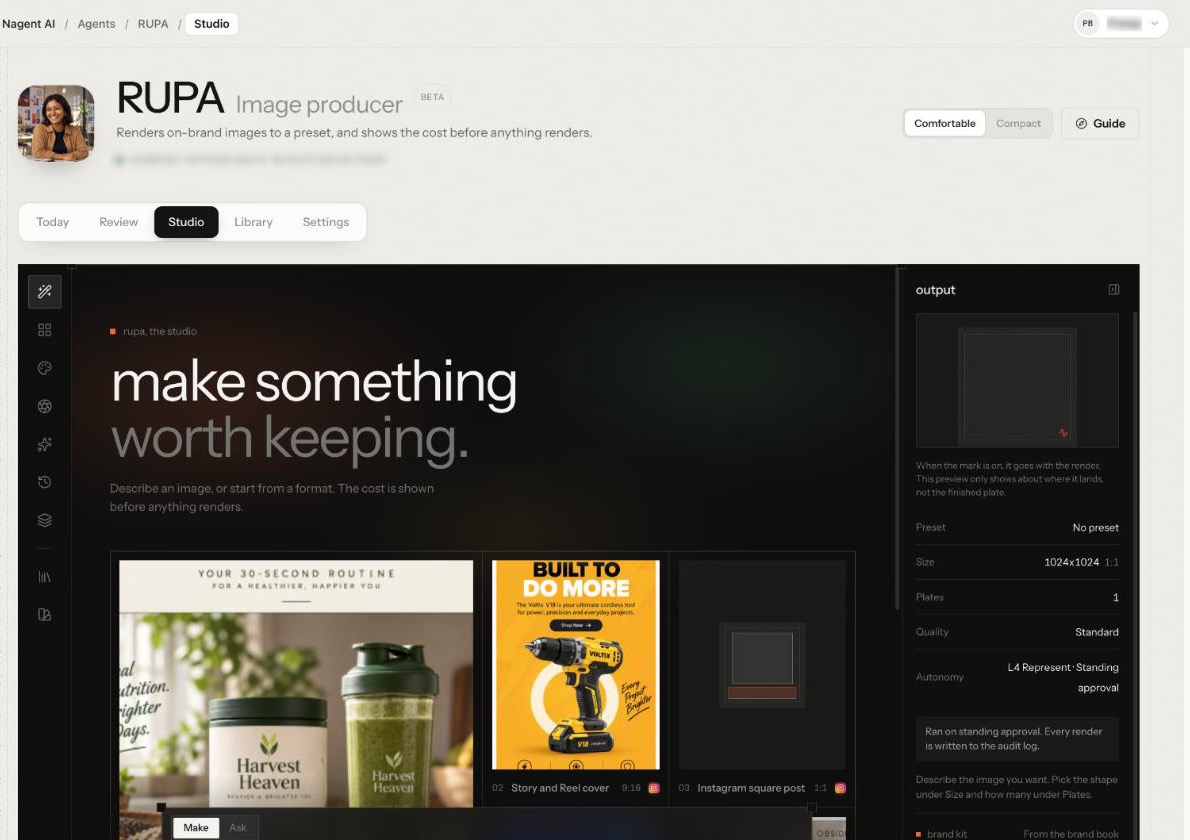
If you don't have a clean product still yet, make one in RUPA, Nagent's image studio, first. If your workspace lists products with images under Products and services, the studio's Product setting can send those images with the render as references too.
A storyboard with a product shot waits for a keyframe before it can go for approval, so do this before you brief.
Step 3: Who will appear on screen?
UGC presets put a creator on screen, so choose who it will be. Alpha's Personas view lists who a talking preset can put on screen, in two groups:
Nagent library: synthetic creators and presenters Nagent provides. Each one carries a disclosure, such as AI-generated presenter, and is cast only once it is complete and approved.
This workspace: your own personas. A Brand spokesperson is a face the workspace owns, with no real person behind it. A Digital twin is a real person, such as a founder, and is cast only with a written release on file.
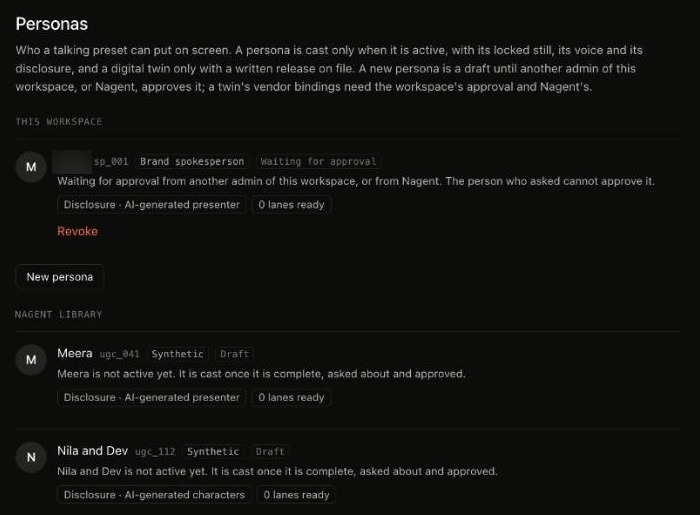
Personas opens on Alpha's own page. There, a workspace admin clicks New persona, picks Brand spokesperson, a face the workspace owns, names it and clicks Create draft, then Complete to add the master still, voice, wardrobe, setting, delivery and Disclosure line, and Ask for approval. It stays a draft until another admin of the workspace, or Nagent, approves it; the person who asked cannot.
Two rules matter for UGC. A real customer appears only in their own consented footage, never synthesised. And every synthetic presenter carries a disclosure layer, so a persona with no disclosure line can't be cast. The Alpha personas guide covers releases and twins.
Step 4: Which UGC preset should you pick?
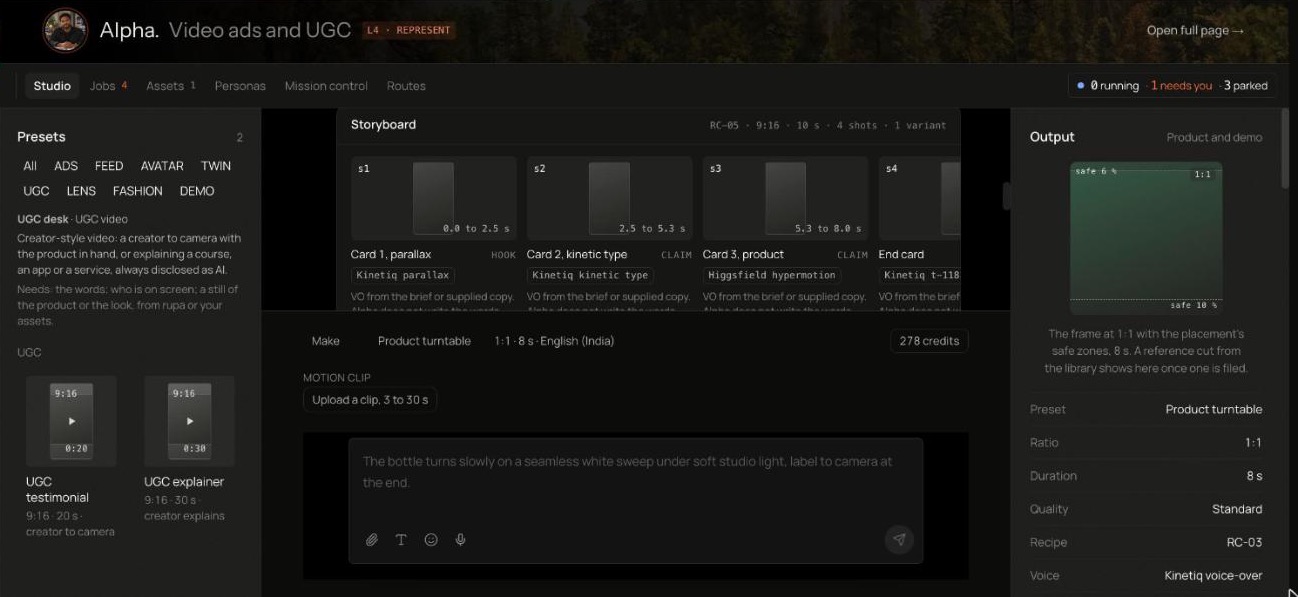
Open the Content room, choose Team surface, then the Alpha tab, marked Beta. The studio opens inside the room: Presets on the left, the storyboard and the composer in the middle, and Output on the right. Across the top sit Alpha's views, Studio, Jobs, Assets, Personas, Mission control and Routes. Making a video needs the content write permission.
Alpha works through desks, one for each kind of video. Above the presets sits a row of filters: All, ADS, FEED, AVATAR, TWIN, UGC, LENS, FASHION and DEMO. Click UGC and the panel narrows to the UGC desk's two formats:
Preset: UGC testimonial, Default: 9:16, 20 s (15 s and 30 s too), Made of: An AI creator to camera, product in hand
Preset: UGC explainer, Default: 9:16, 30 s (45 s and 60 s too), Made of: An AI creator explaining to camera
The desk card above them says what it needs from you: the words, who is on screen, and a still of the product or the look. If you'd rather have a paid placement preset, the ADS filter holds Meta Reels ad, Meta feed video, YouTube pre-roll and LinkedIn video ad.
Click a preset to choose it; until you do, the bar keeps the last preset picked, as in the screenshot.
Step 5: How do you set the details?
The bar above the composer shows the mode, the preset, the ratio, length and language in one line, and the quote in credits, which changes as you change anything. Click the summary to open Settings:
Ratio: 9:16 alone, or 9:16 with 4:5 for the testimonial (9:16 with 1:1 for the explainer).
Length: the lengths the preset allows.
Voice and Music for the cut.
Language: English (India), Hindi, Tamil or English (US).
Who is on screen: as the preset casts, a persona you pick, or No presenter. Only castable personas are offered.
Library voice: the persona's own voice, or a library voice.
Product: a product from your offerings, whose images go with the render.
Advanced: quality, Model style and Brand lock. For talking creators, Dialogue asks for models that make speech and lips in sync. Fast suits drafts and tests.
Brand lock sends the brand pack, the logo and the brand colour with the render, all read from the brand book in your Knowledge Hub. With it off, no logo goes on the cut or the end card. Use for this one changes this video only, and Remember for keeps the settings for that preset.
The Output panel shows the frame at the chosen ratio with the placement's safe zones, and the preset, ratio, duration, quality, recipe and voice.
Step 6: What do you type into the brief?
Make sure the mode is Make, which plans the shots and quotes the credits. Then say who is on screen, what the product does and what the last frame should say, with your words in quotes. For example:
A creator in her kitchen picks up our travel mug: "I stopped buying coffee on the way to work." Close-up of the lid clicking shut. "Keeps it hot for six hours." End card: "Try it for 30 days."
Every figure in that brief is yours, which is the point: Alpha uses only the words and numbers you give. If you'd rather build the brief in conversation, choose Brief. Alpha asks one question at a time and lays the brief out beside the chat, each detail marked for you to approve or edit. When every detail the preset needs is approved, Plan it sends it to be planned.
Step 7: How do you read the plan and the credits quote?
Send the request and Alpha replies with a storyboard. Its header gives the recipe, ratio, length, number of shots and variants. Each shot card shows its timing, its job in the ad (the hook, a claim, the product, the end card), the route it renders on, and where its voice-over comes from: the brief or supplied copy.
Read four things before you approve:
The quote, in credits. It breaks into planning, shots, finishing, composition and scale. As a rough guide, Nagent's pricing page puts a rendered video at about 700 credits.
Missing lanes. Creator shots render only where a lane for them is connected for your workspace. Where none is, the plan says which shots have no lane before you approve.
The words. Check every line against your brief.
The disclosure. A storyboard that shows a persona carries a disclosure layer.
The quote is fixed when the storyboard is approved. A delivered job bills at most the quote, less anything that wasn't made. If a render costs Nagent more than it was quoted at, Nagent pays the difference.
Step 8: How do you approve the storyboard?
Under the plan you see Approve storyboard and Request changes. Request changes puts the plan back in the composer for you to adjust. If you may not approve, the first button reads Send for approval instead, and the request waits under Awaiting approval in Approvals for someone who can decide it.
Approving needs the settings write permission, which workspace admins hold. If the quote is above the brief's cap, it waits for a named approver; no agent may lift a cap on its own.
A storyboard is approved by a person looking at it, never by a message asking for it. Typing "approve" in a thread does nothing.
Step 9: What happens after approval?
The job runs through Alpha's eight stages: SLATE, BOARD, CAST, ROUTE, RENDER, CUT, PROOF and REEL. Renders take 30 minutes to 2 hours of wall-clock time, and the job carries a clock that pauses while it waits. Follow it under Jobs, which opens on Alpha's own page and filters by All, Running, Needs a human or Delivered.
PROOF checks the finished cut: the words on screen, the safe zones, whether the spoken words match the storyboard, whether a presenter's lips move with the words, and personal data on screen. A person then reads the PROOF report and approves the cut review, which delivers the video to Assets. Releasing a finished cut always waits for a person, however far Alpha is trusted.
Step 10: How do you make variants without paying twice?
UGC ads are tested in batches. Once a cut is delivered, the composer adds two modes, Edit and Derive: a hook swap, a call to action swap, a refreshed end card, a resize, captions or another language. Each keeps the shots already rendered and renders again only what changes, so nothing is paid for twice. A variant of a delivered cut that already passed a gate needs no new storyboard approval at the trust Alpha starts with.
Where does Alpha sit in the team?
Nagent's AI teammates are organised like a growth team: an AI Chief of staff heads each department, team leads own a kind of work, and leads can run a bench of sub-agents. See the full chart on the team page. Alpha's line:
CREA, AI Content Chief of Staff
RUPA, team lead, image studio
FOLIO, team lead, long-form
Alpha (Beta), team lead, video studio
Bench on the team page: ADS, UGC and AVATAR; the studio's desk filters also show FEED, TWIN, LENS, FASHION and DEMO
How a request moves. You ask the Content room in one line. CREA decides who owns it and hands video to Alpha. Alpha plans and quotes it through the right desk, and the storyboard waits for a person in the studio.
How handoffs work. A sub-agent hands work back to its lead, never sideways to another seat. Asking another department is a written handoff to that room's lead. From another team's room, writing @ALPHA with a request puts a brief on the Content board for CREA with Alpha named on it. RUPA makes Alpha's product keyframes, and paid work goes back to HOOK's GATE. Alpha never publishes, traffics or touches an ad account.
What should you know before relying on it?
Alpha is in Beta. Planning, quotes and approvals work in every workspace; render lanes are still arriving. Creator and presenter shots render only where those lanes are connected for your workspace, and a persona made from a still may speak in the model's own voice, with the disclosure kept. The studio works inside the Content room; Jobs, Assets, Personas, Mission control and Routes open on Alpha's own page for now. If a delivered video matters to a date, talk to the Nagent team before you rely on Alpha for it. The Alpha studio guide lists what the Beta does today.
Frequently Asked Questions
Can AI make UGC-style video ads?
Yes. In Alpha, the UGC desk makes creator-style video with an AI creator to camera, the product in hand, in 9:16. Every synthetic creator is disclosed as AI, and the words come from you or a HOOK brief.
Do I need real creators to make UGC ads with AI?
No. You can cast a creator from Nagent's library or your own brand spokesperson. A real person appears only as a digital twin with their written release on file, and a real customer only in their own consented footage.
How much does an AI UGC video ad cost?
Alpha quotes every video in credits before anything renders, broken into planning, shots, finishing, composition and scale. Nagent's pricing page gives about 700 credits for a rendered video as a rough guide. A delivered job bills at most the approved quote.
Does Alpha write the script for UGC ads?
No. Alpha does not write the words. Voice-over, supers and the call to action come from copy you supply or from a HOOK brief, and Alpha never adds a number, price or statistic you didn't give.
Make UGC ads with a plan and a price first
AI makes UGC-style ads faster, but only the basics make them work: your words, the real product, an honest presenter and the right frame. Alpha adds the discipline of a plan and a credits quote before any render, so your team approves what it pays for.
Book a demo to see Alpha plan your first UGC ad.
Continue learning
Agents that match this read.
Kinetiq: AI Motion Design Studio
Kinetiq turns briefs, scripts, website URLs, and brand assets into editable After Effects-style motion videos, including explainers, SaaS videos, product launches, ads, kinetic typography, and social videos, without manual motion-design work.
View agent AAdMaker Alpha
Create cinematic high-engagement AI advertisements up to 15 seconds with automated scripting, storyboarding, visuals, motion planning, and video generation optimized for social media and performance marketing.
View agent AAd-Genie : The AI Agent for Video Advertising Creation
An iterative video production agent that turns a single brief into polished, platform-ready ads. Ad-Genie handles scripting, scene composition, and format adaptation across social channels, cutting creative production from weeks to days.
View agent