
ALPHA, the video studio
How to describe a video to ALPHA, pick the desk that makes that kind of video, read the plan and quote in credits before anything renders, approve the storyboard, follow the job through its eight stages, and read Personas, Mission control and Routes.
Browse documentation
Nothing renders until a person has seen the plan and the price
ALPHA is the video studio in your workspace, at Video Studio. You describe the video you want, ALPHA plans it shot by shot, quotes it in credits, and waits. Only when someone approves the storyboard and its quote does any paid work start.
The studio carries a Beta badge. Its own note says what that means: planning, quotes and approvals work, and render lanes are still arriving. Read "What the Beta does today" below before you plan a campaign around a delivered video.
ALPHA has six views, linked across the top:
| View | What it is for |
|---|---|
| Studio | Where you make requests |
| Jobs | Where every request is tracked |
| Assets | Where finished videos live |
| Personas | Who a talking preset can put on screen |
| Mission control | How this month's video work is going |
| Routes | The ways a shot can be made, and how each has fared |
The chip at the top right counts the jobs running, the ones that need you and the ones parked. Making a video needs the content write permission. Anyone who can read content can follow jobs. In the Content team's room, the studio opens inside the room itself.
Step 1. Describe the video
The studio opens on "Describe the video you want." Type a prompt into the composer and press Enter. Say who is on screen, what the product does and what the last frame should say.
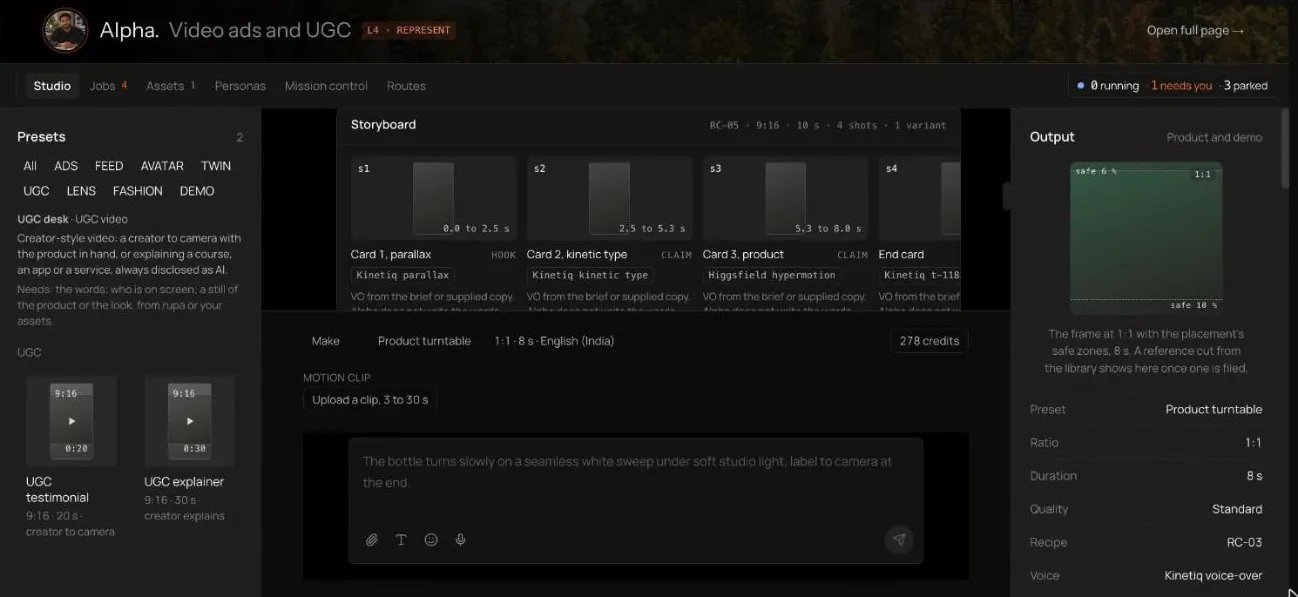
The composer has five modes:
| Mode | What it does |
|---|---|
| Brief | Talks the video through with you: ALPHA drafts every detail and you approve each one |
| Make | Plans the shots and quotes the credits. The default |
| Ask | Answers a question about a lane, a quote or a persona. Nothing is spent |
| Edit | Changes the latest delivered cut, such as a new call to action |
| Derive | Resizes, cuts down, localises or captions a delivered cut, or joins several into a team cut |
Edit and Derive work only from a video already delivered in your workspace.
The words on screen, the voice-over and the call to action are yours: copy you supply, a HOOK brief, or lines ALPHA drafts in Brief and you approve. Nothing ALPHA drafts reaches a video until you approve it. On a motion preset with no words of yours, Kinetiq writes them from your request and the finished cut says so.
Brief: let ALPHA draft it with you
Choose Brief and tell ALPHA about the video in your own words: what it is for, who will see it, where it runs and what it should say. ALPHA answers with one question at a time and drafts every detail beside the conversation: the preset, the length, the ratio, the language, the beats, the words on screen, the call to action, the voice-over, the look, the voice and the music.
Each detail shows who wrote it: drafted by ALPHA, from a desk, approved, or yours. Approve a detail as it is, approve them all at once, or edit one; an edit is yours and ALPHA never changes it afterwards. Approving the preset, length, ratio, language, look, voice or music sets the studio's own setting, so the estimate follows.
When every detail the preset needs is approved, ALPHA offers Plan it. You can Plan now sooner: the card names each default the plan will use in place of what is not approved, such as the preset's own length, or Kinetiq writing the words. Either way the plan carries only the words you approved, and nothing renders until you approve the storyboard.
ALPHA never puts a number, price or statistic you did not give into a draft: a drafted line that names one is left out, and the reply says so. Who is on screen and the product still are picked in their own pickers, not drafted. Each reply spends a little of ALPHA's model budget; when the budget is reached the reply says so, and you can still fill the brief in by hand. The brief is kept with your studio draft, so it survives a reload, and Clear empties it with the conversation.
Step 2. Pick a desk and a preset, or none
ALPHA works through eight desks, one for each kind of video. Each desk is a teammate under ALPHA on your Org chart, with its own presets, its own craft skill and its own way through the stages below. The row of desk buttons above the presets narrows the panel to one desk's presets and says what that desk needs from you. All shows every preset.
| Desk | Makes | Presets | Needs from you |
|---|---|---|---|
| ADS | Ads for Meta, YouTube and LinkedIn | Meta Reels ad, Meta feed video, YouTube pre-roll, LinkedIn video ad | The words, a product still, a creator or presenter |
| FEED | Social media posts and explainers | Team profile, Instagram Reel, YouTube Short, LinkedIn explainer, Static to motion, Product explainer | The words, your footage, a still |
| AVATAR | Avatar posts | Spokesperson, Avatar post, Cinematic persona, Click-to-talk teaser, Localise | The words, your presenter, a delivered cut |
| TWIN | An AI avatar of a real person | Founder twin, Founder update | Their own words, their persona, their written release |
| UGC | Creator-style video | UGC testimonial, UGC explainer | The words, a creator, a product still |
| LENS | Product videos | Product hero, Product turntable, Product reveal | The words, a product still |
| FASHION | Fashion videos | Look in motion, Collection drop | The words, a still of the look, a model's release |
| DEMO (Beta) | Product demos | Software demo, Demo short, Recorded demo, Webinar cut-down | The words, your screen recording, footage, screenshots or a product URL |
The Presets panel holds these formats and No preset. Its chips filter by desk, All or one of the desks above, and the counter beside Presets reads how many the filter shows. A preset sets the ratio, the length, the safe zones for its placement and the kind of shots it plans. No preset plans the shots from your description alone. Cinematic persona carries a Beta tag: your spokesperson speaks to camera, then appears in one cinematic scene made from its look, at a flat price for up to 15 seconds.
LENS and FASHION animate stills: ALPHA makes video, never stills, so a product photoshoot itself is made in RUPA and the video starts from one of its images. A lookbook is one video per look, joined into one with a team cut.
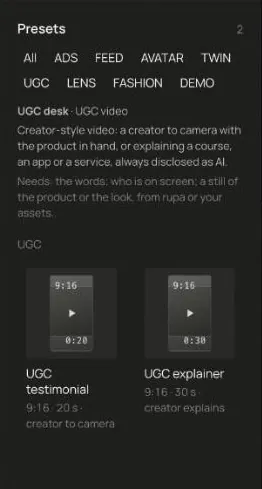
For Prompt World, a 20-second Meta Reels ad announcing next month's workshop dates is one click; a 90-second product explainer for the website is another.
Product demos on the DEMO desk (Beta)
DEMO cuts a demo from a screen recording, existing footage, screenshots or a product URL: zooms and callouts on the clicks that matter, captions and a voice-over line for each step. Software demo is the 16:9 walkthrough, Demo short one vertical moment for Shorts, Reels or an email GIF, and Webinar cut-down a recording cut to its best questions. A team room or CREA's plan can ask for one too, and the Content room's Product demo on release workflow adds PAIGE's step-by-step guide and the screenshots to annotate in RUPA. Before a demo ships, each item of personal data PROOF sees is ticked by a person, as below.
Record a demo live (Beta)
Pick Recorded demo and a recorder appears above the composer. Press Record, pick the window or screen to share, and talk it through in your own voice; your browser's own Stop sharing ends the take as well as Stop does. Watch the take back, then Retake, Discard or Use this take. Tick Anyone else on screen agreed to be in it when someone else's face or name is in the recording.
Using the take uploads it and ALPHA drafts the request: your take cut to its best moments at the length and ratio you set, up to a minute (a longer cut goes to Webinar cut-down), captioned from what you said. Your voice is kept as recorded; no voice-over, presenter or avatar is added. The thread shows the estimate, and nothing is sent until you press Send request. The storyboard then waits for approval like any other, and personal data on screen is ticked at proof before the demo ships.
A take is a WebM or MP4 from 3 seconds to 45 minutes and up to 200 MB.
Step 3. Set the details
The strip above the composer shows the mode, the preset, the settings in one
line, for example 9:16 · 20 s · Hindi, and the live credit estimate. Click
the summary to open Settings:
| Setting | What it controls |
|---|---|
| Ratio | The ratio set, for example 9:16 alone or 9:16 and 4:5 |
| Length | The lengths the preset allows, from 6 s on No preset |
| Voice and Music | The voice, from those the preset allows: Fish Audio, Kinetiq voice-over, ElevenLabs, Indic Parler-TTS or a Recorded voice-over you upload; and the music source. Chosen here only |
| Language | English (India), Hindi, Tamil or English (US) |
| Who is on screen | When the preset puts someone on screen: as the preset casts, a persona you pick, or No presenter |
| Library voice | Beside who is on screen, when Nagent's library has voices: The persona's own voice, or a library voice with its brief and a sample to play |
| Product | When your workspace lists products under Products and services: No product, or a product, whose images go with the render as references. A product with no images says so |
| Template | On a motion preset: The preset's own look, or a built-in motion template, with a preview where one exists |
| Advanced | Quality (Test, Standard or Hero), Model style where the preset offers one, Brand Lock and a style note |
Model style says what you want from the models, never which model makes it: Let Alpha choose (the best fit for each shot within the quote), Cinematic, Fast (quicker, lighter models for drafts and tests), Dialogue (models that make speech and lips in sync) or Best available (the premium models, where the quote allows).
Use for this one changes this video only. Remember for the preset keeps the settings for everyone in the workspace, after you approve a confirm card. Picking a preset applies what the workspace remembered for it.
Who is on screen lists who this preset can cast: Nagent's library creators and your workspace's own personas, or for a twin preset only your own twins. A persona that is not castable yet is not offered. No presenter plans no one on screen: the shots that showed a person become motion, and nothing is cast. Saying "no presenter" in the brief does the same. A model from your Assets becomes your own persona on the Personas page, made from that still and approved there; when the model is a real person, their written release goes on file first. How a persona is made, voiced, released and approved is on ALPHA personas and avatars.
Brand Lock sends your brand pack with every render. With it off, no logo goes on the cut or the end card; with it on, a joined cut's end card takes your brand colour when white words read on it. A synthetic presenter always carries a disclosure layer, and a digital twin of a real person renders only with a written release on file.
The Output rail on the right shows the frame with its safe zones, the desk's steps for this preset, the product keyframe, the persona, the audio and your brand kit, read only.
Your own presets and stills
Your workspace can make presets of its own, shown first under Your presets with a Beta tag: a built in preset with your instructions, references and default settings added. New preset in the presets opens the editor; Save shows a confirm card you can approve yourself. The paper clip in the composer opens the library to pick the first frame, and Generate a still asks Alpha for one, behind a card that names the model and the price.
Ask a desk for a brief
You can also ask a desk directly, as you would any teammate. Tell the UGC desk "a 20-second creator video for our spring course, for Reels" and it asks for anything missing, picks the preset, writes the brief with your words in order, and answers with a link that opens the studio on that preset with the brief already in the composer. When the desk has the details, the studio opens in Brief with them drafted for you to approve, and says if it could not take one. A desk makes nothing and spends nothing itself: the studio quotes the credits and waits for the storyboard approval as always.
Step 4. Read the plan and the quote
Send the request and ALPHA replies with a storyboard: each shot with its timing, purpose and lane, the layers that will sit on top (supers, captions, voice, music, end card, logo), and the quote.
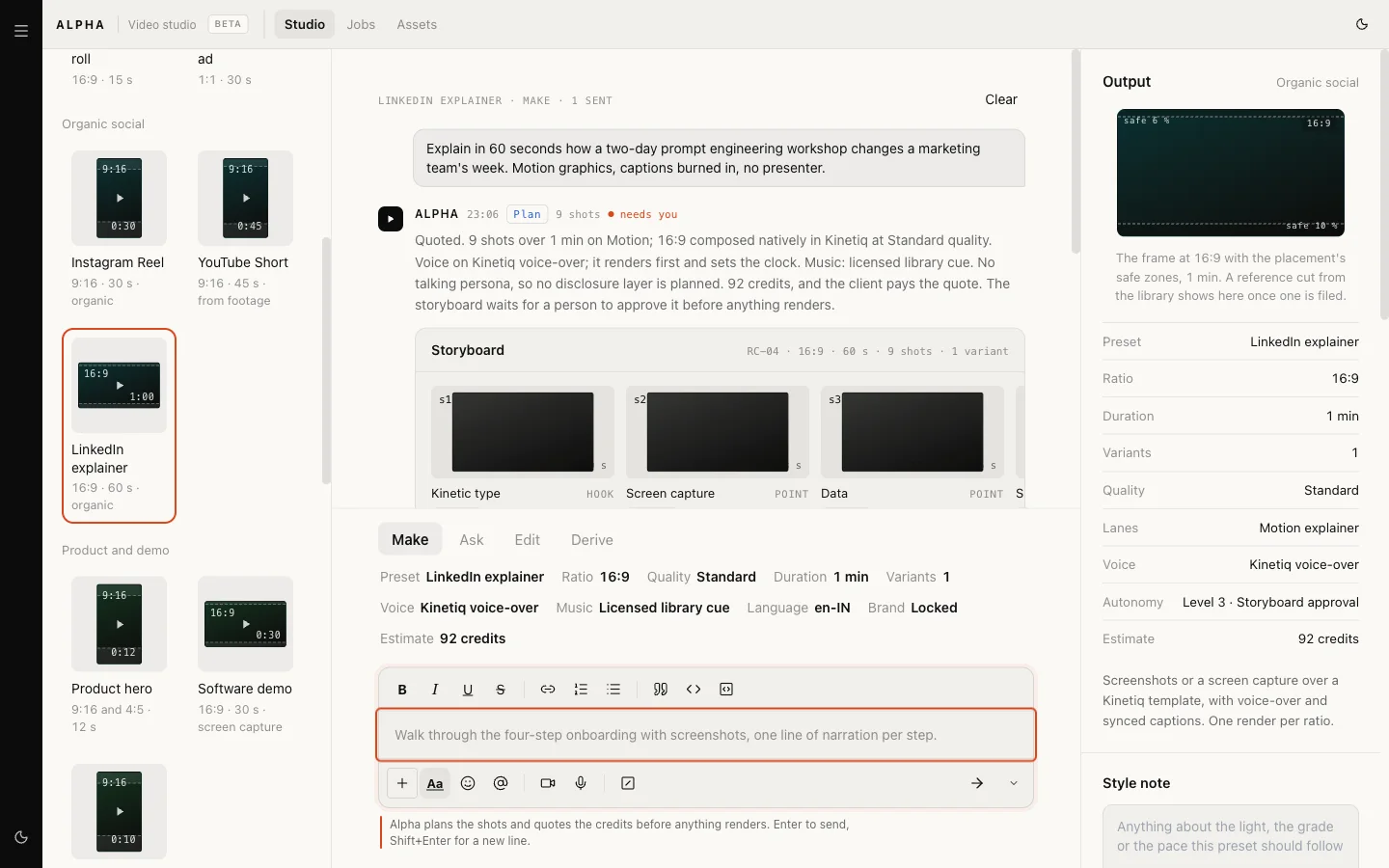
The quote is in credits, broken into planning, shots, finishing, composition and scale. They are your workspace's credits: ALPHA draws on the same allowance as every agent, and a credit stands for the same work here as anywhere else. Anything over 60 seconds moves to the complex band: more shots, a higher planning figure and two review slots.
How the cut is put together
Most formats are joined by Nagent from the clips it renders. The storyboard says so at the top: Assembled by Nagent, no Kinetiq template for this format yet, then how: One clip, finished by Kinetiq or Clips stitched by Kinetiq, or the same by ffmpeg where Kinetiq is not set up for your environment. A format Kinetiq makes whole, such as the team profile or the explainers, is composed natively in Kinetiq instead, and the reply says so.
Composed shots are cut on HyperFrames first, with Kinetiq as the fallback, and the storyboard names the route that way: a shot reads HyperFrames (fallback Kinetiq template) rather than Kinetiq template. The quote says "composed on HyperFrames, with Kinetiq as the fallback", and the approval row in Actions carries the same cut line, so the person who approves signs off the route the job will take. A cut of your own footage keeps its Kinetiq edit label.
Every clip Nagent assembles asks for its own sound: the line spoken on screen or over the picture, music unless you chose No music, and effects, all made with the picture in one generation. The storyboard's sound note says what that means for this plan:
- One clip. When one route can make the whole ad with its sound in one generation, within the quote, the plan is one clip: it speaks every line of the brief and shows every beat, and Nagent adds the captions, phrase by phrase, the supers and the logo card. A plan that shows both a person and the product stays as clips, since one clip starts from one still.
- Clips. Otherwise each clip makes its own voice, music and sound, and the clips are stitched in order. The note says why one clip did not reach: no route makes a clip that long with sound at that ratio within the quote, and extending a clip is not connected yet.
- A clip no route can make with sound renders silent, and the job says which.
The end card is the logo card after the last clip; it is silent, so the music stops with the clip. Because the clips carry their own voice and music, an assembled plan's quote has no separate voice or music line. The one exception is Generated music: pick it and the clips are made without music, a bed is made for the cut and laid under them, and that line stays on the quote. A bed that could not be made is left out, and the asset says so. Kinetiq stitches on its own path and keeps an uploaded clip's sound untouched; if it refuses or cannot make the video, the clips are joined by ffmpeg instead and the asset says why. A bound template, when one exists for a format, still wins over both.
The preview ladder shows the three rungs the job is planned to climb:
- P0, Animatic. Keyframes, the real voice and every layer. A person approves this rung. In the Beta that approval is given on the storyboard and its quote, before any animatic is made.
- P1, Draft. Hero shots at 720p on fast tiers. It runs when the quote is above 800 credits or the quality is Hero, and is skipped otherwise.
- P2, Final. The chosen quality at delivery resolution, within caps, after P0.
The product keyframe
Any shot of your product starts from an image of the real product, so the pack, label and colour match. The rail's Product keyframe section is where that image is chosen from your RUPA image library. A storyboard with a product shot waits for a keyframe before it can go for approval.
A social video can bring its own stills: images from RUPA, or product
screenshots from the RUPA library tagged nagent-product and
screenshot. Tag your product screenshots that way so a social video
can show the real product.
A motion clip, and shots made from references
Two kinds of shot start from something you give rather than from words alone. The storyboard names them Motion transfer and Reference scene.
A motion transfer moves your still the way a clip moves. Above the composer, the Motion clip field takes one: Upload a clip, 3 to 30 s (an MP4 or MOV, at most 100 MB), Or pick one from the motion library, or Or pick one you uploaded. Once read, the field shows the clip's name, length and ratio, and Remove clears it. The shot runs for the clip's own length, and the quote prices it on those seconds at the dearest route that could make it, so it is never quoted under what it may cost.
With a clip picked, Who moves like the clip offers Your product still moves, or one of your personas, moves, with a disclosure. Only a persona that can be cast now is offered, and never a digital twin. A persona moved this way carries its disclosure line over the whole shot. A library clip that shows a real person lends only its movement; the face comes from your own still or persona.
A reference scene is made from one to four stills of what it shows, picked from your RUPA library. It is planned from a request in a team room today; the studio has no field of its own for it yet.
A reference shot that is missing its clip or its stills waits before approval: the plan says what to attach or pick, and nothing renders until it is in. ALPHA cannot make the clip or the still for you yet. The formats Kinetiq makes whole never plan a reference shot.
Step 5. Approve the storyboard
Under the plan you see Approve storyboard if you may approve, or Send for approval if you may not. Request changes puts the plan back in the composer for you to adjust.
A sent request waits in Actions for someone who can approve it, and appears under Jobs meanwhile. Approving needs the settings write permission, which workspace admins hold.
A job waiting for its storyboard or its quote carries the approval card on its page under Jobs. If you may approve it, you approve or decline it there; if not, the card names who can.
You can also ask ALPHA for a video in a team room or in chat. ALPHA shows a card naming the settings it will send, and nothing is sent until someone approves that card. The job it makes then waits for its storyboard approval like any other, whatever ALPHA's autonomy level.
Our logic: video is the most expensive thing an agent in your workspace can make. The quote is fixed at approval, and a delivered job bills at most the quote, less anything that was not made. If a render costs Nagent more than it was quoted at, Nagent pays the difference: you pay the quote.
Step 6. Follow the job
Every request becomes a job with a reference such as al-job-0004. Open it
from Jobs to see its page.
The Crew list shows the eight stages, each with a note and its share of the clock:
| Stage | What happens |
|---|---|
| SLATE | The request is read and quoted |
| BOARD | The storyboard is planned |
| CAST | The persona is locked and the voice renders first, setting the clock |
| ROUTE | A render lane is chosen for each shot, with the reason kept |
| RENDER | Shots render, natively in each ratio |
| CUT | Layers, captions and the end card are composed |
| PROOF | The finished cut is checked |
| REEL | The video is stored and returned to whoever asked |
The page also shows the deliverables, the credits quoted and spent so far, and every event in order. Renders take 30 minutes to 2 hours, so the clock estimates when the job will be ready, and pauses while a job waits.
Jobs filters by All, Running, Needs a human and Delivered, and lists HOOK briefs waiting for ALPHA with Take the brief. Assets holds every delivered video, stored in your workspace's own media storage.
To join delivered cuts into one, such as each team lead's profile into a team video, use Derive: "join with v-0412-1 and v-0415-1, as "The Content team"". Two to eight cuts in one ratio, up to three minutes together, are joined end to end in their own length, with no words added.
Ads (Beta). A delivered job's page also shows what the ads made from its videos did: impressions, CTR, hook rate and hold rate. Once an ad has 1,000 impressions, ALPHA watches it with its numbers on the night after the Meta sync, and says why it held or lost people and the moments that did it, with the day and the CTR it read at. It reads the ad again only when its CTR moves 30% or more from that reading, over at least another 1,000 impressions, and at most once a week. A read that could not be done says why. The read is paid from ALPHA's budget. To link an ad to its video, see Your ads teach Alpha under What the Beta does today.
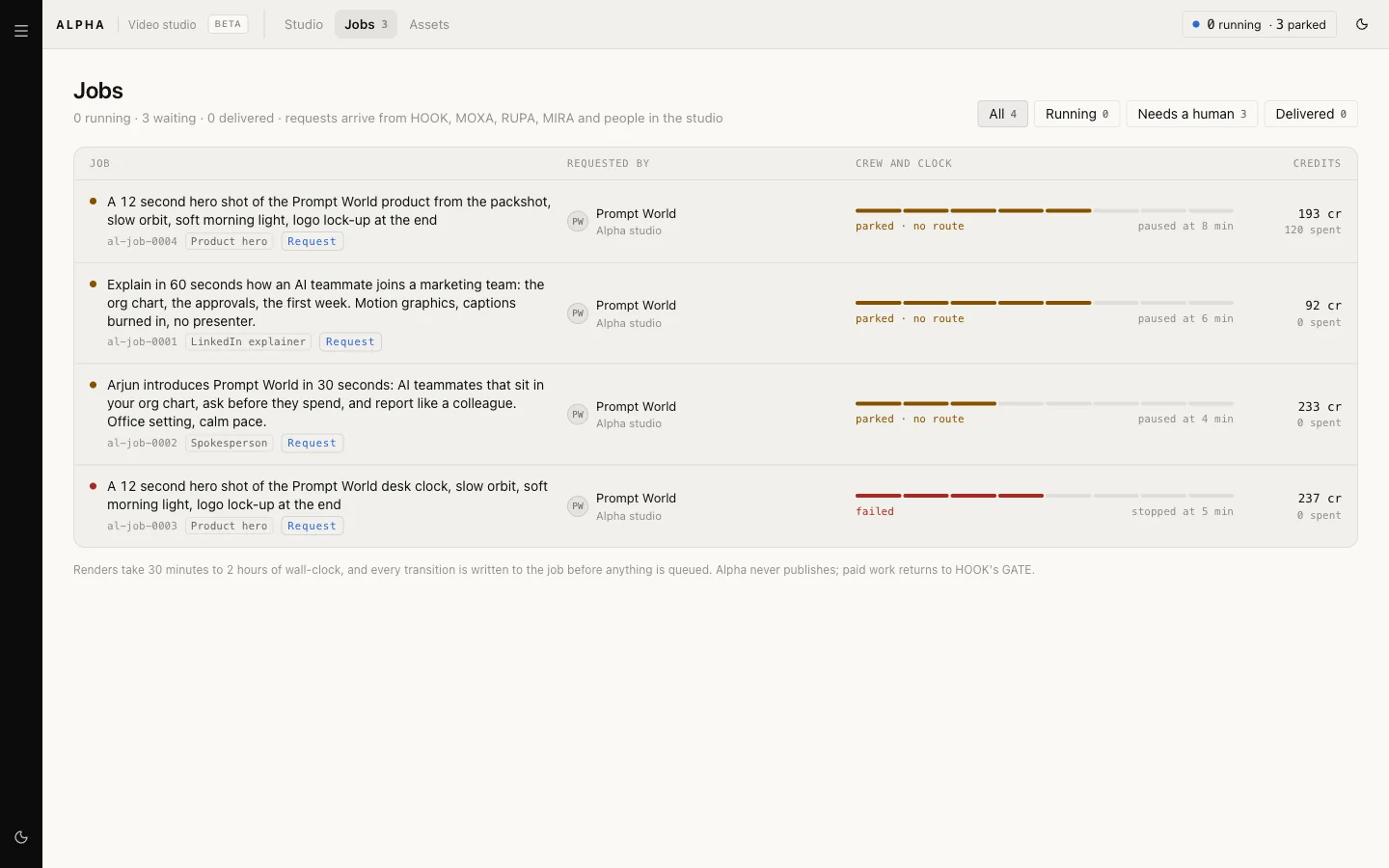
Select a job to see its crew and its credits:
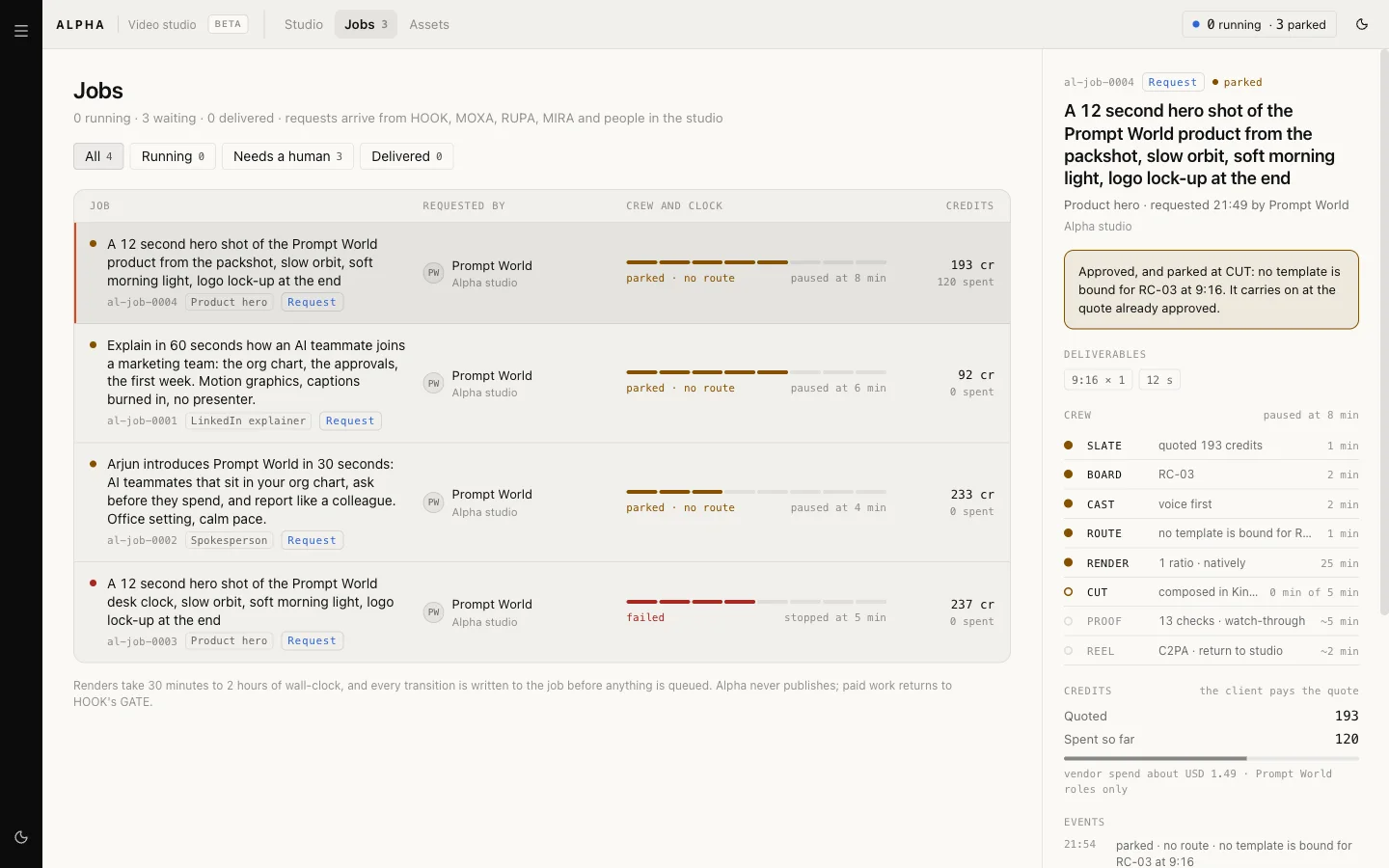
When a job waits
A job that cannot move says why, in one of two ways.
Needs you means a person must decide:
| Reason | What it means |
|---|---|
| P0 storyboard | The storyboard and quote wait for an approver |
| Missing input | The brief lacks something, such as a script or a keyframe |
| Consent | A release or rights record is needed before anything renders |
| Over the cap | The quote is above the brief's cap and waits for a named approver |
| Cut review | PROOF has checked the cut. A person reads its report in Actions, and approving it delivers the cut |
Parked means the platform is not ready, and nothing is spent while it waits:
| Reason | What it means |
|---|---|
| Queues off | Rendering is switched off in this environment |
| No route | No render lane can make one of the shots yet. The page names which |
| Spend cap | ALPHA's spend cap is reached. It carries on when the cap allows |
| PROOF offline | PROOF could not run its checks. It tries again by itself every half an hour, and nothing is delivered unchecked |
A parked job keeps its stage and its approved quote, and resumes where it stopped. See credits and budgets for how the spend cap works.
Personas decide who can be on screen
Personas lists who a talking preset can put on screen, in two parts: This workspace, your own spokespersons and digital twins, and Nagent library, the presenters Nagent provides. Some library presenters are Nagent's agents, set up by Nagent with a long-form presenter, and any workspace picks one to present a VIDYA series with nothing to make here; see VIDYA, long-form video.
A persona is cast only when it is active, with its locked still, its voice and its disclosure line. Its Voice engine is Fish Audio, Kinetiq voice or ElevenLabs (Beta), with the Voice id at the engine; see Agent voices. A digital twin, a real person, is cast only with their written release on file.
Making one, from a still, from words or from a person's own footage, with its voice, its release, its consent and its approvals, has its own page: ALPHA personas and avatars. The same persona can present a learning series through VIDYA.
Mission control shows the month at a glance
Mission control counts this workspace's video work for the calendar month to date, from its own jobs, renders and personas. Nothing on it can be changed.
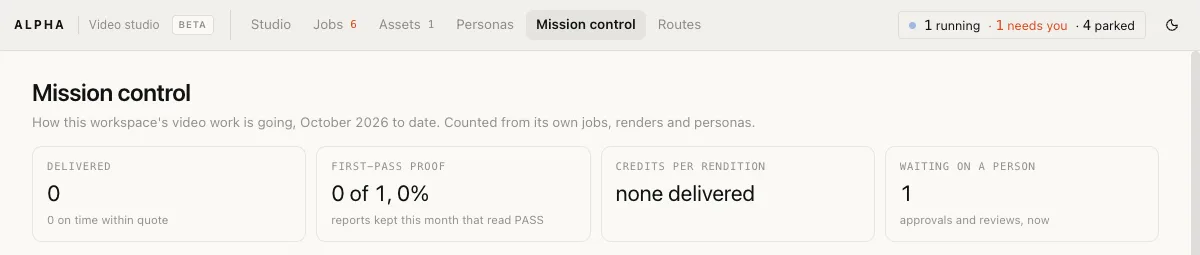
| Part | What it counts |
|---|---|
| Delivered | Videos delivered this month, and how many were on time within the quote |
| First-pass PROOF | PROOF reports kept this month that read PASS first time |
| Credits per rendition | The credits spent on delivered jobs, per rendition |
| Waiting on a person | Approvals and reviews waiting now |
| This month's jobs | Received, approved, rendered, proofed and delivered |
| Open jobs by who asked | The studio, HOOK and derivative requests |
| Releases ending within 30 days | Persona releases about to run out |
Two figures say "not counted yet" rather than show a number: whether GATE passed a returned video, and which videos won as ads.
Routes shows how each lane is doing
Routes is read only. It lists each lane a shot can take, with how many of its routes are running, their rates in credits per second and the share of their work that passed PROOF first time. Routing prefers the lanes whose work passes. Switching a lane on or off is done by Nagent, not from this page.
The lanes are Motion (composed in Kinetiq), Generated (made by a video model), Presenter (a persona rendered speaking), Live and Finishing (lipsync, translation and the like, on a clip already made). The Generated lane is the largest: every video model Nagent connects is a route of its own, one per mode, so text to video, image to video, first and last frame, references, motion control, and edit and extend are each their own route. A new route ships switched off and is priced and proved with a paid clip by Nagent before ROUTE can pick it, so the count under Running grows over time without anything changing in your workspace.
What the Beta does today
Describing, planning, quoting and approving work in every workspace, and so does following a job through its stages. What reaches a finished video today:
- Cuts of generated shots are joined and finished in Nagent. CUT joins the rendered shots in order at each ratio, with the disclosure, supers, offer and legal line on screen, an end card with your logo and call to action, and captions of the lines spoken. Put a PNG, JPEG or WebP logo on your brand book for it to appear. The end card is dark, so it takes your brand book's logo for dark backgrounds when there is one, and your primary logo when there is not. Each clip brings its own voice and sound (see "How the cut is put together" above), so no voice-over is read over it; a clip no route could make with sound is silent, and the job says which.
- Presenter, creator and twin shots render only where those lanes are connected for your workspace. Where none is, the plan says which shots have no lane before you approve it. A persona made from a still may speak straight from that still, in the model's own voice rather than the persona's calibrated one; the disclosure layer stays.
- All-motion formats, such as the team profile, the LinkedIn video ad, the explainers and the software demo, are made whole by Kinetiq, one video per ratio, from your request. Put the words you want on screen in quotes and only those are shown; give none and Kinetiq writes them from your request. Standard and Hero run Kinetiq's Director; Test makes a quick draft without it. Where Kinetiq refuses or cannot make the video, Nagent can switch on a second maker that takes the same brief for 16:9 and 9:16; the asset says who made it.
- PROOF reads the words on screen and names any line nobody gave, a figure nobody stated first. It can misread, so it asks for a fix rather than holding the cut back: read the words on the cut before you use it.
- PROOF watches and listens to every cut. It checks that no words or logo sit in the part of the frame the platform covers, that the words spoken match the storyboard's lines, that a presenter's mouth moves with the words, and that every face in the presenter's shots is the same person. These checks ask for a fix at most and never hold a cut back. A check that cannot run is named in the report as not run, with the reason.
- PROOF looks for personal data on screen. It lists each email address, name, phone or card number, key or customer record a viewer could read, by where and when it shows, never by what it says. On any desk but DEMO it is a finding to read. On a DEMO cut each item has a tick box on the job: tick it once it is blurred or you have checked it is not there. Approving the cut with an item left unticked does not deliver it: it waits for a second, named approval in Actions, which no autonomy level gives on its own. Ticking the last item delivers it.
- Your ads teach Alpha how to make your next video. Put the video's id (such as v-0412-1, on its Assets page) in the ad's name or its utm_content. Once an ad has 1,000 impressions, the nightly Meta sync judges how many viewers stopped for three seconds and how many watched through, against your own video ads, and your workspace's routing leans towards what worked. Your results stay in your workspace.
- At the highest autonomy level, Alpha tries a less proven lane now and then. On about one shot in ten it picks a lane with less of a record, never one that costs more than the lane it would have picked, so a lane it has seldom tried can earn a record. Below that level every shot goes to the lane that scores best.
A parked job spends nothing more while it waits. If a delivered video matters to a date, talk to the Nagent team before you rely on ALPHA for it.
Where to go next
- ALPHA personas and avatars: the spokespersons and digital twins a preset can cast.
- VIDYA: long-form episodes presented by one of your personas.
- RUPA, the image studio: where product keyframes come from.
- HOOK: the briefs that send paid video work to ALPHA.
- Approvals and the inbox: where waiting work is decided.