
How to Set Up an AI Sales Team With an AI Chief of Staff
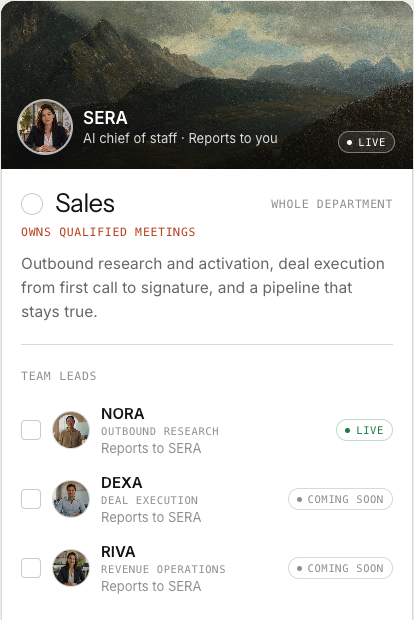
To set up an AI sales team, decide the one number it owns, hire the team, tell it who you sell to and what you sell, connect your tools and a sending account, open your CRM, name the people who approve, and only then send the first brief. On Nagent that team is led by SERA, the AI Sales Chief of Staff, with NORA running outbound research under her. You set it up with N and SERA in a conversation, and this guide walks through each step in order.
What does an AI sales team need before it can work?
Most AI sales tools fail in the first week for the same reason: they are switched on before anyone tells them who the buyer is. A team of agents needs the same things a new hire needs:
A target. One outcome it is measured on. Nagent's Sales team owns qualified meetings.
A buyer. A customer profile it can score companies against.
Something true to say. Your offerings, collateral and brand voice, so a draft never names a product you do not sell.
A way to send. A from-address your domain authorises.
People who decide. Someone allowed to approve what reaches a stranger's inbox.
Skip any of these and the team still runs, but it produces little.
Where does SERA sit in the team?
Nagent builds agent teams like a team you would hire, with an AI chief of staff who owns the outcome, team leads who run their part of it, and sub-agents who do the specialist work. The Sales department looks like this (the full model is on The Team):
You and your people. You set the target and approve what commits the company.
SERA, AI Sales Chief of Staff. Owns qualified meetings. Answers pipeline questions from the CRM and hands each piece of sales work to its owner.
NORA, team lead, outbound research. Live. Finds and researches accounts, drafts first-touch email, and hands a qualified meeting to a person.
Sub-agents, where your workspace holds the lead-generation module: Researcher, Signal scout, Copywriter and Sequencer.
DEXA, deal execution. Coming soon.
RIVA, revenue operations. Coming soon.
Shared writers, both Beta. VANI writes NORA's emails to prospects, and LIPI writes to leads you have already spoken to.
A request moves down that line and back up it. You ask in the Sales room in one line. SERA decides who owns it and hands it to that team's lead. NORA breaks it down, puts the tasks on the board and briefs her sub-agents. Each sub-agent does its part and hands the result back to NORA, never sideways to another seat. NORA brings one answer back, with anything that needs a person waiting on a card, and you approve, edit or decline in the room.
Three rules keep this honest. Every hop is checked against the receiving agent's budget, and one message travels at most three hops. Your instruction becomes a task only when you press Confirm. And asking another department, such as Marketing, is a written handoff to that room's lead, not a free-for-all.
How do you set up the Sales team, step by step?
Work through these eight steps in order. Steps 1 and 2 take minutes; steps 3 to 7 are where the team gets what it needs to do useful work.
Step 1. Hire the Sales department
Go to nagent.ai/onboarding. The first of three sign-up steps, Choose teams, is headed Hire your AI team: each department arrives with its AI chief of staff and owns one outcome.
Press the Sales card to take the whole department, or tick only the leads you want inside it.
SERA comes with the department, or with any lead you pick from it. VANI comes with NORA, and LIPI comes with the CRM team every workspace gets.
Read the tags. NORA is Live. DEXA and RIVA are Coming soon and will not work on day one.
Press Continue and create your account. Your teams install the moment you first sign in, and nothing is charged at sign-up.
The pricing page shows which teams each plan includes.
Step 2. Set up with N and SERA in N · Setup
Set-up runs as a conversation in N · Setup, with N, the head of your AI growth org (Beta), and the AI chief of staff of the first team you chose. When Sales is your first team, that is SERA, and the page is headed N, with SERA, your AI Sales Chief of Staff. The screenshot shows a workspace that chose Marketing first, so MIRA is named and SERA waits in the huddle.
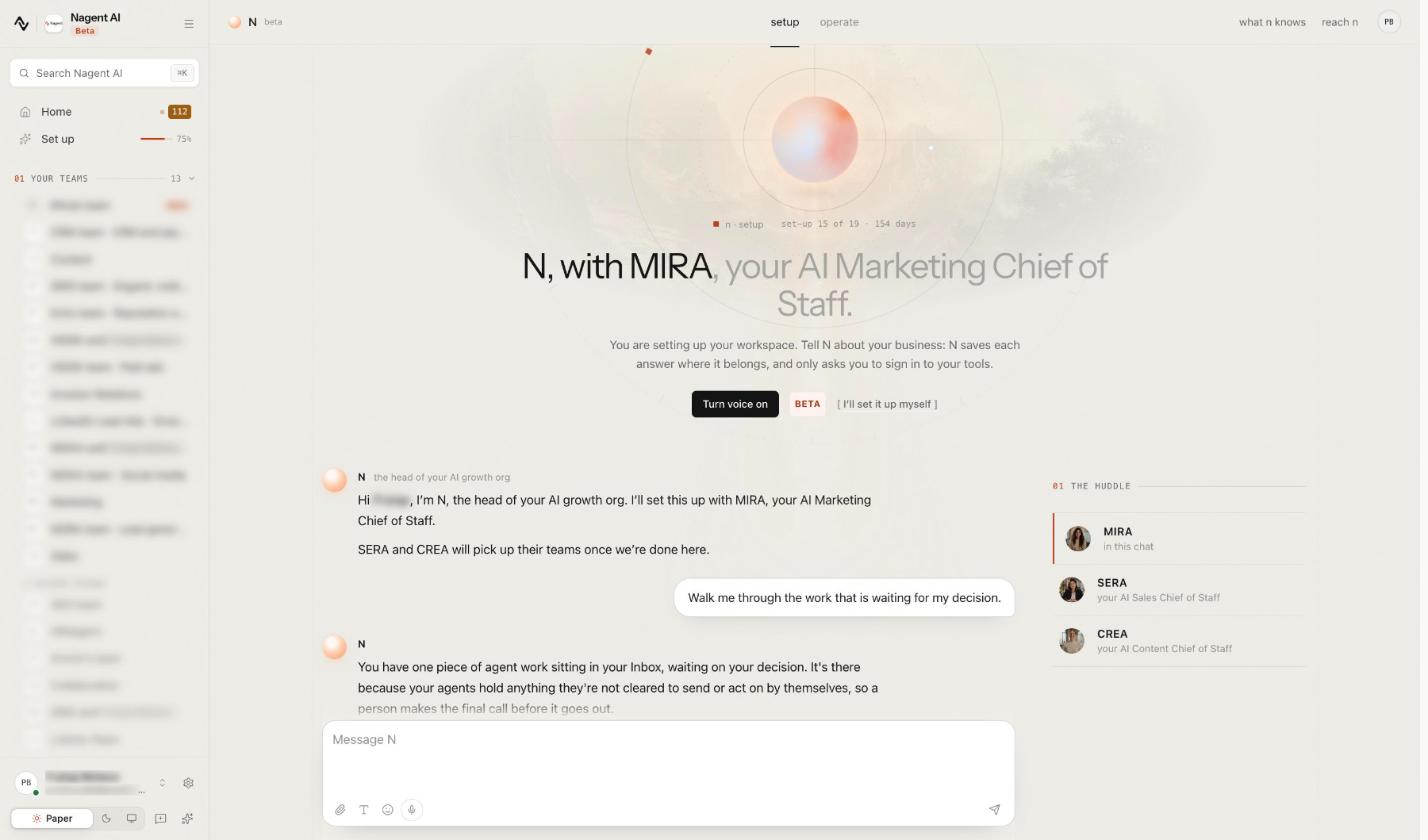
Tell N about your business: N saves each answer where it belongs, and only asks you to sign in to your tools. Turn voice on (Beta) lets you talk instead of typing, and I'll set it up myself switches to the set-up screens, which save to the same settings. Under Set up in the sidebar, the same work shows as five steps, from Onboarding to N · Setup, so you can pause and resume.
The chat asks for one fact at a time. For a Sales workspace, the topics that matter most are:
Topic: Workspace basics, What the chat asks for: What the business sells, to whom, and the one number it runs against
Topic: Buyers and offerings, What the chat asks for: Who you sell to and what you sell
Topic: Sending, What the chat asks for: The address mail is sent from and the domain that proves it
Topic: Connect tools, What the chat asks for: Each tool the team works in. Signing in stays yours
Topic: Invite people, What the chat asks for: Your colleagues, each with a role
Topic: CRM room, What the chat asks for: Pipeline stages, when a deal counts as stalled, and existing leads
Topic: NORA set-up, What the chat asks for: Who to look for, how many a week, where, and this period's targets
Once your buyers are saved, the chat can offer a first job: NORA finds up to ten leads that match your buyers and researches the best one, and VANI drafts the first email to it. The result waits in the Sales room's Inbox as First leads and a first email. Approving the draft sends nothing.
Step 3. Describe who you sell to
Discovery does not run without an active customer profile. Open the Knowledge Hub's ICP tab (who you sell to).
Under Who buys from you, choose Other businesses. Prospect discovery searches companies, so it does not run for a consumer audience.
Under Your customer, in your words, write a short paragraph: what they do, where they are, who signs and what they are stuck with. Press Save description.
Press Work out the targeting. Nagent reads your description, the pages of your site it has crawled and your active products, and returns two groups: From what you wrote and What we worked out.
Read the second group first, because agents target on it exactly as they target on what you wrote. To correct it, change your description and run it again.
Then open Scoring segments and weights and press Activate on the profile. NORA's own Settings also has a Who NORA looks for card; if it is empty, describe your ideal customer in her Controls.
Step 4. Give NORA something true to say
Open NORA's Settings, then Knowledge: the files NORA grounds her research and writing in. It shows four shelves: Who you sell to, What you sell, Who you are and Sales collateral. With a shelf empty she can still write, but she cannot cite, and she refuses a sentence rather than invent it.
Add your offerings on products and services. VANI and LIPI may only name a product or outcome that is on that list.
Add a one-pager, a case study or a pricing sheet under Sales collateral.
Fill in Who you are: the company name, claims and proof a draft may cite.
Step 5. Connect your tools and a sending account
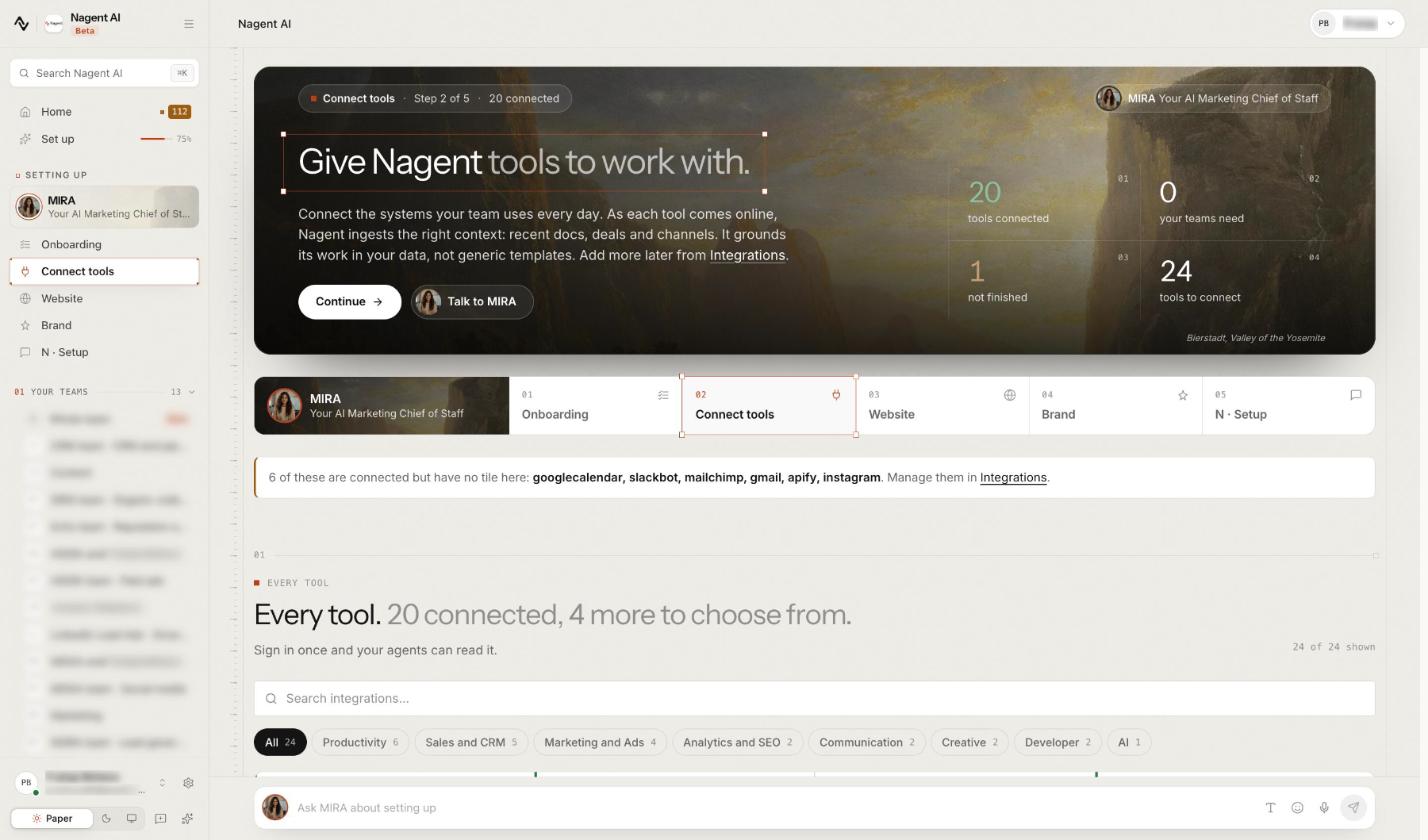
The Connect tools step, Give Nagent tools to work with., counts what is connected and what your teams still need, then lists every tool with category chips such as Sales and CRM. Signing in is always your step.
Then choose how mail leaves the workspace:
The workspace sender. NORA's Settings shows email via Resend, sent once a person approves. Until you add your own key, recipients see a Nagent address, so set up your domain under Settings, Integrations (email and integrations). Without a from-address your domain authorises, drafts approve normally and then fail when sent.
Your own mailbox (Beta). Under Settings, CRM, the Your sending account card offers Connect Gmail and Connect Outlook. Read the card first: CRM email to leads you own does not go out of that mailbox yet. Until sending switches over, it leaves the workspace address.
Step 6. Open the CRM
Every new workspace gets a CRM team room, whatever you picked at sign-up. Inside the Sales room, the lead list opens as the CRM tab on Team surface.
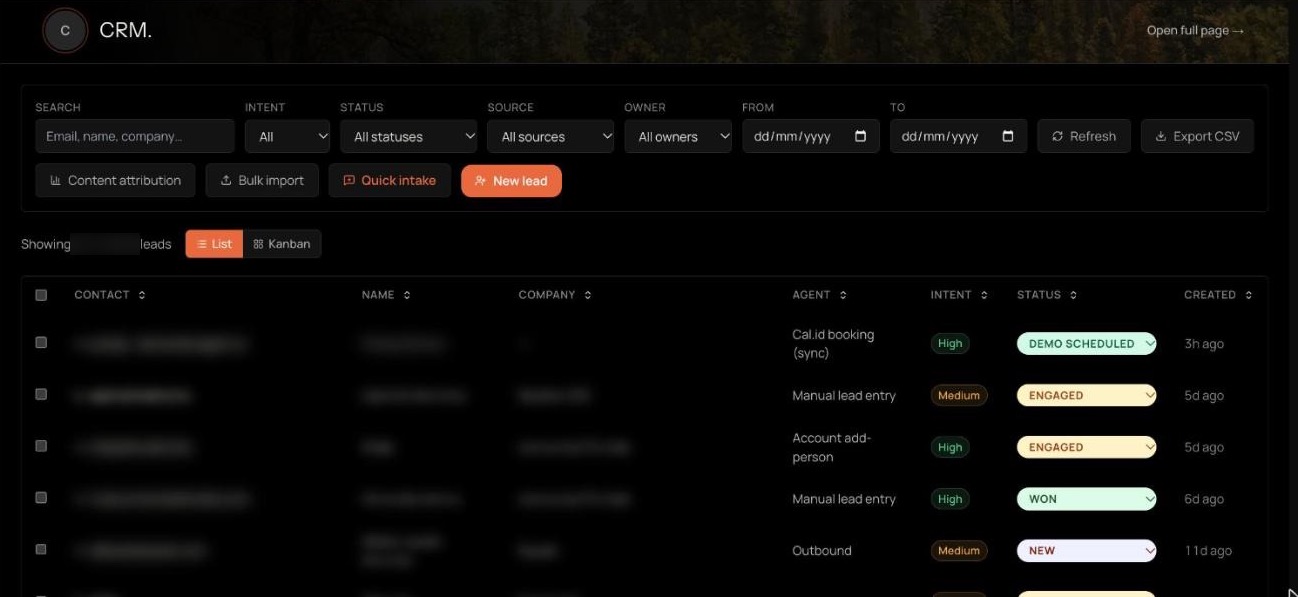
Bring your leads in. Type one with New lead, paste a thread into Quick intake, or upload up to 5,000 contacts with Bulk import. Change a lead's stage from the dropdown on its row.
Fit the pipeline. In Settings, CRM, under Pipeline stages, rename and reorder the thirteen starting stages; adding or removing stages is not available yet. On the same page, set the escalation threshold, the deal value above which a lead escalates to a person, and the hot-lead rules. Press Save changes.
SERA answers pipeline questions from this record: open deals per stage, the value in each and the age of the oldest. Where the CRM is silent, she says what is missing instead of guessing. The CRM docs cover every field.
Step 7. Name the people who approve
Agents propose and people decide, so invite your colleagues before the work starts. On Team Members, press Invite member, choose a role and choose where it applies: the whole organisation, a department or a team.
Role: Organisation admin, Can decide what agents hold?: Yes, across the workspace
Role: Chief of staff (held at a department), Can decide what agents hold?: Yes, for that department
Role: Team lead (held at a team), Can decide what agents hold?: Yes, for that team
Role: Member, Can decide what agents hold?: Sees held work, cannot decide it
Role: Viewer, Can decide what agents hold?: Reads only
If you are alone in the workspace, you decide everything. Give at least one colleague a role that can decide, so held work never waits on you alone. People and roles has the full permission table.
Step 8. Send the first asks in the Sales room
Open Sales under your teams in the sidebar. The room opens with Welcome to #Sales. and a charter: agents find accounts that fit, qualify them and carry each conversation to a handover, while people set the direction and approve what goes out.
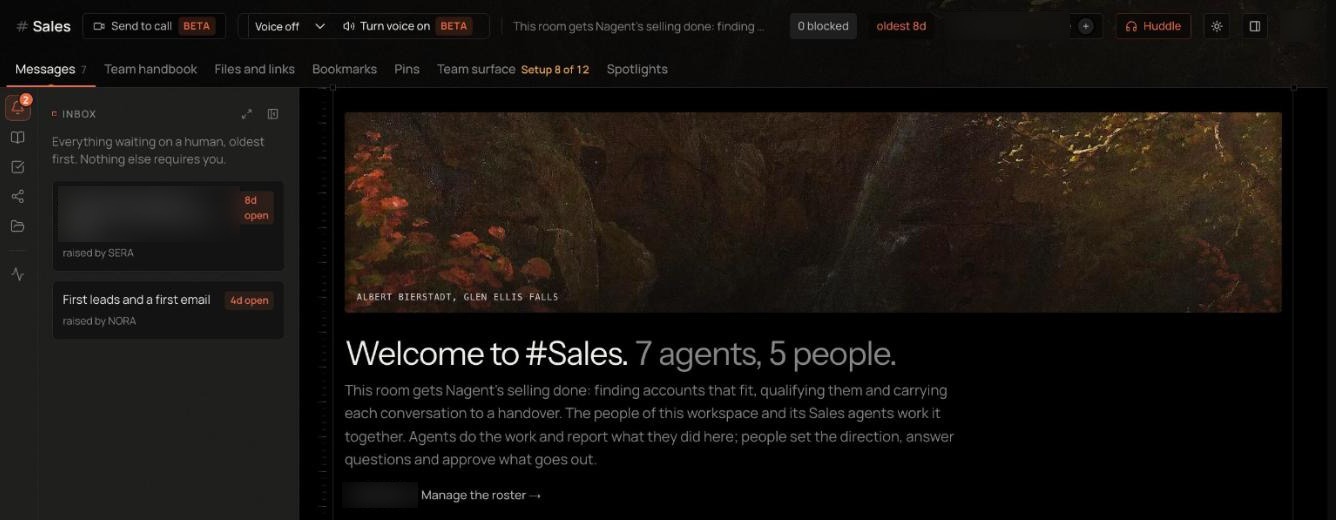
The Inbox panel holds everything waiting on a human, oldest first. Team surface opens on a Board of what is waiting on you, beside Overview, NORA and CRM tabs; the DEXA and RIVA tabs are coming soon seats.
Type in the composer. SERA leads the room, so a message addressed to nobody reaches her. To ask a teammate directly, type @ and pick them. Good first asks:
To SERA: "Where does the pipeline stand, and which deals have waited longest?"
To NORA: "@NORA find heads of marketing at 200 to 2,000 person B2B companies in India who are hiring for sales enablement."
To NORA: "@NORA draft a first email to the best fit, and send nothing without my approval."
What happens next: NORA runs discovery against your active profile and states the cost before a run starts. Research and drafting can run on their own. Every draft lands on NORA's Review tab under Drafts to approve. Approving a draft moves it to Ready to send; it does not send it. The send waits under Waiting as a lead review, where a person presses Approve and send, and held agent actions also list on Approvals (see approvals and the Inbox). A send is never offered from a room thread.
What can't the Sales team do yet?
Be clear-eyed about the limits before you brief it:
The first brief may not complete on a brand-new workspace. With no tools connected and no knowledge added, NORA can answer questions but may report that a piece of work did not complete. Steps 3 to 6 are the fix.
No forecast or scoreboard. SERA leads the room without them.
No deal desk yet. NORA's work ends at a booked meeting handed to a named person. DEXA and RIVA are coming soon.
Email only. VANI writes email. A message for a social network is written for a person to paste.
The writers are Beta. Read the first batch of drafts before anything goes out.
How do you know the setup worked?
Check four things after the first week:
NORA's Settings shows the traits she looks for under Who NORA looks for, not an empty card.
NORA's Knowledge shows no empty shelf.
Drafts under Drafts to approve cite something real about each prospect, and nothing you do not sell.
Someone other than you has approved a send.
When all four hold, raise the volume a little at a time. Read the Sales team and NORA docs for every screen.
Frequently Asked Questions
How do I set up an AI sales team?
Hire the Sales department, set up with N and SERA in N · Setup, describe who you sell to and activate the profile, add your offerings and collateral, connect your tools, a sending domain and your CRM, invite at least one approver, then brief the Sales room.
What does an AI sales chief of staff do?
SERA owns the Sales department's number, qualified meetings. She answers pipeline questions from the CRM record, hands each piece of sales work to the teammate who owns it, and says who now holds it. A person takes the meeting and closes the deal.
Will the AI sales team send email without approval?
Not by default. On a new workspace every send NORA makes waits for a person's approval, whatever level her seat shows. Drafting and research can run on their own.
Do I need my own CRM to start?
No. Every workspace gets its own CRM with a lead list and pipeline, and it opens as the CRM tab in the Sales room. NORA's pipeline reads the workspace's own lead records; an outside CRM can be connected as a tool, but her pipeline does not sync with it.
What should you do first?
An AI sales team earns its keep when it is set up like a new hire: a number to own, a buyer to find, true things to say and a person to approve the send. SERA and NORA arrive with the line already drawn, so the setup is mostly telling them about your business.
Book a demo to watch a Sales team set up in a live workspace.