
The API and MCP
How to create an API key, run your agents from your own code or from a coding agent such as Claude Code or Cursor, follow a run, receive signed webhooks, and keep keys safe, with the same autonomy levels and approvals as inside Nagent.
Browse documentation
Your agents, outside Nagent
Your agents do not have to be reached from a team room. With an API key, your own code, a scheduler or a coding agent such as Claude Code, Codex or Cursor can run them. A run started this way is the same run: the agent reads the same knowledge, works at the same autonomy level, and anything it may not do on its own waits for a person, exactly as it would inside Nagent.
Keys are made on Settings, API & MCP. The page counts your Active keys, Calls in 7 days and Errors in 7 days, and names your Plan. Viewing it needs settings access, and creating, rotating or revoking keys needs permission to change settings, which an Organisation admin holds. API keys are in Beta.
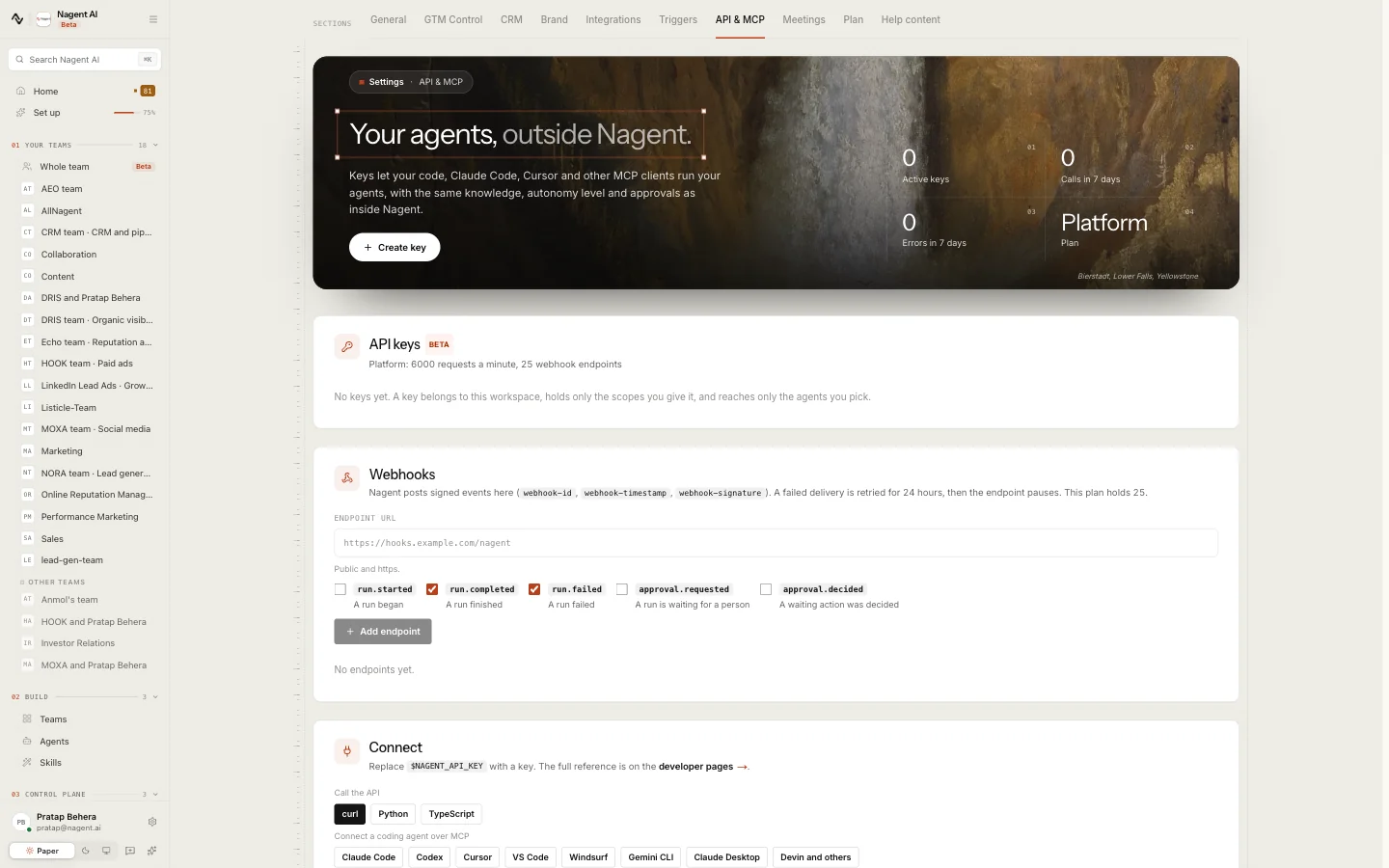
API keys and MCP start on the Team plan. On a plan without them, the page says "API and MCP start on the Team plan" and Create key is locked. The line under API keys says how many requests a minute your plan allows and how many webhook endpoints it holds.
Creating a key
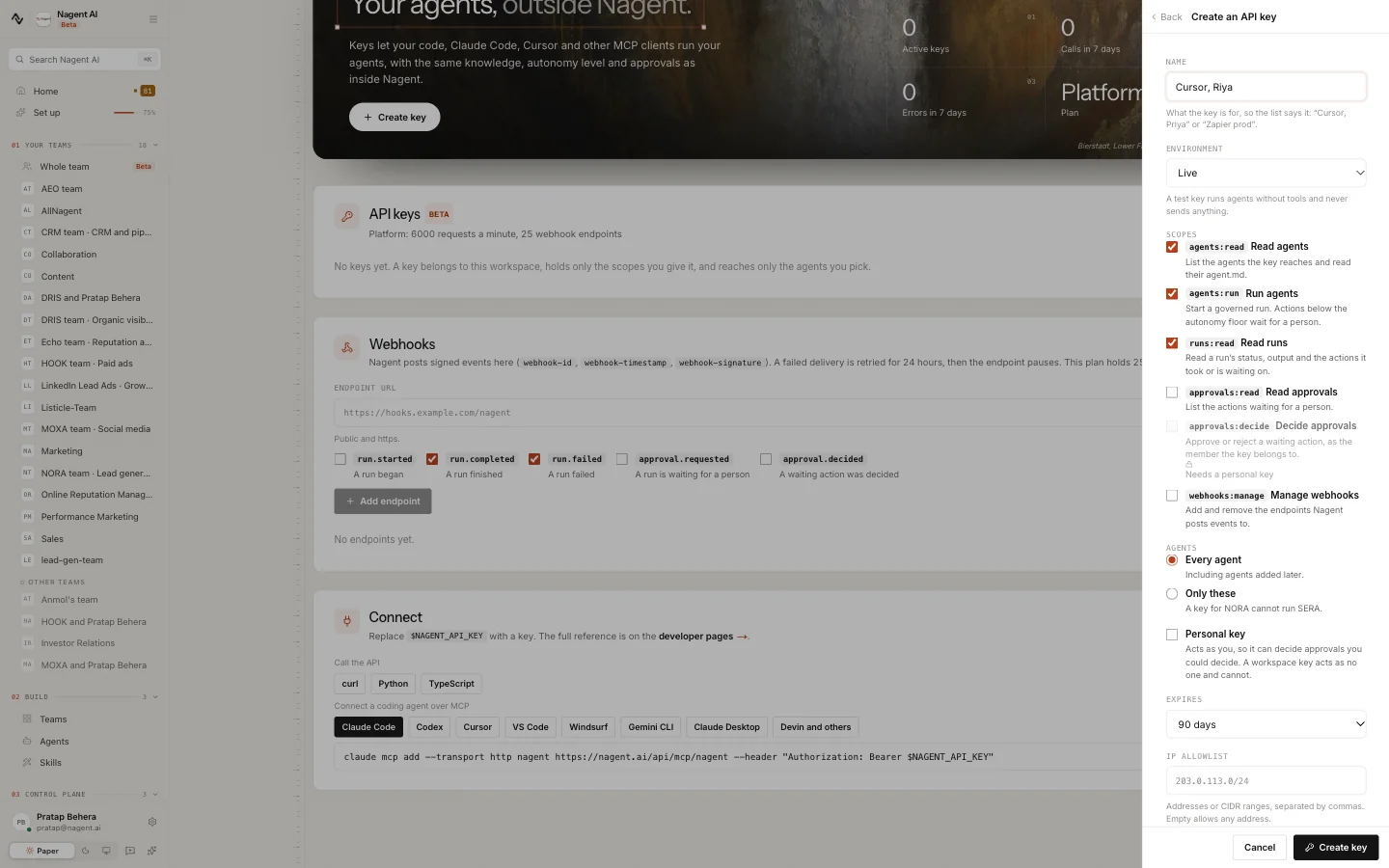
- Press Create key.
- Give it a Name that says what it is for, for example "Cursor, Priya" or "Zapier prod".
- Choose the Environment. A Test key runs agents without tools and never sends anything, so you can build against it safely. A Live key does the real work.
- Tick the Scopes the key may use. Leave out anything it does not need.
- Under Agents, choose Every agent, which includes agents added later, or Only these and tick them. A key for NORA cannot run another agent.
- Tick Personal key if the key should act as you. See personal and workspace keys.
- Choose when it Expires: 30, 90 or 365 days, or Never.
- On the Business plan, add an IP allowlist: addresses or ranges, separated by commas. Left empty, any address may call.
- Press Create key.
The key is shown once, under Key ready, with Copy and the code to call it. Copy it into your secrets store, then press I have saved it. No later visit to the page shows it again.
| Scope | What it lets the key do | Plan |
|---|---|---|
| Read agents | List the agents the key reaches and read how each is set up | Team |
| Run agents | Start a run. Anything the agent may not do on its own at its level waits for a person | Team |
| Read runs | Read a run's status, its output and the actions it took or is waiting on | Team |
| Read approvals | List the actions waiting for a person | Business |
| Decide approvals | Approve or reject a waiting action, as the person the key belongs to. Personal keys only | Business |
| Manage webhooks | Add and remove the endpoints Nagent posts events to | Business |
A scope your plan does not include shows which plan unlocks it. A scope your own role does not hold reads "Your role does not hold this": you cannot give a key more than you have.
Personal and workspace keys
Every key is tied to the person who created it, and is held to what that person may do. Nagent checks it on every call, not only when the key is made.
- A workspace key works for the workspace. It can run agents and read runs, but it cannot decide approvals.
- A personal key acts as you. It can decide the approvals you could decide yourself, and only those.
If the person who created a key is deactivated or leaves the workspace, the key stops working. If they lose a permission a scope needs, calls that use that scope are refused. A personal key is rotated only by its owner. See people and roles.
Running an agent from your code
The Connect card shows the call with your workspace's address filled in. Under Call the API, choose curl. A run looks like this:
curl -X POST https://nagent.ai/api/v1/agents/nora/runs \
  -H "Authorization: Bearer $NAGENT_API_KEY" \
  -H "Content-Type: application/json" \
  -H "Idempotency-Key: $(uuidgen)" \
  -d '{"input": "Research retail-1.example and draft a first email"}'
The answer carries the run's status and its output. Things worth knowing:
- Send an Idempotency-Key with each run. Sending the same key again within 24 hours is refused as already received, so a retry never starts the work twice.
- A long run can answer later. Add the header
Prefer: respond-asyncand Nagent answers at once with the run's address, then you read the run there or follow its events as they happen. - A run can continue a conversation. Give runs the same
sessionId, a name of your choosing, and the agent reads the last turns that key ran in that session.metadatacarries labels of your own, returned with the run. - Anything held for a person stays held. The run lists the actions waiting on someone, and they appear in the Inbox like any other.
The Python and TypeScript tabs use Nagent's client libraries:
pip install nagent from PyPI, and npm install @nagent/sdk from npm. The
TypeScript library is an ES module, so load it with import. From any other
language, call the API directly, as with curl. The full reference, every endpoint and every error,
is on the developer pages.
Connecting a coding agent over MCP
The same key connects a coding agent to your workspace over MCP, so you can ask your agents for work from inside your editor. Under Connect a coding agent over MCP, choose your client: Claude Code, Codex, Cursor, VS Code, Windsurf, Gemini CLI, Claude Desktop, or Devin and others. Each tab shows the setting to paste and, where it goes, the file to paste it into. For Claude Code it is one command:
claude mcp add --transport http nagent https://nagent.ai/api/mcp/nagent \
  --header "Authorization: Bearer $NAGENT_API_KEY"
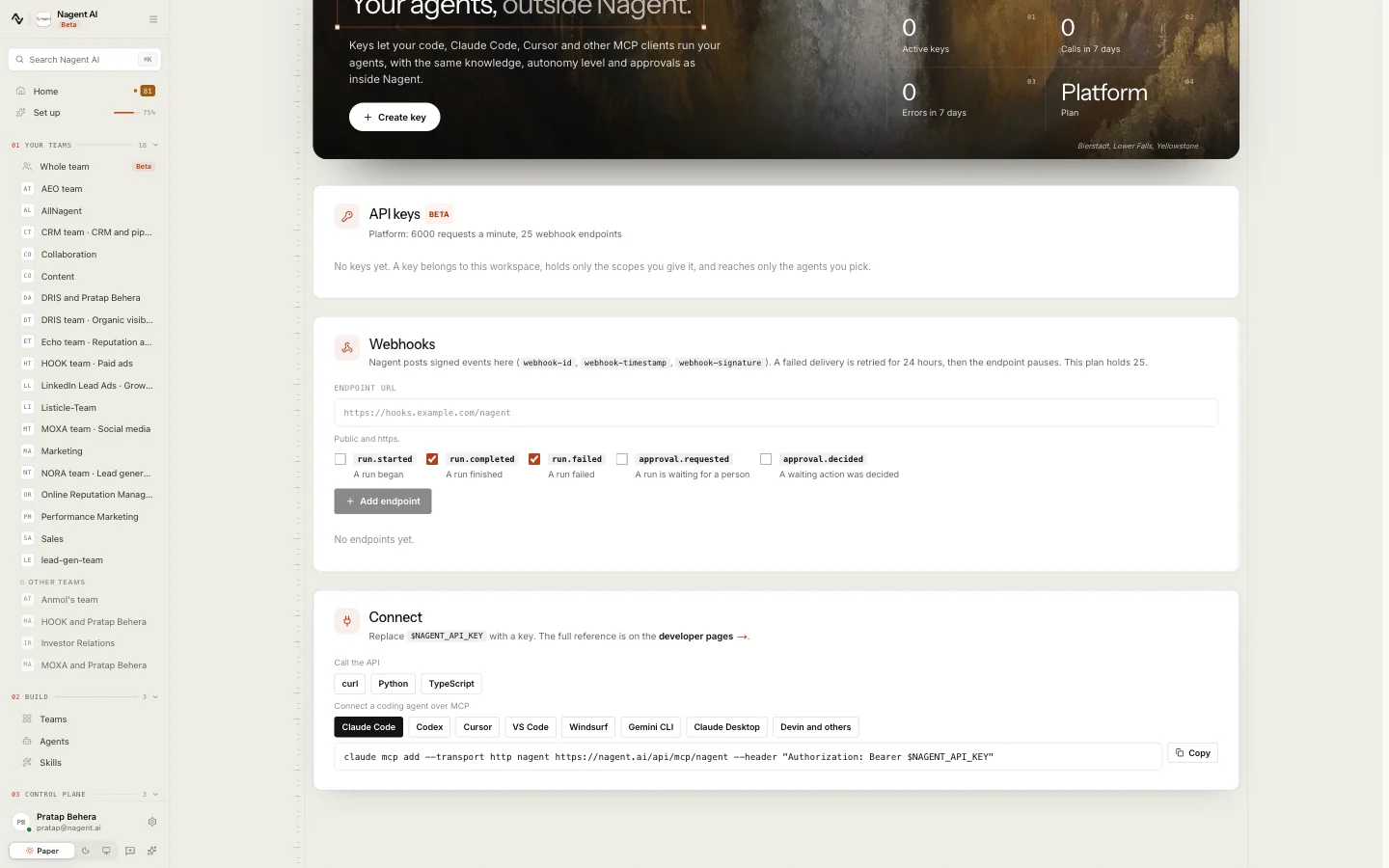
The coding agent sees only the agents the key reaches and can do only what its scopes allow. Connecting a coding agent is in Beta.
This is not the same as the MCP tokens on the Triggers page, which let an outside client fire your triggers. See triggers and webhooks.
Rotating, renaming and revoking
Each key in the API keys list shows its masked value, its scopes, the agents it reaches, its state, when it was last used and when it expires.
- Rename changes only the name in the list.
- Rotate makes a new key. The old one keeps working for 24 hours and reads Rotating, old key ends soon, so you can swap it without a gap.
- Revoke ends it at once: every call with that key fails from then on.
Webhooks: hearing back from Nagent
Rather than asking a run how it is going, your system can be told. Under Webhooks, enter an Endpoint URL, which must be public and use https, tick the events you want, and press Add endpoint.
| Event | When it is sent |
|---|---|
run.started | A run began |
run.completed | A run finished |
run.failed | A run failed |
approval.requested | A run is waiting for a person |
approval.decided | A waiting action was decided |
Nagent shows the endpoint's signing secret once. Every delivery is signed
with it in the webhook-id, webhook-timestamp and webhook-signature
headers, so your receiver can check that a delivery came from Nagent and
when it was sent.
A failed delivery is retried for 24 hours, then the endpoint pauses. Each endpoint shows whether it is Active, failing or Paused, and the last answer it gave. Send test event checks your receiver, Turn on starts a paused endpoint again, and Remove deletes it.
Our logic
A key is a way in for software, so it gets nothing a person would not. It reaches only the agents and scopes it was given, it is held to what the person behind it may do on every call, and the work it starts passes the same approvals as work started in a room. Moving a task outside Nagent should never be a way around them.
Limits today
- API keys and MCP are in Beta.
- A test key never sends and runs agents without their tools.
- A key cannot be shown again after you leave the Key ready card. Lost a key? Rotate or revoke it and make another.
Where to go next
- Triggers and webhooks: letting outside services start work in your workspace.
- Autonomy and governance: what a run may do on its own.
- Approvals and the Inbox: where held work waits.