
Order forms and contracts
How DEXA drafts an order form from a lead, how a person reviews, approves and sends it, and how the buyer reads and accepts it in the deal room without signing in.
Browse documentation
DEXA drafts, you approve, the buyer signs
An order form in Nagent is written on the lead it belongs to. DEXA drafts it from what the workspace already knows about the deal. A person on your team reviews it, approves it and publishes it to the buyer's deal room. The buyer reads it there and accepts it, with no account and no sign-in. When the buyer accepts, the lead moves to Won.
No agent publishes or sends an order form. DEXA can draft one and redraft it. Publishing, sending and voiding are buttons a person presses.
Before the first order form: Sales settings
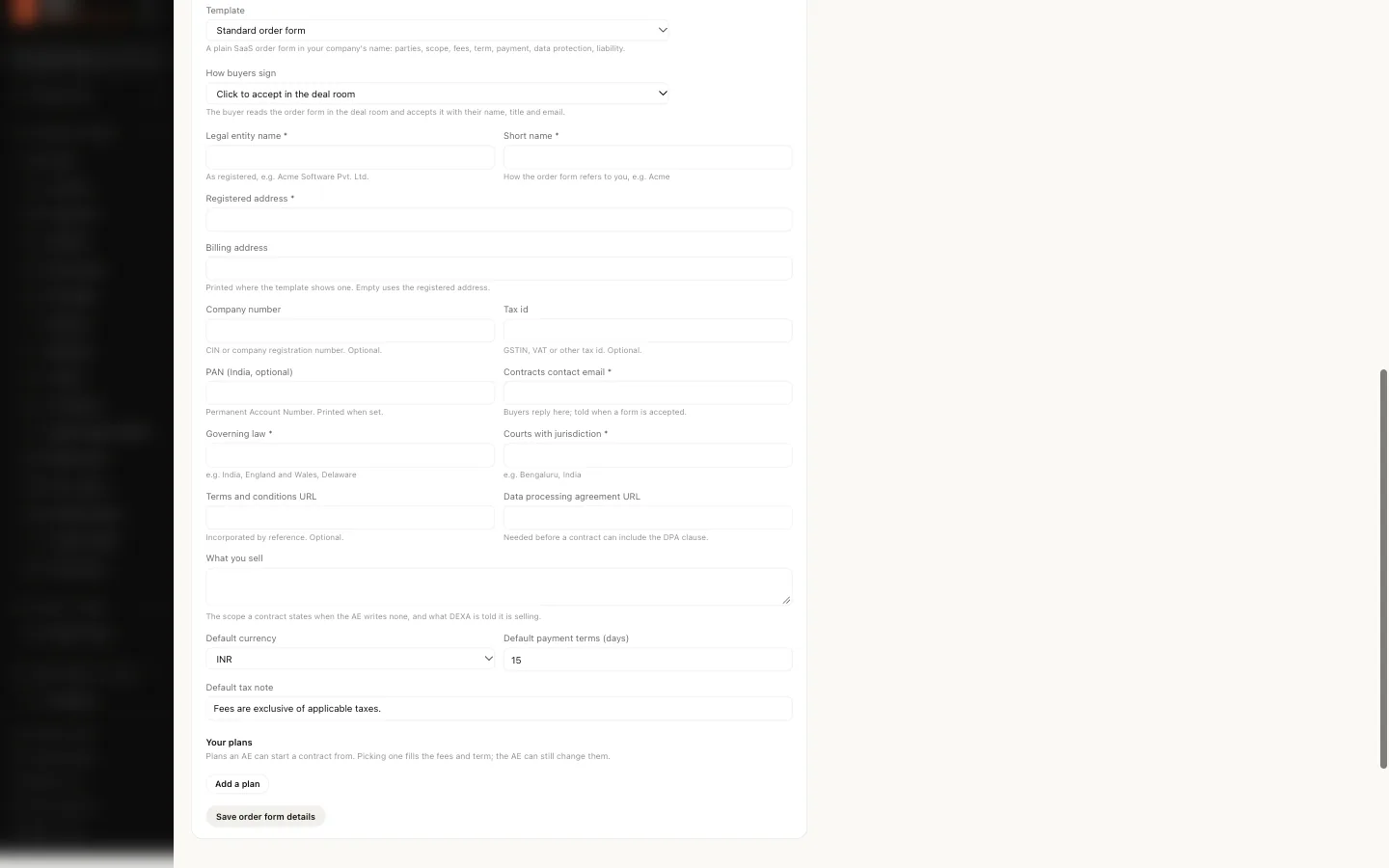
Open Sales settings and scroll to Order form. Viewing the page needs settings access, and saving needs permission to change settings. The section is there only when your workspace has DEXA; without it the page says "Order forms come with DEXA".
Until the required fields are filled in, a red line at the top of the section lists what is still needed before an order form can be published.
| Part | What you fill in |
|---|---|
| Template | Which order form to use. Shown only when your workspace has more than one; Standard order form is available to every workspace |
| How buyers sign | Shown only when there is more than one way. Click to accept in the deal room is the default |
| Your company | Legal entity name, short name, registered address, contracts contact email, governing law and courts with jurisdiction are required. Billing address, company number, tax id, and links to your terms and data processing agreement are optional |
| Defaults | What you sell, default currency, default payment terms in days and a default tax note |
| Your plans | Each plan's name, currency, billing period, term in months, what the order form says is included, and its fee lines with quantity, unit price and unit. Add fee line and Add a plan add more |
Press Save order form details when you are done. DEXA reads these details every time it drafts, so a plan you add here can be the starting point of the next order form.
Drafting the order form on the lead
The Deal Room and Contract cards sit in the right-hand column of a lead's page, below Sync & integrations. They appear once the lead reaches Demo Held and stay through the later stages up to Won.
- If the lead has no deal room yet, press Create Deal Room on the Deal Room card. The room is the private page the buyer will open: deck, case study, ROI calculator, scheduling and, once published, the order form. Copy link copies its address and Open shows it as the buyer will.
- On the Contract card, press Draft with DEXA. DEXA drafts from the lead, its proposal, the demo notes and the conversation so far, and the card says "DEXA is drafting…" while it works. You can also choose Start blank, or Start from a plan… when Sales settings has plans.
- The draft is marked "Draft, not visible to buyer". Anything DEXA could not settle from the record is listed in an amber box, DEXA needs you to confirm, and RIVA's checks are listed under RIVA hygiene.
- Press Review & edit to change the customer details, scope, fees, term, pilot and clauses, then Save draft. Redraft with DEXA starts again from the record.
Viewing the card needs access to leads, and drafting needs permission to change leads.
Approving and publishing
Press Approve & publish. Nagent asks you to confirm, because publishing does two things at once: the order form appears in the buyer's deal room, and the lead moves to Contract Sent.
- Approve & publish stays disabled while RIVA reports a blocking issue on the draft. Fix what RIVA lists and the button comes back.
- A discount beyond your band needs someone who can decide approvals. The band is the one on Sales settings (see the discount band). If you cannot decide approvals, the card reads "Waiting for someone who can decide approvals" and the people who can are emailed.
- Void withdraws an order form and asks you for the reason.
Once published, the card shows Deal room and Print. Editing a published order form takes it back off the buyer's page, which is why the button reads Edit (unpublishes).
Sending it to the buyer
Publishing makes the order form visible in the deal room. Sending emails the buyer to tell them it is there.
- Press Email to followed by the signatory's name.
- Check To: it is filled with the signatory's address, and you can change it.
- Add up to five addresses in CC, separated by commas.
- Add a Note if you want one, up to 1,000 characters. It replaces the standard line that thanks the buyer for choosing your company.
- Press Send, or Cancel to close the form without sending.
The card then says who it was emailed to, with the CC list. The email goes from your mailbox, so sending needs permission to send email.
What the buyer sees
The buyer opens the deal room link. It needs no account. The page greets them by first name and shows the room's sections, with the order form in its own card:
- The order form itself, in a scroll box, with Open printable version.
- The version number and a fingerprint of the exact text, so both sides can tell later which version was accepted.
- A short form, Accept this order form: full name, title, work email and a box to confirm they are authorised to sign for the customer and agree to the order form. Accept and sign completes it.
The printable version has Print or save as PDF and the full document fingerprint, and it says who accepted the order form and when, or "Not yet accepted."
When the buyer accepts
- The card in the deal room reads "Accepted by" the buyer's name and the date.
- The lead moves to Won, and its deal value is set from the order form if it was empty.
- The seller is emailed that the order form was signed, and the buyer is emailed a copy of what they accepted.
Mutual NDA
A standard mutual NDA sits beside the order form. It is issued in your company's name, from the seller profile on Sales settings, so set your company's details there first.
- On the lead page, open the Mutual NDA panel. It is there at every stage, because an NDA usually comes before the order form.
- Press Review & edit. Check the other party's legal name, which starts as the lead's company name, and add their registered address if you want it. Set the purpose, the term (1 to 5 years) and how long the confidentiality survives after it (1 to 10 years).
- Press Approve & publish. The same approval gates as the order form apply. Publishing stays blocked while the other party's name, the purpose or your company's details are missing, or if the lead is lost.
The buyer opens the deal room, reads the NDA and accepts it by click to accept: full name, title, work email, then Accept NDA. The panel then reads Accepted.
An NDA does not change the lead's stage, and it sets no deal value. Each lead has one live NDA. An accepted NDA cannot be edited or voided.
The panel says "Have your counsel review it before relying on it for a real deal." Do that before you publish your first NDA.
Our logic
An order form commits your company to a price and a term, so the agent that prepares it is not the one that publishes it. DEXA does the slow part, pulling the deal's facts into a document, and a person makes the commitment. RIVA checks the draft because the same rules that say a deal is unhealthy should stop a paper that would make it worse.
Limits today
- Click to accept is the only way to sign for most workspaces. Signing through Zoho Sign is in Beta and available only to Nagent's own workspace.
- Have your counsel review the template before you publish your first order form. The card says the same.
- DEXA does not send. It drafts and redrafts; every send is a person's.