
Nagent for Slack
How to install the Nagent app in Slack, what it reads from your public channels, ask your team or an agent in a channel or a direct message, link your Slack account, approve an agent's reply in Slack, and disconnect.
Browse documentation
Ask your agents where your team already talks
Nagent for Slack puts your agents in your Slack workspace. Mention the app in a channel or send it a direct message, name the agent, and that agent answers in the thread under its own name. Its reply passes the same approvals as anywhere else in Nagent: when it may not send on its own, the draft waits in Slack for someone who may approve it.
Nagent for Slack is in Beta.
Three kinds of Slack in Nagent
Slack appears in Nagent in three ways, and they do different jobs:
| What | What it does | Where it is set up |
|---|---|---|
| Nagent for Slack | People ask agents in Slack and approve their replies there, and the app reads the public channels you choose into the Knowledge Hub | This page |
| Slack as a tool | An agent posts or reads in Slack as one of its actions | Connecting a tool |
| Slack as knowledge | The Knowledge Hub reads the channels you choose as a source | The Knowledge Hub, once Slack is connected as a tool |
Installing one does not install the others.
Installing the app
Open Integrations and choose Slack (Beta): "Install the Nagent app so people can ask agents in Slack and approve their replies there." Viewing the page needs access to integrations, and installing needs permission to change them, which an Organisation admin holds.
- Press Add to Slack.
- Slack asks you to allow the app in your Slack workspace. It asks to read messages that mention it, its direct messages and the channels it is in, to list your public channels and join the ones you choose, to post replies under each agent's name, and to read basic details of the people who write to it.
- Allow it. You come back to Nagent, which says "Slack is connected."
One install serves every agent in your workspace. The page then reads "Installed in" your Slack workspace, with the date and how many people have linked their accounts.
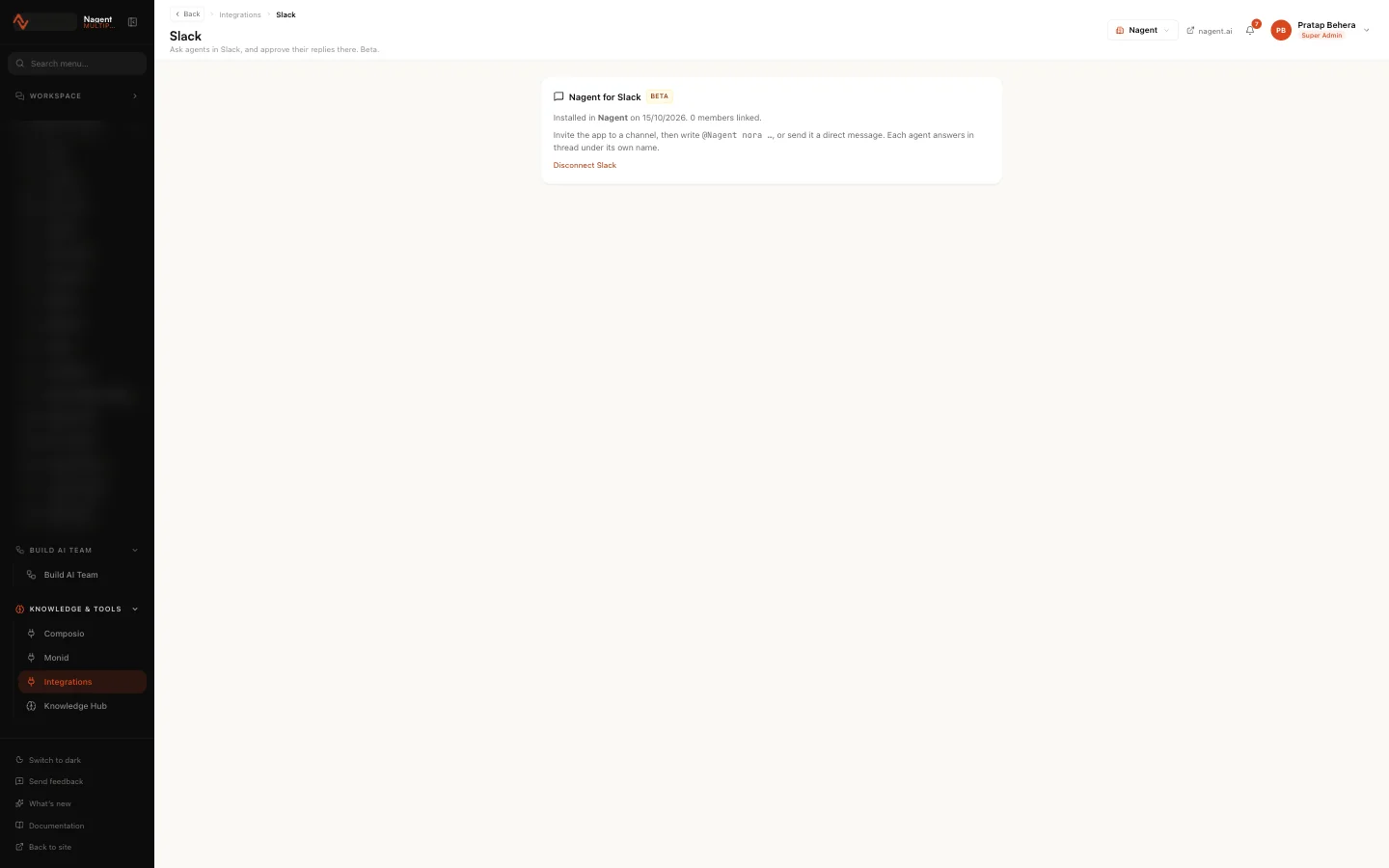
One Slack workspace connects to one Nagent workspace. If the Slack workspace is already connected elsewhere, Nagent says "That Slack workspace is already connected to another Nagent workspace."
What the app reads from your channels
Once connected, the Slack page asks an admin to Choose the channels Nagent reads. It lists every public channel, all ticked, with how many members each has. Untick any the app should leave alone, decide whether it should Also join public channels created from now on, and press Read these channels. Nothing is joined or read before that.
The app then joins the channels you chose and reads their last 90 days into your Knowledge Hub, then what is new in each once a day. Your team then knows what was said in Slack when it answers and does its work.
- Each channel is kept as one entry a week, marked internal: everyone in your Nagent workspace can find it, and nothing from it is published.
- Messages in the channel itself are read. Replies inside threads, attachments and messages from apps are not.
- A week older than 90 days is removed from the Knowledge Hub.
- Private channels are not read. Inviting the app to one lets it answer there, nothing more.
The page lists what the app reads under Channels Nagent reads, and how far the first read has gone: "Reading the last 90 days: 4 of 12 channels done." Slack lets the app read a little each minute, so the first read of a busy workspace can take a day. Then it reads "Up to date." Press Change channels to tick or untick channels later: what was read from an unticked channel is removed from the Knowledge Hub.
Choosing channels needs permission to change integrations, which an Organisation admin holds, and is recorded in the audit log.
If your workspace installed the app before it read channels, the page says Connect again to read your channels. Press Connect again and allow it in Slack; linked accounts are kept.
Why you choose
Slack asks that an app never join every public channel on its own after it is installed, and a channel can hold talk a team would rather keep out of the Knowledge Hub. So the app reads only what an admin has chosen.
Asking your team
Invite the app to a channel, then write @Nagent and what you need, or send
the app a direct message:
@Nagent what is the marketing plan for next month?
A message that names no agent goes to your Whole team room, as if you had written it there. The room's chief of staff answers, briefs the team or the agent the work belongs to, or calls a meeting, exactly as in Nagent. The app replies "On it", names the room, and the team's replies, reports and links to the work follow in the same Slack thread under each agent's name. The thread is kept in the room too, and a reply in either place reaches the other.
To ask one agent directly, start with its name:
@Nagent nora what changed with retail-1.example this week?
Only agents on your teams can be named: the ones the Teams page shows. An agent a team does not have is not offered, and a message naming it goes to the Whole team room instead.
Asking the room needs a linked account, permission to write to teams, and a place on the Whole team room. Without them the app says what is missing.
Linking your Slack account
The first time you ask, the app sends you a message only you can see, with a link: "Link your account to Nagent so agents can act for you and you can approve their work".
- Open the link while signed in to Nagent. It is valid for 30 minutes.
- Press Link my Slack account. Nagent says "Your Slack account is linked."
Once linked, agents you ask in Slack act as you, with your access. Until you link, an agent can still answer, but without its tools, and a few questions an hour at most. If the link has expired, ask the agent again in Slack for a new one.
Approving a reply in Slack
When an agent's reply needs a person, Slack shows the draft with "(agent) drafted this reply. It is sent once someone who may approve it does." and two buttons, Approve and send and Reject.
- Anyone who can decide that approval in Nagent can press them in Slack: an Organisation admin, or a Department head or Team lead where the work belongs. See people and roles.
- After a decision, the message says who approved or rejected the reply.
- Someone who cannot decide it is told so, privately. Someone not yet linked is asked to link first.
An agent at L3 Operate or above sends its Slack replies on its own; below that, every reply waits. See autonomy and governance.
Disconnecting
Press Disconnect Slack on the same page and confirm. Agents stop answering in Slack, every linked account is forgotten, and what the app read from your channels is removed from the Knowledge Hub. Remove the app in Slack's own settings too.
Our logic
A question asked in Slack should get the same answer, with the same care, as one asked in a team room. So Slack is another way in, not another set of rules: the agent reads the same knowledge, works at the same level, and a reply it may not send alone waits for the same people.
Limits today
- Nagent for Slack is in Beta.
- Attachments are not read. The agent reads the text of your message.
- Long messages are cut. A question is read up to about 7,000 characters, and a draft shown in Slack up to about 2,800.
- There are no slash commands. Mention the app or message it directly.
- The first read is slow. Slack lets the app read about 15 messages a minute from each workspace, so 90 days of a busy workspace can take a day.
- Thread replies and private channels are not read into the Knowledge Hub.
- Reading stops when your Knowledge Hub is full. The Slack page says so, and reading carries on from where it stopped once there is room.
Where to go next
- Approvals and the Inbox: what waits, and who decides it.
- Connecting a tool: Slack as one of an agent's tools.