
Prebuilt teams
The three teams Nagent prebuilds, who each one seats and who leads it, how the sign-up cards differ from what installs, how to add a team after sign-up, and the Teams to add offered beside them.
Browse documentation
A prebuilt team arrives staffed, scoped and ready to brief
A prebuilt team is a set of agents Nagent has already put together for one outcome: an AI chief of staff, the team leads who report to it, a charter, and the tools they work with. You add the people and the specifics of your business on top.
Your workspace is arranged in levels:
- The organisation, which is your workspace.
- Departments, such as Sales or Marketing, each owning one outcome.
- Teams, each with a lead agent and its own room.
- Agents, each with a level that decides what it may do on its own.
- People, each with a role. See people and roles.
Choosing teams at sign-up
The first sign-up screen, Hire your AI team, shows three department cards, Sales, Marketing and Content, with Customer Experience below them. Each card names the department's AI chief of staff and its team leads, and tags each agent Live, Coming soon or Beta.
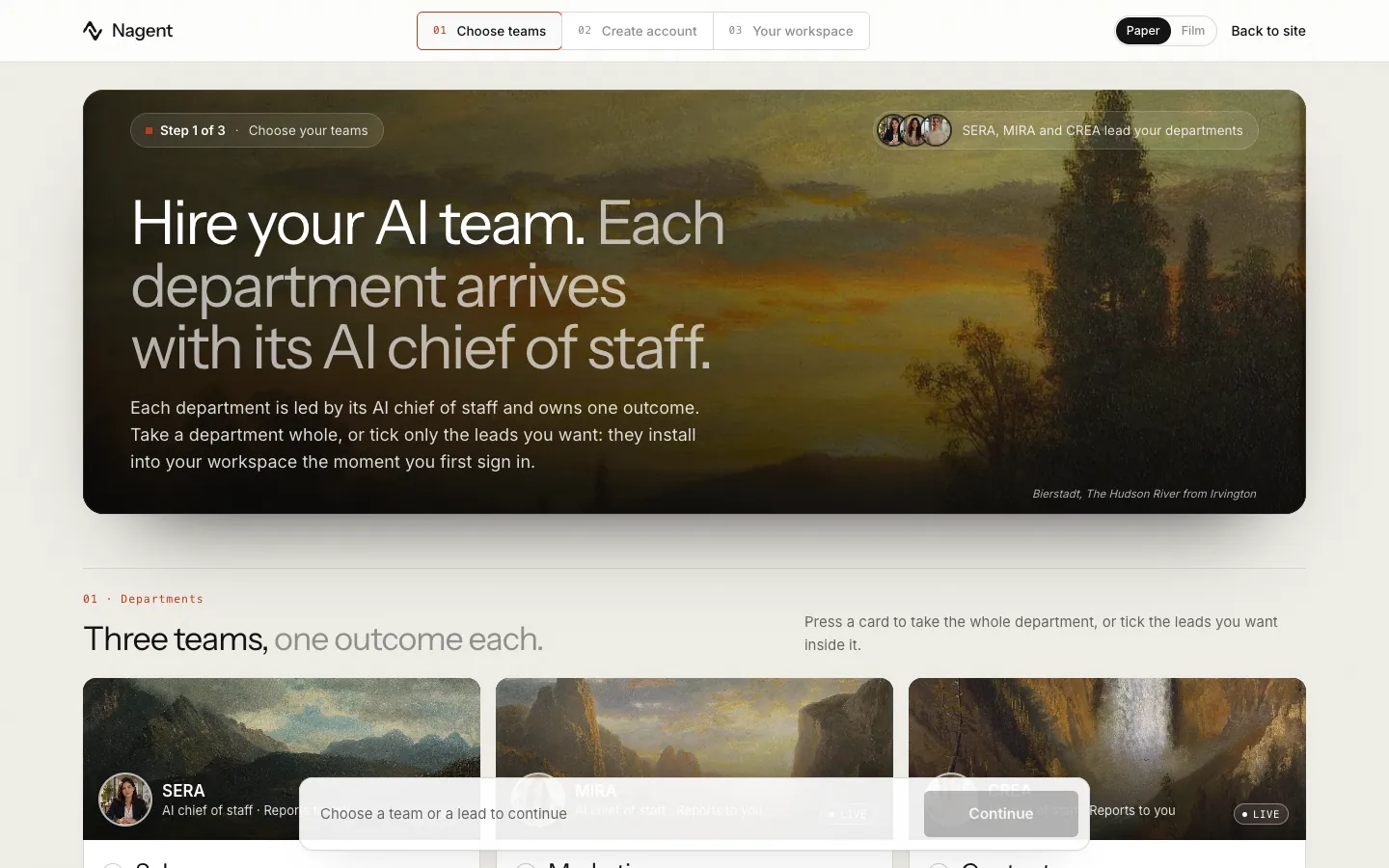
Three of the cards install a team when you first sign in. The fourth, Customer Experience, links to Convexa, a separate product on its own subscription; nothing installs in your workspace when you choose it. The Content card also links to Kinetiq, our video product, which has its own sign-up.
Each card can be taken whole or one lead at a time. The Whole department switch sits on the card's title, and every lead that is built has a tick beside its name. Taking the department whole ticks every lead. Ticking one lead on its own gives you that lead, with its own room and a seat in its department's room, and nothing else from the card. The foot of the screen counts the two apart: "1 team and 1 lead chosen".
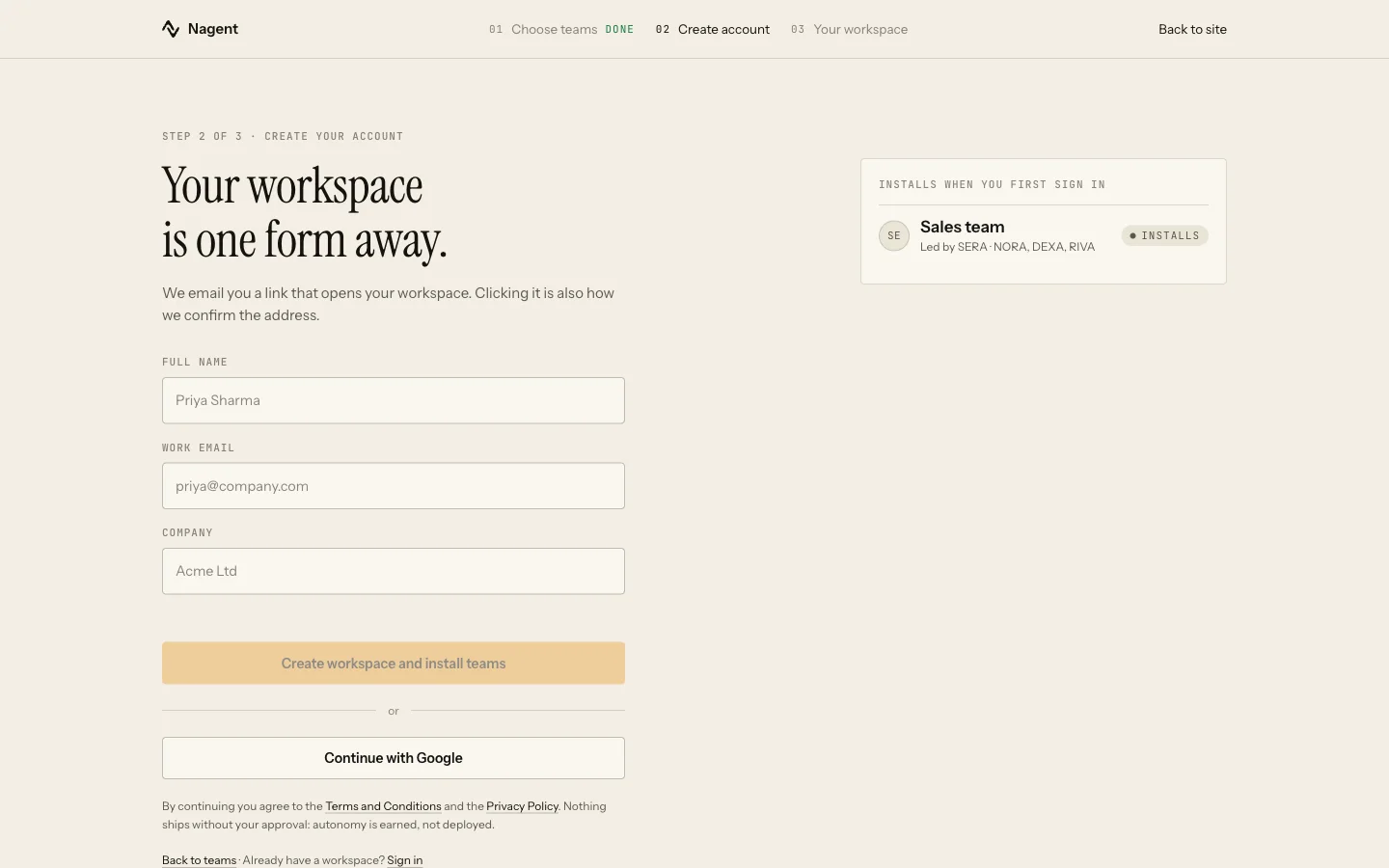
The second screen lists what will activate, under Activates when you first sign in. The whole sign-up is walked through in signing up.
The three teams
What a team seats is set by its blueprint, not by the card. Each department is led by its AI chief of staff, and the team leads under it bring their own sub-agents. Taken whole, today:
| Team | Owns | Led by | Seats |
|---|---|---|---|
| Sales | Qualified meetings | SERA | SERA, NORA, LIPI, VANI, and CORA, who runs CORA's CRM. DEXA and RIVA are coming soon |
| Marketing | Reach and pipeline cost | MIRA | MIRA, DRIS, NIA, HOOK, Echo. MOXA is coming soon |
| Content | Output and the brand line | CREA | CREA, RUPA, FOLIO, ALPHA, and the Blog Studio agents |
FOLIO is the long-form seat. It arrives as one name and brings its own working agents with it. The Blog Studio agents are seated only where your workspace holds DRIS, which briefs them.
A team lead with sub-agents of its own also gets its own room, installed in the same pass. Marketing taken whole brings the DRIS, HOOK and Echo rooms; Sales taken whole brings NORA's room. Every workspace gets the CRM room, whatever it chose, with CORA, LIPI and the CRM team in it.
One team lead at a time
A team lead you tick on its own arrives with its own room and a seat in its department's room, which then holds only the AI chief of staff, the team leads you ticked and the seats every workspace has: in Sales, CORA and LIPI; in Content, CREA's blog agents. Nothing you did not tick is seated, and the pages of the team leads you did not pick stay off the sidebar until you add them.
- HOOK and Echo are seated only when Marketing is taken whole, or when you add each one on its own. A workspace that ticked DRIS alone, or chose only Sales or Content, has neither until it adds them: see "Adding a team after sign-up" below.
- NORA on her own brings VANI, who writes her outbound emails, and her own room with the lead-gen sub-agents.
- NIA on her own arrives in a room of her own, seating the team lead alone.
- RUPA, FOLIO and Alpha have no room of their own. CREA's Content room is theirs.
- A DRIS-only workspace gets DRIS's own room, a Marketing room with MIRA and DRIS, and the CRM room with CORA and LIPI.
Where the cards and the install differ
- DEXA and RIVA are on the Sales card as Coming soon, and MOXA is on the Marketing card as Coming soon. See DEXA, RIVA and MOXA.
- The Content card also shows a presentation maker, a landing page maker and an e-mail template maker. None of them has a tick. The landing page maker is LANDON, which is live and seated by the Content install; the other two are not seated by it.
A team arrives working: its agents are seated at a level that lets the lead proceed on a stated assumption rather than asking about everything. An outbound e-mail NORA sends is gated separately, and on a new workspace every one waits for a person's approval. See autonomy and governance.
For the Sales team in depth, see the Sales team.
Adding a team after sign-up
A team, or one lead, you did not choose at sign-up can be added later.
- Open Welcome. Your installed teams are listed under Your teams, ending with an Add a team tile.
- Choose Add a team, then Choose a prebuilt team.
- Each card shows what the team owns and Arrives with, its roster. A seat that is not built yet is named underneath.
- Press Use this team for the whole department. The button reads Seating while the agents are seated, the page says "Seated. Opening the channel.", and the team then appears under Your teams.
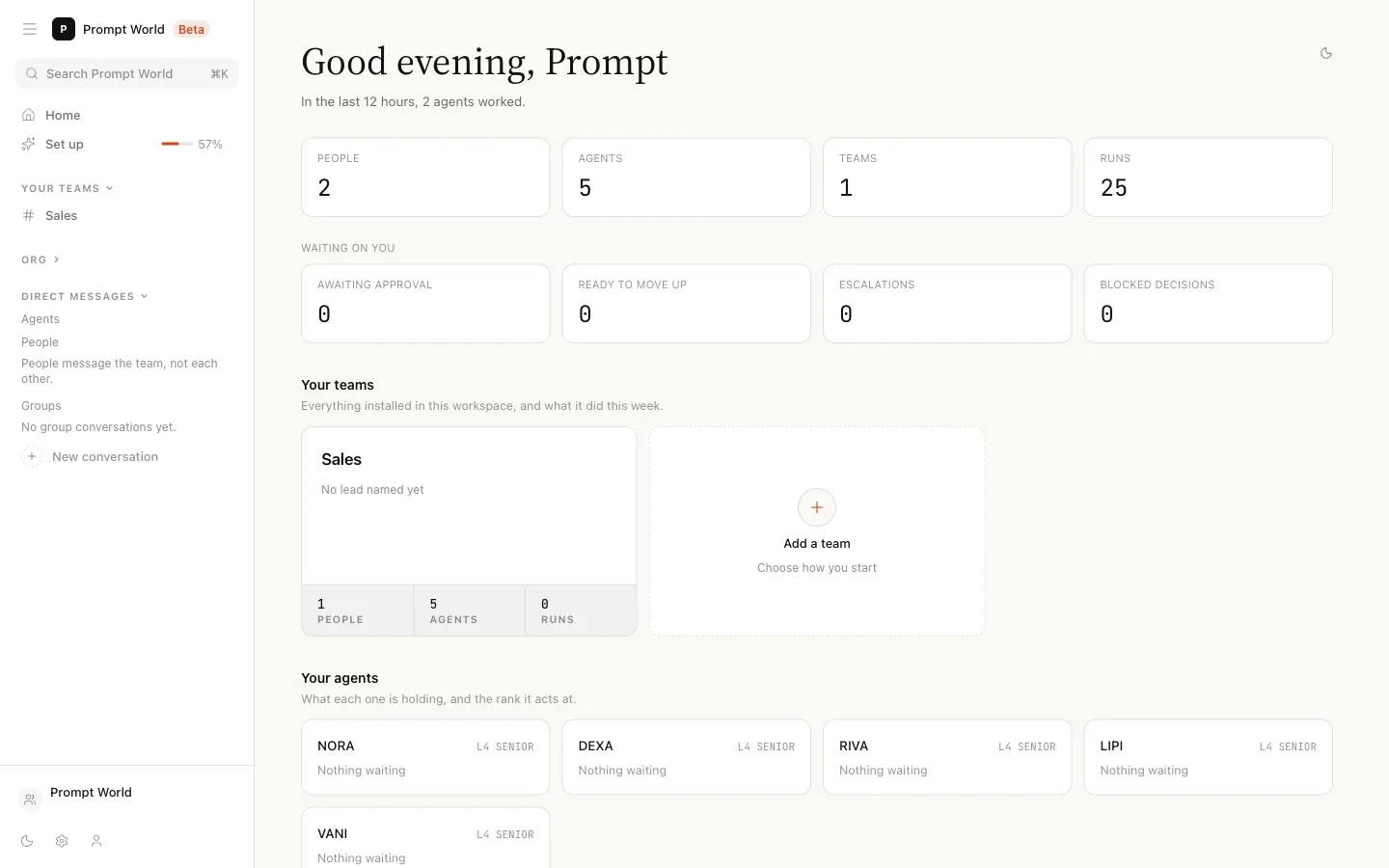
Seating a team needs the settings write permission, which an Organisation admin holds. Anyone else sees "Seating a team needs permission to change workspace settings. Ask your workspace admin, who holds it."
The same tile offers Create a new team, which starts from a blank charter and the agents you pick. See setting up a team.
Adding one lead
Under each card, Or add one lead lists the department's leads as buttons: Add HOOK, Add Echo, Add NIA and so on. Press one and that lead alone is seated: its own room, where it has one, and a seat in its department's room. If that room is already in your workspace, the lead joins it; if it is not, a room cut down to the chief and the lead is made. The lead's pages join the sidebar without signing in again.
Adding a whole department after one of its leads fills the room in: the leads already seated stay, and the rest join them.
Our logic
The cards show the whole department so you can see where it is going. The install seats only agents that work today, because a seat that cannot act would take briefs and do nothing with them. When a seat is not built, the screen says so by name rather than leaving it out. Nothing you did not pick is seated, because a teammate nobody asked for is one more room to read and one more set of pages to walk past.
The Learning Series team
Under CREA's Content room sits one more team, VIDYA, which makes a learning series: season plans, episode scripts and lessons, with every claim about your business taken from the Knowledge Hub. VIDYA leads three seats: KRAMA plans the season, LEKHA writes it, and SATYA checks what it says against your knowledge. The room is called VIDYA team and works inside the Content room, led by CREA. It is not on the sign-up cards or the Welcome picker: Nagent sets it up for your workspace. Ask us if you want it.
Teams to add (Beta)
Some teammates belong to no prebuilt team. They are offered under Teams to add, below the three prebuilt teams in the same panel. Each arrives in a room of its own, tagged Beta, and adding one is free while it is in Beta.
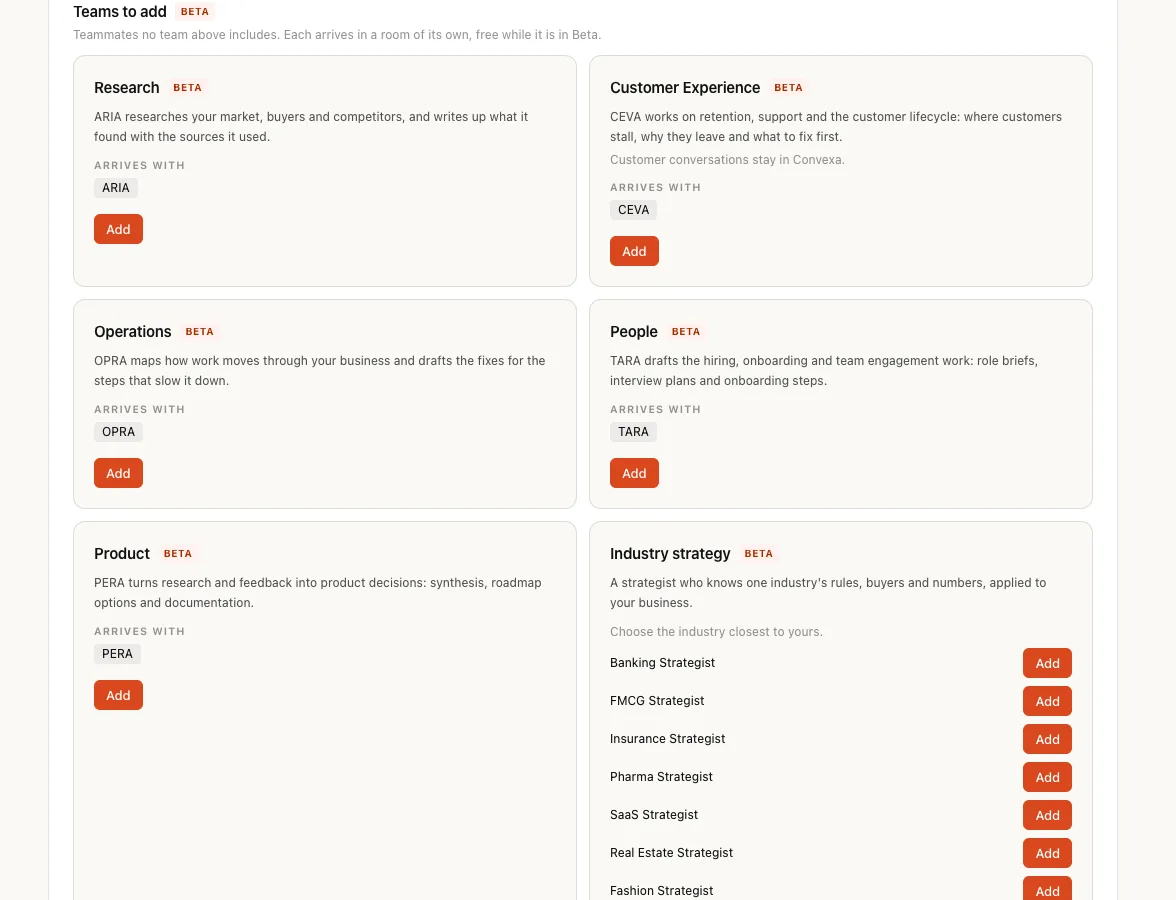
| Team | Arrives with |
|---|---|
| Research | ARIA |
| Customer Experience | CEVA. Conversations with your customers stay in Convexa. |
| Operations | OPRA |
| People | TARA |
| Product | PERA |
| Industry strategy | One strategist, the one you choose |
| Builders | Skill Builder, Agent Builder and Workflow Builder, led by Agent Builder |
| Brand and citations | Brand Lock Extractor and Knowledge Citation Agent |
Industry strategy lists eight strategists: Banking, FMCG, Insurance, Pharma, SaaS, Real Estate, Fashion and Media. The strategists for the industries your workspace profile names come first, marked Suggested, with the note "Suggested from what your workspace profile says about your business."; any of the eight can still be added. When the profile names no industry with a strategist, all eight are listed for you to choose from. You are never asked for an industry here; set your industries on the Industries and markets card (see who you sell to).
- Open Add a team, then Choose a prebuilt team, and scroll to Teams to add.
- Press Add on the team, or on the strategist you want.
- The button turns to Added, and the team appears under Your teams once you close the panel.
Adding a team needs the settings write permission. A workspace with no team yet is asked to seat one of the prebuilt teams first. If a room you made already has the same name, the add stops and says so; rename that room and add the team again.
On the org chart, Research, Customer Experience, Operations, People and Product each appear as their own department. The strategists, the builders and the two workers appear under Platform agents, where their setup is kept the same for every workspace.
Where to go next
- Signing up: the two sign-up screens and the install.
- Your first hour: what to do once the teams are seated.
- The team room: where each team works.
- Setting up a team: building a team of your own.