
HOOK, the ad creative team lead
How HOOK turns a paid social brief into angles, hooks and scripts, checks every claim before anything ships, and learns from how your ads performed.
Browse documentation
HOOK brings back the angle, the script and the constraints as one pack
HOOK is the creative strategy lead for paid social. It frames a brief, spreads the work across its eight sub-agents, and brings the result back as one pack: the angle, the hooks, the script and the rules the ad must keep. HOOK reports to MIRA.
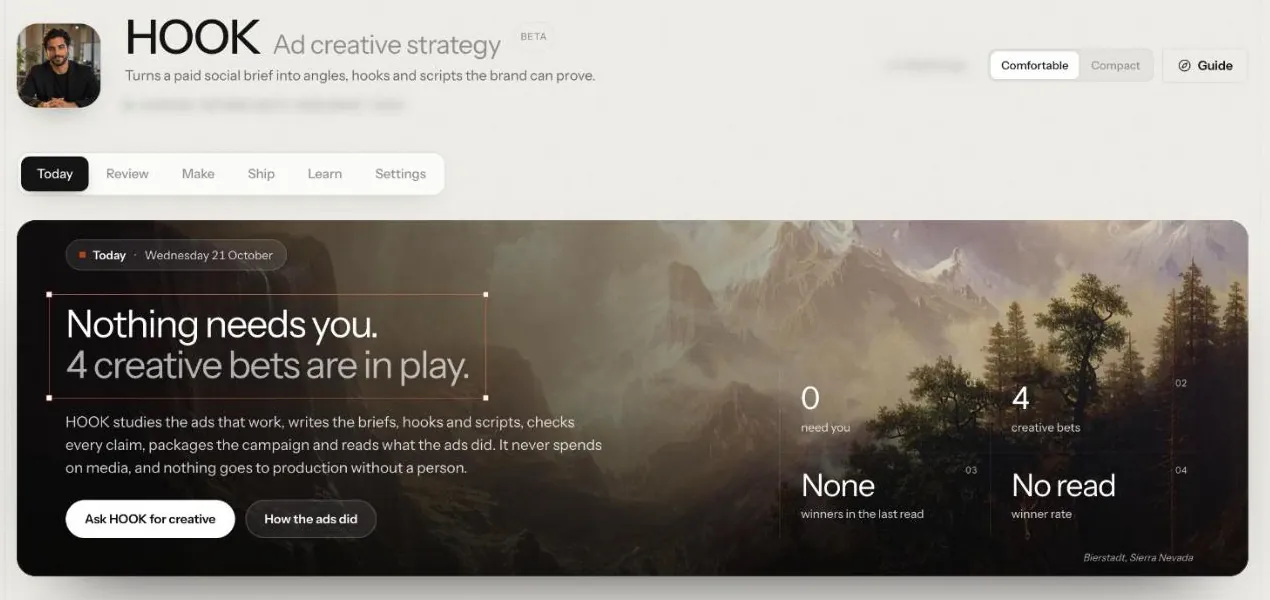
HOOK is labelled Beta beside the page title: "New, and rough in places." Open it from the sidebar under HOOK, or go to nagent.ai/admin/hook. Its tabs run Today, Review (requests and concepts), Make, Ship, Learn and Settings (the brand pack, the channel packs and your ad data).
HOOK's Today also opens inside the HOOK team room and the Marketing room, under the room's surface tab. HOOK's other pages open from there with Open full page.
The sub-agents
| Seat | What it does for you |
|---|---|
| SCOUT | Builds your swipe library of ads worth learning from |
| MINE | Reads what makes an ad work, inside a teardown |
| ANGLE | Writes the brief: the bets and when to kill each one |
| SCRIPT | Writes hooks and full scripts |
| GATE | Checks every claim and line of copy, and can block |
| PACK | Packs the ads into a campaign package |
| PULSE | Reads ad results, diagnoses, plans refreshes |
| VAULT | Keeps what has worked as your playbook |
Adding HOOK after sign-up
HOOK arrives when you take Marketing whole at sign-up. A workspace that ticked single leads, or chose only Sales or Content, does not have HOOK until someone adds it.
- Open Welcome and choose Add a team, then Choose a prebuilt team.
- On the Marketing card, under Or add one lead, press Add HOOK. The button reads Seating while it runs. Adding a team needs the settings write permission, which an Organisation admin holds.
What arrives:
- A room called HOOK team, with HOOK and the eight sub-agents above. Its charter line reads "HOOK and its creative sub-agents turn what buyers respond to into concepts, scripts and ad packs", and it works inside the Marketing room, led by MIRA.
- A seat for HOOK in the Marketing room. If your workspace has no Marketing room yet, one is made with MIRA and HOOK in it.
- Five workflows in the room: Ad hooks and angles, Competitor ad scan, Creative brief for RUPA, Audit an uploaded ad file and Ad test plan. Each can be started from the room at once; its schedule or event trigger arrives switched off, and Keep running on the card switches it on.
- HOOK's pages in the sidebar, under HOOK.
See prebuilt teams for what else a lead brings.
Step 1: build the brand pack
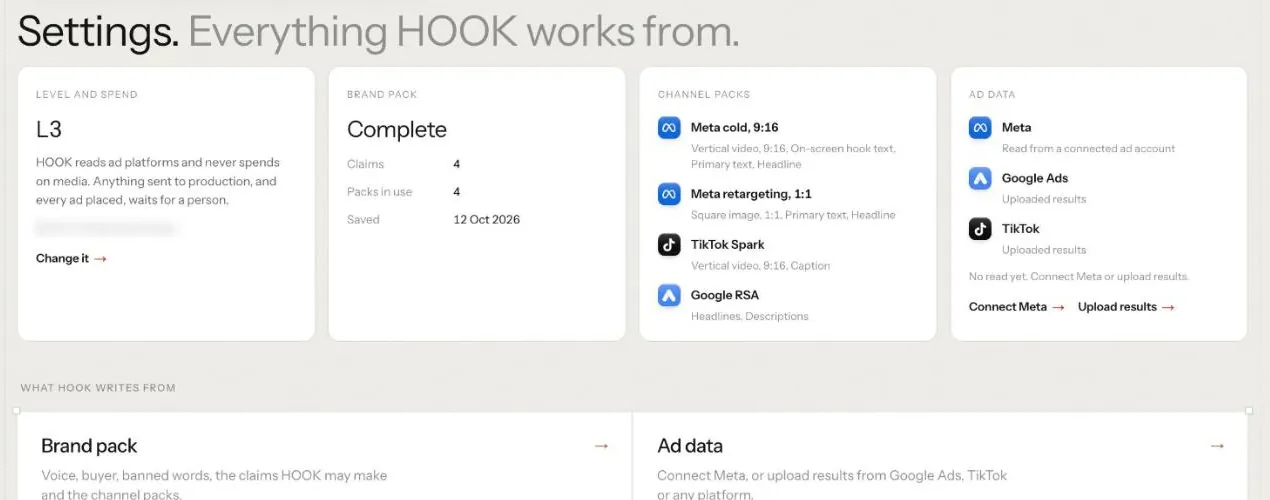
Nothing is made until the brand pack is complete. Open Settings, then Brand pack (nagent.ai/admin/hook/brand-pack). It has four steps:
- Voice and ICP. Your voice comes from your brand book and your buyer from a customer profile in the Knowledge Hub. If you have no profile yet, Open ICP profiles takes you there.
- Claims and proof. Each claim you allow in an ad, with its proof. Add one and Save claim. For Prompt World: "Teams write usable prompts on day one", proved by workshop feedback scores.
- Banned language and offer. Words that must never appear, and what you are offering.
- Channel packs. Which formats you make for.
Click Save brand pack. The pack is complete when it has a voice, a buyer, at least one claim and at least one channel pack.
Voice and banned words are shared with the rest of your workspace, so changing them needs settings permission; without it they are read only, with a link to the Brand screen.
Our logic: an ad that claims what you cannot prove costs more than a weak ad. The brand pack is the list of what HOOK may say, and GATE checks against it.
Channel packs
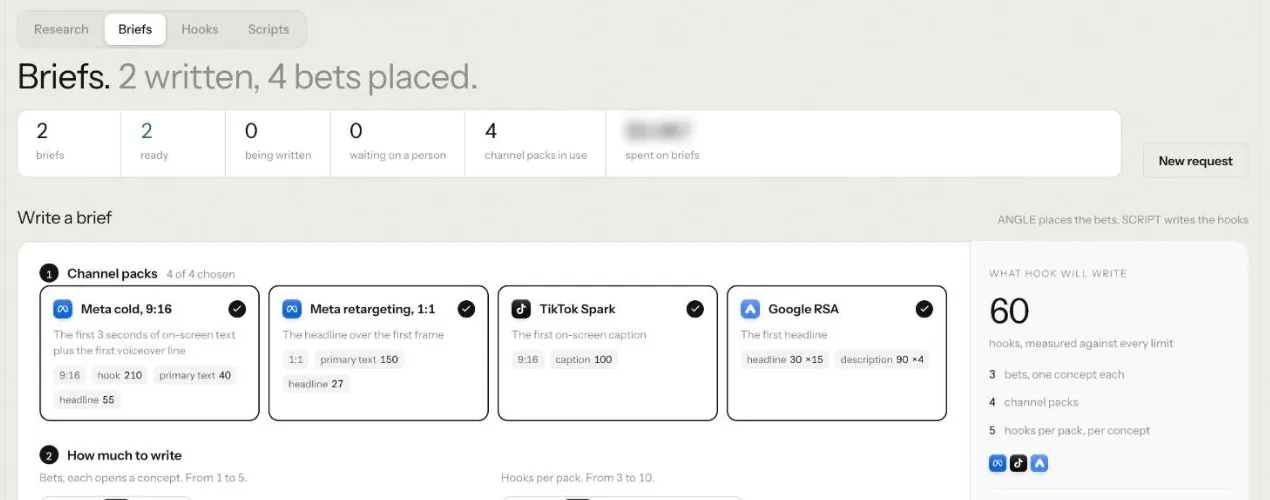
Four packs exist, each with fixed format limits: Meta cold, 9:16, Meta retargeting, 1:1, TikTok Spark and Google RSA.
Step 2: Today and Review
Today is HOOK's front page. Its hero counts what need you, the creative bets in play, the winners in the last read and the winner rate, with Ask HOOK for creative and How the ads did. Below it sit Needs you, Asked of HOOK, The creative loop (live work at each stage, from request to read), Since you were last here, The last read of the ads and HOOK's standing.
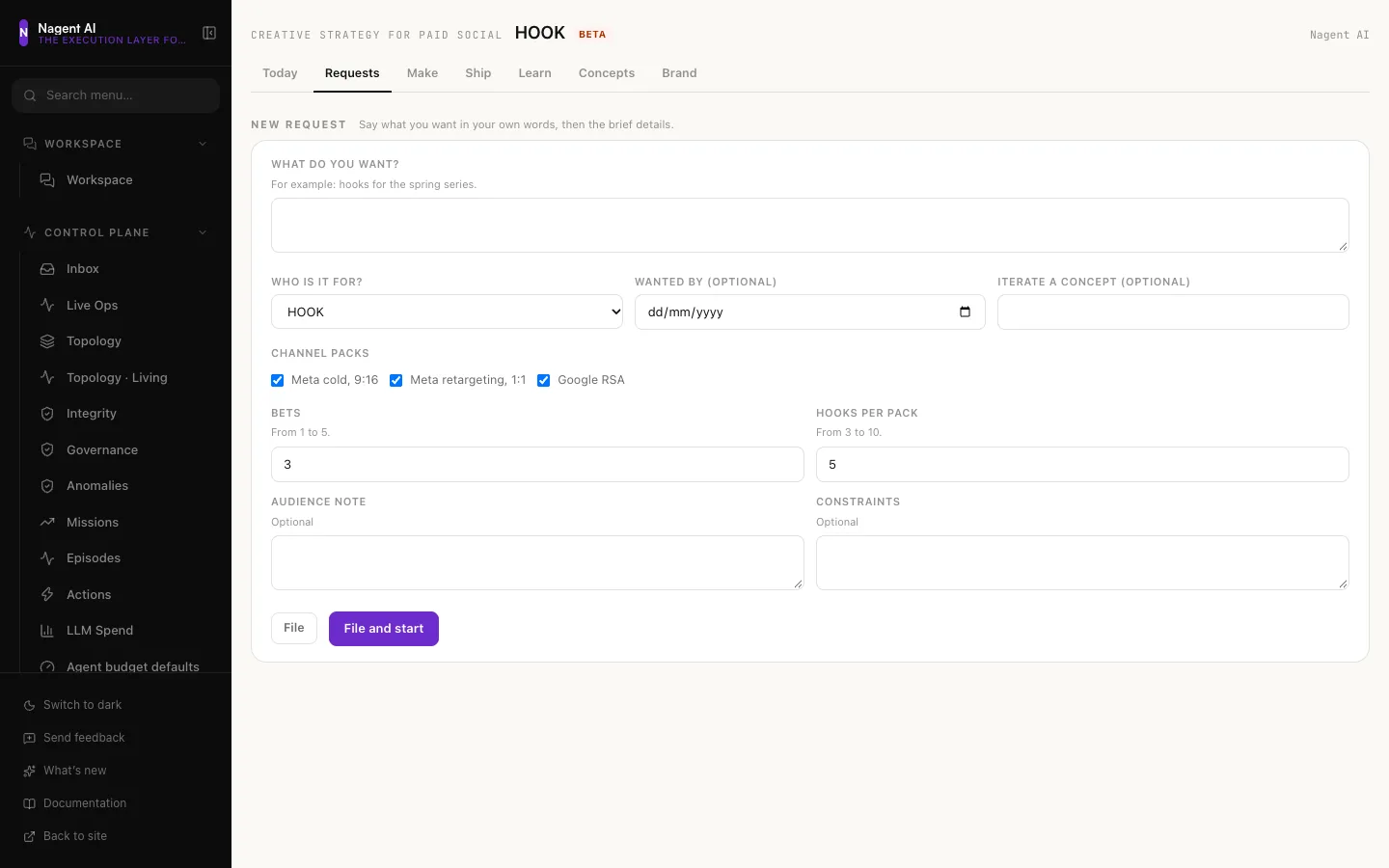
Review, then Requests, is how colleagues and other team leads ask HOOK for work. Click New request, fill in What do you want? and Who is it for?, and optionally Wanted by and Iterate a concept. Choose the channel packs, the bets and the hooks per pack, then File or File and start.
The list counts Open, Brief started, Delivered and Declined requests, and filters by status and by who the work is for.
Step 3: Make
Make has four tabs, in working order.
Research
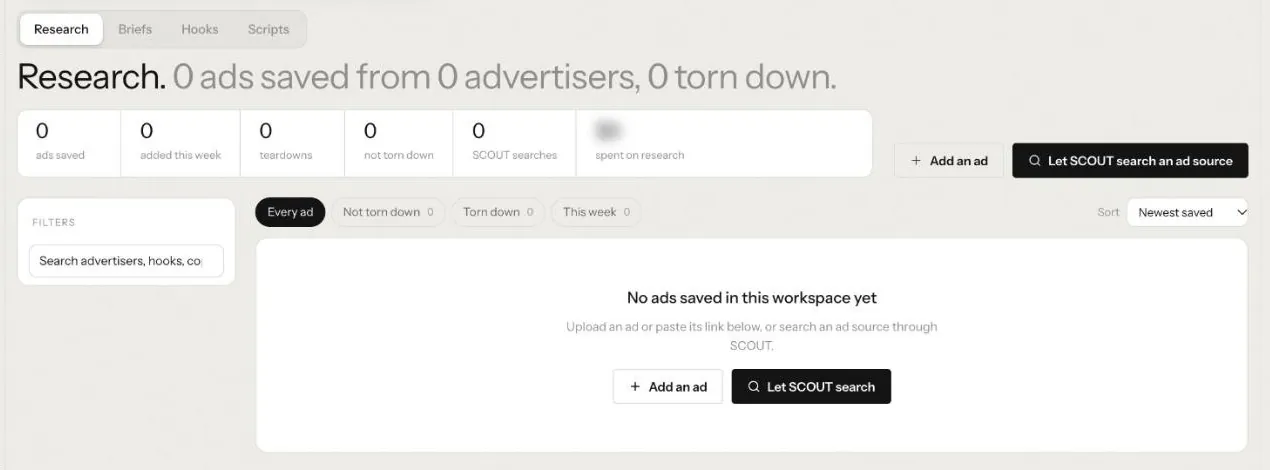
- Swipe library. Add an ad: upload it or paste its link, then save it to the swipe library.
- Searches. Let SCOUT search an ad source finds ads in public ad libraries. It needs an ad source connection set up for SCOUT; without one the page says "No ad source is connected for SCOUT".
- Teardowns. Tear this down breaks a video ad into its beats and what makes it work. The button quotes the cost before you click. MINE watches and hears the whole ad in one pass; when it cannot, it falls back to a transcript and a few stills, and the teardown records which way it was read and why. A second teardown of the same file reuses the first reading and costs nothing. From a teardown you can Add to swipe or Brief from this.
Briefs
Write a brief. Choose the channel packs, the number of Bets (1 to 5), Hooks per pack (3 to 10), an audience note and constraints. ANGLE writes the brief, and each bet opens a concept.
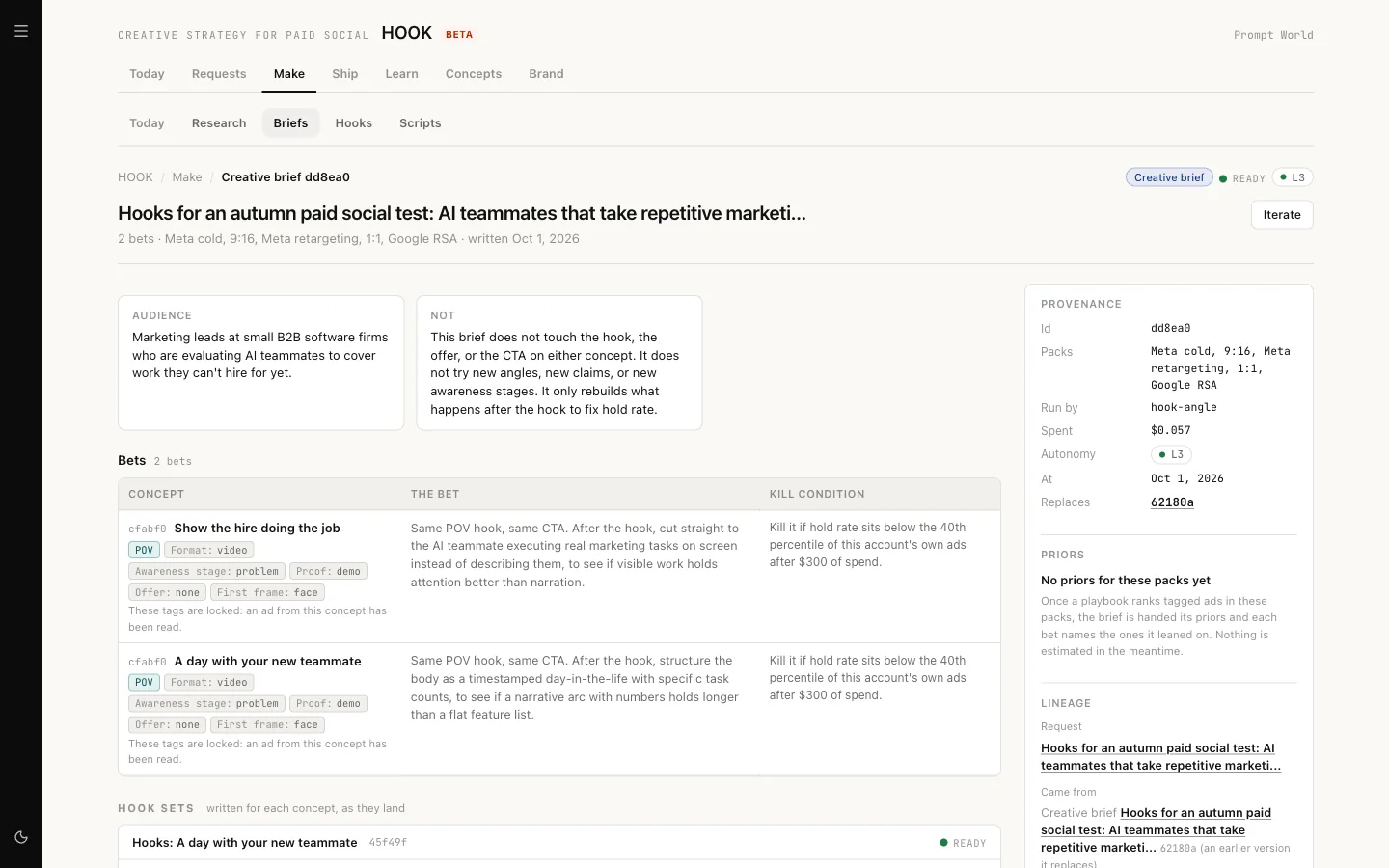
Open a brief to read its bets:
Hooks
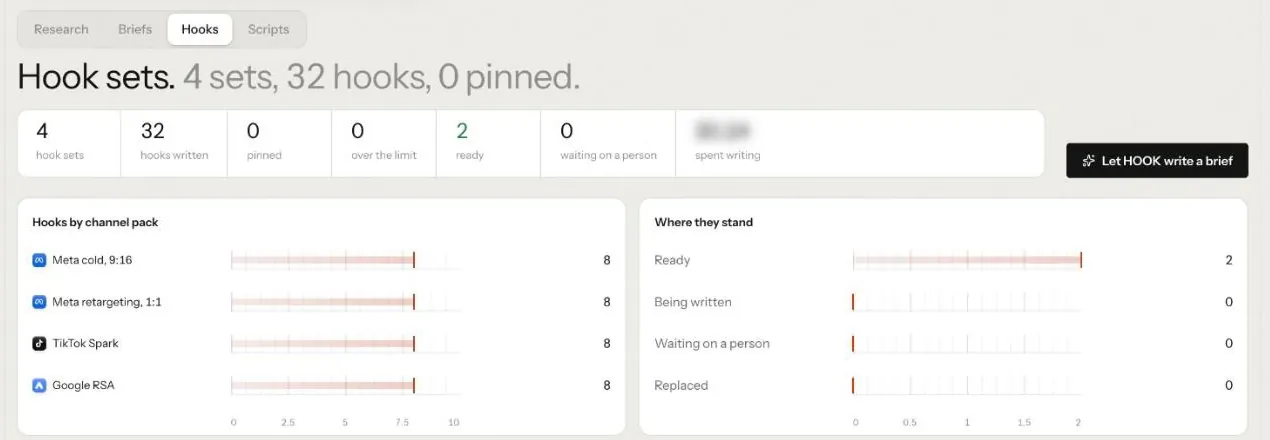
Each hook set can be Pinned. When you like a set, click Hand to SCRIPT and SCRIPT writes full scripts from it, usually within a minute or two. Iterate asks for another round.
Scripts
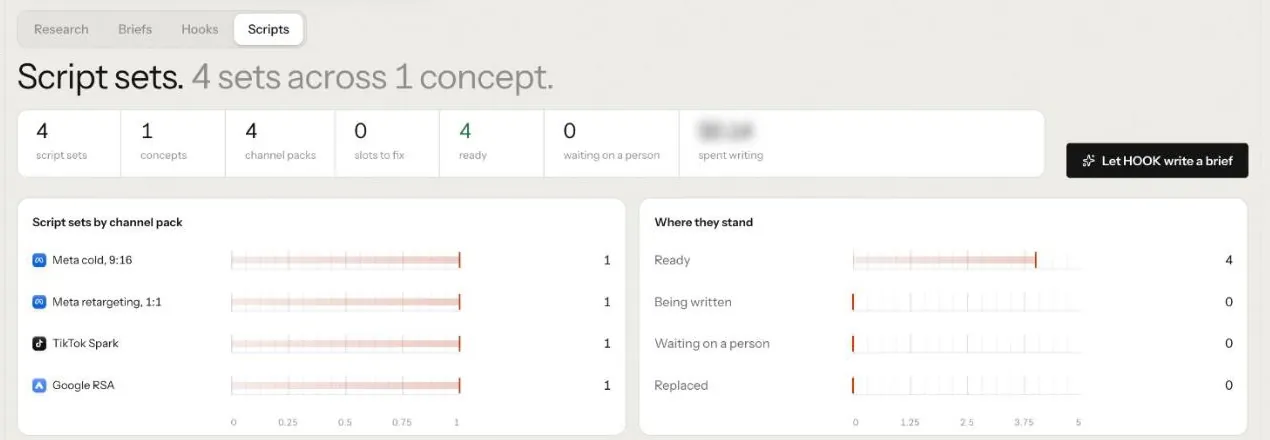
Scripts are grouped by concept, then by pack, with each version's state. If a version shows Failed, open it: the reason is on the version, not in the list.
Step 4: Ship
Ship has three tabs: In production, GATE checks and Campaign packs.
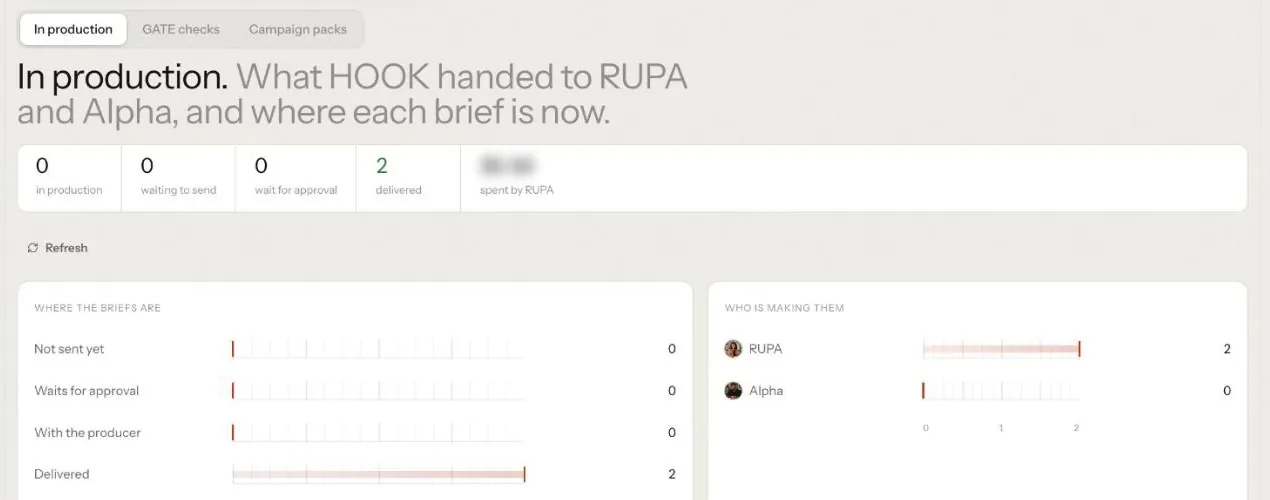
In production. From a ready script, Make a production brief. Choose RUPA for statics and carousels, then Send to RUPA; it shows the estimate in credits, "on RUPA's budget." A video brief goes to Alpha. Its status follows Alpha's job: "Waiting for Alpha to take it.", then "Alpha is making this.", then "Returned by Alpha.", and the brief links the job and each video.
GATE checks. Gate this copy checks every claim and line against your brand pack. A report lists the verdict and what blocks it. You can Send back to SCRIPT, Re-brief RUPA, Gate again or Override this block. GATE also checks that the images RUPA returns are the right size, and that each video Alpha returns was saved, can be read and matches the pack's aspect. GATE reads a video's words, not its frames. A blocked video goes back to Alpha.
Campaign packs. Build a pack gathers the approved ads into a campaign package. Download package gives you the files to upload to Meta Ads Manager yourself. For Google, Place with NIA hands the pack to NIA, who builds the campaign paused and asks for her own approval first.
Step 5: Learn
Learn closes the loop.
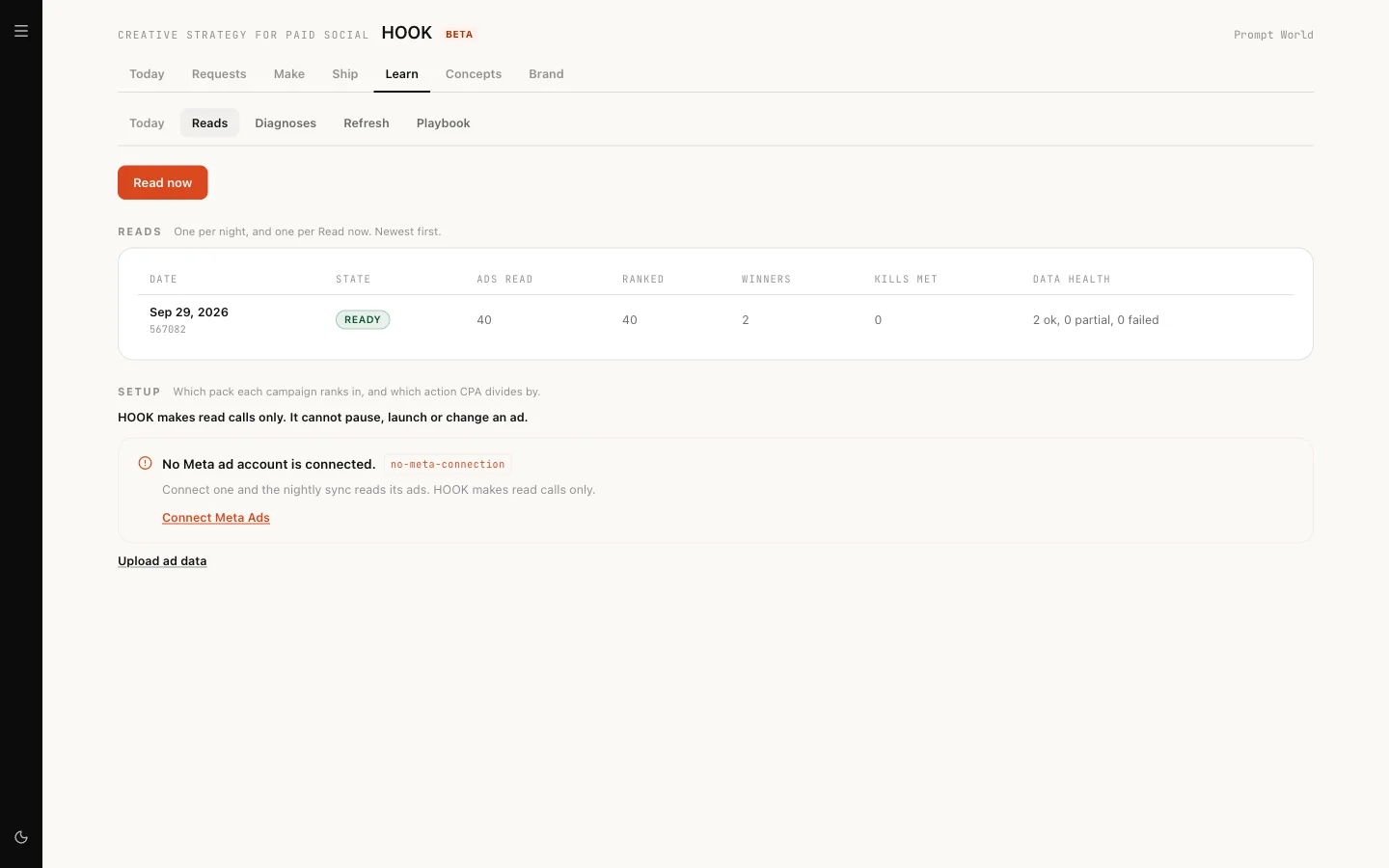
- Reads. Connect a Meta ad account from Settings, or Upload ad data: a .csv or .xlsx export from Meta Ads Manager, Google Ads, TikTok Ads Manager or another platform, up to 10 MB. The file itself is not stored. Read now reads results on demand.
- Diagnoses. Why an ad is winning or losing, with Iterate with ANGLE or Write a brief.
- Refresh. A plan in three columns: Kill, Iterate, Next. "HOOK cannot pause an ad. A person pauses it in Meta Ads Manager."
- Playbook. What has worked, by tag, with winner rate and lift. Export CSV takes it away.
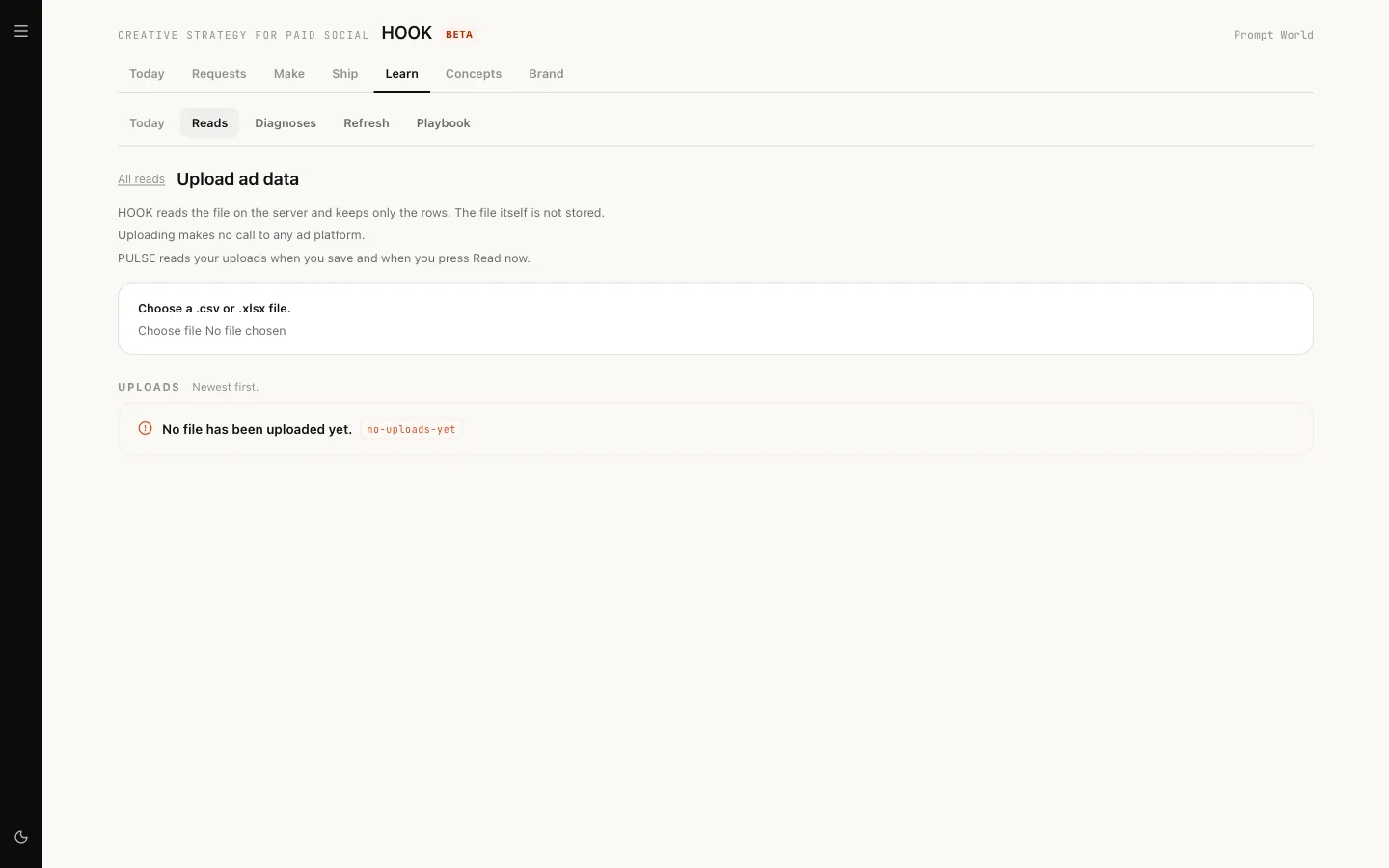
With Meta connected, reads and diagnoses run nightly and the refresh plan and playbook weekly. With uploads only, reads happen when you save a file or press Read now.
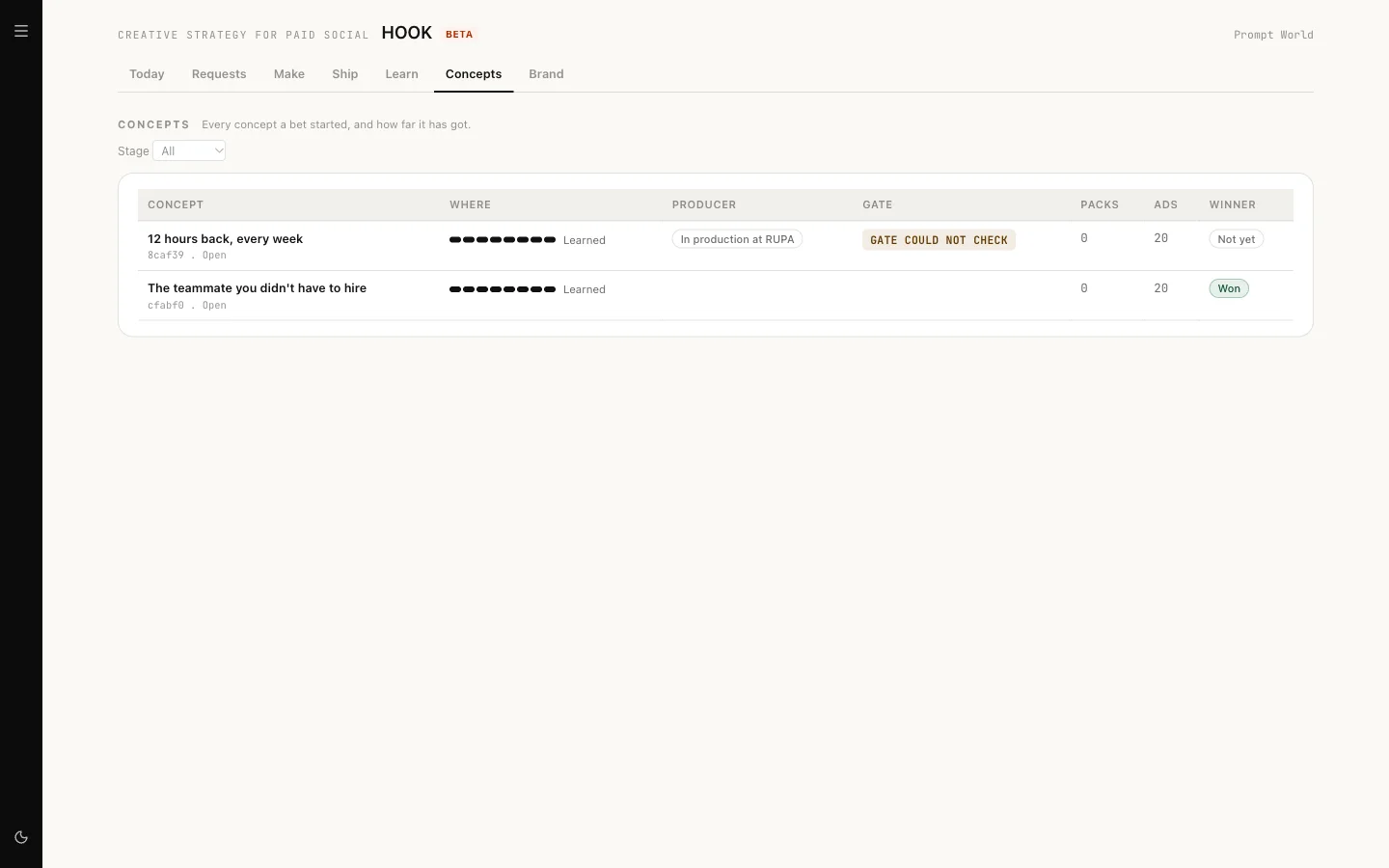
Review, then Concepts, tracks every concept to whether it won.
Who else reads HOOK's results
When DRIS proposes content, it reads what wins in your ads: HOOK's playbook, your winning concepts and their hook lines. It reads rates and comparisons only (win rate, lift, CTR), never money.
What needs approval
HOOK's sub-agents start at level L3. At that level:
| Runs on its own | Waits for a person |
|---|---|
| Saving to the swipe library | Searching an ad source (paid) |
| Writing briefs, hooks and scripts | Tearing down an ad (paid) |
| Gating copy | Sending a brief to RUPA (spends RUPA's budget) |
| Reads, diagnoses, refresh plans, the playbook | Overriding a GATE block, at every level |
A run that waits shows Waiting for approval and an Open approvals button. That opens Actions, where a workspace admin approves it. Approvals for HOOK do not appear in your Inbox.
Overriding a GATE block always needs a second person: "The person who asked for an override cannot approve it."
HOOK never launches, pauses or changes a live ad. A person uploads, pauses and spends in the ad platform.
Our logic: paid calls and anything that reaches an ad account wait for a person; drafting, checking and reading do not, because they cost little and change nothing outside your workspace.
What it costs
Costs appear where the work is, in credits: today's spend under HOOK's name, the quote on a teardown, the model cost on each GATE report and playbook, and the estimate on a RUPA brief. Cost per winner on Today counts HOOK's own spend only, never your ad spend. If your workspace goes over its daily limit, HOOK stops all work until the limit resets.
Limits today
- Meta is read only: HOOK cannot place Meta campaigns. Download the package.
- TikTok packs cannot be placed, and no TikTok video is gated yet.
- Google Ads results are not read back.
- A gated video cannot go into a pack yet; packs hold statics, carousels and Google RSA sets.
- Talking to HOOK in chat uses a general prompt, not HOOK's full workflow.
Where to go next
- RUPA, the image studio: where static ads are made.
- The Knowledge Hub: where your buyer profile lives.