
Browse documentation
Setting up DRIS
Connect Search Console, Google Analytics and crawler logs, name your competitors and prompts, and check each DRIS screen is reading real data before you rely on it.
What you will have at the end
DRIS reads five sources. Each fills different screens, and each can be missing without stopping the others.
| Source | What it fills | Who connects it |
|---|---|---|
| Your website | What counts as a citation of you | You, once |
| Google Search Console | Search Console, Coverage gaps, Organic clicks | You |
| Google Analytics 4 | Traffic, AI-search referrals | You |
| Hosting or CDN analytics | AI crawlers | Nagent's team |
| The answer engines | Visibility, Citations, Competitors, AI surfaces | Nagent, under your daily cap |
Set aside half an hour. Most of it is waiting for Google to show you the right account.
Step 1: tell DRIS which site is yours
DRIS counts an answer as citing you when one of the sources it links is on your domain. Without a domain, no answer can count, and a target page says: "This workspace has no brand domain and no website, so no answer can count as citing you."
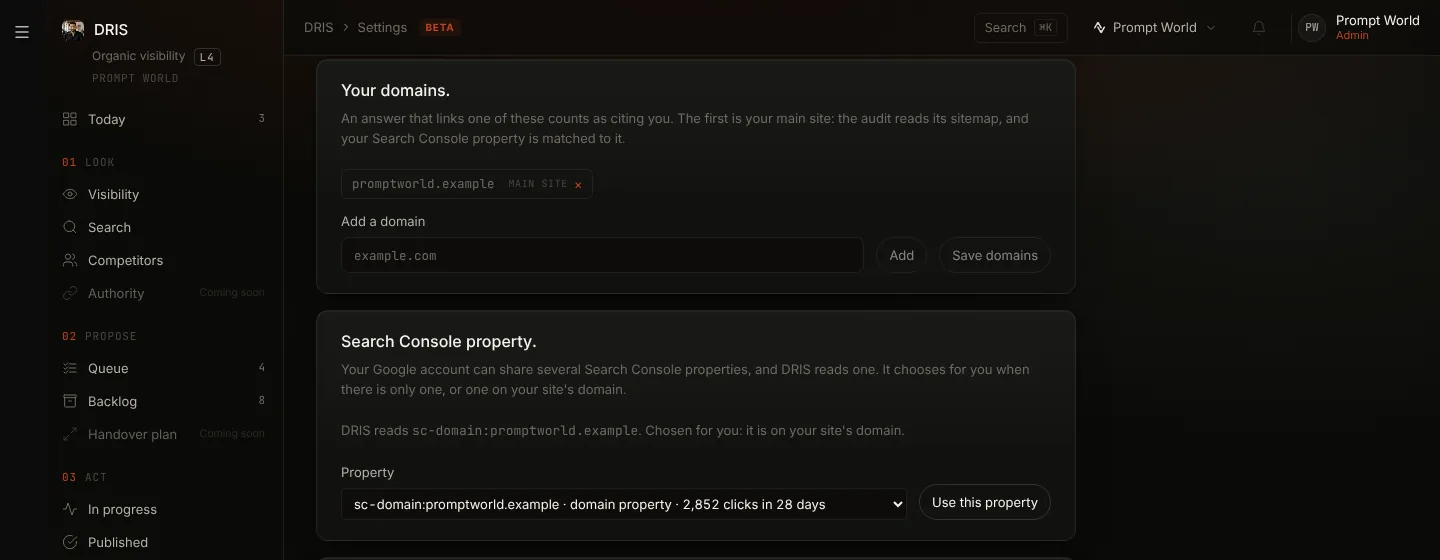
Open DRIS Settings and find Your domains. Type your site's domain,
click Add, then Save domains. A pasted address such as
https://www.example.com/shop is saved as example.com. If you also
publish on other domains, such as a separate docs or shop domain, add them
too.
The first domain is your main site. The site audit reads its sitemap, and DRIS matches your Search Console property to it in step 2.
With no domains set, DRIS falls back to the site you added under Bootstrapping from your website, but the audit has no site to read until you set one here.
Step 2: connect Google Search Console
- Open Connect your tools.
- Choose Google Search Console and sign in with a Google account that can see your site's property.
- Come back to DRIS and open Search, then Search Console.
The first pull reads the last 90 days for every property the Google account can see. After that DRIS reads Search Console once a day, overnight in UTC, and a property added to the account later gets its own 90 days on its first pull.
DRIS shows one of those properties as yours, never their sum. It chooses
for you when the account sees only one, or when one is on your main
domain: a domain property (sc-domain:example.com) first, because it
already holds every address on the domain, then the one URL-prefix
property at the root of your site.
When it cannot tell, for example an agency account that sees several clients' sites, the Search Console page says Choose your Search Console property. and shows no figures until you do. Open DRIS Settings, find Search Console property., pick yours and click Use this property. Each property is listed with its clicks over the last 28 days. The change applies at once to every Search Console number in DRIS, with nothing to pull again.
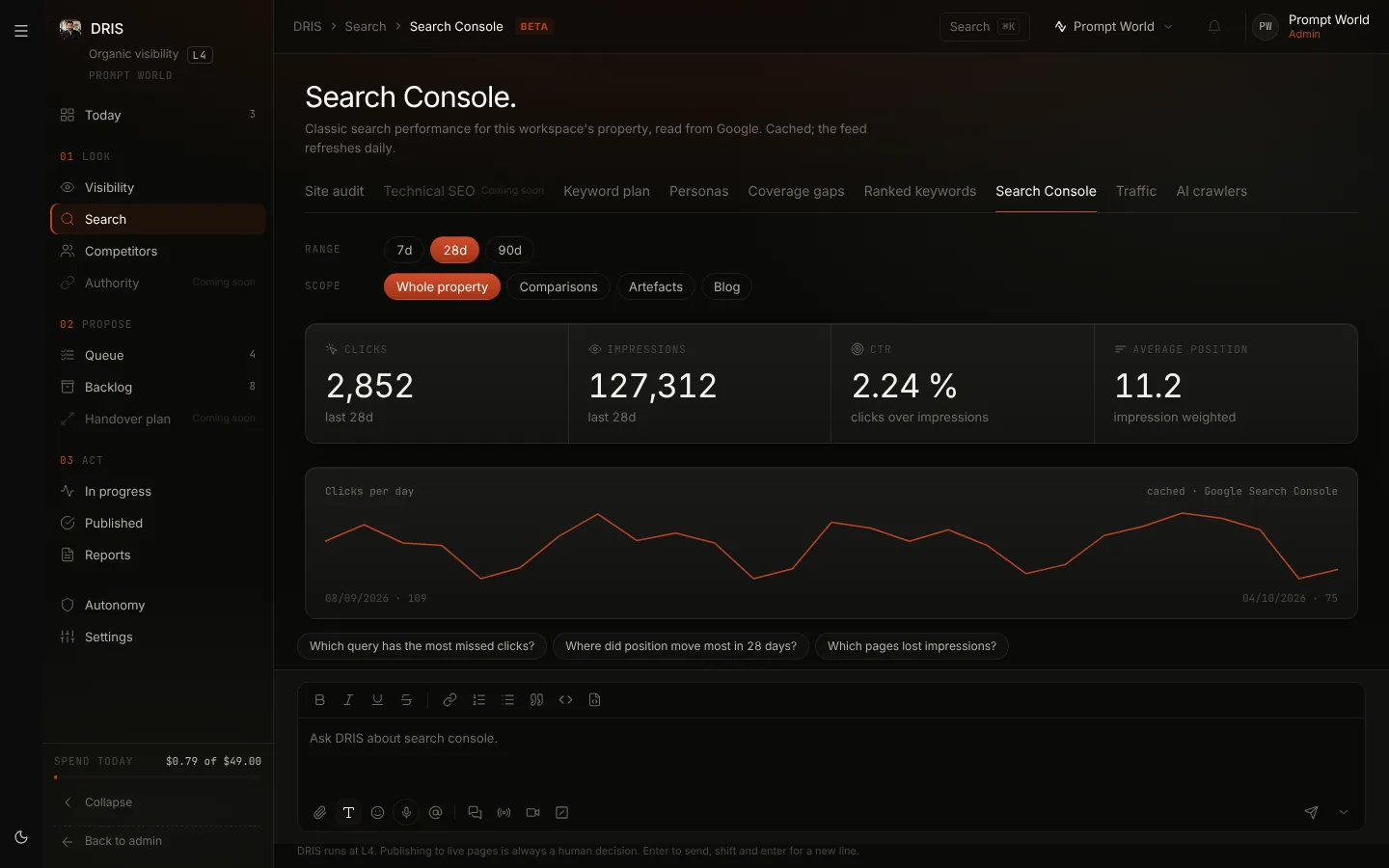
If the page says the connection needs re-authorising, Google has expired the grant. Reconnect from the same tools page; the figures below the message are the last ones read.
Step 3: connect Google Analytics 4
- Open Connect your tools and choose Google Analytics.
- Open Settings and find Google Analytics property under Analytics. It is chosen for you when the account sees one property, or one on your site's domain. Otherwise pick yours and click Use this property.
- Open Search, then Traffic.
The first pull reads 90 days, then daily. DRIS reads sessions and conversions by source. An answer engine's visit shows as its own source: ChatGPT, Perplexity, Gemini, Copilot and Claude are split out under AI-search referrals. If the read from Google Analytics fails, the panel says why in place of the figures.
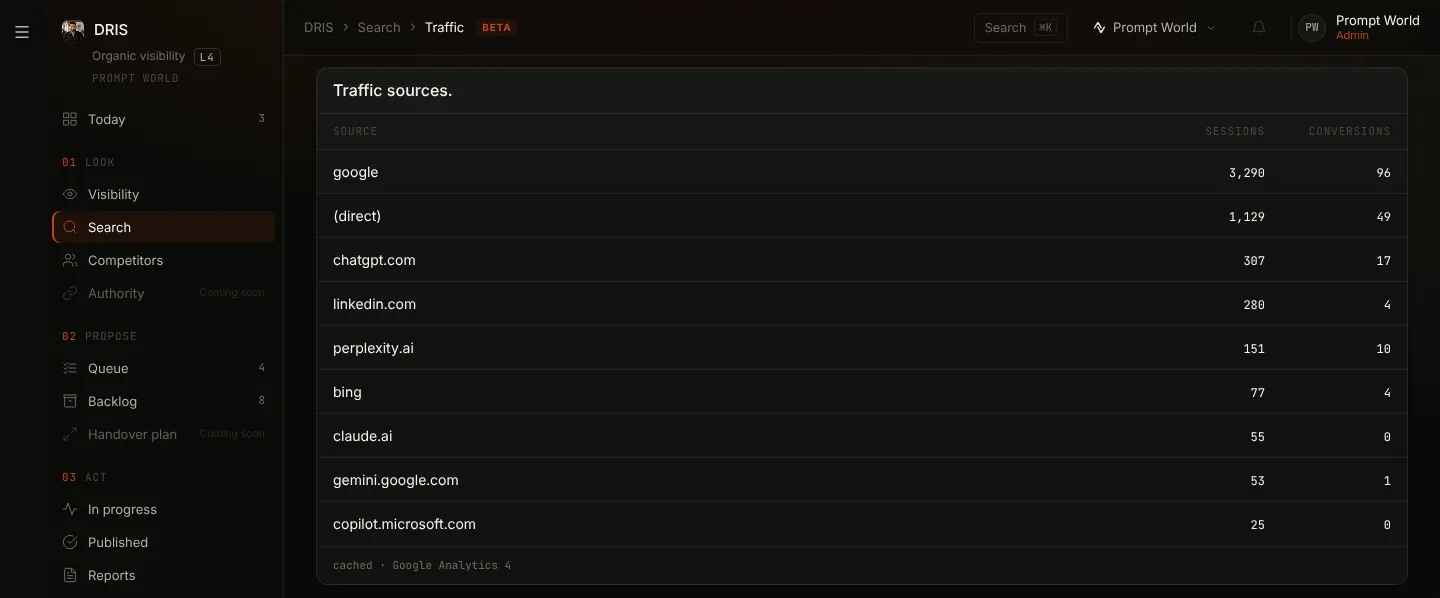
DRIS does not read landing pages yet, so it can tell you that ChatGPT sent visitors, not which page they arrived on.
Step 4: switch on AI crawler analytics
AI crawlers shows which answer-engine bots fetch your site, how often, and which pages they read. It comes from your hosting or CDN analytics, not from a tag on your pages. Cloudflare is supported, and Vercel on a best effort basis.
Ask Nagent's team to switch it on. They hold the Cloudflare API token and zone id, or the Vercel token and project id, for your workspace. Until then the page says "Crawler logs are not connected."
DRIS recognises these crawlers, in three kinds that matter differently:
| Kind | Crawlers | What a visit means |
|---|---|---|
| Live fetch | ChatGPT-User, Claude-User, Perplexity-User | Someone asked a question and the engine read your page to answer it |
| Search index | OAI-SearchBot, Claude-SearchBot, PerplexityBot, Bingbot | The engine is indexing you for its search results |
| Training | GPTBot, ClaudeBot | Content collected for model training |
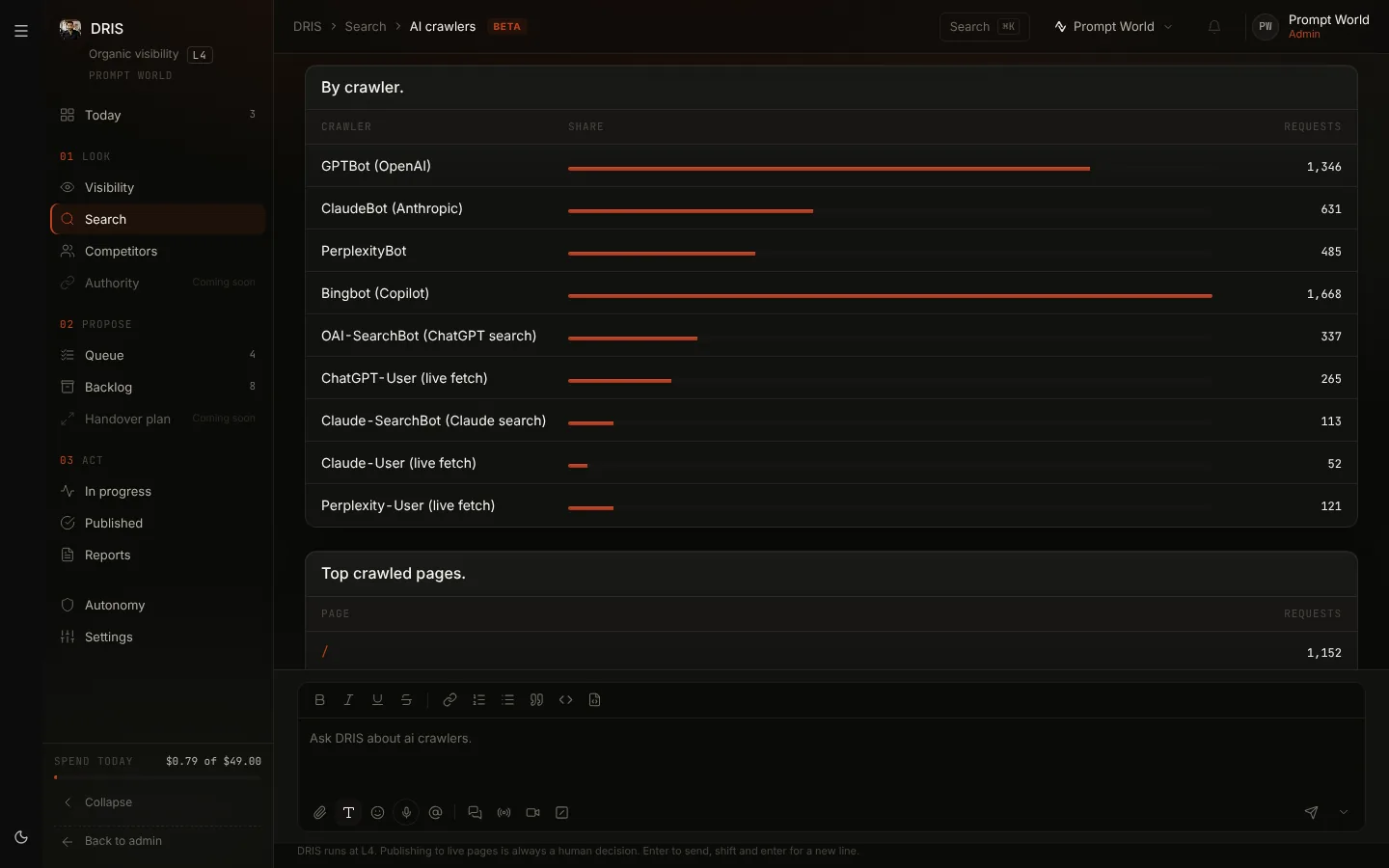
A user agent that names a crawler without its version number is not counted, because that is how a spoofed bot usually looks.
Step 5: name your competitors
Open Competitors, add each competitor's domain with Add to list, and choose Track weekly. DRIS then checks every answer it collects for links to them, and the Competitors page compares their share of answers with yours.
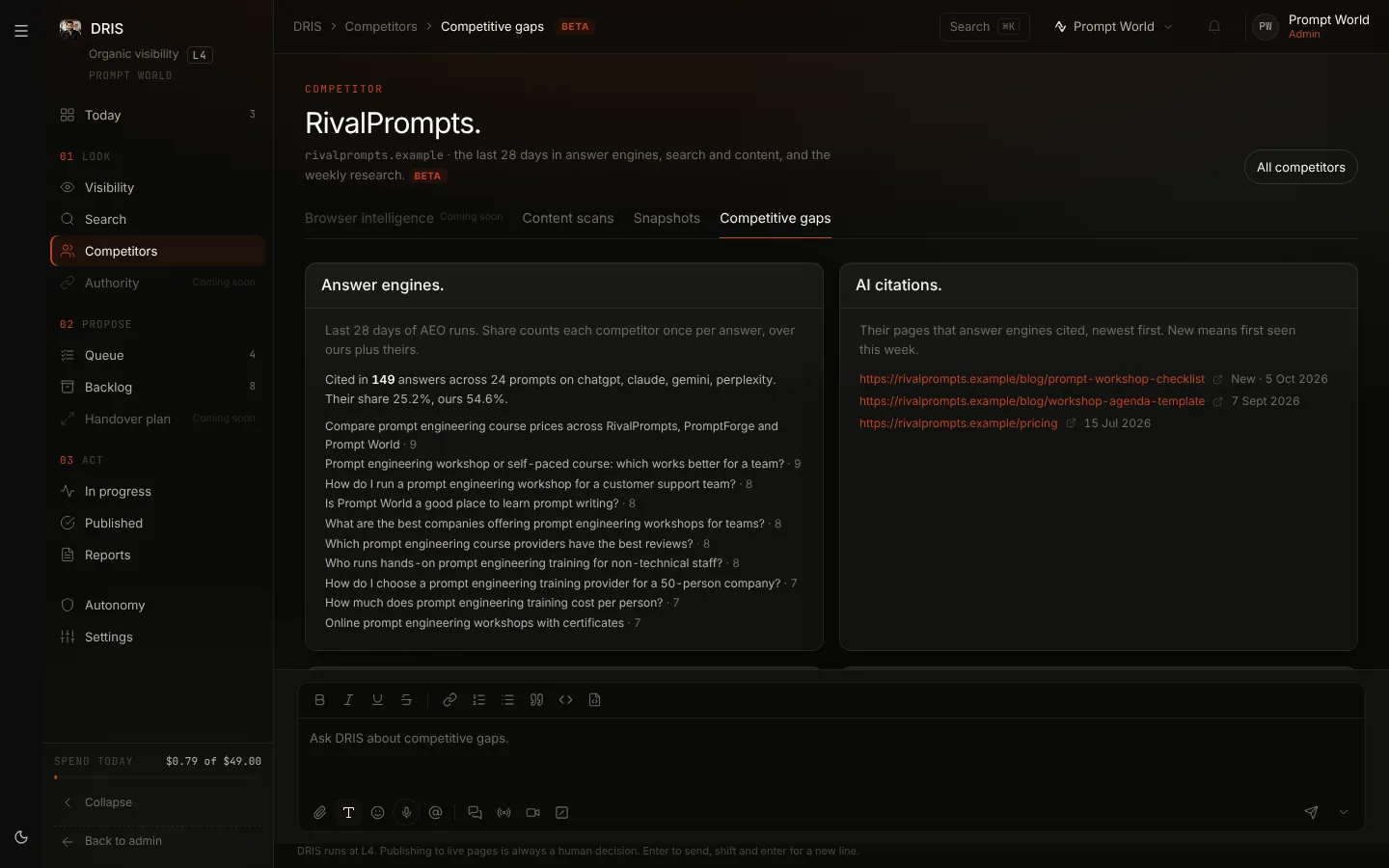
A target's Share of voice needs more: a competitor page linked to the target, so the same prompts are asked on the competitor's behalf. Link them on the target's vs Competitors tab.
Step 6: check the targets and their prompts
A target is a page DRIS watches, with the questions buyers ask that the page should answer. Open Visibility, then Target runs. DRIS proposes targets from your site, products and Search Console queries; enable the ones that matter.
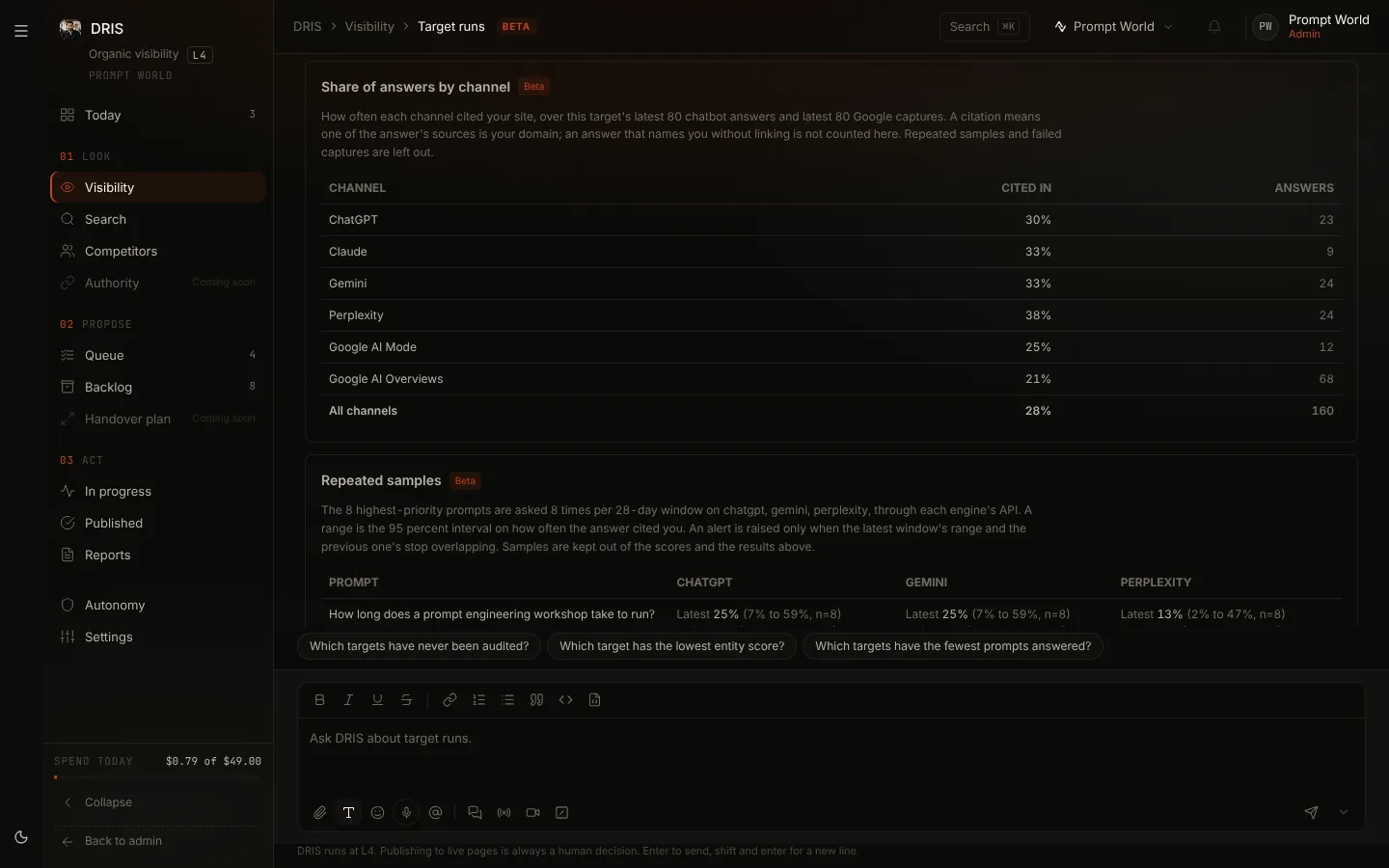
On a target's page, review its prompts. Only accepted prompts are asked. How often depends on your plan: weekly on ChatGPT, Gemini and Perplexity, monthly on Claude, and daily on Enterprise.
Once a target has answers, its Chatbot runs tab shows Share of answers by channel: how often each engine cited you, across the chatbots and Google's AI Overviews and AI Mode.
Step 7: set the daily spend cap
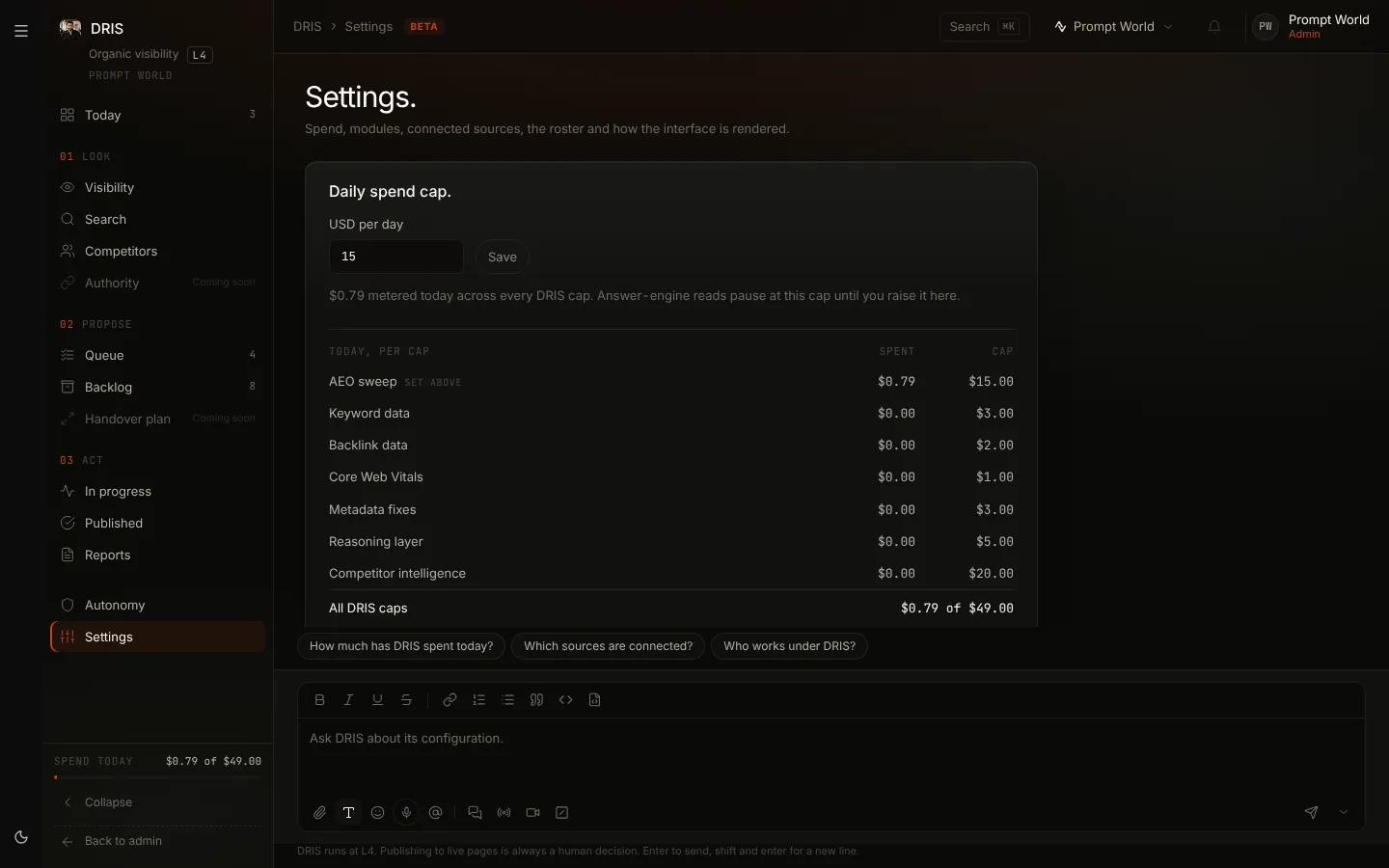
In DRIS Settings, Daily spend cap. sets what answer-engine reads may spend in a day, between $1 and $1,000. Reads pause at the cap until you raise it. Connected sources. on the same page shows which of Search Console and Analytics are connected, next to the domains and the Search Console property from steps 1 and 2.
Step 8: check it is working
| After | Look at | You should see |
|---|---|---|
| A day | Search, Search Console | Clicks and impressions for 90 days, from your property |
| A day | Search, Traffic | Sessions by source |
| A day | Search, AI crawlers | Requests by crawler, once Nagent has switched it on |
| Your sweep day | Visibility, Target runs | Answers on each accepted prompt |
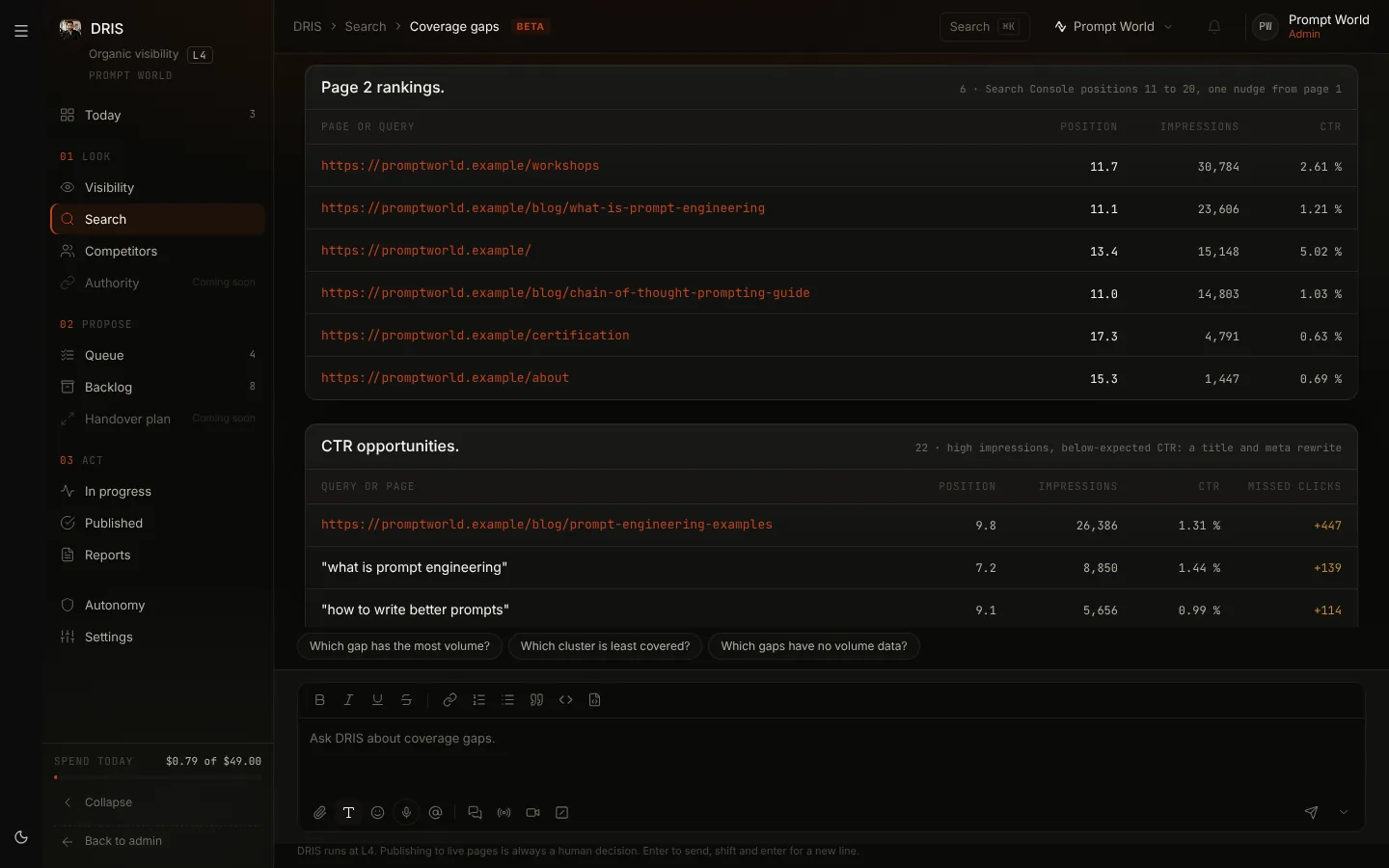
| A few days | Search, Coverage gaps | Pages on page two and below-par click-through, from your own Search Console |
Then declare an objective, so DRIS knows which fixes to rank first.
What the numbers mean
- Cited. One of the answer's sources is on your domain. An answer that names you without linking you is counted only by mention share.
- Citation share. On Today, Analytics and Competitors: the answers citing you over the answers citing you or any competitor on your list, each competitor once per answer.
- Mention share. On Today and Analytics: the answers whose text names you, linked or not, over every brand's, each brand once per answer.
- Coverage. The share of a target's prompts on which at least one answer cited you.
- Share of voice. On a target, the Visibility tiles and the Scorecard: your citations against those of the competitor pages linked to the target, on the same prompts. With no competitor page linked it reads 0, whatever your citation share is.
- Share of answers by channel. Coverage per engine and per Google surface, for one target.
- AI-search referrals. Sessions Google Analytics attributes to an answer engine's domain.
Repeated samples and failed captures are left out of the answer-engine numbers.