
Browse documentation
Setting up with your team lead
How your team lead guides set-up in a conversation, one step at a time, with cards you save and can undo, check-ins, hand-overs, and how to switch to the set-up screens.
Two ways to set up
When you first open a workspace, Home offers two ways in. Set up with my team opens a conversation with your team lead. I'll set it up myself takes you to the set-up screens. Both save to the same settings, and you can switch at any time: the conversation has a link to the screens, and every next-step card has a Do it with my team button.
The conversation is at Set up with your team. It is marked Beta. Your lead's name heads it, with I'll set it up myself at the top right and your other team leads under it. Below sit suggested questions: pressing one sends it to your lead straight away, as if you had typed it. Anything else goes in the Ask your lead box and is sent with Send.
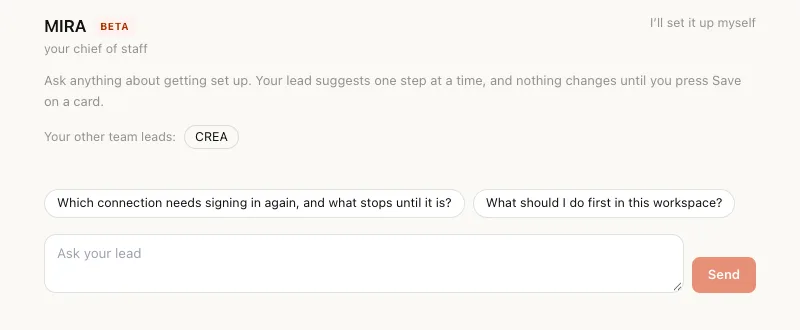
Who guides you
Each team has a lead, and each lead guides its own team:
| Team | Lead |
|---|---|
| Sales | SERA |
| Marketing | MIRA |
| Content | CREA |
The lead of the first team you picked also guides the set-up of the workspace as a whole: the brand name, who you sell to, inviting people and the rest. If your first team has none of these leads, MIRA guides you.
Nothing changes until you press Save
A lead never changes anything by itself. When it suggests a change, it shows you a card with exactly what will be saved and a line saying what Save does. You press Save, and the change is made with your own permissions, as if you had made it on its own screen. If your role cannot make that change, the card says so and nothing is saved.
Some changes can be undone from the card and some cannot:
| A lead can suggest | Undo |
|---|---|
| The brand name | Yes, back to the previous name |
| Who you sell to | Yes, back to the previous description |
| Confirming a drafted offering | Yes, back to draft |
| The address your team sends from | Yes, back to the previous address |
| How much agents may do on their own, while none is chosen | Yes, back to standard |
| Connecting a tool | Yes, it disconnects again |
| Confirming the picture of your business | No, though you can change any answer later |
| Adding a team | No |
| Inviting a teammate | No, the email has gone; you can remove the person later |
| Setting the number the workspace is run against | No, a new one replaces it |
| Running your team's first job | No, and it spends from your budget |
| Asking a person at Nagent | No, the message has gone |
A lead suggests one card at a time.
What a lead never does
- Approve, reject or decide any work for anyone. Work that needs a decision waits for a person in the Inbox.
- Raise how much any agent may do on its own.
- Spend past your workspace's budget.
Connecting a tool from the conversation
Save on a connect card takes you to the tool's own sign-in. When you come back, the conversation checks the connection with the tool and the card says Connected only once the tool has confirmed it.
Check-ins
Once you have written to your lead, it may leave you a short note at a day, two days, three days and a week, about the one thing that would help most next, such as connecting a tool or inviting someone to approve with you. It only writes when there is something left to do, never more than once for each of those moments, and never when you open a page. The next-step card tells you when a note is waiting.
Handing over to another team
After your first win, your lead can hand you over to the lead of another team in your workspace. The new lead starts a conversation of its own, naming its team's first job.
What it costs
Each answer is a model call and spends from your lead's budget in this workspace. If that budget is reached, the lead says so plainly and answers again when it resets or when an admin raises it. Check-ins spend nothing.