
Billing and plans
How to read the Billing and Plan page, what a new workspace with no plan runs on, how to buy, change or cancel a plan, how credits are metered, and how plans relate to the caps that stop agents.
Browse documentation
Your plan, your payments and your invoices, on one page
Billing and Plan shows the plan the workspace is on, lets an Organisation admin buy or change one, and keeps the invoices. Anyone with access to settings can read it. Buying, changing or cancelling a plan needs the Organisation admin role; other people see the note "Read-only".
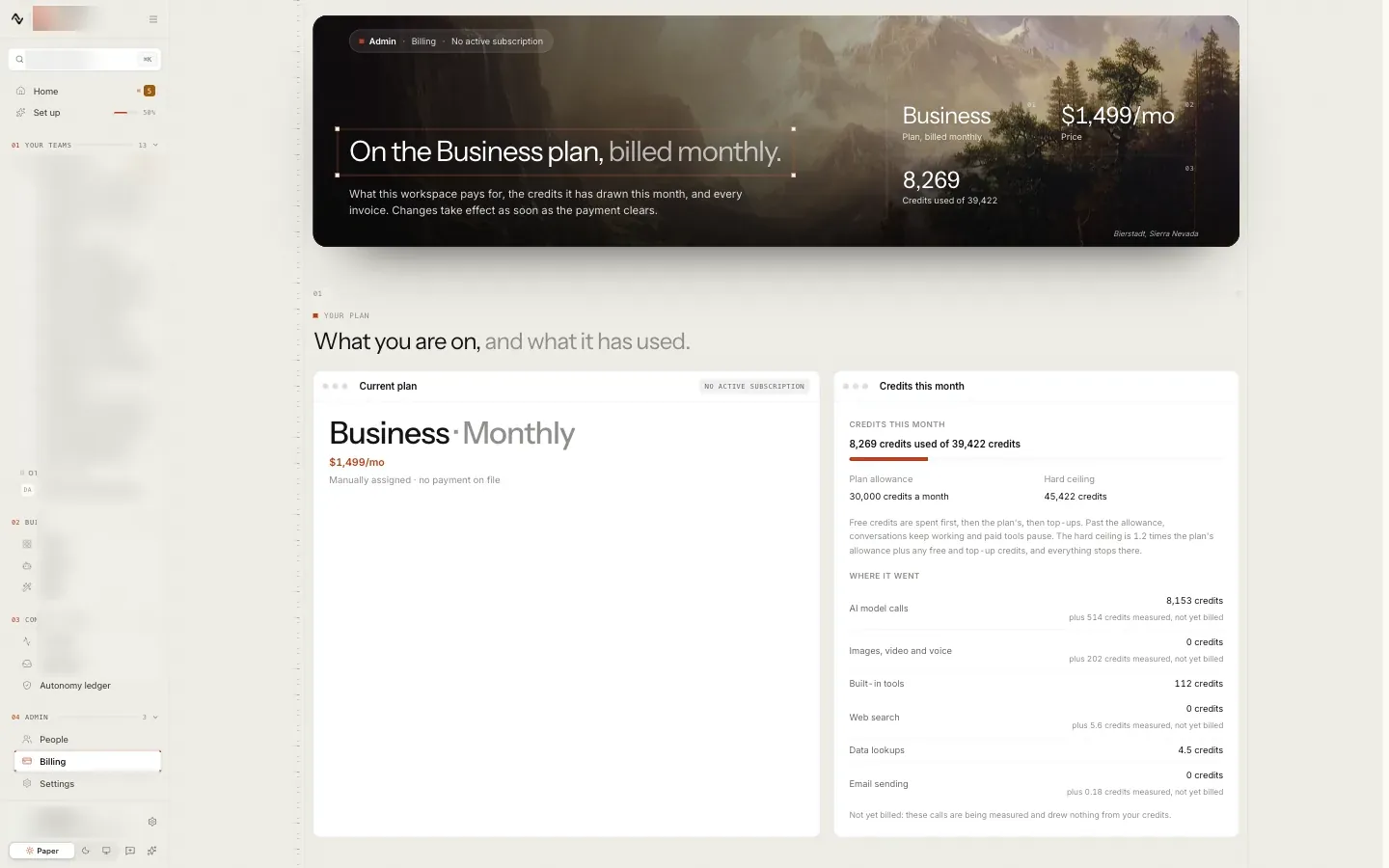
The current plan card
The card at the top shows:
- Current Plan: the plan name and whether it is billed Monthly or Annual.
- The price for that plan and period.
- A status badge: Active, Trial, Past Due, Canceled, or No active subscription.
- Renews on or Cancels on a date, when there is a paid subscription.
- A scheduled downgrade, when there is one: "Moves to Solo, monthly, at renewal on" a date, and the workspace keeps its current plan and credits until then.
A new workspace: "No plan yet"
A workspace created through self-serve sign-up has not bought anything yet. Its card reads No plan yet, with the line Free credits only and the badge No active subscription.
The workspace runs on its sign-up credits, described under Credits below. The Credits this month card shows how many are used, how many free credits are left and the date they expire, with the note "Free credits are spent first. Once they run out or expire, choose a plan to keep your agents working."
That note is a hard limit. Once the free credits are used or expire, nothing that costs credits runs until a plan is bought. The teams you picked at sign-up stay installed and nothing is deleted.
Each agent also has its own daily and monthly cap, 1,000 and 20,000 credits until you change them. See autonomy and governance.
The plans
The page lists the plans with their prices for each billing period.
| Plan | Monthly billing | Annual billing | Seats | Credits a month |
|---|---|---|---|---|
| Solo | $29.99 a month | $19.99 a month | 1 | 1,000 |
| Team | $299 a month | $199 a month | 10 | 6,000 |
| Business | $1,499 a month | $999 a month | 50 | 30,000, pooled |
| Enterprise | Custom | Custom | Unlimited | Agreed with you |
The switch above the list reads Monthly and Annual (save 33%). The annual figures are the monthly equivalent of paying for the year.
What each plan includes, as the pricing page lists it:
| Plan | Includes |
|---|---|
| Solo | 1 standard agent team, per-agent memory |
| Team | Any 1 team, premium included, per-agent memory; KB Graph on annual billing |
| Business | The full marketing function, every team; team memory and agent memory; advanced agent governance; Growth Pods. On annual billing, KB Graph, self-improving memory and agents in team video calls |
| Enterprise | Everything in Business, plus custom agent policies, KPIs and annual appraisals, VPC deployment, bring your own model and key, and custom agents, workflows and integrations |
Some things come with every plan and are not listed above: the team workspace, the builders, tools and integrations, settings, the Knowledge Hub and the Agent Workbench.
Each plan also sets how much the Knowledge Hub holds and how long the audit log is kept:
| Plan | Knowledge documents | Knowledge storage | Audit log kept |
|---|---|---|---|
| Solo | 500 | 1 GB | 30 days |
| Team | 5,000 | 10 GB | 90 days |
| Business | 25,000 | 50 GB | 365 days |
Enterprise is agreed with you. See adding knowledge for what happens at the limit.
Buying a plan
- Open Billing and Plan.
- Under Upgrade plan, choose Monthly or Annual (save 33%).
- Press Upgrade beside the plan you want.
- You go to the payment page. Payments are taken by Dodo Payments, and you can cancel any time.
- When you come back, a banner says "Payment successful" and your plan updates within a few seconds. If you left the payment page, it says "Checkout canceled" and nothing changed.
Enterprise has no checkout. Its button is Contact sales, because it is quoted rather than bought. If online payment is not available, every plan shows Contact sales instead of Upgrade.
This list is for a workspace without a paid subscription. A workspace that already pays changes plan instead, below.
After a purchase, the teams and capabilities your plan includes are added to your workspace once Dodo confirms the payment. If something your plan includes is missing a day after you pay, tell us.
Changing plan
While a paid subscription is active, the page shows Change plan with the same Monthly and Annual switch.
- Upgrade now moves to a larger plan, or from monthly to annual, at once. Dodo charges the prorated difference that day, and the new plan's credits apply to the current month.
- Downgrade at renewal moves to a smaller plan, or from annual to monthly, on the renewal date. Nothing is charged now, and the workspace keeps its current plan and credits until then. The plan card shows the change while it waits.
Each asks you to confirm before anything is sent. While a payment is past due, plan changes wait until it is paid.
If you came from the pricing page
If you picked a plan on the public pricing page before signing up, Billing opens with a banner, "You picked the Team plan" (or whichever plan you chose), saying whether it is billed monthly or annually. That plan is selected below, and the workspace runs on its free credits until you buy it.
Cancelling
When a paid subscription is active, the card shows Cancel subscription. Press it and confirm. The confirmation says your subscription is cancelled at the end of the current billing period, and you keep access until then. The card then reads "Subscription will not renew at period end." beside Resume subscription, which withdraws the cancellation while the period is still running.
In the first 14 days of a workspace's first annual Business subscription, the cancel dialog also offers a refund: you can ask for the annual fee back, less the credits already used, by emailing support@nagent.ai before the date the dialog shows.
A cancelled workspace shows Reactivate plan in place of Upgrade plan, with "Purchase a new plan to restore access."
Price changes
When a plan's price or terms are going to change, every Organisation admin is emailed at least 30 days before the change takes effect. A banner across the top of the workspace says the same thing: what is changing, "Takes effect" and the date, and a link, "You may cancel before then.", to this page. You can close the banner. It stays for 7 days after the change takes effect, reading "In effect since" and the date.
Invoice history
Every payment is listed with its amount and date and a Download link to the invoice. A payment Dodo sent without an invoice link is listed with "No invoice link". A new workspace shows "No invoices yet."
Manual override
Nagent staff see one more section below the invoices, Manual Override, which they use for trials, internal testing and enterprise deals. It is not shown to customer accounts. To change your plan, use the plan list above or contact us.
Credits
Credits are the unit of agent work. Model calls, paid tools and renders are drawn from the workspace's credits as they run.
- What a credit is worth. One credit is $0.005, half a cent, on every plan.
- The monthly allowance. Each plan includes credits for the month: Solo 1,000, Team 6,000 and Business 30,000. Enterprise is agreed with you. The month is the UTC calendar month, and the allowance starts again on the 1st. Unused plan credits do not move to the next month.
- Two limits, not one. When the month's draw reaches the allowance, paid tools and other optional work stop and conversations keep working. Core work carries on up to a hard ceiling of 1.2 times the allowance, plus any free credits, where everything stops until the next month starts or the plan changes.
- The sign-up credits. A new workspace, created by someone who has never owned or joined one, gets 2,000 free credits that expire 30 days after it is created. They are spent before the plan's allowance. A workspace with no plan has only these, so for it they are a hard limit.
- Changing plan mid-month. Moving up from one plan to a bigger one adds the difference for the part of the month that is left; the full new allowance starts on the 1st. A first plan bought mid-month gets its allowance in proportion to the time left until the 1st (UTC, measured to the second); the full allowance starts on the 1st.
- More credits in a month. Move to a larger plan.
- Spend order. Free credits are spent first, then the plan's allowance.
Top-ups: not on sale yet
Top-up packs are not on sale yet. Until they are, the Credits this month card does not offer them, and a workspace that needs more credits in a month moves to a larger plan.
When they go on sale, an Organisation admin will be able to buy a pack of 1,000, 5,000 or 25,000 credits from that card, paid through Dodo Payments like a plan. A pack will be spent only after the month's plan credits are gone, and will lift both the allowance and the hard ceiling by its size. A pack lasts 12 months from purchase. This page will say when packs are on sale.
What the card shows
Credits this month shows the credits used against everything usable this month, then each part: the plan's allowance, the free credits left and when they expire, and the hard ceiling. Where it went splits the month by kind of work, such as AI model calls, built-in tools and connected apps. A line marked "measured, not yet billed" is work on a meter Nagent is still measuring: it is shown so you can see it coming, and it has not drawn on your credits.
What a refusal looks like
Work that would go past a limit is refused before it runs, and the refusal says which limit it hit, in credits. It reads one of these:
- "This workspace has used its monthly allowance of 6,000 credits ... so paid tools are paused until more credits are added in Settings, under Billing, or the next monthly period starts, though conversations keep working."
- "This workspace has reached its hard spending ceiling of 7,200 credits for the month ... so nothing further will run until more credits are added in Settings, under Billing, or the next monthly period starts."
- With no plan: "This workspace has no plan and its credits are used or have expired ... so nothing further will run until a plan is chosen in Settings, under Billing."
- When a paid subscription has lapsed: "This workspace's subscription has lapsed and its remaining credits are used ... so nothing further will run until a plan is chosen in Settings, under Billing."
In the team workspace, the AI team chat and the co-host stage, the refusal comes with a button: Upgrade plan while a plan is active, and Choose a plan for a workspace with no plan or a lapsed one. Each opens this page at the part that does it. See credits and budgets for every control that can stop spending.
Plans, credits and caps
Four different numbers are easy to confuse.
| Number | What it is | Where you see it |
|---|---|---|
| Plan price | What the subscription costs | This page |
| Monthly credits | What the whole workspace may draw in a month | This page, under Credits this month |
| Per-agent caps | What each agent may spend a day and a month before it stops | The agent's Budget pane in the Agent Workbench |
| Workspace cap total | The sum of the agents' monthly caps | Home, and the Budget and spend card in Workspace set-up |
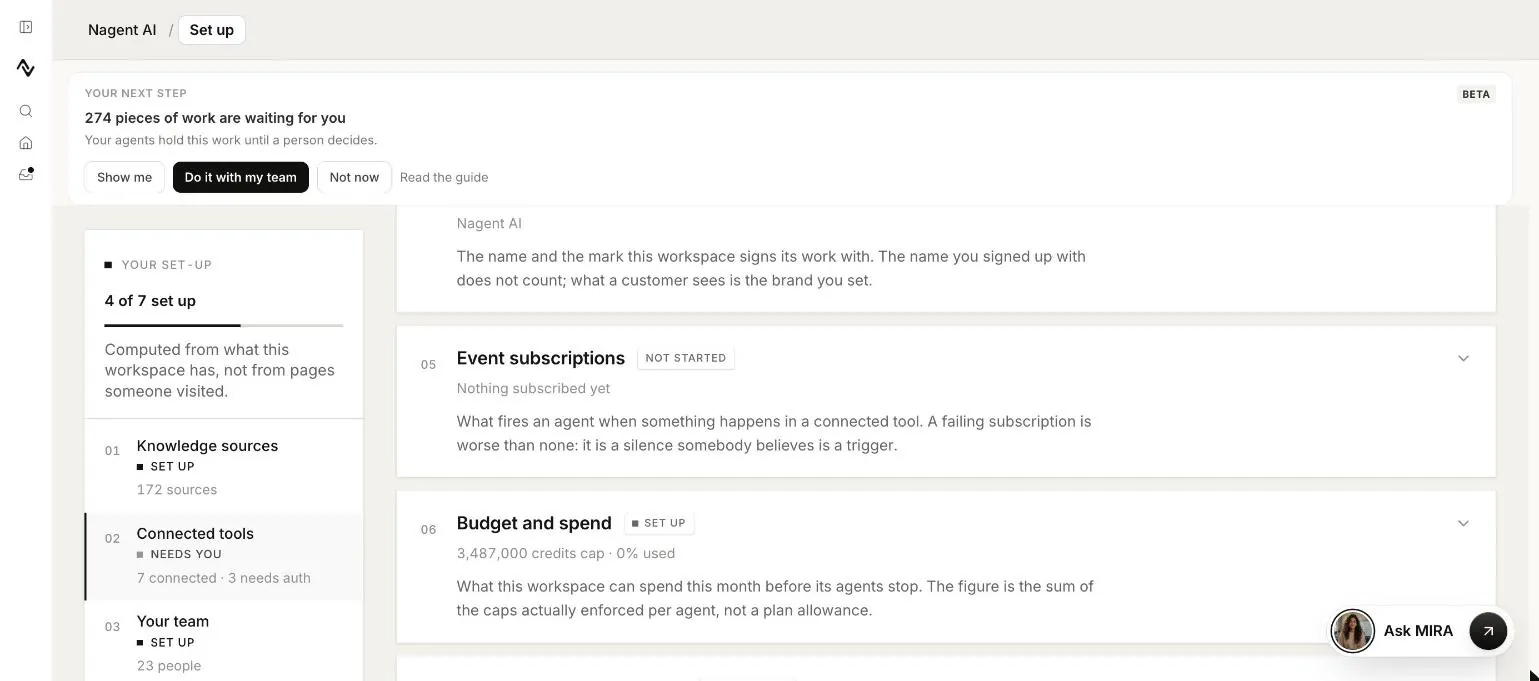
The caps stop one agent; the credit allowance stops the whole workspace. Raise or lower the caps per agent. See autonomy and governance.
Our logic
You should never find out what an agent cost from an invoice. The plan is what you pay for the product; the caps are what you allow the agents to spend, set per agent and checked before every paid call.
Where to go next
- Autonomy and governance: setting budget caps.
- Workspace set-up: the Budget and spend card.