
Signing up
The self-serve sign-up from the first screen to an open workspace, including choosing whole teams or single team leads, what each step asks for, the sign-in link, and what activates.
Browse documentation
Two steps, one link, and your workspace is open
Signing up takes two screens and one e-mail. You choose the teams or team leads you want, you tell us who you are, and a sign-in link opens the workspace and activates them. Nothing is charged at sign-up and no password is needed.
Start at nagent.ai/onboarding, or from Hire your AI team on the sign-in page.
Step 01: choose your teams
The first screen is headed Hire your AI team. Each card is a department, led by an AI chief of staff and owning one outcome. You can take a department whole, or tick only the team leads you want.
A slim row across the top asks about cookies: analytics and marketing cookies stay off until you allow them. Choose Accept all, Reject all or Manage. The row sits above the page, so it never covers Continue.
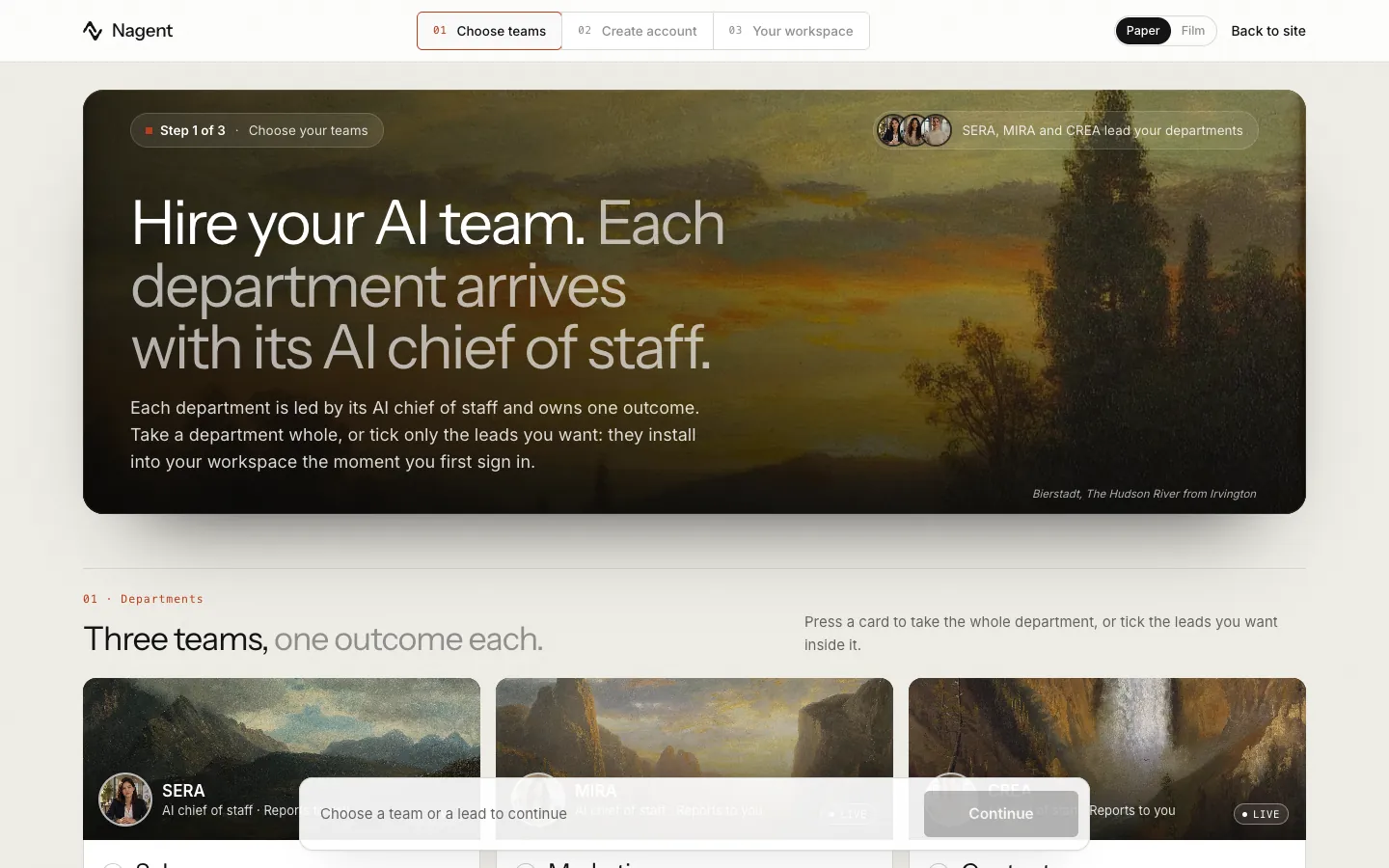
| Card | Owns | What the card shows |
|---|---|---|
| Sales | Qualified meetings | SERA as AI chief of staff; team leads NORA (Live), DEXA and RIVA (Coming soon); LIPI and VANI as shared writers (Beta) |
| Marketing | Reach and pipeline cost | MIRA as AI chief of staff; team leads DRIS and NIA (Live), MOXA (marked Coming soon; Nagent's team sets it up), HOOK and Echo (Beta), with a note on HOOK's eight sub-agents |
| Content | Output and the brand line | CREA as AI chief of staff; team leads RUPA, FOLIO and Alpha, the video studio (Live); LANDON, the landing page maker (Live); a presentation maker (Coming soon); an email creator for templates (Beta); a link to Kinetiq, our video product with its own sign-up |
| Customer Experience | Resolution and conversion | A link out to Convexa, a separate product with its own sign-up |
Nothing is ticked until you tick it. There are two ways to choose, and you can mix them across departments:
- A whole department. Click the department's name, marked Whole department, or anywhere on the card outside its links and ticks. Every team lead on the card shows as ticked.
- Single team leads. Tick the box beside each one you want, for example DRIS alone from Marketing. Unticking one team lead of a department you took whole keeps the others ticked.
The AI chief of staff and the shared writers have no tick of their own. The AI chief of staff comes with the department, or with any team lead you pick from it. VANI comes with NORA, and LIPI with the CRM team every workspace gets. The makers with no name yet have no tick either.
The tags describe each agent, so read them: an agent tagged Coming soon is shown so you can see the whole department, not because it will work on day one.
If none of the departments fits, tick Build your own team and say in a sentence what it should own. That ask goes to a Nagent operator, who scopes it and writes back to you. It does not activate anything by itself.
Below the cards sit three capabilities your teams work inside: CORA's CRM, e-mail sending, and observability (memory and the record of what ran). They are shown, not chosen. Which ones you get depends on your plan, and an operator scopes them with you after sign-up.
The bar at the bottom counts what you chose, teams and single leads apart, for example "1 team and 2 leads chosen. They activate when you first sign in." Until you choose something it says "Choose a team or a lead to continue". Press Continue.
Step 02: create your account
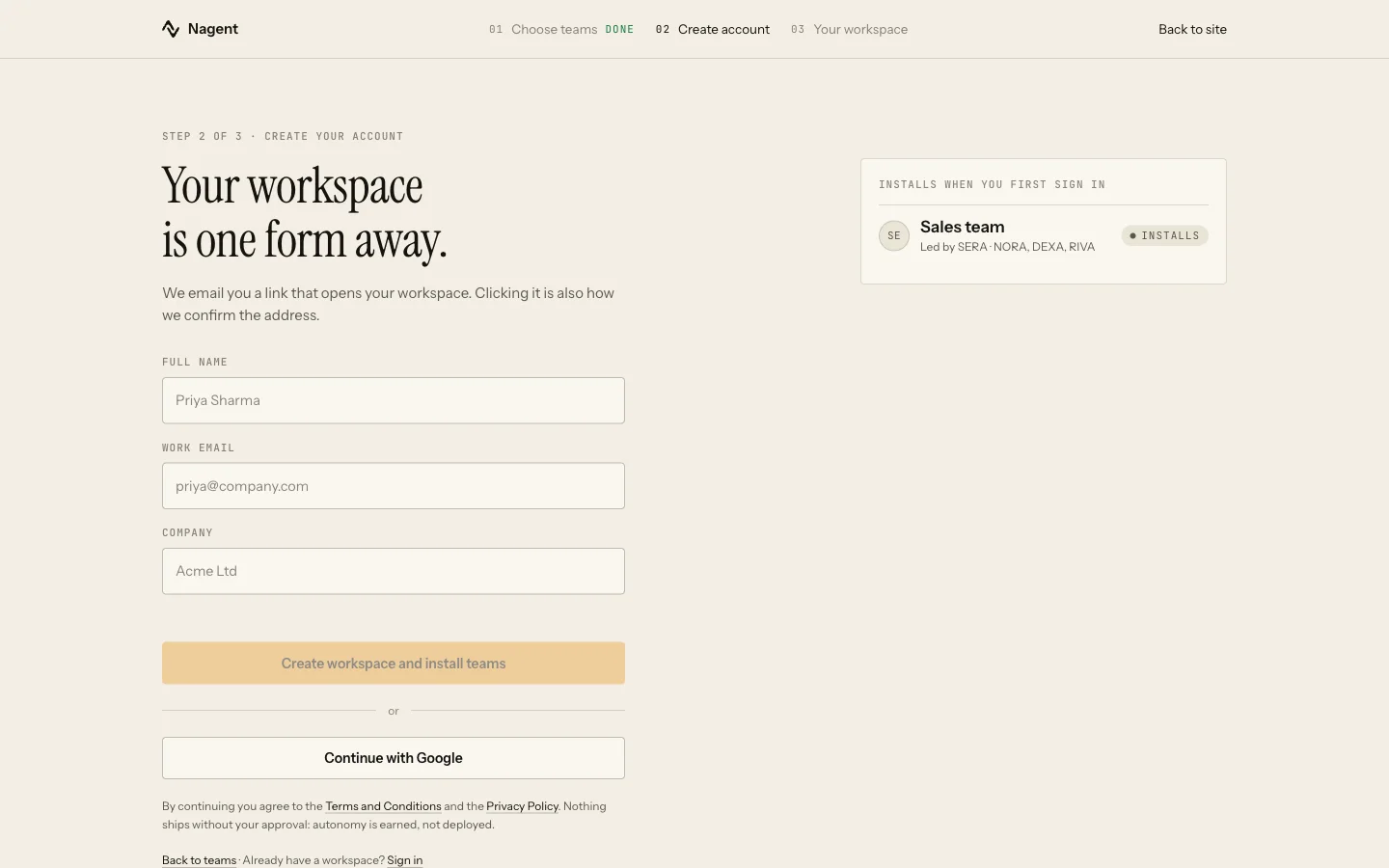
The second screen is headed Your workspace is one form away. It asks for three things and one agreement.
- Full name.
- Work email. This is where the sign-in link goes, and clicking it is how we confirm the address is yours.
- Company. The company name becomes your workspace's name and its address in Nagent. If the name is already taken you will see "That company name is already taken. Add a word to it, for example your city."
- I agree to the Terms and Conditions and the Privacy Policy. Tick the box. Both links open in a new tab. The button stays off until the box is ticked and the other fields are filled in. The versions of both documents you agreed to are recorded on your account.
The panel on the right, Activates when you first sign in, lists each department you chose, who leads it and the team leads you picked from it. Press Create workspace and activate teams. Back to teams returns to step 01 with your choices kept.
Your account also keeps the time zone your browser reports at this moment. Agents use it when they look for a meeting slot in your own working hours. Nothing asks you for it.
Or continue with Google
Continue with Google skips the e-mail. Google confirms your address and sends you back to this screen with your name and e-mail filled in and locked. Add your company, tick the agreement and press Create workspace and activate teams; you are signed in straight away and go to the set-up chat.
Google is trusted only for an address it says it has verified, and only for an address that has no Nagent account yet. If you already have an account, you get the sign-in link by e-mail like everyone else.
Check your inbox
Without Google, the next screen says Check your inbox. We have sent a sign-in link to the address you gave. The e-mail's subject is "Open your (company) workspace on Nagent", and its button is Open my workspace. It names the departments you chose and says how to sign in next time: by e-mailed link or Google, with a password optional.
The link has three rules.
- It works for 30 minutes.
- It works once.
- Only the newest one works. Asking for another link cancels the one before it.
If nothing arrives, check spam, then use Send the link again. It unlocks 60 seconds after the last send. Change it takes you back to the form if you typed the wrong address.
Until the link is clicked, the workspace stays closed: nobody can sign in to it and no agent runs in it.
Our logic
The link is both your sign-in and our proof that the address is yours. That is why there is no password at this point, and why a workspace signed up with a stranger's address never opens at all.
Opening the link
The link lands on a page with one button, Open my workspace. You press it yourself. That is deliberate: e-mail security scanners open links automatically, and a link that signed you in on opening would be used up by the scanner before you saw it.
If the page says the link has expired or was already used, ask for a fresh one from the same page.
The teams activate while you set up
You see Creating your workspace for a moment, then the set-up chat opens with the lead of the first team you chose. Above the conversation, Activating your teams shows a row for each department you took whole, one for the CRM team, which every sign-up gets, and for single leads, one for their department and one for each picked lead that has a room of its own, such as DRIS team. Each row moves on its own as its agents are seated, one after another.
| Row | What it means |
|---|---|
| Activating Sales team | The team's agents are being seated |
| Sales team is active | Done |
| Sales team did not activate | That team failed; the others are unaffected |
You do not wait for the rows. The lead starts at once, with what you want to achieve and your website, while the teams activate. Anything that needs a team that is still activating waits for it, and the lead says so. When every row is done the panel says Your teams are active. See your first hour.
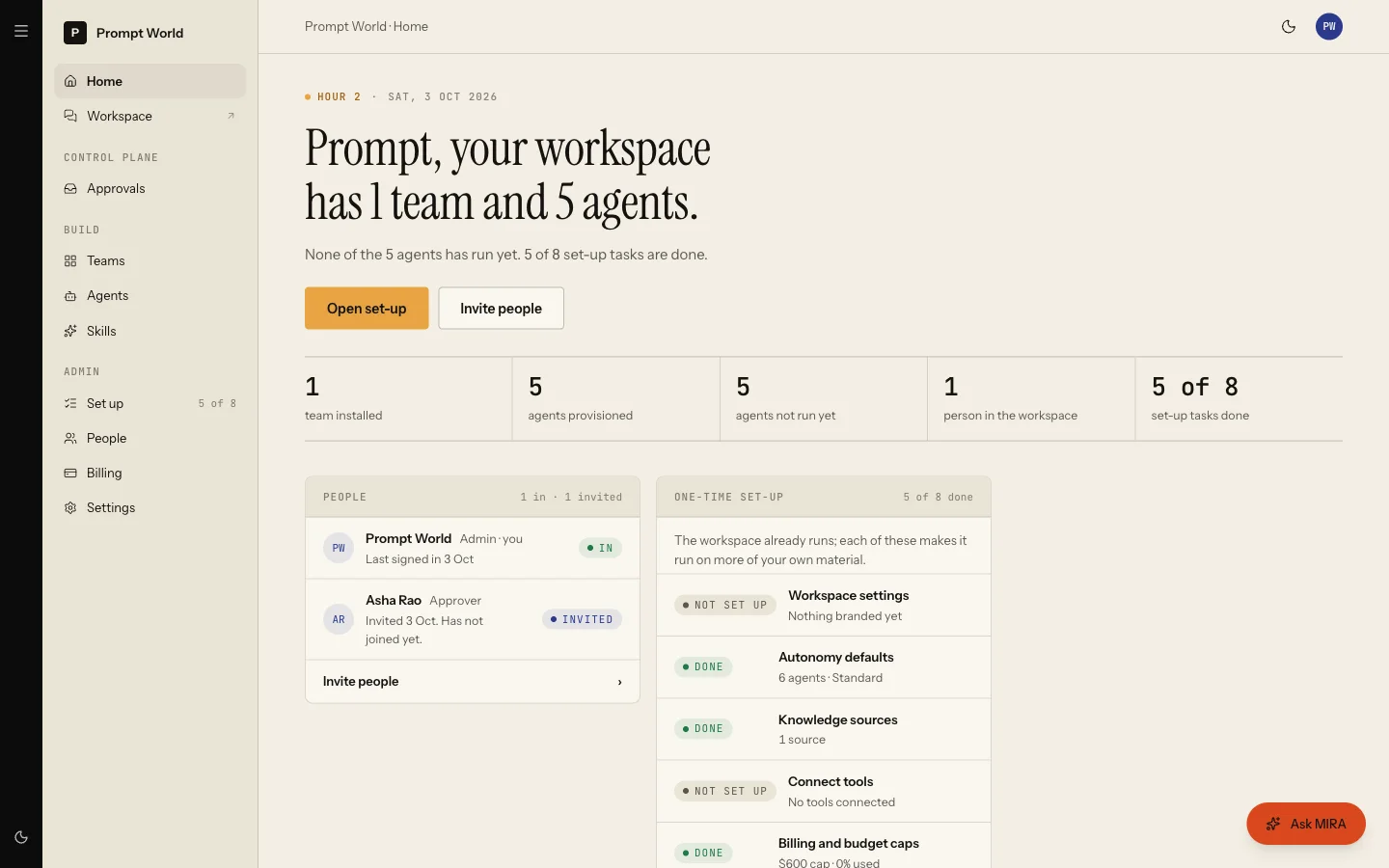
If activation fails, the panel says "We could not activate your teams. Your workspace is open and the teams are still waiting, so nothing is lost." Press Retry.
Which lead opens the chat follows your choice. A workspace that took a department whole is met by that department's chief: SERA for Sales, MIRA for Marketing, CREA for Content. A workspace that ticked single leads is met by one of them, a Sales lead before a Marketing one and a Marketing lead before a Content one, so a DRIS-only sign-up talks to DRIS.
Who is seated when a team activates
What activates is decided by the team's blueprint, not by the tags on step 01. A department taken whole seats these agents in its room:
| Team | Led by | Agents seated |
|---|---|---|
| Sales | SERA | SERA, NORA, LIPI, VANI, CORA |
| Marketing | MIRA | MIRA, DRIS, NIA, HOOK, Echo |
| Content | CREA | CREA, RUPA, PAIGE, LANDON, FOLIO, Alpha |
DEXA and RIVA are coming soon. MOXA is marked Coming soon on the card, but Nagent's team sets it up for a workspace: see MOXA. A whole Sales department also sets up NORA's own room, and a whole Marketing department sets up the DRIS, HOOK and Echo rooms.
When you pick single team leads instead, their department's room is set up with only those team leads under its AI chief of staff, and each team lead that has a room of its own gets it. RUPA, FOLIO and Alpha work in the Content room.
You are the human member of every team room that activates, because the activation runs as you, from your own first session.
A lead you did not tick is not gone. On Welcome, the Add a team tile opens Choose a prebuilt team, which offers each department with Use this team and, under Or add one lead, an Add DRIS, Add HOOK or Add NIA button for each lead on its own. Your lead can add one from the set-up chat too. See prebuilt teams.
Your brand book, generated once for you
The first time your website is read after sign-up, from the Your website card in the set-up chat or from Read my site on the Website set-up screen, Nagent generates your brand book from it in the background: colours, type, voice and the patterns to avoid. It runs once, on your lead's budget, and only while your brand is still the blank starter from sign-up; a brand you have already touched is never overwritten. The Brand page says Generating your brand while it runs and fills in when it is done, in about a minute. If it could not run, because your lead's budget for the day is used up or the day's brand generation limit is reached, the page says so and you can generate it yourself. See Brand.
What you have after sign-up
- A workspace in your company's name, with you as its Organisation admin.
- The teams and leads you chose, seated in their rooms, and the CRM team.
- A record of the Terms and Privacy versions you agreed to, and your time zone.
- No password. Sign in next time with an e-mailed link or Google, or set a password later. See signing in.
- No plan purchased. See billing and plans.
If something goes wrong
| What you see | What to do |
|---|---|
| "Your Google sign-in has expired" | Press Continue with Google again |
| A wait message after several tries | Sign-up allows a few attempts an hour per address; wait and try again |
| The link has expired or was used | Ask for a fresh link from the page the link opened |
| "Your workspace is not open" when signing in | Open the link we e-mailed you first |
| "Your role in this workspace cannot activate teams" | Ask an Organisation admin to add the teams |