
Maker
Describe an outcome and Maker designs the skills, agents, teams and workflows for it, shows the cost in credits, and builds them once you approve. Beta.
Browse documentation
One description, everything it needs
The other builders each make one thing. Maker makes the whole set: you say what you want done, and it designs the skills, agents, teams and workflows for it, and an app when the job needs screens of its own. It shows the design and what it will cost, and builds nothing until you approve. Maker is Beta.
Open Maker, under Build in the menu. Maker comes with every paid plan and is not on the Free plan. If the page says "Maker is not on this workspace yet.", your workspace's plan does not include it.
1. Describe what you want to build
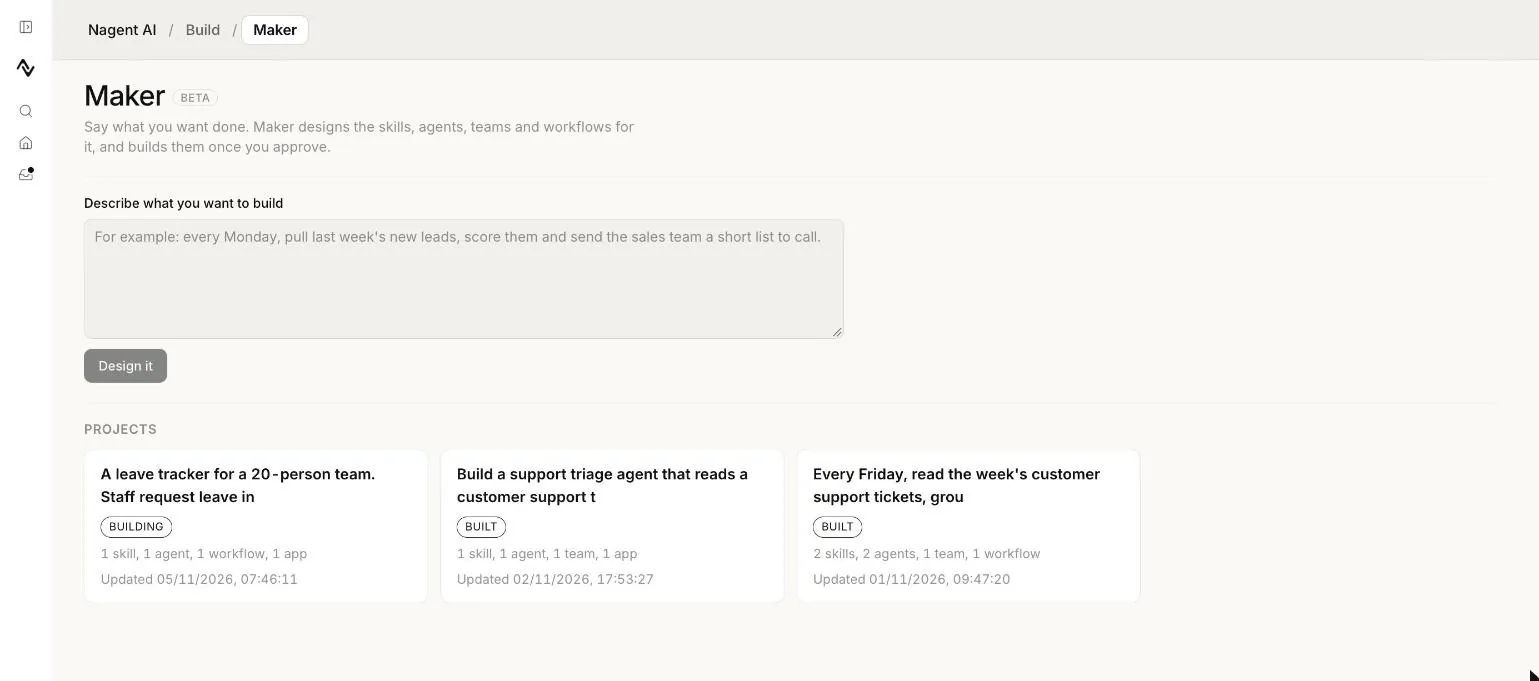
Under Describe what you want to build, write the outcome in a few sentences, for example:
Every Monday, pull last week's new leads, score them and send the sales team a short list to call.
Press Design it. Your project opens on its own page, and is listed under Projects on the Maker page with its status and what it holds, such as "1 skill, 2 agents, 1 workflow".
2. Answer a few questions
Your project is one conversation, with a message box at the bottom. If the description leaves something open, Maker asks in the conversation. Tap a choice under each question, or type an answer in the box and press Answer. Once every question has an answer, Maker starts the design. Just build it skips the questions and lets Maker choose every answer.
Press the microphone beside the box to speak instead of typing (Beta). What you say is written into the box, so you can correct it before you send. The microphone does not show where your browser cannot record or voice input is not set up.
3. Read the design
The design appears in the conversation as a short card:
- a summary of what it does
- what it will make, for example "1 new skill, 1 agent, a team, a 3-page app"
- what it will cost: "About 40 credits to build, 3 a day to run", for example
- anything it Assumed for now
- any part your plan does not include, in red, with the plan it needs
See and edit every detail opens each part, marked Skill, Agent, Team, Workflow or App, with its name and purpose. Change a name, a purpose or a goal in place and press Send edits, or Undo edits. For a bigger change, press Change something, write it in the box, for example "send the list on Slack instead of email", and press Send. Maker draws a new version of the design.
4. Approve and build
Press Approve and build and confirm: "Build this design? It creates the skills, agents, teams and workflows on the card and charges the estimated credits."
Maker reports each step in the conversation as it runs: Skills, Agents, Workflows, App and Verify. See every step of the build opens the full list. You can close the page; the build carries on and the page catches up when you come back. An app usually takes 15 to 30 minutes.
- A paused step means the build stopped at the workspace budget. Press Resume when there is room.
- A failed step says why in plain words. Where a change fixes it, Maker offers that change as a button, such as Use a new skill instead. Otherwise fix the cause if you can and press Retry. Each step gets three tries.
- After three tries the build stops. Describe a change to try a different design.
Details for support under an error holds the raw message to send us.
5. What it made
When the build ends, the project reads Built and What it made lists every part, each with the check Maker ran on it. Every agent Maker builds starts at L2 Assist: it reads and drafts on its own, and anything that changes records other people rely on waits for a person. Raise it later on the agent's Autonomy page. An app links to its preview, and is released from the Launch page.
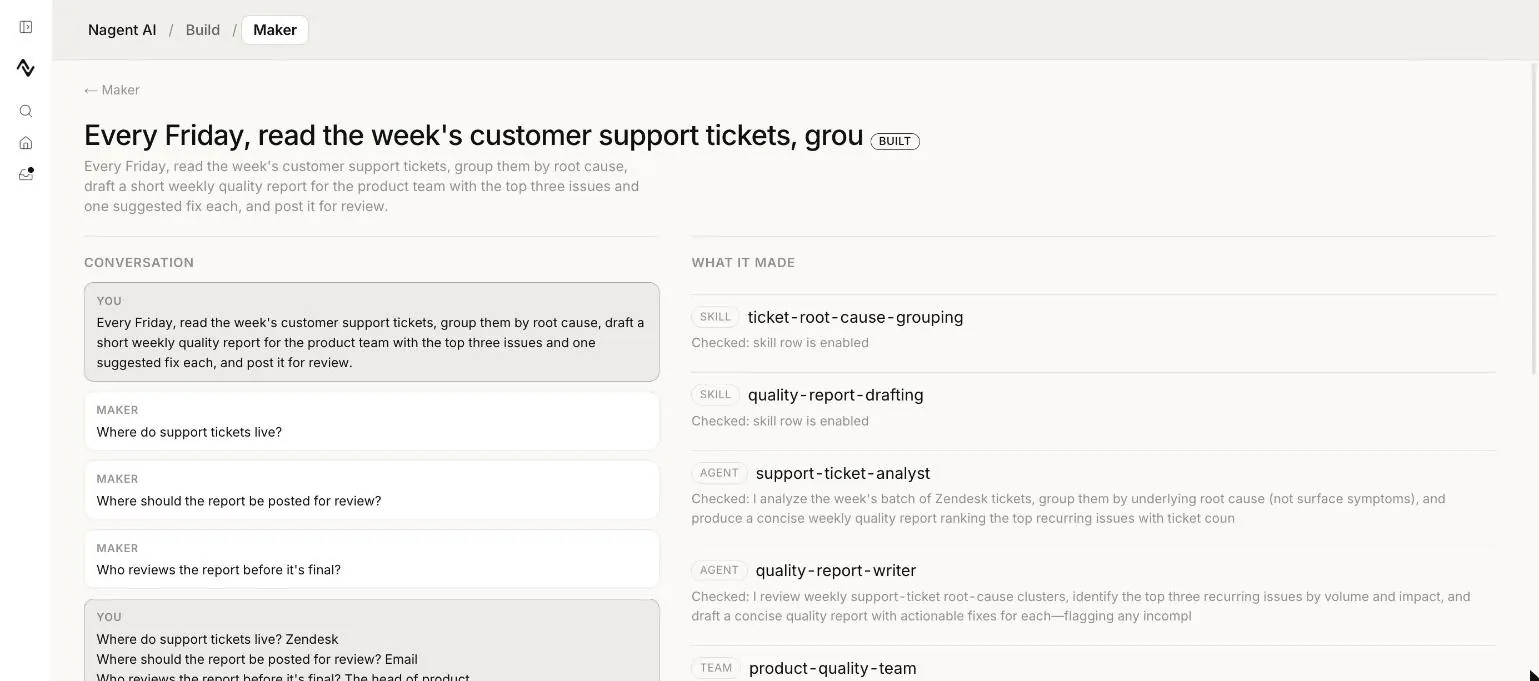
You can keep changing a built project by writing a change in the box. Maker designs a new version. A part that already exists is not made again.
Who can use Maker
Maker needs permission to change AI teams, and it is in the menu for a workspace admin. Building a design also needs the permissions its parts need, such as turning agents on.
Our logic
A job is rarely one agent. Maker designs the whole set at once so the parts fit, and shows the cost before you spend a credit. Each part it builds is an ordinary skill, agent, team or workflow, so you change it later with the same builder you would have used by hand.
Where to go next
- Builders: which builder to use for what.
- Creating an agent: the agent builder, one agent at a time.
- Building a workflow: the workflow builder.