
Custom Surfaces
Add a live page of numbers to a team or an agent you built, from a ready preset or described in your own words, and decide who may open it. A Beta feature.
Browse documentation
A live page of the numbers a team watches
A Surface is a page of live numbers that belongs to one team or one agent: traffic to leads, pipeline health, paid ads return, search and AI visibility, and so on. It draws its numbers from the tools your workspace has connected each time it opens. Custom Surfaces are Beta.
They are for the teams and agents you build yourself. A prebuilt room, a Chief of staff, a Team lead, and an agent that ships with a page of its own keep the screens they come with, and have no + Surface tab.
Where Surfaces live
- On a team, as tabs inside the room's Team surface tab, after Board and Overview.
- On an agent you built, as tabs beside Sandbox on its Surface tab.
Each Surface is its own tab, marked Beta. The last tab, + Surface, adds one.
Adding a Surface
Press + Surface. Add a Surface lists the presets, such as Traffic to leads, Pipeline health, Win and loss, Speed to lead, Paid ads return, Content calendar, Onboarding tracker and Growth scorecard. Each card says what it reads, for example "Reads Google Analytics and CRM leads", and names any source that is not connected yet. The line at the top says which agent on the team builds Surfaces, and whether it builds one straight away or asks you first.
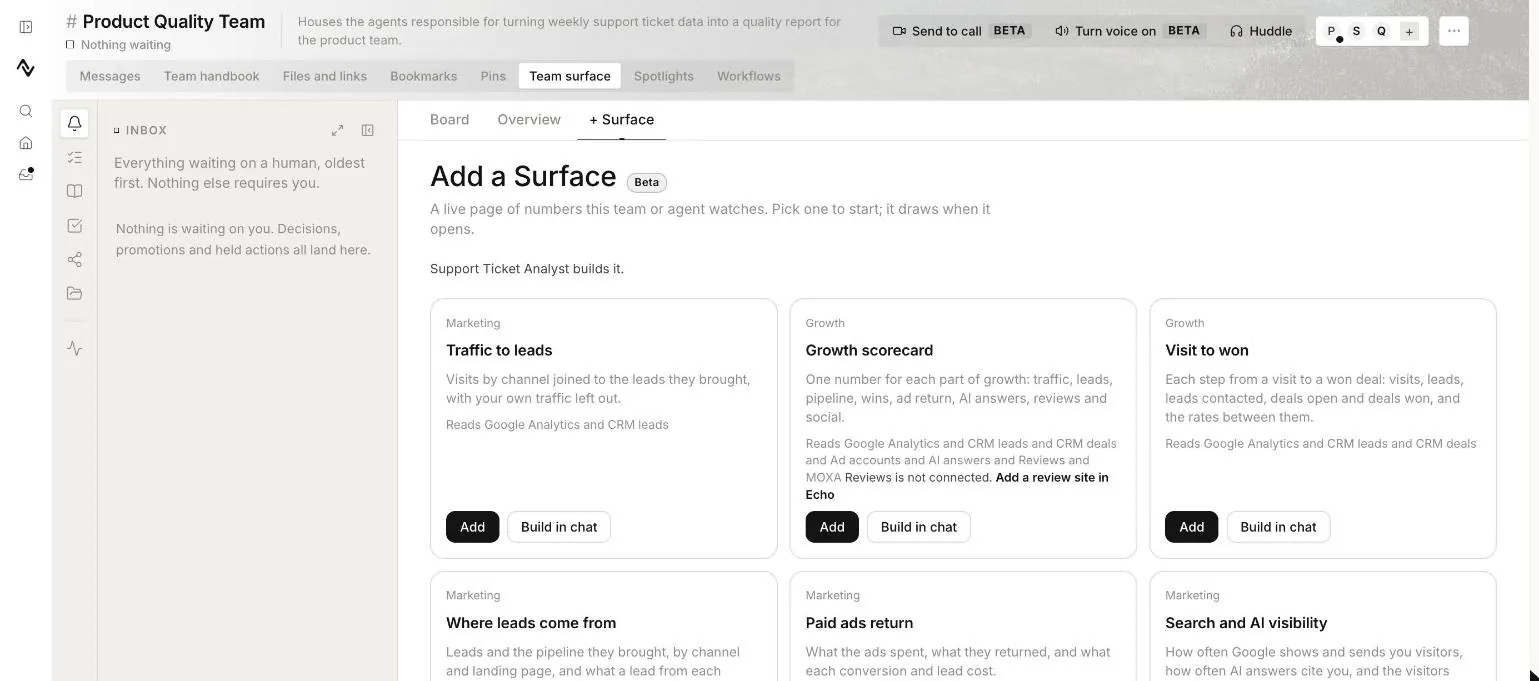
There are three ways to add one:
- Add puts the preset on the team as it is. Its tab opens and the Surface draws.
- Build in chat opens the building agent's room with a brief for that preset already written in the message box, not sent. Change the brief if you want, then send it.
- Describe your own does the same with no preset: tell the agent what to watch, and it picks the widgets.
An agent builds a Surface only from the widgets and numbers Nagent already has. It cannot add a new data source or write a page of its own design. An agent at L3 Operate or above builds it on its own; an agent below L3 files a card for you to approve first.
If no agent on the team can build Surfaces, the picker says so, and the presets can still be added with Add.
Reading and changing a Surface
A Surface has four tabs:
| Tab | What it holds |
|---|---|
| Overview | The numbers, with a Period of 7 or 28 days and Refresh |
| Data | Where the numbers come from, each source marked Connected or Not connected with when it was last filled, and What these numbers leave out, such as your own pages or staff e-mails whose leads are tests |
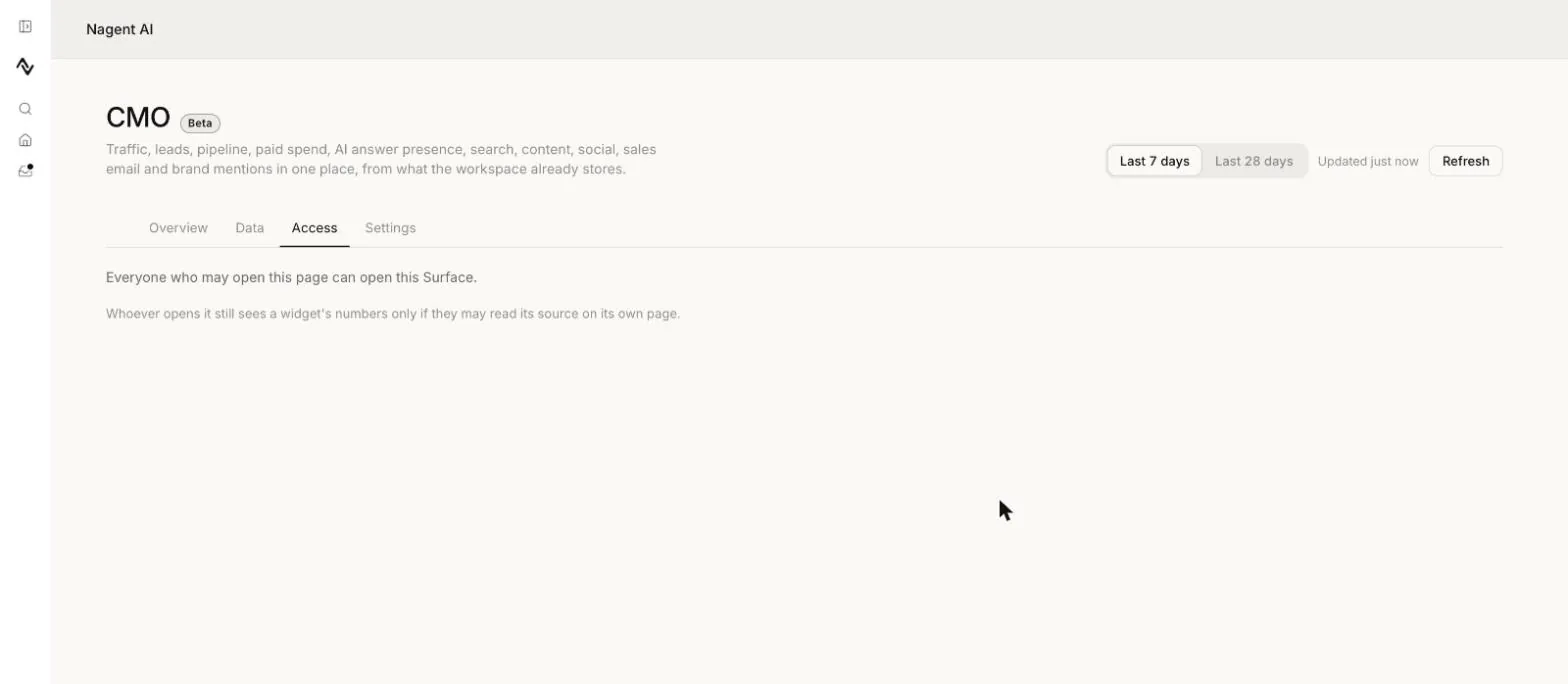
| Access | Who may open it |
| Settings | Its Name, Description and Refresh when older than (minutes) |
To change the widgets on a Surface, ask the team's agent in chat.
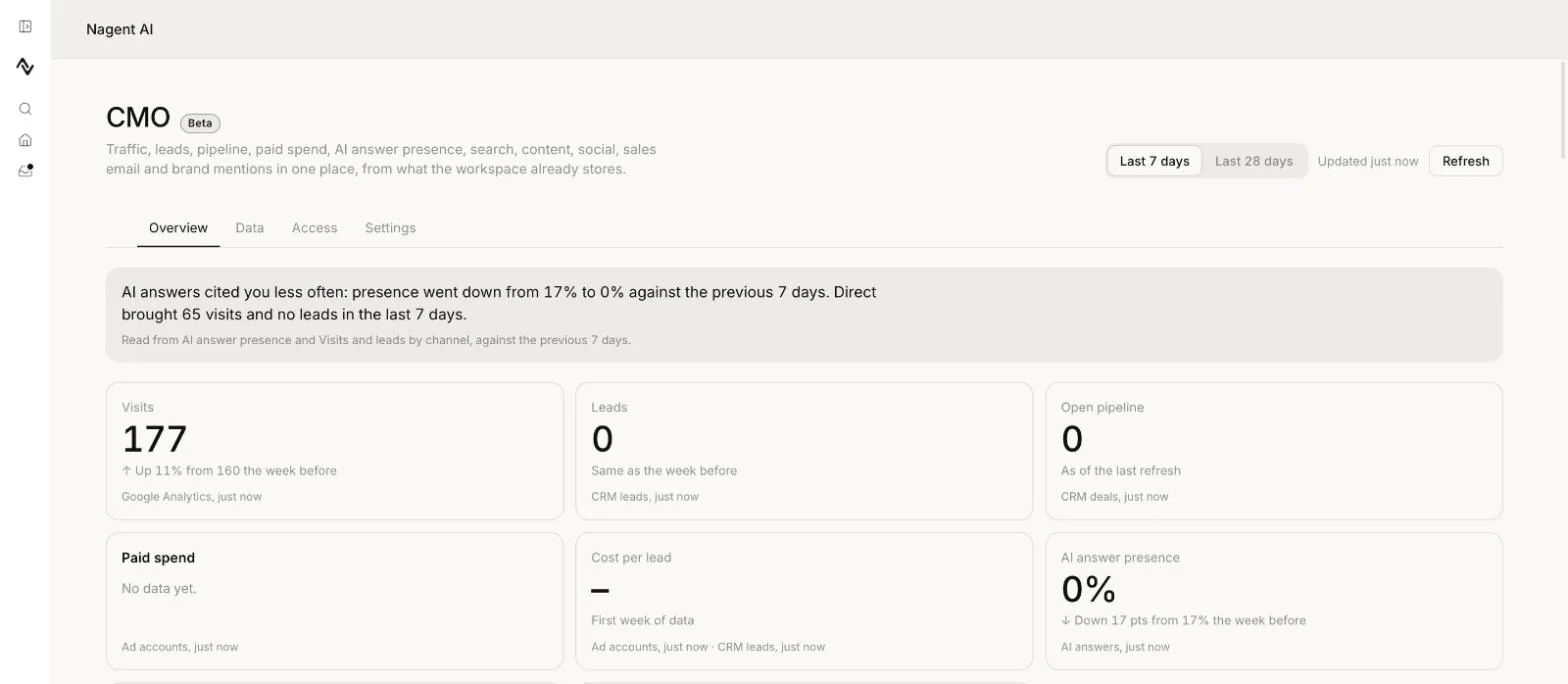
Remove this Surface deletes the page. Its numbers stay in the workspace; only the page goes.
Who can open it
By default, everyone on the team can open a team's Surface, and whoever may open an agent's page can open that agent's Surface. Under Access, Share with widens it to Everyone in the workspace or to Its room and the people named, who then find it under Surfaces in the menu. Press Save access.
Sharing never shows a number someone may not read: a widget whose source a person cannot read on its own page is shown to them without its numbers.
A page of your own from N
In your own chat with N, ask for a page of numbers you will come back to, such as a weekly tracker. N builds it for you alone, and it is listed under Your pages on N's home, where Remove deletes it. Each number reads only what you may read yourself.
Who can add a Surface
Adding a Surface, and asking an agent to build one, needs permission to change AI teams. An Organisation admin, a Chief of staff and a Team lead hold it.
Where to go next
- Builders: every builder in one place.
- Boards and surface views: the board where agents leave findings for each other.
- The team room: the room a team's Surfaces sit in.