
Connectors
How connectors give your agents your own systems, one operation at a time, and how each one is reviewed, watched, stopped and removed.
Browse documentation
A connector gives agents the operations you declare, and nothing else
Composio connects the tools you already use, such as Gmail or HubSpot. A connector is for everything else: your own API, a business system such as Salesforce or SAP, a public data feed, or a system inside your network that the internet cannot reach.
Each operation you declare on a connector becomes one tool an agent can call. An agent cannot reach any path, host or method you did not declare, and every call still passes the workspace's approval rules before it runs.
Connectors are on the Growing plan and above. Adding and changing them needs permission to manage tools, which a workspace admin holds. People without it can see the page, but its buttons are switched off.
The four kinds of connector
| Kind | What it reaches | Start with |
|---|---|---|
| Your own API | Any HTTPS API you or a partner run | New connector, or Import manifest if you have an OpenAPI, Swagger or RAML file. See adding a connector |
| A business system | Salesforce, MuleSoft, Microsoft Dynamics 365, ServiceNow, SAP and HubSpot | From a template |
| A store, marketplace, courier or accounts system | Shopify, Zoho Books, Flipkart, AfterShip, Delhivery and WhatsApp. See commerce and logistics connectors | From a template, under Commerce and logistics |
| A bank system | Finacle, TCS BaNCS, Fiserv, FIS, Jack Henry, Encompass, MeridianLink, the Account Aggregator, CIBIL, CRIF High Mark, GSTN and video KYC. See core banking, lending and India data connectors | Import manifest with the file from the connector pack |
| A data source | Company filings, exchange announcements and market identifiers. See market and regulatory data | From a template, under Data sources |
| An internal system | A core banking system, gateway, database or Bloomberg terminal feed inside your network | Add an internal system. See connecting an internal system |
The Connectors page
Open Connectors from the Integrations page. Along the top are Refresh, New connector, Import manifest, From a template, Add an internal system and, for people allowed to export it, Export audit.
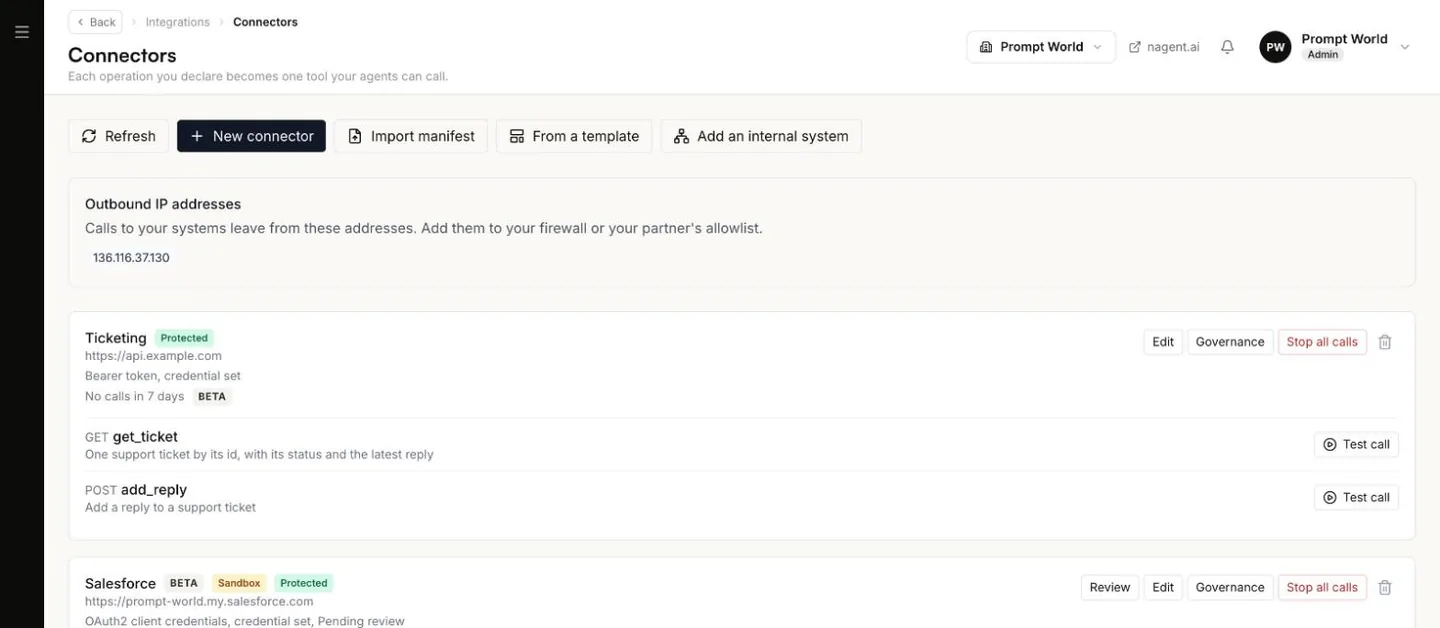
Outbound IP addresses
Calls to your systems leave from a fixed set of addresses, listed under Outbound IP addresses. Give these to your firewall team or to a partner who allowlists callers. If the panel says no fixed addresses are set, ask us before a partner allowlists you.
Each connector's row
A row shows the connector's name and its badges:
| Badge | Means |
|---|---|
| Beta | Imported, made from a template, an MCP server or an internal system |
| Sandbox | Marked as a sandbox. The label is recorded on every call it makes |
| Data source | Made from a data source template |
| Relay | An internal system, reached through a relay |
| Client certificate | Presents a client certificate to the partner |
| Inbound | Receives signed events from the service |
| Stopped | Every call is stopped. Point at it to see who stopped it and why |
| Protected | Data protection is on. See protecting data |
Under the name are the address and the sign-in method, such as "Bearer token, credential set", and the last seven days of use, for example "7 days: 12 calls, 8.3% errors, p95 120 ms". The error rate counts failed calls and network errors. A call your own rules refused is not an error. If you set a rotation period, an amber note says when the credential is due to be replaced.
Below that is the list of operations. Test call runs one operation exactly as an agent would, and shows the status and the start of the answer. It sends no input, as its hover text says, so it suits operations that need none. A test is recorded. It is refused, with nothing sent, when the connector is stopped or when its governance rules would need approvers or a limit would be broken.
Going live
A connector you write by hand with New connector is live as soon as you save it. Its operations count as reads if they use GET or HEAD, and as writes otherwise.
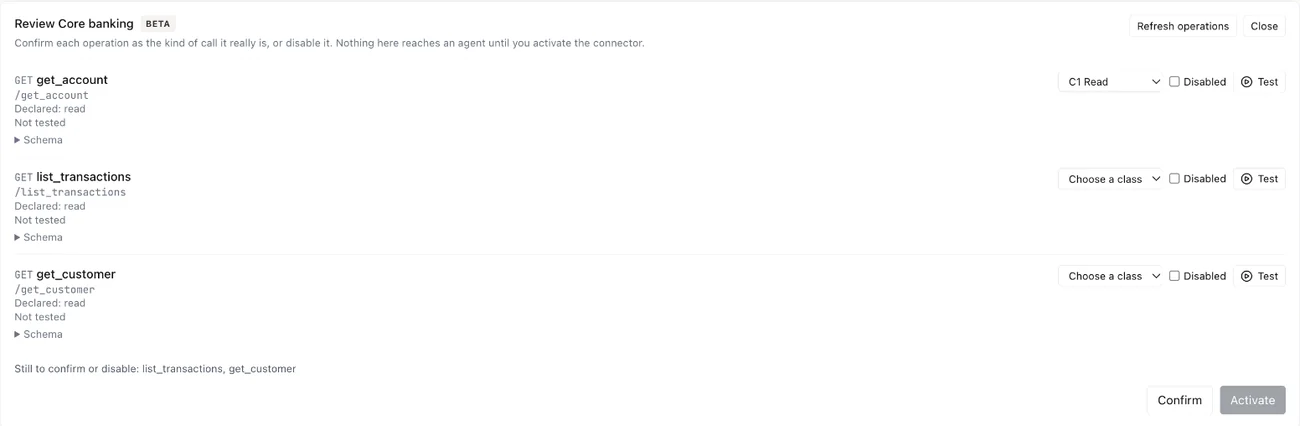
Everything else starts as Pending review: imports, templates, MCP servers and internal systems. Nothing on it reaches an agent until you review it. Select Review on the row. For each operation:
- Choose the class of call it really is. The connector's own file may
declare one; Declared shows it, and your choice is what counts:
- C1 Read looks something up and changes nothing. Agents run it without asking.
- C3 Internal act changes something inside your own systems, such as updating a record. An agent runs it alone from L3 Operate.
- C4 External act reaches outside, such as sending a payment or a message. An agent runs it alone from L4 Represent.
- Or tick Disabled to keep it away from agents.
- Use Test on a read to check it answers before you trust it. Only reads can be tested here.
Below those levels a call waits for a person's approval, as any other action does. See autonomy and governance. When every operation is confirmed or disabled, and any credential the connector needs is saved, select Activate.
If you later change an operation's method, path or input, it goes back to needing confirmation.
Rules, stopping and removing
- Governance sets who must approve each operation's calls, limits on what a call may carry, and how often the credential must be replaced. See approvals and audit for connectors.
- Stop all calls stops every call through the connector at once, including calls already queued and requests already approved. You give a reason, which is recorded. Resume starts it again.
- The bin icon deletes the connector. The confirmation names the operations that go with it: every agent using them loses those tools, so remove them from agents first. Deleting cannot be undone.
Every change on this page, and every call a connector makes, is recorded.